The ‘USB device not recognized’ balloon on an Acer laptop is Windows admitting the handshake failed: the device announced itself, the driver conversation broke down, and Windows gave up. The port delivers power — the device lights up — but no data flows. On Acers this traces to the USB stack, chipset drivers, or power management in the vast majority of cases.
Acer’s specific variables: the chipset driver bundle from Acer support (which owns USB enumeration), Acer Care Center power plans that aggressively suspend ports, and Fast Startup preserving broken USB states across reboots. Before any of that, though, comes the elimination triage — because a dead device or charge-only cable needs no driver work at all.
Run the fixes in order. Fix 2 alone resolves most persistent cases.
One more thing to establish before you start: note exactly when the failure happens. Devices that fail only after sleep point to power management; devices that never work point to drivers; devices that fail on one port point to hardware. That single observation tells you which fix to prioritize, and it takes less time than reading this paragraph.
Why this happens
- Corrupted USB host controller state: Bad sleep/wake cycles or failed transfers wedge the controller driver until reset.
- USB selective suspend: Ports powered down and never properly woken for certain devices.
- Outdated Acer chipset drivers: Acer’s chipset package owns enumeration; generic drivers do it worse.
- Unpowered hub starving the handshake: Insufficient power during device identification.
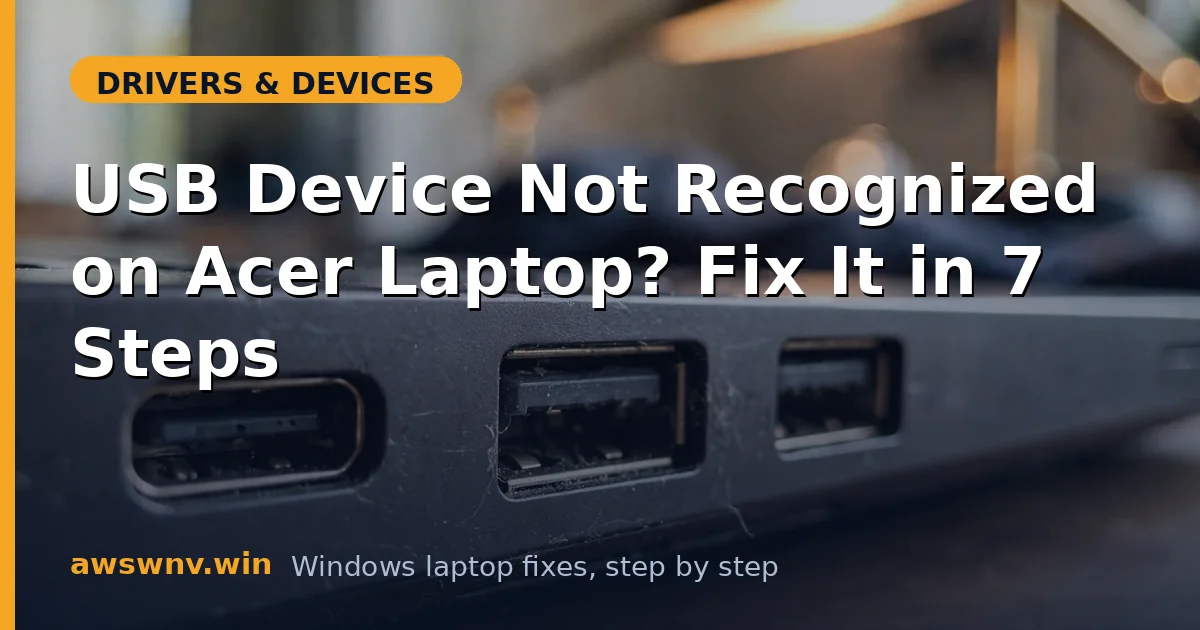
- Dirty or damaged connector: Data lines interrupted while power flows — classic ’lights up but unrecognized’.
- Fast Startup preserving failure: Hibernated USB state surviving reboots.
- Conflicting USB software: Phone suites and virtual USB tools hooking the stack.
- Acer power plan aggression: Care Center custom plans suspending USB more aggressively than Windows defaults.
How to fix it
Work through these in order — diagnose first, then act.
Fix 1: Triage: device, port, cable
Ten seconds to avoid an hour of wrong work.
- Device on another PC: fails there = dead device/cable, done.
- Different Acer ports (A and C). Different cable — rule out charge-only cables.
- Works elsewhere + fails on all Acer ports = laptop stack issue. Continue.
Fix 2: Reset the USB controller stack
The highest-yield single fix for persistent recognition failures. Uninstalling the controllers forces Windows to discard the corrupted driver state entirely and rebuild it from the driver store on the next scan. This clears wedged enumerations, stale device records, and half-loaded drivers in one operation — which is why technicians do it before anything more targeted.
- Device Manager → Universal Serial Bus controllers → uninstall every USB Root Hub and Host Controller.
- Action → Scan for hardware changes; reboot; reconnect the device.
Fix 3: Disable USB selective suspend
Eliminate the sleep-related failure mode at both levels: Windows’ USB selective suspend setting and Acer Care Center’s own power plan, which can suspend ports even more aggressively than Windows defaults. Devices that work after a reboot but fail after sleep are the textbook symptom — if that matches your pattern, this fix is very likely your answer.
- Power Options → Advanced → USB settings → USB selective suspend → Disabled (both modes).
- Also set the Acer power plan to Balanced in Acer Care Center if a custom aggressive plan is active.
- Reboot; test across a sleep/wake cycle. Full details: selective suspend guide .
Fix 4: Install Acer’s chipset driver
Proper enumeration drivers for your exact board. Acer’s chipset package contains the USB host controller drivers tuned for your model’s power delivery and port layout; the generic Windows versions enumerate devices less reliably, particularly high-power peripherals like external drives and docks. Install the package even if Device Manager shows no warnings — the absence of a warning does not mean the driver is optimal.
- Acer support → your model → Chipset driver → install → reboot.
- Verify no warnings remain under USB controllers in Device Manager.
Fix 5: Full shutdown past Fast Startup
Clear the hibernated USB state.
- Uncheck Turn on fast startup (Power Options → Choose what the power buttons do).
- Shut down (not restart), wait 10 seconds, power on, test.
Fix 6: Clean ports and purge ghost devices
Hardware inspection plus stale-entry removal.
- Power off; check the port for bent pins/lint; clean with toothpick or compressed air.
- View → Show hidden devices → uninstall grayed USB ghosts of the device.
- Remove unused phone-sync/virtual-USB software; reboot.
Fix 7: BIOS check and Safe Mode isolation
Last software stops before hardware verdict.
- F2 → BIOS → confirm USB/XHCI settings enabled; load defaults if unsure.
- Safe Mode test: works there = third-party conflict.
- Single dead port = hardware; use remaining ports.
Fix 8: Rule out software conflicts with a clean boot
When the stack resets and drivers are correct but the device still fails, a third-party program is likely intercepting the USB enumeration. A clean boot strips Windows to its essentials so you can prove it.
- Press Win+R, type msconfig, go to the Services tab, check Hide all Microsoft services, then click Disable all.
- In Task Manager → Startup apps, disable every startup item, then reboot.
- Test the USB device in this clean state — if it enumerates now, a third-party program was interfering.
- Re-enable services in halves to isolate the culprit; phone-sync suites and USB security tools are the usual suspects.
- Also check Windows Update → Advanced options → Optional updates for any USB or chipset driver updates before returning to normal boot.
Closing
On Acer laptops the ’not recognized’ error is a stack repair job: reset the controllers, kill selective suspend (including Acer’s aggressive power plans), install Acer’s chipset driver, and shut down past Fast Startup. The triage in Fix 1 keeps the whole thing honest — repair the laptop when the laptop is at fault, replace the device when it isn’t. For the Windows 10-specific selective suspend steps, see turn off USB selective suspend on Windows 10 . Microsoft maintains general USB device troubleshooting at Windows USB support .