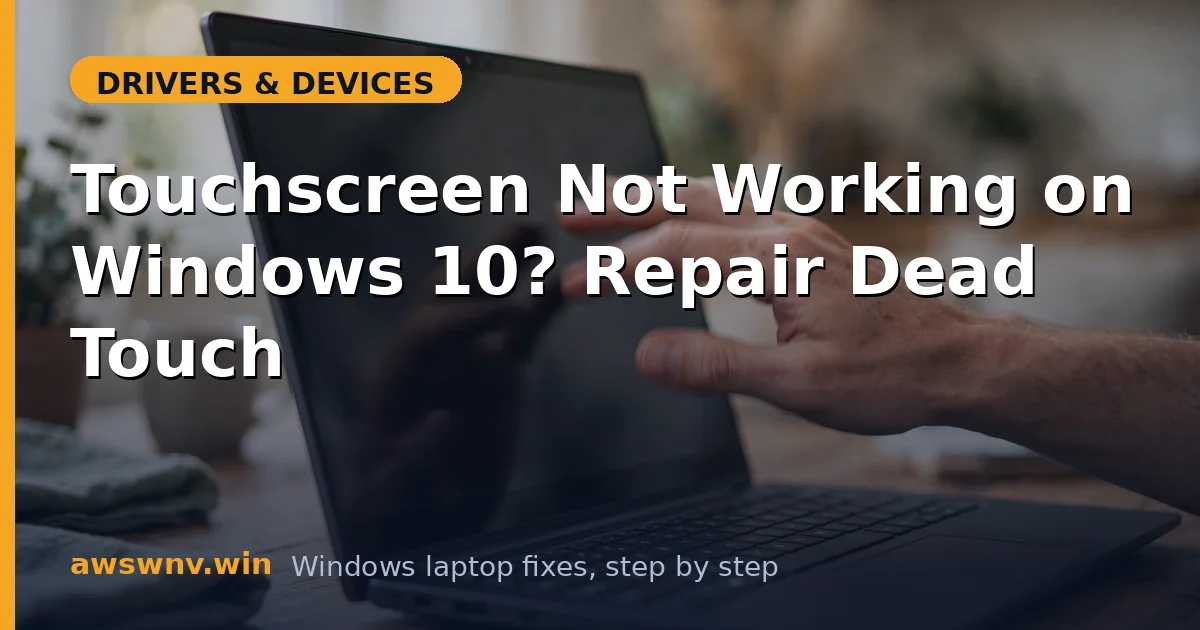
Windows 10 laptops with touchscreens fail in a distinctive way: the display is flawless, the mouse and touchpad work, but fingers on the glass do absolutely nothing. Because Windows 10 is now in its long maintenance phase, these failures usually trace to a driver that was working for years and then broke during a cumulative update — or to a digitizer that has been silently disabled in Device Manager since the last feature update migrated the system.
The touch pipeline on Windows 10 runs through the HID-compliant touch screen device under Human Interface Devices, which itself depends on the chipset’s serial IO driver to communicate with the digitizer hardware. When any link in that chain breaks — the HID device disabled, the serial IO driver mismatched, the calibration data corrupted — touch dies while everything else carries on normally. The hardware digitizer is the most reliable part of the chain and the least likely culprit.
Work through the checks below in order. They start with the sixty-second Device Manager fixes that resolve most cases, move through driver reinstallation and calibration, and finish with the BIOS and hardware tests that give you a definitive answer.
Why this happens
- HID touch device disabled after an update: Windows 10 cumulative and feature updates can leave the HID-compliant touch screen device disabled. No error appears anywhere; touch simply stops.
- Serial IO driver mismatch: The digitizer reaches the CPU through the serial IO bus. An outdated or generic serial IO driver breaks communication while the HID device looks deceptively normal.
- Corrupted calibration data: Bad calibration mapping makes touches land far from the finger or register only in patches, which reads as a dead screen.
- Tablet-mode posture sensor stuck: On convertibles, a stuck sensor can convince Windows the device is in a posture where touch should be suppressed.
- Touchscreen disabled in BIOS: A BIOS toggle for the touchscreen exists on many business laptops, and firmware updates can reset it without notice.
- Power management suspending the digitizer: Windows may power down the touch controller to save battery and fail to wake it, producing touch that works after boot but dies later.
- Digitizer hardware failure: Cracked glass, delamination, or a damaged digitizer cable kills touch in zones or entirely. Failure that follows a drop or starts at one edge points here.
How to fix it
Work through these in order — diagnose first, then act.
Fix 1: Re-enable the HID-compliant touch screen
The most common fix is also the fastest. Updates disable the device silently, and re-enabling it restores touch instantly.
- Open Device Manager and expand Human Interface Devices.
- Right-click HID-compliant touch screen and choose Enable device if offered.
- If there are multiple touch screen entries, enable each one, then test touch right away.
Fix 2: Force Windows to rediscover the digitizer
When the device is enabled but touch still fails, its driver state is likely corrupt. Uninstalling forces a clean rediscovery on reboot.
- Right-click the HID-compliant touch screen entry and choose Uninstall device.
- Leave the driver-deletion box unchecked for this first attempt.
- Restart the laptop and test touch at the lock screen. If the entry never reappears, open the View menu and select Show hidden devices to find it.
Fix 3: Reinstall chipset and serial IO drivers
The HID driver is only the top of the stack. The serial IO driver underneath it is what actually talks to the digitizer hardware, and it must match your chipset.
- Download the chipset and serial IO drivers for your exact model from the vendor’s support site.
- Install the chipset package first, restart, then install the serial IO package.
- Check Device Manager for warning icons under System devices and Human Interface Devices. Microsoft documents the built-in diagnostics on its Windows support pages .
Fix 4: Recalibrate the touchscreen
For touch that works but lands in the wrong place — offset taps, dead edges — calibration rebuilds the digitizer’s coordinate mapping.
- Open Control Panel, then Tablet PC Settings, and choose Calibrate on the Display tab.
- Tap each crosshair target precisely as it appears.
- Use Reset beforehand if touch is wildly offset; a bad existing calibration fights the new one.
- Verify with edge swipes and corner taps when finished.
Fix 5: Disable power management on the touch controller
Touch that works after a fresh boot but dies after idle or sleep is the signature of a power-management failure.
- In Device Manager, find the HID-compliant touch screen entry and any USB input devices feeding it.
- Open Properties, go to the Power Management tab, and uncheck Allow the computer to turn off this device to save power.
- Let the laptop idle past its sleep timer, wake it, and confirm touch survives.
Fix 6: Check the BIOS touchscreen toggle
A firmware-level disable overrides every Windows fix. This is quick to check and rules out the entire OS as the problem.
- Enter the BIOS setup during boot.
- Look under Advanced or Devices for a touchscreen or internal digitizer option and enable it.
- Save and boot to Windows. If touch returns, a firmware update had flipped it. For the newer OS with its own driver behaviors, see touchscreen fixes on Windows 11 .
Fix 7: Test touch in the BIOS to isolate hardware
Many modern BIOS setups respond to touch. That gives you a test environment with no Windows drivers involved at all.
- Reboot into the BIOS and try tapping and swiping its interface.
- Touch working in BIOS but dead in Windows means the digitizer is healthy — repeat the driver steps using the vendor’s complete package, not Windows Update’s picks.
- Touch dead in the BIOS as well means the digitizer, its cable, or the panel needs professional service.
Closing
Windows 10 touchscreen failures reward methodical work: the HID device, the serial IO driver beneath it, calibration, and power management cover nearly every software cause. The BIOS touch test is your definitive fork in the road — touch in the BIOS means Windows can be fixed, and no touch in the BIOS means it is time for a repair shop. Either way, you will know exactly where you stand instead of guessing.