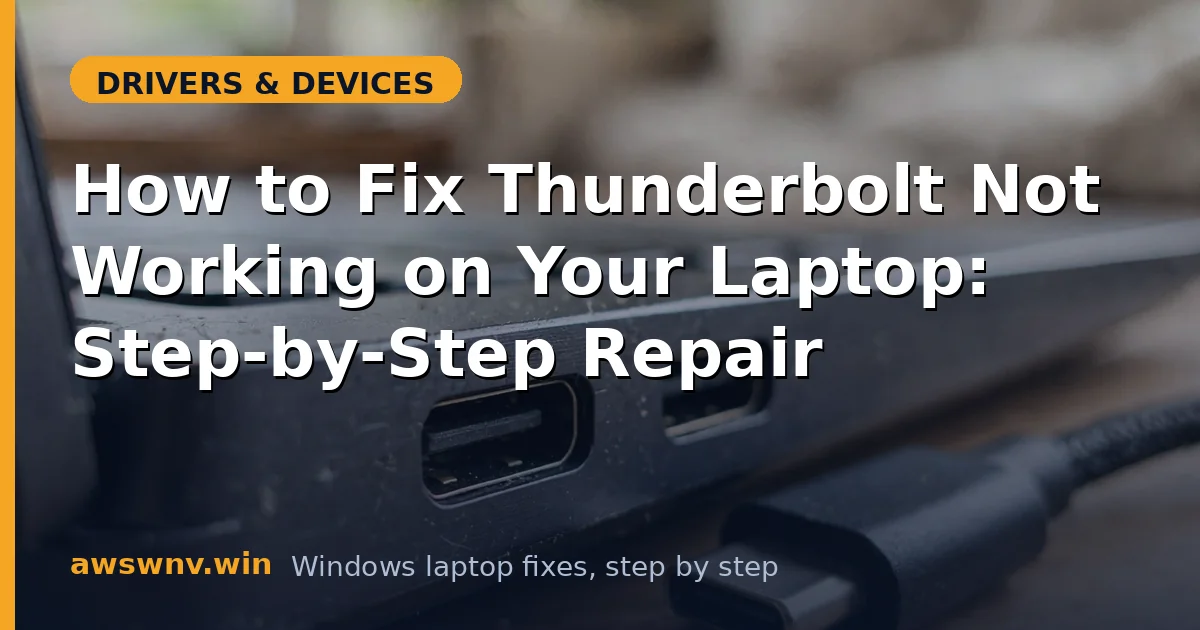
Thunderbolt promises one cable for charging, displays, and blazing-fast data — so when your dock, monitor, or external SSD suddenly stops being recognized, it feels like the laptop’s best feature just died. The maddening part is that Thunderbolt problems rarely announce themselves with a clear error; the device simply does nothing, or Windows shows an unknown USB device.
The technology sits at the intersection of firmware, drivers, security policy, and the physical cable, which means failures can come from any layer. That also means the fix is usually a matter of working through the layers in order rather than guessing. This guide walks you through the diagnostic sequence I use on real machines, from the five-second checks to the firmware-level repairs.
Why this happens
- Missing or outdated Thunderbolt driver: Without the correct Thunderbolt bus driver, Windows cannot enumerate anything connected to the port.
- Outdated Thunderbolt firmware (NVM): The controller’s own firmware can develop bugs fixed only by a firmware update from the laptop maker.
- Thunderbolt disabled in BIOS: Some firmware exposes a Thunderbolt on/off toggle, or a security level that blocks new devices until approved.
- Non-certified or damaged cable: Regular USB-C cables fit the port but cannot carry Thunderbolt signaling, and a damaged active cable fails silently.
- Wrong port: Many laptops have multiple USB-C ports but only one wired for Thunderbolt; plugging into the USB-only port guarantees failure.
- Windows Thunderbolt security blocking the device: New devices must be approved in the Thunderbolt Control Center unless the security level allows automatic connection.
- Power delivery conflicts: Underpowered docks or chargers can cause the controller to reset repeatedly, breaking the Thunderbolt handshake.
How to fix it
Work through these in order — diagnose first, then act.
Fix 1: Verify the port, cable, and device
Confirm you are plugged into the port marked with the lightning-bolt symbol, not a plain USB-C port. Swap in a certified Thunderbolt cable — ideally the one supplied with your dock — and make sure it is under 2 meters if passive. Try the device on another Thunderbolt-capable computer if possible. If it works there, your laptop is the problem; if it fails everywhere, the device or cable is dead. This two-minute triage saves hours of driver work on what turns out to be a bad cable. For related USB-C display issues, see our guide on fixing USB-C display problems on Dell laptops .
Fix 2: Approve the device in Thunderbolt Control Center
Open the Thunderbolt Control Center app (install it from the Microsoft Store if missing) and look under Attached Thunderbolt Devices. If your device appears as pending, click it and approve it, choosing “Always Connect” so future plug-ins work automatically. Windows blocks new Thunderbolt peripherals by default as an anti-DMA-attack measure, and approval is a one-time step many people miss after reinstalling Windows or changing security settings. Reboot after approving, then reconnect the device and check whether it enumerates correctly.
Fix 3: Update the Thunderbolt driver from your laptop maker
Download the latest Thunderbolt driver for your exact model from Dell , HP , or Lenovo . In Device Manager, expand System devices, right-click the Thunderbolt controller, choose Uninstall device, and tick driver deletion. Install the downloaded driver and restart. Do not rely on Windows Update for this driver — the OEM package includes the control-center integration and firmware hooks the generic driver lacks. After reinstalling, open Device Manager again and confirm the controller appears without a warning icon.
Fix 4: Update Thunderbolt firmware (NVM)
Check your manufacturer’s support page for a Thunderbolt firmware or NVM update for your model. Run the updater with the laptop plugged into AC power and nothing connected to the Thunderbolt ports. The update takes a few minutes and may reboot the machine. Firmware updates fix controller-level bugs that no driver can work around, including handshake failures with newer docks. Never interrupt the process — a failed firmware flash can permanently disable the controller. If your vendor offers no update, skip to the BIOS checks below.
Fix 5: Check Thunderbolt settings in BIOS/UEFI
Restart into firmware setup and locate the Thunderbolt section, often under Advanced, Devices, or Security. Ensure Thunderbolt is enabled and note the security level: “User Authorization” requires approving each new device, while “No Security” connects automatically. If devices worked before a BIOS update, the update may have reset the level to the strictest option. Set it to User Authorization (the balanced choice), save, and exit. Re-approve your dock in the Control Center on next boot. Intel’s driver detection tool at Intel DSA can also flag outdated controller drivers.
Fix 6: Power-cycle the Thunderbolt controller
Shut the laptop down completely, unplug AC power and all Thunderbolt devices, then hold the power button for 30 seconds to drain residual power. Reconnect only AC power, boot up, and plug the Thunderbolt device in after Windows finishes loading. This hard reset clears the controller’s stuck state, which is a surprisingly common cause of docks that worked yesterday and fail today. If the device uses its own power supply, power-cycle the dock too, and connect it to the wall rather than a power strip if you suspect delivery issues.
Fix 7: Test with a clean driver stack and reseat the hardware
If nothing has worked, disable fast startup (Control Panel, Power Options, “Choose what the power buttons do,” uncheck fast startup) so every boot fully reinitializes the controller. As a last resort, check whether your laptop’s Thunderbolt add-in card or cable is properly seated if the model allows access, and test the device on a second machine again to confirm it is healthy. For persistent dock failures, our broader piece on what to do when Thunderbolt is not working covers advanced scenarios.
Closing
Thunderbolt failures almost always trace back to one of four things: the wrong port or cable, an unapproved device, an outdated driver, or stale firmware. Working the layers from the cable up to the BIOS resolves the vast majority of cases without ever opening the machine — and once the handshake succeeds, Thunderbolt’s one-cable convenience is worth the ten minutes of diagnosis.