Thunderbolt promises one cable for displays, docks, storage, and charging — and when it stops working, everything attached to that port goes dark at once. The dock is not detected, the external monitor stays black, and Device Manager may not even show a Thunderbolt controller. Because Thunderbolt stacks drivers, firmware, BIOS settings, and cable certification into one chain, the failure can hide at any layer.
The good news is the diagnostic order is well established: verify the port and cable, fix the driver and software, update firmware, check the BIOS, and test the hardware. Follow the steps below in sequence — Thunderbolt returns at one of these stages in nearly every case that is not a dead controller.
Why this happens
- Thunderbolt driver missing or outdated: Without Intel’s Thunderbolt driver, Windows cannot enumerate the controller or its devices.
- Thunderbolt firmware (NVM) outdated: Old controller firmware fails with newer docks and devices.
- Non-certified cable: Regular USB-C cables lack the active circuitry or wiring Thunderbolt requires.
- Controller disabled in BIOS: A firmware toggle for Thunderbolt can be switched off, hiding the entire subsystem.
- Thunderbolt security level blocking: BIOS security settings (especially “DisplayPort only” or high-security modes) block device authorization.
- Windows update driver mismatch: The update replaces the Thunderbolt driver with an incompatible version.
- Dock or device firmware outdated: The dock itself needs firmware updates to stay compatible with the laptop’s controller.
How to fix it
Work through these in order — diagnose first, then act.
Fix 1: Verify the port, cable, and device basics
Thunderbolt’s pickiness starts with physical requirements.
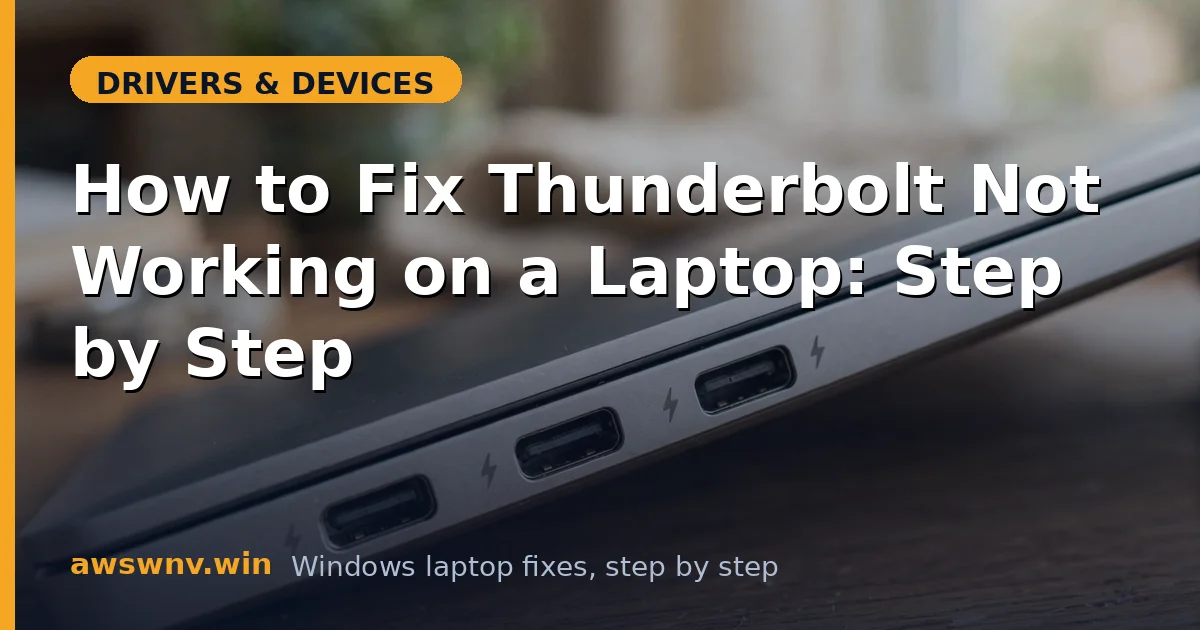
- Confirm the port has the lightning-bolt symbol — no symbol, no Thunderbolt.
- Use a certified Thunderbolt cable (look for the lightning logo on the connector). Passive Thunderbolt cables longer than ~0.8m often fail; use the cable that came with the dock.
- Connect the Thunderbolt device directly to the laptop, bypassing any adapters or hubs.
- Ensure the dock’s own power adapter is connected — underpowered docks drop Thunderbolt devices first.
If the device works with a different certified cable, the original cable was the entire problem. Never troubleshoot Thunderbolt software with a suspect cable in the chain.
Fix 2: Install the Intel Thunderbolt driver and software
The missing-software case is the most common on fresh Windows installs.
- Go to your laptop maker’s support page (Dell , HP , Lenovo ) and download the Thunderbolt driver for your exact model.
- Install it and restart.
- Open the Thunderbolt Control Center (from the Microsoft Store if not preinstalled) and check that the controller appears.
- Approve any connected devices when the authorization prompt appears.
The Control Center also shows the controller’s NVM firmware version — write it down for Fix 4. Intel’s Driver & Support Assistant can also detect missing Thunderbolt drivers.
Fix 3: Update chipset and BIOS-adjacent drivers
Thunderbolt depends on the platform drivers beneath it.
- Install the latest chipset driver and Management Engine driver from your laptop maker’s support page.
- In Device Manager, check System devices for the Thunderbolt controller — update its driver if a warning icon appears.
- Restart and retest the Thunderbolt device.
An outdated chipset driver starves the Thunderbolt controller of the PCIe resources it needs, producing exactly the “controller present but devices not detected” symptom.
Fix 4: Update Thunderbolt NVM firmware
Controller firmware fixes compatibility with newer docks and devices.
- In the Thunderbolt Control Center, note your current NVM firmware version.
- Check your laptop maker’s support page for a Thunderbolt firmware update — install it following the instructions exactly, with the charger connected.
- Do not interrupt the update. Restart afterward and retest.
Firmware updates are safe when done by the book but must never be interrupted. If no firmware update is listed for your model, your NVM is current and the problem lies elsewhere.
Fix 5: Check BIOS Thunderbolt settings
Firmware toggles control the entire Thunderbolt subsystem.
- Reboot into BIOS/UEFI setup.
- Find Thunderbolt settings (often under Advanced or Security). Ensure Thunderbolt is Enabled.
- Check the Security level: No Security or User Authorization are the most compatible; overly strict levels block docks. Set it to allow your devices, approving them in the Control Center.
- Ensure Thunderbolt Boot Support and Pre-boot options match your needs (needed for docks used before Windows loads).
- Save and boot into Windows.
Note the original settings before changing them — security-conscious environments may require specific levels. For display-specific Thunderbolt issues, our USB-C display guide covers the video path in detail.
Fix 6: Reset the Thunderbolt authorization and power-cycle
Stuck authorization states block previously working devices.
- In the Thunderbolt Control Center, remove/forget the problematic device.
- Shut down the laptop fully, unplug the charger, and hold the power button 30 seconds to reset the embedded controller.
- Reconnect everything, power on, and approve the device when prompted.
The embedded-controller reset clears low-level port states that survive normal reboots — a surprisingly effective fix for docks that worked yesterday and do not today.
Fix 7: Update the dock firmware and isolate hardware failure
The dock is an active computer in its own right and needs maintenance.
- Check the dock manufacturer’s site for a firmware update utility and apply it.
- Test the Thunderbolt device on a different Thunderbolt port on the laptop, if available.
- Test the dock with a different Thunderbolt laptop to determine whether the laptop or the dock is at fault.
- If the controller is absent from Device Manager (even with hidden devices shown) after all software fixes, and the BIOS toggle is on, the Thunderbolt controller hardware may have failed — contact manufacturer support.
Isolating which side is broken prevents replacing the wrong expensive component. Also check DisplayPort troubleshooting if the dock’s video outputs specifically are the failing part.
Closing
Thunderbolt failures look complex because the chain has so many links — cable, driver, firmware, BIOS, dock — but the diagnostic order is straightforward: certified cable and correct port first, Intel Thunderbolt driver and chipset second, NVM firmware and BIOS settings third. Worked through methodically, these steps restore Thunderbolt on nearly every laptop where the controller hardware is healthy.