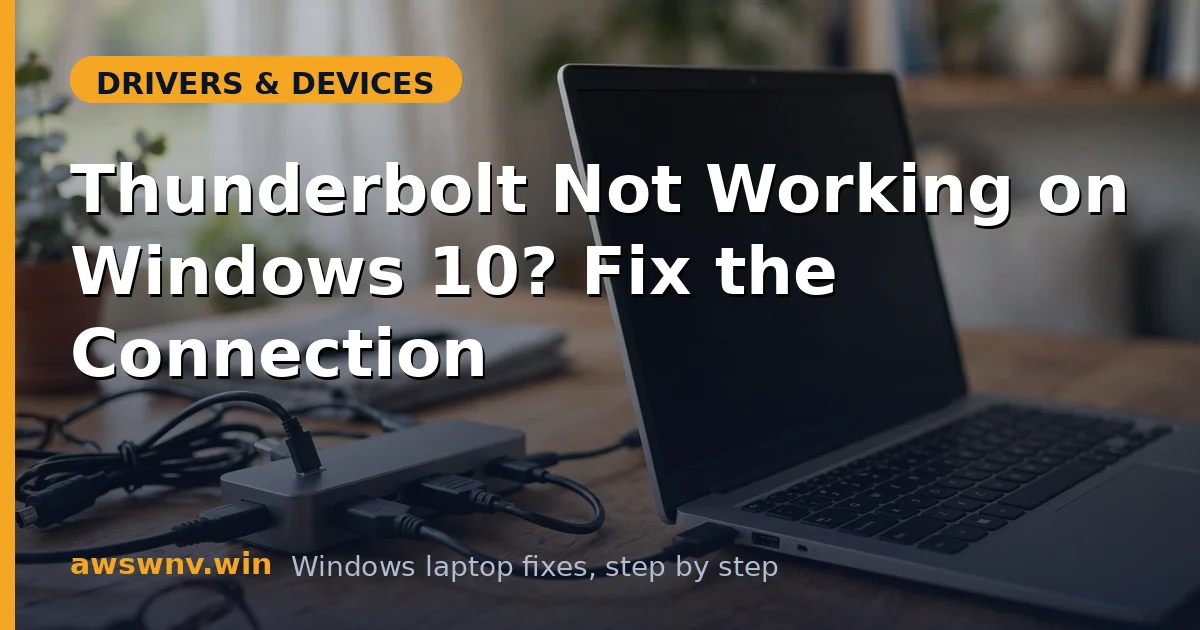
Thunderbolt on Windows 10 lives in a different world from Thunderbolt on Windows 11. There is no native OS-level Thunderbolt 4 stack doing the work quietly in the background — instead, everything depends on the vendor’s Thunderbolt software package, manual device approval, and drivers that Windows Update loves to replace with generic versions. When it breaks, the symptoms are familiar: the dock charges the laptop, but monitors, Ethernet, and USB ports on the dock stay dark.
The approval model is the key difference to internalize. On Windows 10, a Thunderbolt 3 device connected for the first time — or re-enumerated after a driver change — waits in the Thunderbolt Software for you to approve it. Until you do, the dock is a very expensive charger. Combine that with Windows 10’s habit of swapping Thunderbolt drivers during cumulative updates, and you get failures that appear from nowhere on machines that worked yesterday.
The fix order below respects the Windows 10 specifics: cable verification, the legacy approval software, controller driver reinstallation, BIOS settings, and dock isolation. Work through them in sequence.
Why this happens
- Device never approved in Thunderbolt Software: Windows 10 requires explicit approval for Thunderbolt 3 devices. An unapproved dock charges but exposes nothing else, indefinitely.
- Vendor Thunderbolt package replaced by Windows Update: Cumulative updates can swap the vendor’s Thunderbolt driver for a generic one that cannot manage approval or firmware updates.
- Non-Thunderbolt USB-C cable: A charge-only USB-C cable delivers power but no Thunderbolt data lanes. The dock looks dead while the battery charges happily.
- Controller in an error state: Failed sleep resumes and driver conflicts can leave the Thunderbolt controller flagged in Device Manager, taking all attached devices down with it.
- Thunderbolt security set too strictly in BIOS: Pre-boot security options can require approval levels the software cannot satisfy, or block devices before the OS loads.
- Outdated dock firmware: Older dock firmware may not negotiate correctly with an updated controller driver, producing intermittent or total connection failure.
- Daisy-chain or device-order issues: Some Thunderbolt 3 chains are sensitive to connection order. A device that worked in one chain position may fail in another after a driver change alters enumeration timing.
How to fix it
Work through these in order — diagnose first, then act.
Fix 1: Use a certified Thunderbolt cable
Rule out the physical layer first. Windows 10 gives you no diagnostic for a cable that carries power but not data.
- Use a cable with the lightning-bolt logo, ideally under one meter and certified for Thunderbolt 3 or 4.
- Connect it directly between the laptop and the dock — no adapters or extenders while testing.
- Wait ten seconds after connecting; Thunderbolt 3 negotiation on Windows 10 is slower than you expect.
Fix 2: Approve the device in the Thunderbolt Software
This is the Windows 10-specific step that Windows 11 users never see. An unapproved device is the default state, not an error.
- Search the Start menu for Thunderbolt Software and open it.
- Find your dock in the device list and set its status to Always Connect.
- If the software is missing entirely, download the Thunderbolt driver package from your laptop vendor and install it — the software comes bundled.
Fix 3: Reinstall the vendor’s Thunderbolt package
When the controller misbehaves or the software is missing, the complete vendor package — driver plus management software plus firmware — is the authoritative repair.
- Download the Thunderbolt package for your exact model from the vendor’s support site; Intel’s Driver and Support Assistant can identify the right controller driver.
- Uninstall the existing Thunderbolt software from Apps, then install the fresh package.
- Restart, reconnect the dock, and approve it again in the software.
Fix 4: Reset the Thunderbolt controller
A controller wedged by a bad sleep resume needs clean re-enumeration. This is quick and safe.
- Open Device Manager and expand System devices.
- Right-click the Thunderbolt controller, choose Uninstall device without deleting the driver, and restart.
- After reboot, confirm the controller reappears without a warning before reconnecting the dock.
Fix 5: Check BIOS Thunderbolt settings
Firmware settings govern what the controller is allowed to do before Windows loads, and updates can reset them.
- Enter the BIOS and locate the Thunderbolt configuration section.
- Enable Thunderbolt support and set security to a level that permits user approval rather than blocking devices outright.
- Save and exit, then test in Windows. For the newer OS behavior differences, see Thunderbolt on Windows 11 .
Fix 6: Update the dock’s firmware
Dock firmware updates fix negotiation bugs that appear after the laptop-side driver changes. The dock vendor provides the updater.
- Download the firmware utility from the dock manufacturer’s support page.
- Run it with the dock connected directly to the laptop via the certified cable.
- Power-cycle the dock after the update completes and re-approve it if prompted.
Fix 7: Isolate dock versus port
If nothing above helps, determine which side is actually broken with a substitution test.
- Try the dock on a different Thunderbolt laptop.
- Try a different Thunderbolt peripheral in your laptop’s port.
- Reveal any hidden controller entries with show hidden devices — a grayed-out controller points at driver or BIOS rather than hardware. Microsoft’s Windows support pages cover the built-in hardware diagnostics as a final check.
Closing
Thunderbolt on Windows 10 demands more manual care than on Windows 11 — the approval step, the vendor software package, and driver stability through cumulative updates are all on you. But the failure modes are well understood: cable, approval, driver, BIOS, dock. Work them in order and the dock that looked dead will usually come back without spending a cent, ready for another few years of service on the older OS.