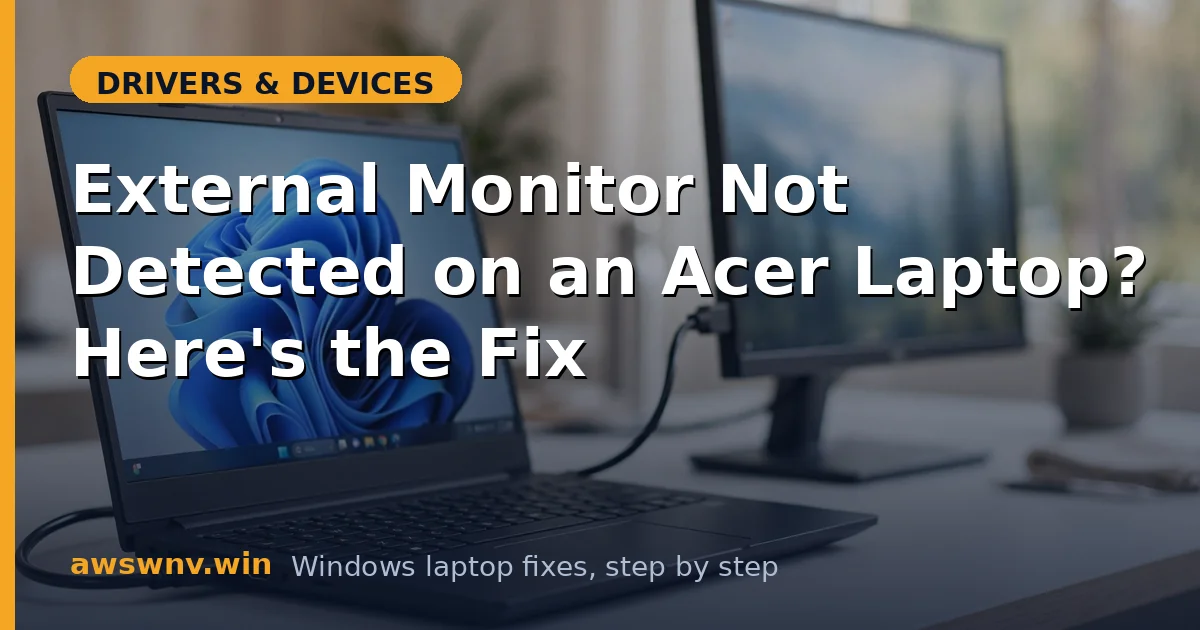
Acer’s Aspire, Swift, Spin, and Nitro laptops cover a wide range of display architectures — from basic Intel integrated graphics on Aspires to MUX-equipped NVIDIA GPUs on Nitros. When a second monitor is not detected on an Acer in Windows 11, the universal checks (cable, projection mode, driver) come first, but Acer-specific layers — Care Center drivers, NitroSense GPU behavior, and model-specific port wiring — deserve their own attention.
This guide moves from the quick Windows checks into Acer territory: Care Center’s validated graphics drivers, NitroSense and NVIDIA settings on gaming models, BIOS display options, and the isolation testing that proves whether the port itself is alive. Check Settings > System > Display after each fix.
Why this happens
- Windows Update generic graphics driver: replaces Acer’s validated driver, breaking display-output handling on some models.
- NitroSense power profiles: battery-saver profiles on Nitro/Predator models can limit the discrete GPU that drives external ports.
- Wrong GPU driving the port: on dual-GPU Acers, the external port may be wired to the GPU that is currently idle or misconfigured.
- Stale display topology: Windows’ cached multi-monitor arrangement conflicts with the actual connection after updates.
- Marginal cable or port: Acer’s budget HDMI implementations can be less tolerant of out-of-spec cables.
- BIOS display settings: some Aspire models include BIOS options affecting external display initialization.
- Dock or adapter incompatibility: USB-C dongles and docks with outdated firmware fail the display handshake.
How to fix it
Work through these in order — diagnose first, then act.
Fix 1: Cycle projection mode and force detection
The fastest wins live here. Projection mode flips and stale topologies cause a large share of detection failures, and the fix takes under a minute.
- With the monitor powered on and connected, press Windows key + P and choose Extend.
- Open Settings > System > Display and click Detect.
- Try Duplicate, then back to Extend to force re-enumeration.
- Reseat the cable at both ends while Windows is running.
- If the display appears, arrange the monitors and restart to verify persistence — the same first step as our general update-related monitor guide .
Fix 2: Update graphics drivers via Acer Care Center
Acer Care Center provides graphics drivers validated against your exact model’s display routing — meaningfully better than Windows Update’s generics for detection issues.
- Open Acer Care Center and install all recommended updates, prioritizing graphics/chipset items.
- Confirm it detected your exact model number (e.g., Nitro 5 AN515-58, not just “Nitro 5”).
- Restart with a full shutdown after installation.
- Reconnect the monitor and test detection.
- If Care Center offers no graphics update, download the driver manually from the manufacturer’s support page for your full model number.
Fix 3: Configure the GPU correctly (Nitro/Predator dual-GPU models)
On Acer gaming laptops, which GPU drives the external port matters. A misconfigured preferred-GPU setting can leave the port’s GPU idle while the other renders — and the monitor undetected.
- Open NitroSense (or PredatorSense) and switch to a Balanced or Performance profile — not battery saver.
- Open NVIDIA Control Panel > Manage 3D settings and check the preferred graphics processor setting.
- Try forcing the High-performance NVIDIA processor for testing, then retest monitor detection.
- In Windows Settings > System > Display > Graphics, verify no per-app override is interfering.
- If forcing the discrete GPU fixes detection, the issue was GPU-routing — leave the setting or update drivers, whichever you prefer, similar to the routing fixes in our Lenovo monitor guide .
Fix 4: Isolate the cable, port, and monitor
Acer’s HDMI ports can be picky about cable quality. Ten minutes of isolation testing identifies whether the chain or the laptop is at fault.
- Test the monitor with another source (console, another laptop) to confirm the panel and its input.
- Test your Acer on a different display or TV.
- Swap in a certified High Speed HDMI or DisplayPort cable.
- Try every video output on the laptop — HDMI and USB-C — to see if one path works.
- If another display works with your Acer but your monitor does not, suspect the monitor’s firmware or input; if no display works with the Acer, continue to driver repair.
Fix 5: Clean-install the graphics driver
When Care Center’s driver does not resolve it, do a full clean install of the graphics driver to eliminate the hybrid old/new state Windows updates leave behind.
- Download the latest graphics driver for your exact Acer model from the manufacturer’s support page.
- Disconnect from the internet, uninstall the current graphics driver via Device Manager (ticking driver removal), and restart.
- Install the downloaded driver with the clean-installation option.
- For Intel integrated graphics, Intel’s detection tool can confirm the correct package.
- Full shutdown, cold boot, reconnect the monitor, and set Device Installation Settings to No to protect the working driver.
Fix 6: Check BIOS display settings
Some Acer models expose display-related BIOS options — external display initialization, graphics device selection — that affect whether ports activate at boot.
- Restart and press F2 during the Acer logo to enter the BIOS.
- Look under Main, Advanced, or Boot for graphics or display-output options.
- Ensure the graphics device is not forced to an integrated-only mode that disables discrete-wired ports.
- Choose Load Optimized Defaults, save, and exit.
- Boot into Windows and retest — BIOS-level output gating resolves immediately when corrected.
Fix 7: Test adapters, docks, and the port’s health
If the built-in HDMI port never outputs to any display across all software states, determine whether the port is dead — and work around it if so.
- Test a USB-C to HDMI adapter: it uses a different output path (DisplayPort alternate mode) than the HDMI port.
- If the adapter works, the HDMI port’s circuitry is the fault — the adapter is a fine permanent workaround.
- For dock users, update dock firmware and test the monitor directly connected to the laptop.
- Check Microsoft’s support hub for known display-output issues with your Windows build.
- If no output path works on the laptop but the monitors are proven good, the board’s display circuitry needs professional service — document your isolation results for the technician.
Closing
Second-monitor detection on Acer laptops follows the same chain as everywhere — projection mode, cable, driver, GPU routing, firmware — with Acer-specific stops at Care Center’s validated drivers and NitroSense’s GPU behavior on gaming models. The isolation testing in the middle of this guide is the highest-value step: it tells you in ten minutes whether you are fixing software or working around hardware. Once detection works, keep Acer’s validated graphics driver locked against Windows Update, and the next update will have a much harder time breaking your setup.