Your laptop screen is perfect. The external monitor flickers — brightness pulsing, intermittent black flashes, or horizontal tearing — and it started after the Windows 11 update. That split is diagnostic gold: it tells you the GPU itself is fine and the fault lives in the external output chain (port, cable, monitor handshake, or the driver’s external-display handling). We’ll fix that chain link by link.
The usual story: the update installed a new graphics driver that negotiates differently with your monitor — a different default refresh rate, a changed color format, or newly enabled compression — and something in the physical or protocol path can’t keep up. Alternatively the update simply corrupted the external display configuration. Either way, the laptop panel working fine means we don’t touch the core GPU stack; we work the external path. If the laptop’s own screen is the one flickering, the laptop screen flickering guide is the right guide instead.
Why this happens
- The refresh rate default changed. The update set the external monitor to a rate it handles poorly (or a “dynamic” rate), while the laptop panel kept its native timing.
- The cable can’t carry the new signal. The driver now pushes higher bandwidth (higher refresh, HDR, DSC) than the marginal cable supports.
- The monitor handshake (EDID) is stale or corrupt. The update cached a bad capability exchange, so the driver sends timing the monitor can’t display cleanly.
- Display Stream Compression glitches. Newer drivers enable DSC on high-resolution monitors; buggy DSC implementations flicker.
- The adapter or dock is the weak link. USB-C adapters and docks in the path add protocol conversions where the updated driver can stumble.
- HDR or color format mismatch. The update enabled HDR or switched to YCbCr output that this monitor handles badly.
- The monitor’s own firmware or settings conflict. Overdrive/response-time settings interacting with the new signal timing.
How to fix it
Work through these in order — diagnose first, then act.
Fix 1: Set the correct refresh rate on the external monitor
The most common fix — do it first.
- Settings > System > Display — select the external monitor in the diagram (click Identify if unsure which is which).
- Advanced display > Choose a refresh rate — set it to the monitor’s native rate (check the monitor’s specs; 60Hz is the safe universal choice for testing).
- Avoid Dynamic refresh rates on the external monitor — set a fixed rate.
- Apply and observe for several minutes. If the flicker stops, the update had set an incompatible rate.
Fix 2: Upgrade the cable and simplify the path
Test the physical link honestly.
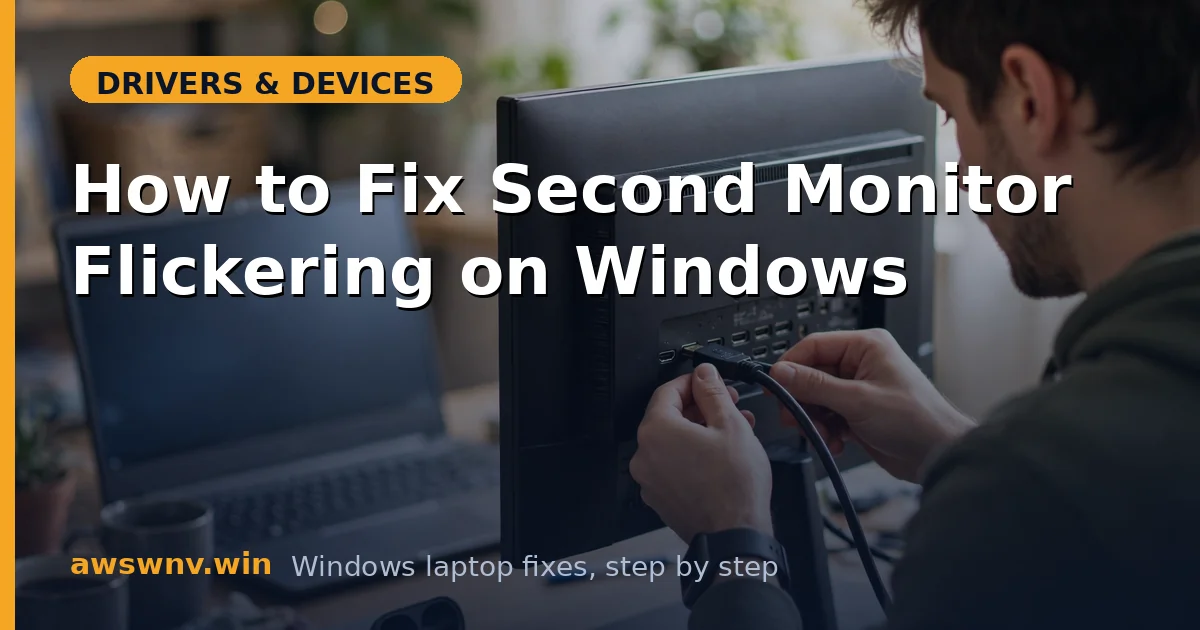
- Replace the cable with a certified high-quality one: Premium High Speed HDMI for HDMI, or a VESA-certified DisplayPort cable — match the cable to the resolution/refresh you’re running.
- Remove adapters and docks temporarily; connect the monitor directly to the laptop.
- Try a different port on both the laptop and the monitor.
- If direct-with-good-cable is clean, reintroduce the dock/adapter — if flicker returns, that device needs a firmware update or replacement. For detection (not flicker) issues through docks, the step-by-step second monitor guide covers the enumeration side.
Fix 3: Disable HDR and fix the color format
Stabilize the signal the driver sends.
- Settings > System > Display — select the external monitor, turn HDR off for testing.
- In the GPU control panel (Intel Graphics Command Center / NVIDIA Control Panel / AMD Software), find the external display’s color settings.
- Set output color format to RGB (not YCbCr) and color depth to 8 bpc for testing.
- If the flicker stops, experiment upward — but many monitors are simply most stable at RGB 8-bit SDR.
Fix 4: Reinstall the graphics driver clean
Fix the driver’s external-display handling.
- Download the current driver from Intel (Intel Driver & Support Assistant ), NVIDIA , or AMD — or your laptop vendor’s page.
- Uninstall the current display driver via Device Manager (Attempt to remove the driver checked), restart, then install fresh.
- After reinstalling, re-check the external monitor’s refresh rate (Fix 1) — clean installs sometimes default to odd rates.
- Test for an hour; driver-level flicker needs sustained observation.
Fix 5: Reset the monitor and update its firmware
Clear the monitor side of the handshake.
- Open the monitor’s on-screen menu and reset to factory defaults — this clears overdrive, response-time, and input settings the update may now conflict with.
- Manually select the correct input (don’t rely on auto-detect).
- Check the monitor maker’s site for a firmware update for your model and apply it if the notes mention flicker, HDMI, or DisplayPort fixes.
- After reset, set brightness to a mid level — extreme low brightness with PWM dimming can itself appear as flicker on some panels.
Fix 6: Test at lower bandwidth to isolate, then fix properly
Use bandwidth as a diagnostic scalpel.
- Temporarily lower the external monitor to 1080p 60Hz — if flicker stops, the issue is bandwidth/signal-integrity in the chain.
- Test the monitor on another computer at full native settings — clean there means the laptop’s output chain is at fault.
- With the fault isolated to the laptop side, the remaining suspects are the port (try all ports), the driver version (try the laptop vendor’s validated build), and the cable (already addressed in Fix 2).
- If the monitor flickers on every computer at every setting, it’s the monitor — check warranty. Persistent GPU-level instability (not just external) points to the display driver TDR fixes .
Closing
External-monitor flicker after an update is the output chain renegotiating badly: refresh rate, cable bandwidth, color format, driver build — in that order of likelihood. The laptop screen working fine is your proof the GPU is healthy, so keep the fixes on the external path. Set the right rate, use a proper cable, stabilize the signal format, and the second screen will be as steady as the first.