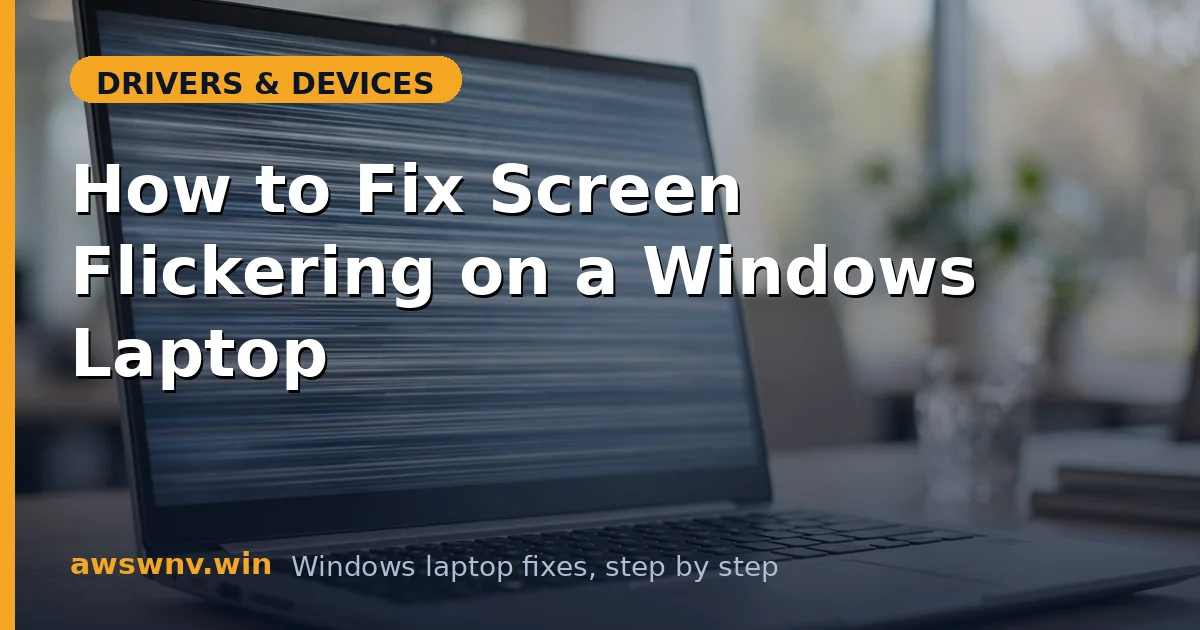
A flickering laptop screen is hard to ignore and harder to work with — the display strobes, flashes black, or shimmers in bands, and your eyes fatigue within minutes. It can start suddenly after an update or creep in gradually, and the cause ranges from a two-click settings fix to a hardware fault.
The good news: there’s a reliable diagnostic that splits the problem in half in ten seconds. Open Task Manager (Ctrl + Shift + Esc). If Task Manager flickers along with everything else, the cause is the display driver or hardware. If Task Manager is steady while other windows flicker, an incompatible application is doing it. Keep that result in mind as you work through the steps.
Why this happens
- Incompatible display driver: A Windows Update-installed driver that doesn’t match the panel’s timing causes flicker across the whole screen.
- Wrong refresh rate: A rate the panel can’t sustain produces shimmer, tearing, or periodic blackouts.
- Loose or damaged display cable: The ribbon cable through the hinge flexes thousands of times; wear causes intermittent flicker that changes with lid angle.
- Incompatible application: Certain antivirus tools, screen recorders, and outdated utilities hook the display pipeline and make only their windows flicker.
- Failing panel or backlight: Aging panels and backlight inverters flicker at low brightness or when cold.
- Electromagnetic interference: Rare, but nearby power adapters or unshielded cables can induce shimmer on some panels.
- Adaptive brightness / variable refresh conflicts: Power-saving display features fighting the driver cause rhythmic brightness pulsing.
How to fix it
Work through these in order — diagnose first, then act.
Fix 1: Run the Task Manager test and identify the type
This ten-second test decides whether you chase software or hardware.
- Press Ctrl + Shift + Esc to open Task Manager.
- Watch it for 30 seconds alongside your other windows.
- If Task Manager flickers too → driver or hardware (continue to Fix 2).
- If Task Manager is rock-steady but other apps flicker → an incompatible app (skip to Fix 6).
- Note whether flicker changes when you move the lid — angle-dependent flicker means a cable issue (Fix 7).
Write down your result; it keeps the rest of the troubleshooting focused.
Fix 2: Set the correct refresh rate
A mismatched refresh rate is the quickest software fix.
- Open Settings > System > Display > Advanced display.
- In the Choose a refresh rate dropdown, select your panel’s native rate (check your laptop’s specs if unsure — 60Hz is the safe default).
- If the flicker started after changing this, drop it back to 60Hz and test.
- Also try toggling Dynamic refresh rate off if your laptop offers it — the switching itself can appear as flicker.
Test for several minutes at each setting. If a specific rate flickers and others don’t, the driver is mis-driving the panel at that rate — note it and continue to the driver fixes.
Fix 3: Update or roll back the display driver
Driver mismatch is the most common whole-screen flicker cause.
- Open Device Manager (Win + X) and expand Display adapters.
- If flicker started after an update: right-click the adapter, Properties > Driver > Roll Back Driver.
- Otherwise, update: get the driver from your laptop maker’s support site or from Intel’s driver assistant for Intel graphics.
- For NVIDIA discrete GPUs, use the clean-install option when updating.
- Restart and test.
Manufacturer drivers include panel-specific timing data that generic Windows drivers sometimes get wrong — this is why the OEM driver matters for flicker specifically. Related display-driver faults are covered in the display driver crash guide . If the flicker is isolated to an external screen rather than the laptop panel, the second monitor flickering fix targets that exact scenario.
Fix 4: Disable hardware acceleration and adaptive features
Features that modulate the display can fight the driver and produce rhythmic flicker.
- In Settings > System > Display, turn off HDR temporarily while testing (re-enable later if you need it).
- Under Brightness, disable Change brightness automatically when lighting changes and Help improve battery by optimizing the content shown.
- In your browser, go to settings and disable hardware acceleration, then restart the browser.
- In Settings > System > Display > Graphics > Change default graphics settings, toggle Hardware-accelerated GPU scheduling off and restart.
If flicker stops after disabling these, re-enable them one at a time to find the specific conflict.
Fix 5: Reinstall the display driver cleanly
When updating over a corrupt driver doesn’t help, wipe it and start fresh.
- In Device Manager, right-click the display adapter and choose Uninstall device, ticking Attempt to remove the driver.
- Restart — Windows installs a base driver.
- Install the manufacturer’s driver on top (from Fix 3’s sources).
- Restart again and test at the native refresh rate.
For NVIDIA GPUs with persistent flicker, use DDU in Safe Mode before reinstalling — leftover driver fragments are a known flicker source.
Fix 6: Find and remove the incompatible app
If Task Manager was steady in Fix 1, an app is hooking the display pipeline.
- Think about what was installed or updated right before flicker started — antivirus suites, screen recorders, and display-color utilities are the usual suspects.
- Uninstall the most recent candidates one at a time via Settings > Apps, testing after each.
- Check Task Manager’s Startup apps and disable display-related utilities.
- Run a clean boot (
msconfig> hide Microsoft services > disable all) to confirm software is the cause.
Norton, iCloud, and some older VPN clients have all caused app-level flicker on Windows 11 at various times — if you run one, test without it early.
Fix 7: Check the hardware — cable, panel, and external test
If flicker happens in the BIOS screen too, or changes with lid angle, it’s hardware.
- Restart and enter BIOS/UEFI (F2/Del during boot) — flicker here confirms hardware, since no Windows drivers load.
- Slowly move the lid through its range: flicker that worsens at certain angles means the display ribbon cable is worn.
- Connect an external monitor: flicker on both screens points to the GPU; flicker only on the laptop panel points to the panel or cable.
- Test at full brightness — backlight flicker often disappears at 100%.
Cable reseating requires opening the laptop — do it yourself only if you’re comfortable and out of warranty; otherwise book a repair. Panel and cable faults don’t improve with any software fix, so don’t keep reinstalling drivers once hardware is confirmed.
Closing
Screen flickering resolves into two buckets fast: the Task Manager test tells you whether to chase drivers or apps, and the BIOS test tells you whether to chase hardware at all. Most flicker is a driver or refresh-rate issue fixed in the first four steps — and when it’s the hinge cable, knowing that early saves hours of pointless driver reinstalls.