Everything worked before the update. Then Windows 11 24H2 installed overnight, and now the taskbar battery icon is gone or shows a red X with the message “No battery is detected.” The laptop runs fine on the charger, but unplug it and it dies instantly — or you don’t dare try. It feels like the update killed your battery.
In almost every case, the battery is alive and well. What broke is the software handshake between Windows and the battery’s embedded controller. The update either swapped in a bad driver, left the ACPI battery driver in a confused state, or changed a firmware setting. If your laptop only works when plugged in , the cause and the fix overlap with what’s below.
Why this happens
- The ACPI battery driver got corrupted. The 24H2 update can leave the Microsoft ACPI-Compliant Control Method Battery driver in a broken state, so the OS stops seeing the battery entirely.
- A new driver overwrote the old one badly. Windows Update sometimes pushes a generic battery or chipset driver that doesn’t match your laptop’s embedded controller.
- The embedded controller needs a reset. Firmware that tracks battery state can hang during the update’s restart cycle, and Windows reads “no battery” from a controller that hasn’t finished waking up.
- Fast Startup cached bad hardware state. With Fast Startup on, Windows saves a snapshot of devices at shutdown. If the snapshot was taken while the battery interface was glitching, every boot restores the glitch.
- The battery connector loosened. Heat cycles and the physical jolt of a forced restart can shift a battery connector just enough to break data contact while power contact remains.
- A pending BIOS/EC update conflicts with the OS driver. If the update touched firmware components, the driver version Windows expects may no longer match what the firmware reports.
How to fix it
Work through these in order. Most people get the battery back by step three.
Fix 1: Hard-reset the embedded controller
This drains residual charge and forces the battery controller to re-announce itself.
- Shut the laptop down completely — not sleep, not hibernate.
- Unplug the charger and remove any USB-C docks or hubs.
- If the battery is removable, take it out for a minute; if not, skip this.
- Hold the power button down for a full 30 seconds, then release.
- Reconnect the charger, wait 10 seconds, and power on. Check the taskbar for the battery icon.
Fix 2: Reinstall the battery drivers in Device Manager
- Right-click Start and open Device Manager.
- Expand the Batteries section.
- Right-click Microsoft ACPI-Compliant Control Method Battery and choose Uninstall device. If you see a second battery entry, uninstall that too.
- Do not check any “delete driver” box if one appears.
- Click Action > Scan for hardware changes at the top of Device Manager. Windows reinstalls fresh drivers immediately.
- Restart the laptop and check whether the battery is detected.
Fix 3: Roll back or update the chipset driver
- In Device Manager, expand System devices and find your chipset entries (Intel Chipset, AMD SMBus, or your brand’s equivalent).
- Right-click each, choose Properties > Driver, and use Roll Back Driver if the button is available.
- If rollback isn’t offered, visit your manufacturer’s support page — Dell , HP , or Lenovo — and download the chipset driver for your exact model.
- Install it, restart, and recheck battery detection.
Fix 4: Run the Power troubleshooter
- Open Settings > System > Troubleshoot > Other troubleshooters.
- Find Power and click Run.
- Let it scan and apply whatever it recommends, then restart.
- This rarely fixes detection on its own, but it clears misconfigured power plans that can mask a recovered battery.
Fix 5: Turn off Fast Startup
- Open Control Panel > Hardware and Sound > Power Options.
- Click Choose what the power buttons do on the left.
- Click Change settings that are currently unavailable at the top.
- Uncheck Turn on fast startup (recommended) and click Save changes.
- Shut down fully (not restart) and power back on. The clean boot forces Windows to re-enumerate the battery hardware. If you’re dealing with overnight drain too, this setting is often involved.
Fix 6: Check the physical battery connection
- Power off and unplug everything.
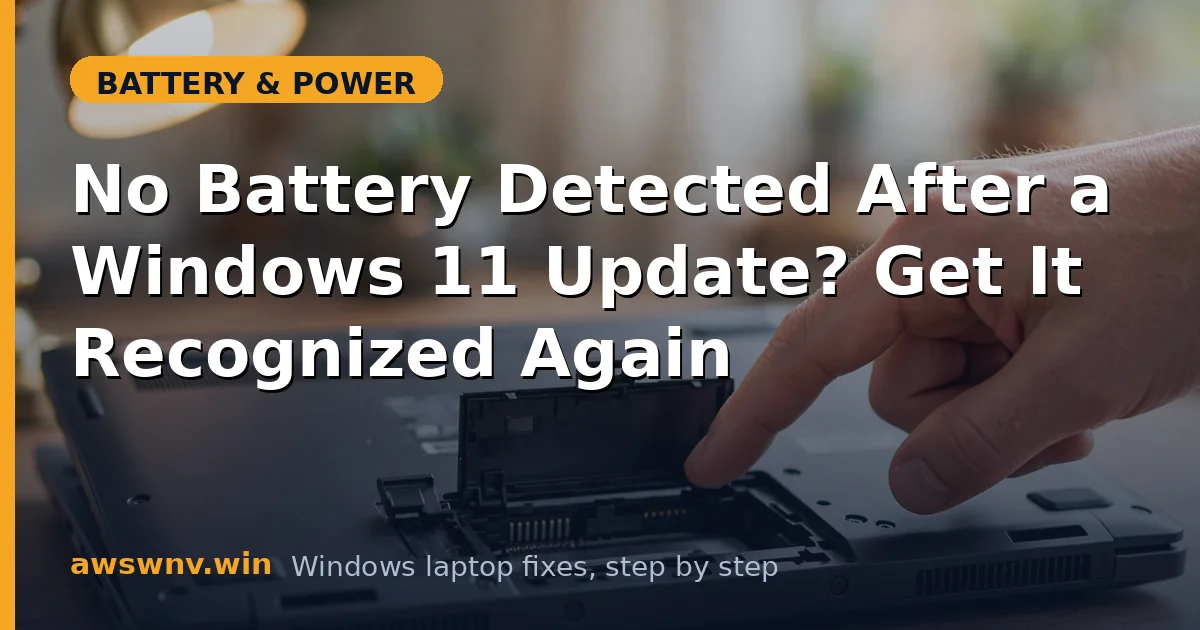
- On laptops with a removable battery, pull it out and inspect the contacts for dust or corrosion. Clean gently with a dry cloth.
- Reseat the battery firmly until it clicks.
- On sealed laptops, only open the bottom panel if you’re comfortable and the warranty allows it; otherwise skip to Fix 7.
- Power on with the charger attached and see if the battery appears.
Fix 7: Update the BIOS and reset it to defaults
Only do this on a stable power connection, and back up first.
- Find your exact model on the manufacturer’s support site and download the latest BIOS.
- Run the updater with the charger plugged in and do not touch the laptop until it finishes.
- After the update, enter the BIOS setup (F2 or Del at boot) and choose Load Optimized Defaults.
- Save and exit. Windows should now detect the battery with a clean firmware handshake.
Closing
“No battery detected” after an update is frightening but rarely fatal. Nine times out of ten, a controller reset plus a driver reinstall brings the battery back within fifteen minutes. If nothing above works after a BIOS update, the battery itself may have chosen that exact moment to fail — have it tested at a service center before buying a replacement. Keep the charger plugged in while you troubleshoot, and avoid repeated forced shutdowns, since each one risks interrupting the very driver reinstall you’re trying to complete.