MEMORY_MANAGEMENT is Windows telling you its memory bookkeeping went wrong — corrupted page tables, bad pool allocations, or RAM cells that can’t be trusted. It’s one of the most common blue screens on laptops, and the fix path is well mapped: verify the RAM hardware, then hunt the software.
Don’t skip the memory test because “the RAM is new” — new sticks fail too, and guessing wastes days. Work through these in order. For the stop-code-focused variant, see Stop Code MEMORY_MANAGEMENT explained , and for disk-related memory faults, faulty hardware corrupted page .
Why this happens
- Faulty RAM module: Bad cells corrupting the memory manager’s data structures — the number-one cause.
- Buggy graphics or storage driver: Drivers that corrupt memory pools, especially after updates.
- Corrupted system files: Damaged Windows memory-management components.
- Disk errors in the page file region: Bad sectors where virtual memory lives.
- Overclocked or mismatched RAM: Unstable timings from XMP profiles or mixed modules.
- Failing drive: A dying SSD/HDD corrupting memory-mapped files.
- Malware: Rootkits that hook memory management, though this is uncommon.
- Corrupted hibernation file: A damaged hiberfil.sys can trigger MEMORY_MANAGEMENT on wake — disabling and re-enabling hibernation rebuilds it.
How to fix it
Work through these in order — start with Fix 1 and stop as soon as the blue screens stop appearing.
Fix 1: Run Windows Memory Diagnostic (extended)
The definitive hardware verdict — do this before touching drivers.
- Save your work, then press Win + R, type
mdsched.exe, and press Enter. - Choose Restart now and check for problems.
- At the blue test screen, press F1, select Extended, press F10 — the standard pass misses intermittent faults.
- Let it run to completion (can take an hour+ on 16 GB+ systems).
- After reboot, open Event Viewer (eventvwr.msc) > Windows Logs > System and filter for MemoryDiagnostics-Results.
- Errors found → go to Fix 2. Clean → skip to Fix 3.
Fix 2: Reseat or replace the RAM
Bad memory confirmed — now deal with it physically.
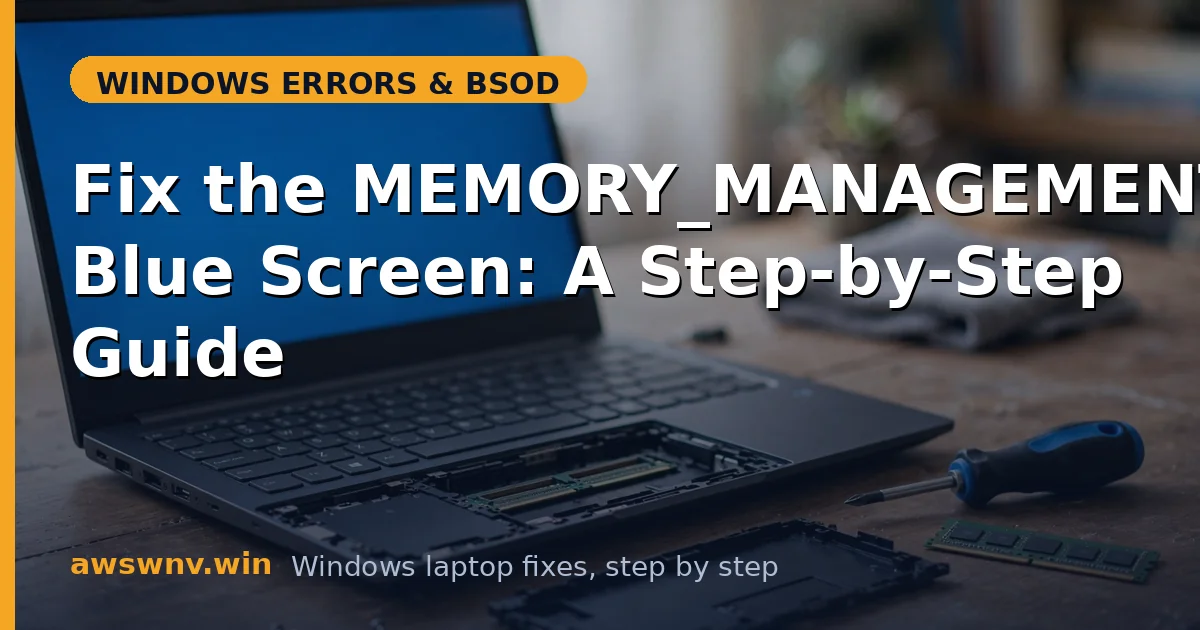
- Power off, unplug, and remove the bottom panel if your laptop allows access.
- Release the clips, remove each RAM stick, and firmly reseat it — poor contact causes real faults.
- With two sticks, test one at a time (run
mdsched.exeper stick) to isolate the bad one. - Replace the faulty stick with matching specifications (type, speed, voltage).
- For soldered RAM (most ultrabooks), contact the manufacturer — it’s a board-level repair.
- After reseating/replacing, re-run the memory diagnostic to confirm zero errors.
Fix 3: Update graphics, chipset, and storage drivers
With hardware cleared, these drivers are the top software suspects.
- Open Device Manager (Win + X > Device Manager).
- Update Display adapters, IDE ATA/ATAPI controllers, and System devices via Update driver > Search automatically for drivers.
- Install the manufacturer-tested driver pack from Dell Support , HP Support , or Lenovo Support .
- GPU owners: get the latest driver from NVIDIA/AMD/Intel directly — graphics drivers are implicated in a large share of these crashes.
- Restart and use the laptop heavily for a day to confirm stability.
Fix 4: Run SFC, DISM, and CHKDSK
Repairs corrupted Windows files and disk errors that feed bad data to the memory manager.
- Open an administrator Command Prompt.
- Run
sfc /scannowand wait. - Run
DISM /Online /Cleanup-Image /RestoreHealth. - Run
chkdsk C: /f /r— press Y, restart, and let the full scan finish. - Boot back up and test. This trio resolves the software-side causes in most remaining cases.
Fix 5: Reset virtual memory (page file)
A corrupted pagefile.sys produces exactly this stop code.
- Press Win + R, type
sysdm.cpl, press Enter. - Advanced tab > Performance > Settings > Advanced tab > Virtual memory > Change.
- Uncheck Automatically manage paging file size for all drives, select No paging file, click Set, restart.
- Return, re-check Automatically manage, click Set, restart again.
- Fresh page file created — monitor for crashes.
Fix 6: Revert overclocks and check RAM compatibility
Unstable memory settings are a silent cause on performance laptops.
- Enter BIOS/UEFI (F2/Del at boot) and reset to Optimized Defaults or Default Settings.
- Specifically disable XMP/DOCP memory profiles if enabled.
- If you recently added RAM, verify it matches the original stick’s specs — mismatched modules cause exactly these errors.
- Save, exit, and test under load (gaming, video editing, or heavy multitasking).
Fix 7: Scan for malware and do a clean boot test
Eliminates the two remaining software suspects.
- Run a full scan: Settings > Privacy & Security > Windows Security > Virus & threat protection > Scan options > Full scan.
- Then clean-boot: Win + R >
msconfig> Services tab > Hide all Microsoft services > Disable all; Task Manager > Startup apps > disable all; restart. - If crashes stop in a clean boot, re-enable items in groups to find the conflicting program.
- Remember to re-enable everything after diagnosis.
Closing
MEMORY_MANAGEMENT rewards a methodical approach: test the RAM properly (extended pass, not the quick one), then work the driver and file-repair steps. Most cases resolve at Fix 1–4 — either a genuinely bad stick or a driver that needed updating. The critical habit is backing up before you troubleshoot: memory corruption doesn’t just crash, it can quietly damage the files you’re working on. If crashes happen specifically when waking from sleep or hibernation, rebuild the hibernation file with powercfg /hibernate off followed by powercfg /hibernate on in an admin Command Prompt. Once stable, keep your graphics and chipset drivers current and resist the urge to mix RAM sticks — matched memory is happy memory. Run the extended memory diagnostic once more after any RAM change to confirm a clean bill of health. If crashes persist through all seven fixes, the motherboard’s memory controller is the final suspect, and that’s a professional repair — don’t attempt board-level work yourself.