Warm while charging is normal. Hot enough that the keyboard is uncomfortable, the fans scream constantly, or the laptop shuts itself off — that’s not. Charging adds a second heat source on top of everything the processor already produces, and when cooling can’t keep up, temperatures climb into the range that permanently damages batteries and shortens component life.
The tricky part is that overheating while charging has two halves: the heat coming in (charging current, CPU load) and the heat going out (vents, fans, thermal paste). Fix both halves and the problem resolves. Here’s the step-by-step.
Why this happens
- Charging current heats battery cells — energy conversion is never 100% efficient; the rest becomes heat.
- Blocked or dusty vents — restricted airflow is the most common cooling failure.
- Heavy background tasks — Windows Update, indexing, or malware maxing the CPU while charging doubles the heat load.
- Failed or clogged fans — a dead fan turns the chassis into an oven.
- Dried thermal paste — after years, the paste between CPU and heatsink loses effectiveness.
- Soft surfaces — beds and couches seal off bottom intake vents.
- High ambient temperature — a hot room leaves the cooling system no headroom.
How to fix it
Work through these in order, from immediate relief to long-term fixes.
Fix 1: Change where and how the laptop sits
This is the fastest win and costs nothing. Most charging overheating is an airflow problem, not a hardware problem.
- Move the laptop to a hard, flat surface — a desk or table, never a bed, couch, or your lap while charging.
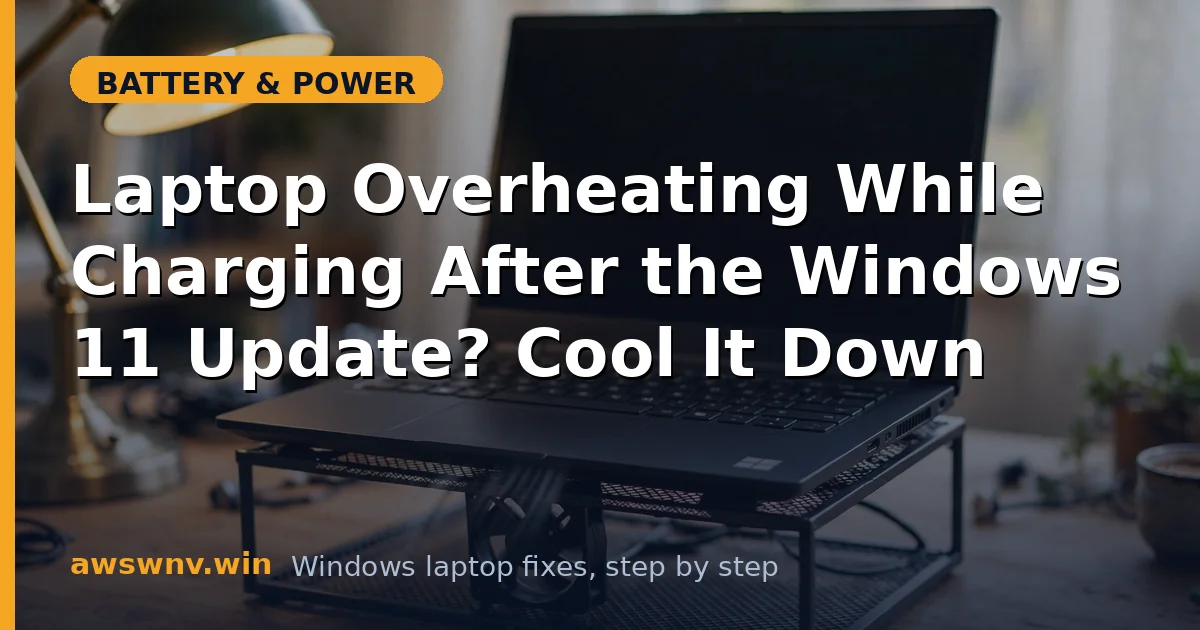
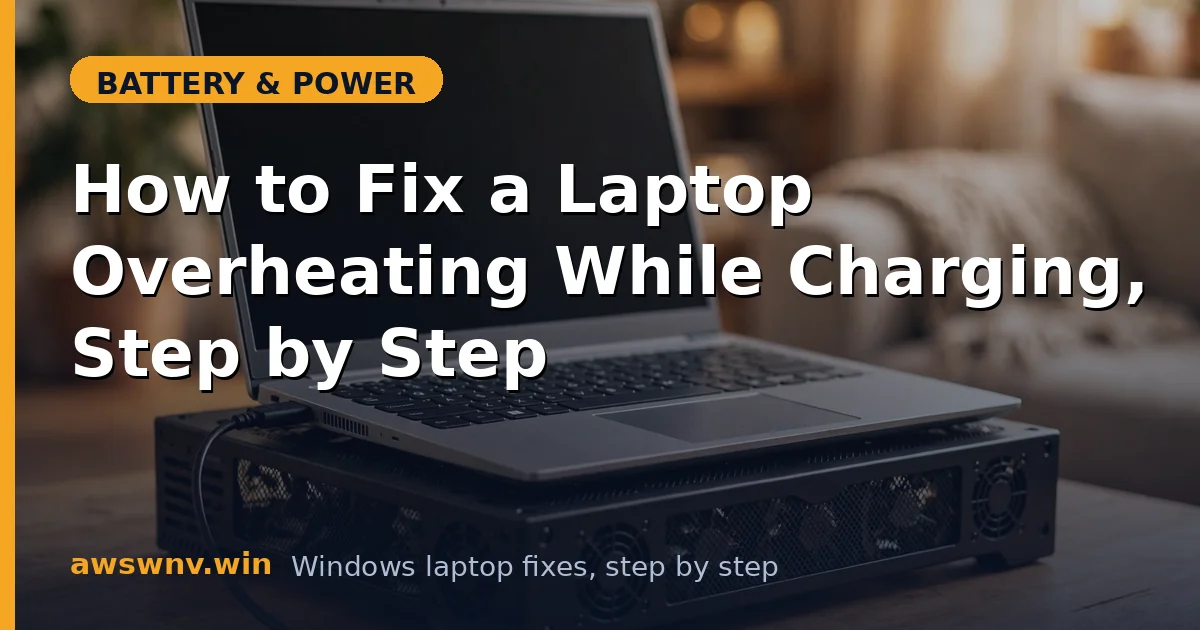
- Elevate the rear slightly with a book or a cooling stand to open the bottom intake vents.
- Keep the area around the vents clear — don’t push the laptop against a wall or stack things beside it.
- Charge in the coolest room available. A laptop that overheats in a 30°C room may be perfectly fine at 22°C.
Fix 2: Clean the vents and fans
Dust is insulation. A clogged vent can raise temperatures by 10–15°C on its own.
- Power off and unplug the laptop.
- Use short bursts of compressed air through the intake and exhaust vents — hold the can upright to avoid spraying liquid.
- Blow from the exhaust inward first, then from the intake outward, to dislodge packed dust.
- If you’re comfortable opening the bottom panel (check your warranty terms), clean the fan blades directly with a soft brush. You’ll often find a felt-like mat of dust strangling the heatsink.
Fix 3: Find what’s loading the CPU while charging
Charging heat plus a maxed-out CPU is the overheating combo. Find the load and kill it.
- Press Ctrl + Shift + Esc and sort the Processes tab by CPU.
- Look for Windows Update, search indexing, antivirus scans, or unfamiliar processes consuming high CPU persistently.
- Let legitimate tasks (like updates) finish, then recheck temperatures.
- If an unknown process is hammering the CPU, investigate it before assuming hardware trouble — run a full antivirus scan. Malware miners love to hide as overheating “while charging.” If the battery also drains unusually fast even when the machine is cool, the battery itself may be contributing.
Fix 4: Reduce the charging heat itself
Less current means less heat. You have several levers here.
- If your manufacturer offers a charge limit (Lenovo Conservation Mode, Dell Power Manager, MyASUS), enable it — a battery held at 80% generates less heat than one pushed to 100%.
- Avoid gaming or video rendering while fast-charging; do heavy work on AC with the battery already full, or unplug during intense sessions if the battery allows.
- Use the manufacturer’s power/thermal profile if available — many offer a “quiet” or “cool” mode that caps CPU boost during charging.
- Don’t charge in direct sunlight or hot cars. Ambient heat stacks with charging heat.
Fix 5: Check that the fans actually work
A silent laptop under load is suspicious, not peaceful.
- Put the laptop under load (open several apps or a video) and listen at the vents. You should hear fans spin up within a minute.
- If a fan never spins, or makes grinding/clicking noises, it’s failing.
- Check the BIOS for fan diagnostics — many HP, Dell, and Lenovo BIOS setups include fan tests.
- A dead fan needs replacement. This is usually an inexpensive part, but on thin ultrabooks it may be a service-center job. Until it’s fixed, use a cooling pad as a stopgap — it helps, but it’s not a substitute.
Fix 6: Repaste the CPU if the laptop is old
Thermal paste dries out. On a 4+ year old laptop that overheats despite clean vents and working fans, this is the likely cause.
- This involves opening the laptop, removing the heatsink, cleaning off old paste with isopropyl alcohol, and applying new paste. Only attempt it if you’re comfortable with laptop disassembly.
- Watch a teardown video for your exact model first — cable routing and screw lengths matter.
- Use a quality thermal paste; a small pea-sized amount in the center is enough.
- If you’re not comfortable with this, a repair shop typically does it cheaply. The temperature drop is often dramatic — 15–20°C under load.
Fix 7: Update the BIOS for thermal management fixes
Manufacturers tune fan curves and thermal limits in firmware, and updates sometimes fix overheating regressions.
- Check your BIOS version with
msinfo32. - Download the latest BIOS from your manufacturer’s support site — Dell , HP , or Lenovo .
- Install with AC power connected and the laptop on a cool, hard surface.
- After updating, monitor temperatures during a full charge cycle to confirm improvement.
Fix 8: Monitor temperatures to verify the fix
Don’t guess — measure. You need a baseline and a result.
- Install a reputable temperature monitor (HWiNFO or Core Temp — download from their official sites).
- Note CPU and battery temperatures while charging before your fixes, if you haven’t started yet.
- After the fixes, charge from 20% to 100% and watch the peaks. Sustained CPU temps under 85°C and a merely warm (not hot) chassis mean you’ve won.
- If temperatures remain dangerous despite everything, stop using the laptop on AC until it’s serviced — persistent overheating damages the battery permanently, and a battery that won’t hold charge afterward is the predictable result.
Closing
Overheating while charging is a cooling problem wearing a battery problem’s clothes. Restore airflow, clean the dust, calm the CPU, and ease the charging current — in that order. The battery will run cooler, last longer, and stop trying to cook itself every time you plug in.