Some warmth while charging is physics — electricity moving into a battery makes heat. But there is a line between “warm” and “I could fry an egg on the keyboard,” and if your Windows 10 laptop crosses it every time you plug in, something is amplifying the heat. Usually it is not the charging alone; it is charging plus a CPU working hard, blocked vents, or a power plan running everything at full tilt.
Heat is the number one enemy of battery lifespan, so this is worth fixing even if the laptop seems to “handle” it. These fixes attack the heat from every angle: airflow, workload, charging behavior, and power settings.
Why this happens
- Charging and heavy CPU load happen at once. Gaming or video rendering while charging stacks CPU heat on top of charging heat.
- Vents are blocked or clogged with dust. The cooling system cannot shed heat if intake and exhaust vents are obstructed.
- The power plan runs the CPU at maximum. The High Performance plan keeps clock speeds pegged even for light tasks.
- Background processes spike when plugged in. Windows Update, indexing, and cloud syncs often wait for AC power to do heavy work.
- The battery is aging. Old batteries have higher internal resistance, which means more heat for the same charging current.
- Thermal paste has dried out. After 3-4 years, the paste between CPU and heatsink degrades and temperatures climb.
- The charger is wrong. An incorrect-voltage charger can cause excess heat in the charging circuit.
How to fix it
Work through these in order — start with the free airflow fixes.
Fix 1: Fix the airflow situation
This alone drops temperatures 5-15°C for most people.
- Always use the laptop on a hard, flat surface. Beds, couches, and laps block the intake vents on the bottom.
- Make sure no vent is pushed against a wall or monitor stand — exhaust needs a few inches of clearance.
- Shut the laptop down and unplug it. Blow short bursts of compressed air into the intake and exhaust vents to clear dust. Hold fans still with a toothpick if you can see them, so they do not spin backwards.
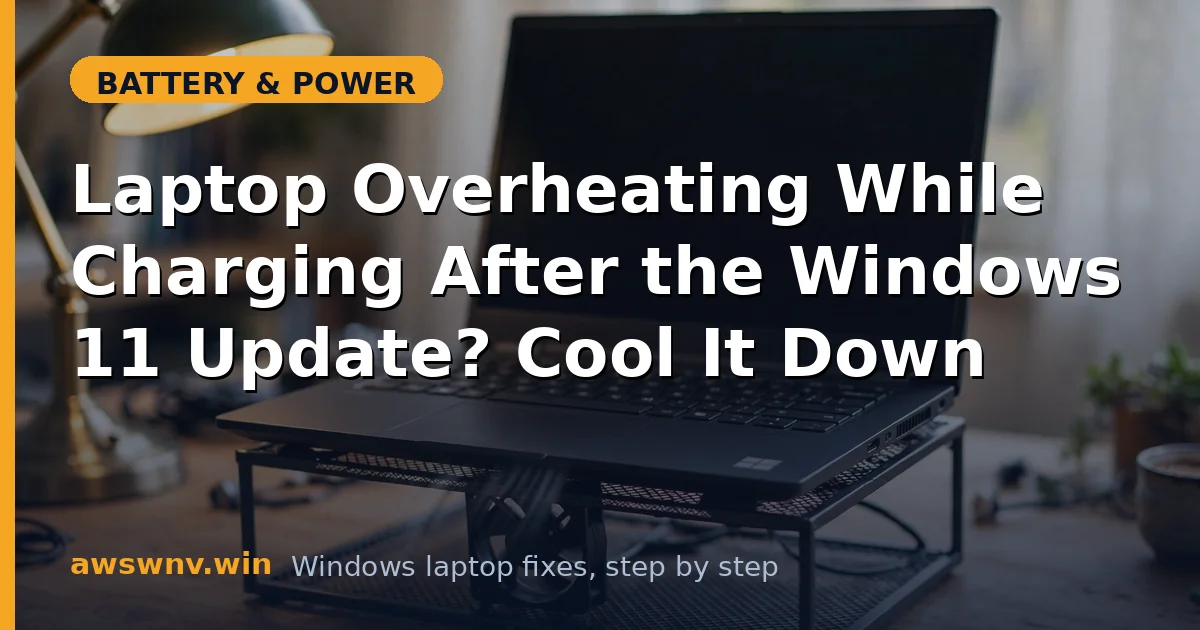
- Consider a simple cooling stand or even two bottle caps under the rear edge to lift the laptop — elevation alone improves airflow noticeably.
- Feel the difference after 30 minutes of charging on the improved setup.
Fix 2: Tame the power plan
Windows 10’s High Performance plan is a space heater. Switch it.
- Open Control Panel > Hardware and Sound > Power Options.
- Select the Balanced plan instead of High performance.
- Click Change plan settings > Change advanced power settings.
- Expand Processor power management > Maximum processor state.
- Set Plugged in to 95% instead of 100%. This tiny reduction disables turbo boost, which is responsible for a huge share of heat spikes, with barely noticeable performance loss.
- Expand System cooling policy and set Plugged in to Active so fans ramp up before the CPU throttles.
Fix 3: Find what is hammering the CPU while charging
Charging does not happen in a vacuum — something is usually generating heat alongside it.
- Plug in the charger, wait 10 minutes, then open Task Manager (Ctrl + Shift + Esc).
- Click the CPU column to sort by usage.
- Look for anything consistently above 10-15%: Windows Update, antivirus scans, search indexing, or a runaway browser tab.
- For Windows Update hogging the CPU, go to Settings > Update & Security > Windows Update > Advanced options and limit active hours or pause updates while you work.
- Disable heavy startup apps: Task Manager > Startup tab > right-click and Disable anything you do not need at boot.
- If a single app is always the culprit, check for an update to that app — runaway processes are often bugs.
Fix 4: Change how the battery charges
Reducing charging stress directly reduces charging heat.
- Open your manufacturer’s battery app (Dell Power Manager, Lenovo Vantage, MyASUS, HP BIOS settings).
- Enable a battery lifespan mode that caps charging at 80% or 60% — charging generates the most heat in the final 20%, so skipping it keeps things cooler. Our guide on limiting battery charge to 80% walks through every brand.
- If your charger supports it, avoid “fast charge” modes in the BIOS — standard charging is gentler and cooler.
- Charge the laptop while it is asleep or off when possible. A charging laptop that is also running is doing two heat-generating jobs at once.
Fix 5: Verify the charger
The wrong charger makes the charging circuit work overtime.
- Check the voltage and wattage printed on the charger and compare with the laptop’s requirements on the bottom panel.
- Never use a charger with the wrong voltage. Wattage should match or exceed the original — a 45W charger on a 90W laptop strains everything.
- If the charger brick itself is burning hot (too hot to hold), replace it — that heat is wasted energy and a warning sign.
- For USB-C laptops, use a quality PD charger rated for your laptop’s wattage, not a phone charger.
Fix 6: Update drivers and BIOS
Manufacturers regularly fix thermal and charging behavior in firmware updates.
- Update the BIOS from the manufacturer’s official support site: Dell or HP . Keep the charger plugged in during the flash.
- Update chipset and thermal framework drivers from the same site.
- Update the GPU driver — an old GPU driver can keep the discrete GPU awake and hot. Use NVIDIA directly for NVIDIA discrete GPUs.
- After updating, monitor temperatures for a day. Free tools like HWMonitor can show you CPU and battery temps to confirm improvement.
Fix 7: Service the cooling system
If the laptop is 3+ years old and still runs hot after all software fixes, the hardware needs attention.
- Check fan behavior: if fans never spin up or make grinding noises, the fan may be dead — replacement is usually inexpensive.
- Dried thermal paste is the classic cause of age-related overheating. Replacing it requires opening the laptop and removing the heatsink — doable with a guide for your model, or a repair shop can do it cheaply.
- While inside, check the battery for swelling. A swollen battery presses against components, traps heat, and is a safety hazard — replace it immediately and do not charge the laptop until you do. See our battery swelling safety guide for what to do next.
- After servicing, run a stress test while charging and confirm temperatures stay in a sane range.
Closing
Overheating while charging is rarely one thing — it is charging heat plus workload heat plus poor airflow, all stacking up. Fix the airflow, drop the maximum processor state to 95%, and cap charging at 80%, and most laptops go from alarming to merely warm. If it still burns after all that, the cooling hardware itself needs servicing.