Since the Windows 11 update, plugging in the charger turns your laptop into a space heater. The fans spin up within minutes, the keyboard feels warm, and the bottom is uncomfortably hot to touch — the kind of hot that makes you pull your hands back. Maybe it even shut itself off once during a charge. Charging always produced some heat, but this is different — this is new, and new heat after an update deserves an explanation before you just live with it.
Heat while charging comes from two sources stacking: the battery’s own charging chemistry and the processor working harder than it should. The update is a prime suspect for the second one, since fresh Windows installs spend days indexing files and finishing background updates. The fixes below attack both heat sources, starting with the free ones. If the heat is worst around the battery itself, also check whether the pack is losing capacity faster than it should .
Why this happens
- Post-update background activity. Indexing, Windows Update, and Microsoft Store app updates can pin the CPU for hours or days after 24H2.
- High-performance power plan stuck on. The update can reset power plans to maximum performance, keeping clocks high even at idle.
- Dust-clogged vents and fans. The update didn’t cause the dust, but the extra load exposed cooling that was already marginal.
- Charging on soft surfaces. Beds and couches block intake vents exactly where the battery sits, trapping charging heat.
- Old thermal paste. On laptops more than a few years old, dried thermal paste can’t move CPU heat to the heatsink efficiently.
- A failing battery generating excess heat. A worn pack with high internal resistance heats up far more than a healthy one during charging.
- Charging with a higher-wattage-than-stock adapter. An oversized charger can push charge current harder than the battery’s thermal design expects on some models.
- Ambient temperature. Charging in a hot room with no airflow stacks on top of everything else.
How to fix it
Work through these in order. Check temperatures after each change.
Fix 1: Let the post-update work finish
- Open Settings > Windows Update and let every pending update install, then restart.
- Open Task Manager (Ctrl + Shift + Esc) and check whether Search Indexer, TiWorker, or Antimalware Service Executable is hammering the CPU.
- Leave the laptop plugged in and idle for a few hours to let indexing complete — fighting it just prolongs the heat.
- After 48 hours post-update, background load should settle; if heat persists past that, keep going.
Fix 2: Switch to Best power efficiency
- Go to Settings > System > Power & battery and set Power mode to Best power efficiency.
- In advanced power settings (Power Options > Change plan settings > Change advanced power settings), set Maximum processor state on battery to 90% and plugged in to 95%.
- This caps the boost clocks that generate the most heat with the least benefit during charging.
- Retest: charge for 30 minutes and feel the difference.
Fix 3: Fix your charging surface and airflow
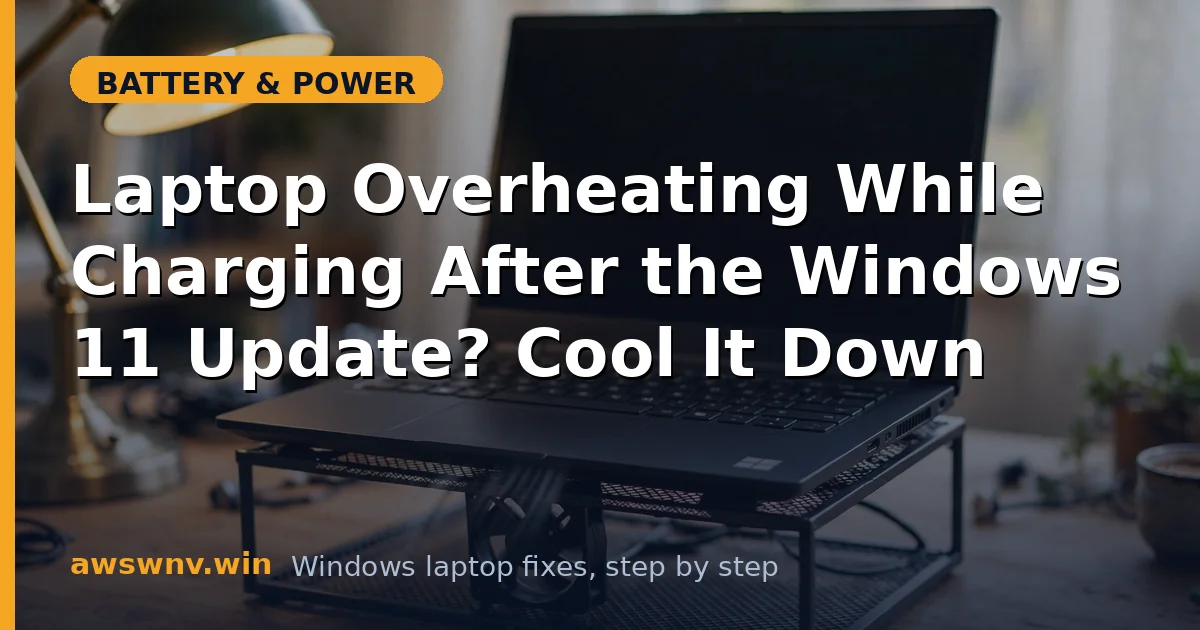
- Always charge on a hard, flat surface — a desk, table, or lap desk.
- Elevate the rear of the laptop slightly; even a book under the back edge improves intake airflow.
- Keep vents clear: no papers, blankets, or bags near the sides and back.
- If you dock with the lid closed, use a vertical stand or crack the lid — closed-lid charging traps heat.
Fix 4: Clean the vents and fans
- Power off and unplug everything.
- Blow compressed air through the intake and exhaust vents in short bursts (hold fans still with a toothpick if you can reach them — spinning them with air can damage bearings).
- For a deep clean on an older laptop, open the bottom panel and clear dust from the fan blades and heatsink fins.
- If you’re comfortable, consider repasting the CPU/GPU on machines older than 3–4 years — dried paste is a classic hidden cause.
Fix 5: Hunt down the process making heat
- In Task Manager’s Processes tab, sort by CPU and look for anything consistently above 10% at idle.
- Common post-update culprits: Windows Search indexer, OneDrive initial sync, antivirus full scans, game launcher updates.
- Pause OneDrive sync and cloud backups during charging sessions.
- Check Startup apps and disable anything you don’t need — fewer background apps means less idle heat.
Fix 6: Check the battery’s health
- Run
powercfg /batteryreportin Terminal (Admin). - Compare design vs. full charge capacity — a heavily worn battery runs hotter while charging due to internal resistance.
- Feel specifically around the battery area vs. the CPU area; battery-side heat points at the pack.
- If wear is severe and the battery area is the hot spot, replacement solves both the heat and the short runtime .
Fix 7: Update BIOS, chipset, and consider a cooling pad
- Manufacturers regularly release thermal and fan-curve improvements — check Dell , HP , or Lenovo for BIOS updates mentioning thermals.
- Install the latest chipset driver too; bad chipset drivers can prevent proper CPU power gating.
- For chronic cases, a quality cooling pad with large, slow fans drops temperatures 5–10°C during charging.
- As a last resort, have a shop check the heatsink mounting — a loose heatsink explains heat that nothing else fixes.
Closing
Overheating while charging after an update is usually temporary background load meeting neglected cooling — two solvable problems colliding at the worst moment. Let the update finish its work, tame the power plan, clean the vents, and give the machine air — that combination resolves it for the vast majority of laptops. The battery will thank you with a longer life, and your lap will thank you immediately — cool laps and honest batteries are the reward for an hour of proper troubleshooting.