You plug in your headphones and nothing happens. No popup asking what you connected, no switch in the output device, sound stubbornly continuing from the laptop speakers. Or the opposite: Windows detects them once, then never again. Headphone detection failures are uniquely irritating because the fix feels like it should be “plug it in harder.”
Detection works differently for the two headphone types. A 3.5mm plug triggers a tiny mechanical switch in the jack, which tells the Realtek driver to reroute audio. A USB headset enumerates as a brand-new audio device over USB. The troubleshooting splits along that line — jack mechanics and driver detection for 3.5mm, USB device handling for USB — and this guide covers both paths.
Start by identifying your type and testing a second headset; that one test halves the suspect list immediately.
Why this happens
- Plug not fully seated: Cases, lint, or a shallow jack prevent the detection switch from triggering.
- Detection switch worn or stuck: Mechanical wear stops the jack from registering plugs.
- Headphones not set as default device: Windows detects them but keeps playing through speakers.
- Corrupted Realtek driver: The driver mishandles jack detection after updates.
- Front-panel jack detection disabled: A Realtek setting can suppress the detection popup and rerouting.
- USB headset enumeration failure: USB-side issues prevent the headset’s sound card from appearing.
- Broken headset cable or plug: A damaged headset is never detected on any device.
How to fix it
Work through these in order — diagnose first, then act.
Fix 1: Test a second headset and seat the plug properly
Before touching software, establish whether the headset or the laptop is at fault. A second pair of earphones takes ten seconds to test and is the most informative step in this guide. While testing, make sure the plug goes all the way in — remove phone cases or bulky adapters that prevent full seating.
- Plug in a different pair of headphones or earphones and check for detection.
- If the second pair works, your headset is faulty — check its cable and plug, or replace it.
- If neither is detected, remove any case or adapter and push the plug firmly until it seats fully.
- Rotate the plug gently while inserted — intermittent sound means worn jack contacts.
- If the laptop has a second audio jack (some have separate mic/headphone), try it.
Fix 2: Clean the headphone jack
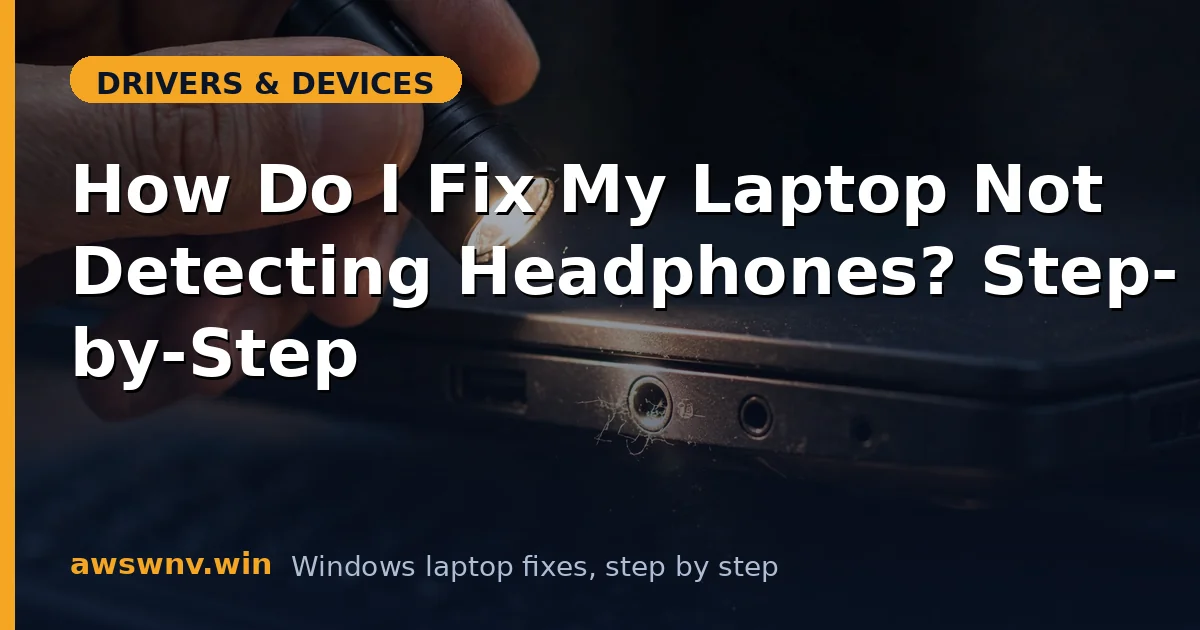
Lint, dust, and pocket debris pack into the jack over time, physically blocking the plug from reaching the detection switch. This is especially common on laptops carried in sleeves and bags. A careful cleaning restores detection without any software changes — power off first, and never use metal tools inside the jack.
- Power off the laptop completely.
- Shine a light into the jack and look for visible lint or debris.
- Gently loosen debris with a wooden toothpick, then remove it.
- Give the jack a short blast of compressed air held upright.
- Power on, plug in the headphones firmly, and check for detection.
Fix 3: Set the headphones as the default device manually
Sometimes Windows detects the headphones just fine but does not switch to them — audio keeps playing from the speakers while the headset sits idle. This happens when the default device is locked to speakers or when the detection popup was dismissed. Manually assigning the default forces the routing regardless of detection quirks.
- Right-click the speaker icon, choose Sound settings, then “More sound settings.”
- On the Playback tab, look for a headphones entry (or the Speakers entry representing the jack).
- Right-click it and choose “Set as Default Device.”
- If the entry is grayed out, right-click the empty area and tick “Show Disabled Devices,” then enable it.
- Play audio — it should now come through the headphones.
Fix 4: Reinstall the Realtek audio driver
When the jack is clean, headsets are good, and detection still fails, the driver’s jack-detection logic is corrupt. Windows updates are the usual cause — replacing the manufacturer’s Realtek driver with a version whose detection misbehaves. Reinstalling the manufacturer’s audio package restores proper plug detection. Get it from your maker’s support page, such as Dell Support .
- Open Device Manager and expand “Sound, video and game controllers.”
- Right-click the Realtek audio device, choose “Uninstall device,” and tick “Attempt to remove the driver.”
- Restart the laptop.
- Install the manufacturer’s Realtek audio driver package and restart again.
- Plug in the headphones and watch for the “what did you plug in” popup.
Fix 5: Check the Realtek jack-detection settings
Realtek’s control panel has its own detection settings that can suppress the popup and the automatic rerouting. If the “what did you plug in” dialog never appears, these settings are worth checking — particularly the front-panel jack detection toggle, which on some driver versions affects the main jack too.
- Search the Start menu for “Realtek Audio Console” and open it.
- Go to Device advanced settings (or the jack/connector settings page).
- Ensure jack detection is enabled, not muted or set to ignore.
- If there is an option like “Enable auto popup dialog,” turn it on.
- Plug in the headphones and confirm the popup appears and audio reroutes.
Fix 6: Rule out app routing and privacy blocks
If the system detects the headphones but a specific app ignores them — Teams plays through speakers while YouTube uses the headset — the problem is per-app routing, not detection. Windows lets each app choose its own output, and some apps cache the old device. Checking the app-level output setting resolves these split-brain cases.
- In Sound settings, open “Volume mixer” and check each app’s output device.
- Set the misbehaving app explicitly to the headphones.
- In the app’s own settings (Teams, Zoom, Discord), check its speaker selection.
- Restart the app after changing routing — many only read devices at launch.
- For headset mics, also verify microphone privacy permissions in Settings.
Fix 7: Assess the jack hardware
A jack that fails the wiggle test — sound cutting in and out as the plug moves — has worn internal contacts, and no driver will fix metal fatigue. Similarly, a plug that sits loosely no matter how firmly pushed indicates a stretched jack. These are physical repairs: the jack is soldered to the motherboard on most laptops, making it a shop job rather than a DIY fix.
- Wiggle the plugged-in connector gently — intermittent audio confirms worn contacts.
- Compare plug fit across headsets; loose fit on all of them means the jack is stretched.
- As a workaround, a USB audio adapter (a few dollars) gives you a new, working headphone jack via USB.
- For permanent repair, get a quote — jack replacement requires soldering on most models.
- Check warranty coverage first; this qualifies as a hardware defect on in-warranty machines. Microsoft’s Windows support pages cover the software-side audio troubleshooting that complements this hardware assessment.
USB headset users with detection trouble should also see the USB headset not working guide , which covers USB-specific enumeration. If nothing produces sound at all, the no-sound step-by-step guide starts from total silence.
Closing
Headphone detection fails at three levels: the plug not reaching the switch (seating, lint), Windows not routing to the detected device (defaults, app settings), or the driver mishandling detection (corrupt Realtek driver). Test a second headset first, clean the jack, set defaults manually, then reinstall the driver. When the wiggle test implicates worn contacts, believe it — that is hardware, and a USB audio adapter is the cheap way around it.