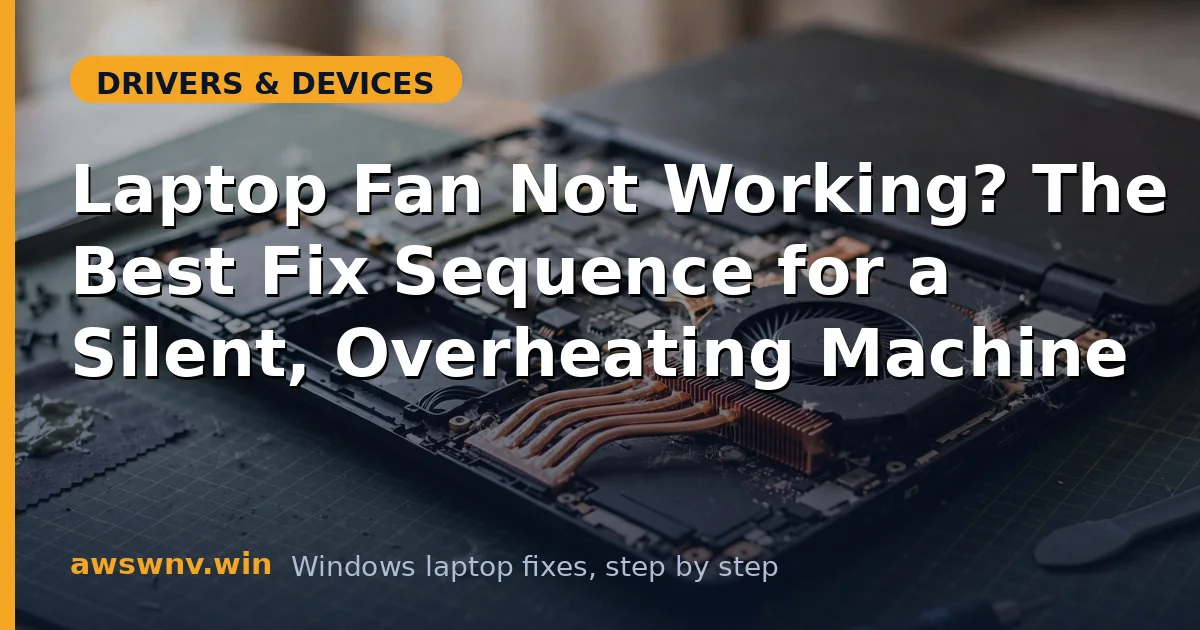
A fan that never spins while the laptop gets hot is alarming — and it should be, because sustained heat is what actually kills laptops over time. But before you panic, establish the facts: modern laptops deliberately keep fans off at idle, so “not spinning” only matters if temperatures are high. Check the temperature first, then work the chain: software fan control, BIOS settings, dust blockage, and finally the fan hardware itself.
Critical safety note for this whole guide: never run heavy workloads (gaming, rendering, stress tests) while you suspect the fan is dead. The CPU will throttle and shut down to protect itself, but repeated thermal shutdowns are still rough on the machine. For step-by-step fan diagnosis variants, see laptop fan not working step by step ; for the software side of thermal management, our slow laptop speed-up guide covers throttling symptoms.
Why this happens
- Semi-passive cooling design: The fan is supposed to be off below ~50–60°C — this is normal, not failure.
- Fan curve set to silent: Manufacturer utilities or Windows power plans set to “Quiet”/“Battery saver” keep the fan off longer.
- BIOS update reset thermal settings: Updates can change fan profiles or introduce fan-control regressions.
- Dust clogging the heatsink and fan: The fan spins but moves no air — or the blockage stalls the blades entirely.
- Fan control driver/service missing: Manufacturer thermal utilities uninstalled or broken after a Windows update.
- Dead fan motor or seized bearing: Mechanical failure — usually preceded by weeks of grinding or rattling noise.
- Loose or damaged fan connector: The fan’s ribbon/ZIF cable worked loose after a drop or a bottom-panel removal.
How to fix it
Work through these in order — diagnose first, then act.
Fix 1: Check actual temperatures first
Don’t diagnose a fan problem you might not have.
- Install a temperature monitor — Core Temp or HWMonitor (both free) — and watch CPU temperatures at idle.
- Idle temps of 40–55°C with a silent fan are completely normal on modern laptops. The fan should kick in as load rises.
- Put the laptop under moderate load: play a 4K YouTube video or run a few heavy browser tabs for five minutes and watch temps climb.
- If temperatures pass 75–80°C under load and the fan is still silent, you have a real problem — continue.
- If the fan spins up under load and temps stay under 90°C, your fan is fine — it was just doing its semi-passive job. Adjust expectations, not hardware.
Fix 2: Switch to a performance power plan
Rule out an over-aggressive quiet profile.
- Open Settings > System > Power & battery > Power mode and set it to Best performance (plugged in for this test).
- Open your manufacturer’s utility — Dell Power Manager, Lenovo Vantage/Legion, HP OMEN Hub, ASUS Armoury Crate, Acer NitroSense — and set the thermal mode to Performance or Turbo, not Quiet/Silent.
- Some utilities have an explicit fan curve or “fan always on” test option — use it if available.
- Rerun the load test from Fix 1. If the fan now spins, the “problem” was just a quiet profile — decide whether you prefer silence or cooling.
- If your manufacturer’s utility is missing (common after clean Windows installs), download it from Dell (or HP’s or Lenovo’s support page) — fan control often lives there, not in Windows.
Fix 3: Check BIOS thermal and fan settings
Firmware-level fan configuration.
- Restart into BIOS/UEFI (F2/Del/F10, varies by maker).
- Look for Thermal, Fan, Cooling, or Performance sections — options vary wildly, but many BIOS setups show fan status or curves.
- If you find fan settings changed or disabled, restore them; if unsure, use Load Optimized Defaults, save, and exit.
- Some BIOS versions display live fan RPM — if RPM reads 0 while the CPU is warm, that’s a data point for hardware failure.
- Check your manufacturer’s support page for BIOS release notes mentioning fan control — if your BIOS version introduced a fan bug, a newer BIOS may fix it.
Fix 4: Clean dust from the vents and fan
The most common physical cause, and free to fix.
- Shut down the laptop completely and unplug it.
- Inspect the intake and exhaust vents with a flashlight — a felt-like mat of dust across the heatsink fins is the classic blockage.
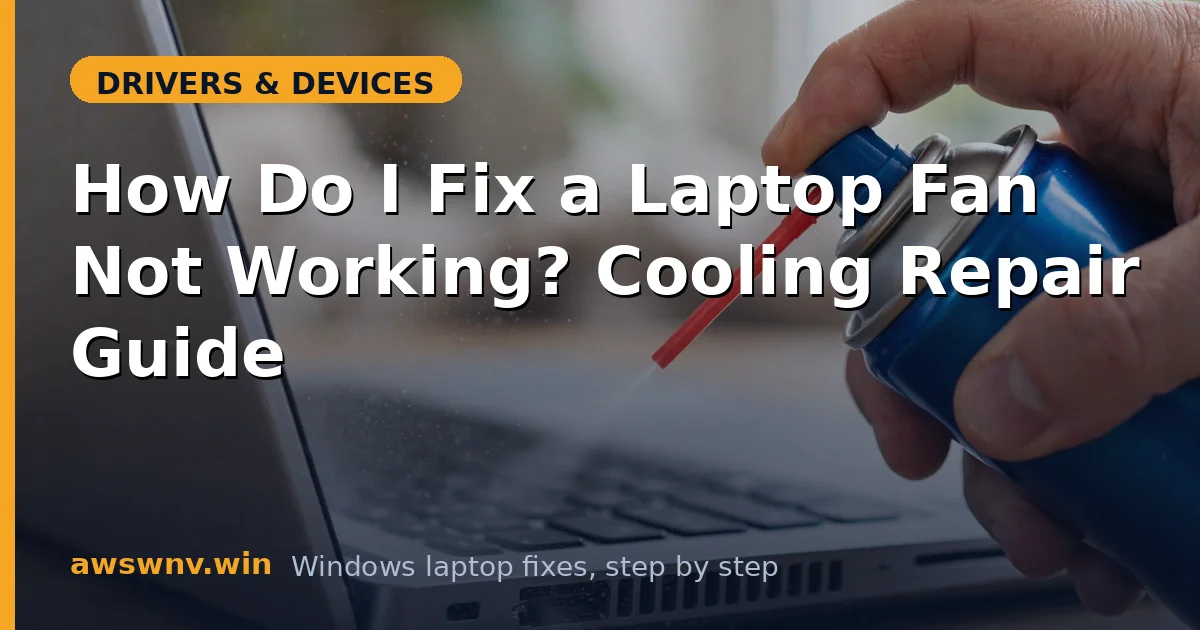
- Blow compressed air into the exhaust vents in short bursts (this pushes dust back out the intake, the reverse of how it entered). Hold the can upright to avoid spraying propellant.
- For a thorough clean, remove the bottom panel (check your model’s service manual — usually a dozen Phillips screws) and gently clean the fan blades with a soft brush. Hold the fan still while blowing air on it — letting it spin freely from air pressure can damage the bearing.
- Reassemble, boot, and rerun the temperature test. A dust-choked fan often “wasn’t working” simply because it couldn’t move air — cleaning restores it.
Fix 5: Reinstall thermal and chipset drivers
Software control of the fan runs through drivers.
- In Device Manager, check System devices for anything related to thermal or fan control with warning icons.
- Reinstall your chipset driver — fan control is often part of the chipset/EC driver package. Intel users: Intel Driver & Support Assistant ; AMD users: AMD’s driver download page.
- Reinstall your manufacturer’s system utility (Vantage, Dell Power Manager, etc.) — uninstall it fully first, then install fresh from the support page.
- Check Services (
services.msc) for manufacturer thermal services and ensure they’re running and set to Automatic. - Retest under load. If the fan responds to the manufacturer’s utility but not to Windows power plans, leave the utility in charge — that’s its job.
Fix 6: Test the fan directly and listen
Gather mechanical evidence before opening anything.
- With the laptop on and warm, put your ear near the exhaust vent during the load test — a seized fan is silent; a struggling fan clicks, grinds, or rattles.
- Feel for airflow at the exhaust with the back of your hand — faint warm airflow means the fan spins but the heatsink is clogged (back to Fix 4).
- Some laptops have a built-in fan test in BIOS diagnostics or the manufacturer’s boot-time diagnostics (Dell: F12 > Diagnostics; Lenovo: F10 or Vantage hardware scan). Run it.
- Grinding or rattling that changes with tilt = failing bearing. The fan will die completely soon — plan replacement, don’t wait.
- Total silence + zero airflow + high temps + clean vents = dead fan motor or disconnected cable. Time to open it or take it in.
Fix 7: Reseat or replace the fan
The hardware end of the road.
- Only attempt this if you’re comfortable opening the laptop — otherwise a repair shop charges modestly for fan replacement, and the part itself is usually $15–40.
- Remove the bottom panel, locate the fan, and check its cable where it meets the motherboard — ZIF connectors have a tiny locking latch; reseat the cable firmly.
- If reseating doesn’t help, note the fan’s part number (printed on the fan housing) and order an exact replacement — laptop fans are model-specific.
- Replacement is usually 2–4 screws and one cable — straightforward, but photograph each step.
- While you’re in there, consider repasting the CPU/GPU if the laptop is 3+ years old — dried thermal paste is the other half of most overheating stories. For throttling-related slowdowns, see Microsoft’s guidance on Windows performance .
Closing
Fan diagnosis is really temperature diagnosis: measure first, and half the “dead fan” reports turn out to be semi-passive cooling working as designed. For the real failures, the path is profiles, BIOS, dust, drivers, then hardware — and dust alone accounts for more dead-feeling fans than every other cause combined.