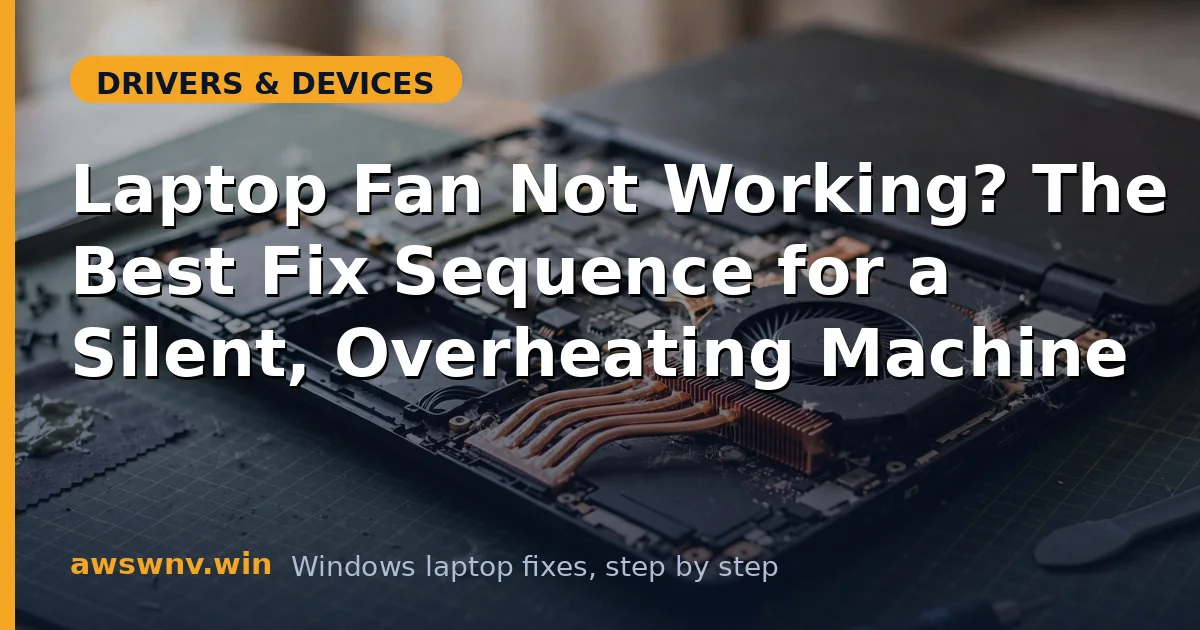
A laptop fan that never spins is an emergency in slow motion. Without airflow, heat builds until the CPU throttles, performance collapses, and eventually the machine shuts itself off to survive. The tricky part is that ‘fan not working’ has two very different meanings: the fan is dead, or the fan is fine but never told to spin.
Modern laptops only run the fan under load, so the first job is determining which case you are in. The steps below start with that distinction — temperature monitoring and BIOS fan tests — then move through the software causes, the safe cleaning you can do yourself, and finally the hardware verdict.
Why this happens
- Fan only runs under load by design — mistaken for failure at idle on modern laptops.
- Dust and debris jamming the blades or clogging the heatsink fins.
- Embedded controller (EC) bug leaving the fan off after sleep or a firmware glitch.
- BIOS fan settings or a failed BIOS fan test, indicating the EC cannot see the fan.
- Dead fan motor or seized bearing — no spin even with direct power.
- Disconnected fan cable after a repair or a drop.
- Aggressive silent/fanless power profile in vendor software capping the fan at zero.
How to fix it
Work through these in order — diagnose first, then act.
Fix 1: Confirm the fan is actually broken
Install HWMonitor and watch CPU temperatures while running a heavy task like a 4K YouTube video or a benchmark. If temperatures climb past 90°C and the fan never spins, the fan is genuinely not working. If the fan spins up under load, it was never broken — your laptop just idles silently by design. Do not skip this test; it prevents fixing a non-problem. Note that heat also manifests as graphics trouble — a hot machine that crashes in games may need the NVIDIA driver crash guide after cooling is restored.
- Install HWMonitor and note idle CPU temperatures.
- Run a heavy workload for five minutes.
- Watch temperatures and listen/feel for fan airflow.
- No spin above 90°C = real fault. Spin under load = normal behavior.
Fix 2: Run the BIOS fan test
Most laptop BIOS setups (Dell, HP, Lenovo) include a fan or cooling diagnostic. Reboot into the BIOS or the vendor’s diagnostics (often F12 or F2) and run it. The test spins the fan directly, bypassing Windows entirely — if the fan spins here, the hardware is fine and the problem is software or EC configuration.
- Reboot into the BIOS or vendor diagnostics.
- Run the fan/cooling test.
- Fan spins in the test = hardware OK, fix the software side.
- Fan fails the test = hardware fault, skip to the repair steps.
Fix 3: Reset the embedded controller
The EC controls the fan, and it can lock up. Shut down, unplug everything including the charger, hold the power button for 15-30 seconds, then reconnect and boot. On some models, removing the battery (if removable) for a minute does the same. This clears EC states that survive normal reboots and restores fan control.
- Shut down and unplug the charger and all devices.
- Hold the power button for 15-30 seconds.
- Reconnect the charger and boot.
- Stress-test and check whether the fan now spins.
Fix 4: Check vendor power profiles
Dell Power Manager, Lenovo Vantage, HP Command Center, ASUS Armoury Crate, and MyASUS all include thermal profiles — and their quiet or silent modes can hold the fan at zero far longer than is safe. Switch to Balanced or Performance and retest. Also check Windows Power Options: the ‘System cooling policy’ should be Active, not Passive. Vendor thermal tools are documented on each maker’s support site, such as Dell support .
- Open the vendor’s power/thermal utility.
- Switch from Quiet/Silent to Balanced or Performance.
- In Windows Power Options, set System cooling policy to Active.
- Stress-test and verify the fan responds.
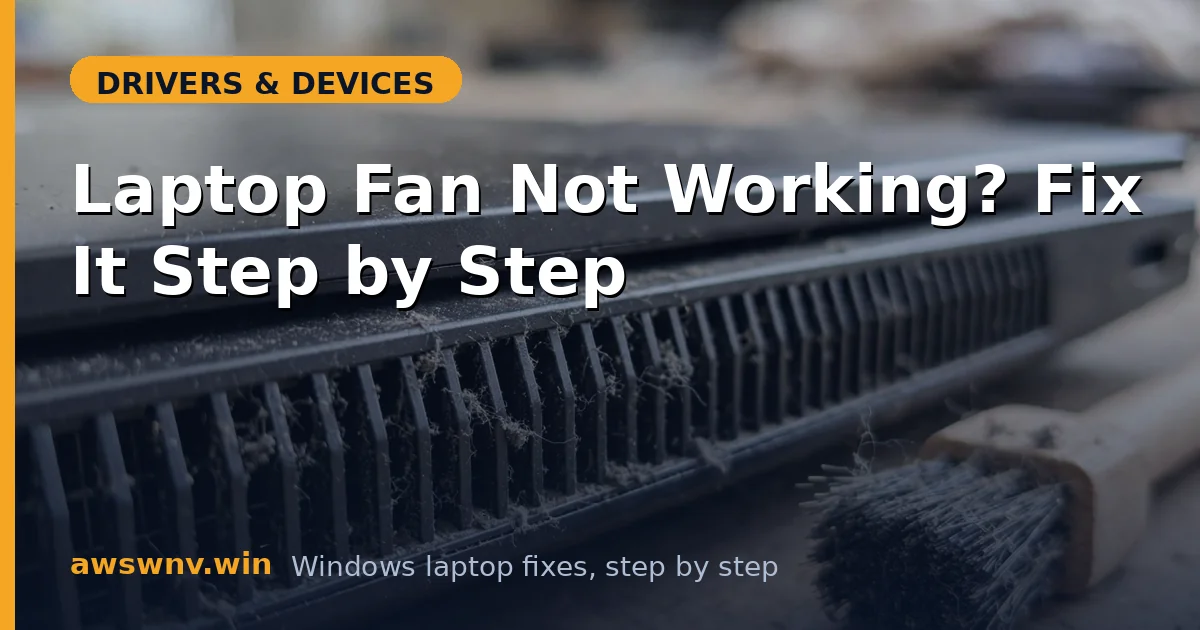
Fix 5: Clean the vents and fan safely
With the laptop off and unplugged, blow compressed air through the intake and exhaust vents in short bursts, holding the can upright. This dislodges dust without opening the machine. Never spin the fan with the air blast — hold the blades still with a toothpick through the vent if you can see them, since overspinning can damage the bearing.
- Power off and unplug the laptop.
- Blow short bursts of compressed air through vents, can upright.
- Avoid spinning the fan with the air stream.
- Boot and check fan behavior under load.
Fix 6: Update the BIOS
If the EC reset did not help, check the laptop maker’s support page for a BIOS update mentioning fan, thermal, or EC fixes. Flash it with the charger connected and the battery charged, and do not interrupt the process. A BIOS update rewrites the EC firmware that drives the fan, fixing the firmware-level causes.
- Find your exact model on the maker’s support page.
- Download the BIOS update only if the changelog mentions fan/thermal/EC.
- Flash with the charger connected; do not interrupt.
- Retest the fan under load.
Fix 7: Face the hardware verdict
Fan failed the BIOS test, never spins under load, and cleaning plus EC resets changed nothing — the motor, bearing, or cable has failed. Laptop fans are model-specific parts costing little, but replacement means opening the machine. If you are comfortable, follow a teardown guide for your exact model; otherwise a repair shop charges modestly for the job. Until then, use the laptop only lightly and on a cooling pad.
- Confirm the failure with the BIOS test and temperature monitoring.
- Order the exact fan part number for your model if self-repairing.
- Or take it to a repair shop — describe the failed BIOS fan test.
- Use a cooling pad and light workloads until repaired.
Closing
A non-spinning fan is either a misunderstanding (silent-idle design), a confused controller (EC reset or BIOS fix), a dust problem (cleaning), or a dead motor (replacement). The temperature test and the BIOS fan test tell you which within minutes, so you never waste time cleaning a fan that only needed an EC reset — or resetting an EC when the motor is seized. Heat is the enemy of every component in the chassis, so do not let this one wait. Chronic heat also shortens battery life — if the machine runs hot while charging too, see fixing laptop overheating .