A laptop fan that never spins is an emergency disguised as a minor annoyance: modern CPUs throttle hard when hot, so the machine feels merely ‘slow’ right up until heat damages something. Before assuming the fan is dead, know that most laptop fans are supposed to sit still at idle — many models do not spin below 50–60°C by design. The real question is whether the fan spins under load.
When a fan genuinely fails to respond to heat, the causes split into software (BIOS fan curves, chipset/EC drivers, Windows power plans parking the fan) and hardware (seized bearing, broken fan cable, failed fan header). Software causes are far more common after Windows updates that touch the chipset or power subsystem — which is why this sits in the drivers category.
Test first: run a demanding task and watch temperatures. If the fan stays dead while the CPU climbs past 85°C, work through the fixes below. For broader Device Manager driver checks during diagnosis, that guide covers the workflow used here.
Why this happens
- Fan curve set to passive in BIOS/power plan — Silent profiles keep the fan off until high temperatures; a stuck profile never ramps up.
- Chipset / embedded controller driver issue — The EC manages fans; a bad chipset driver after a Windows update can break EC communication.
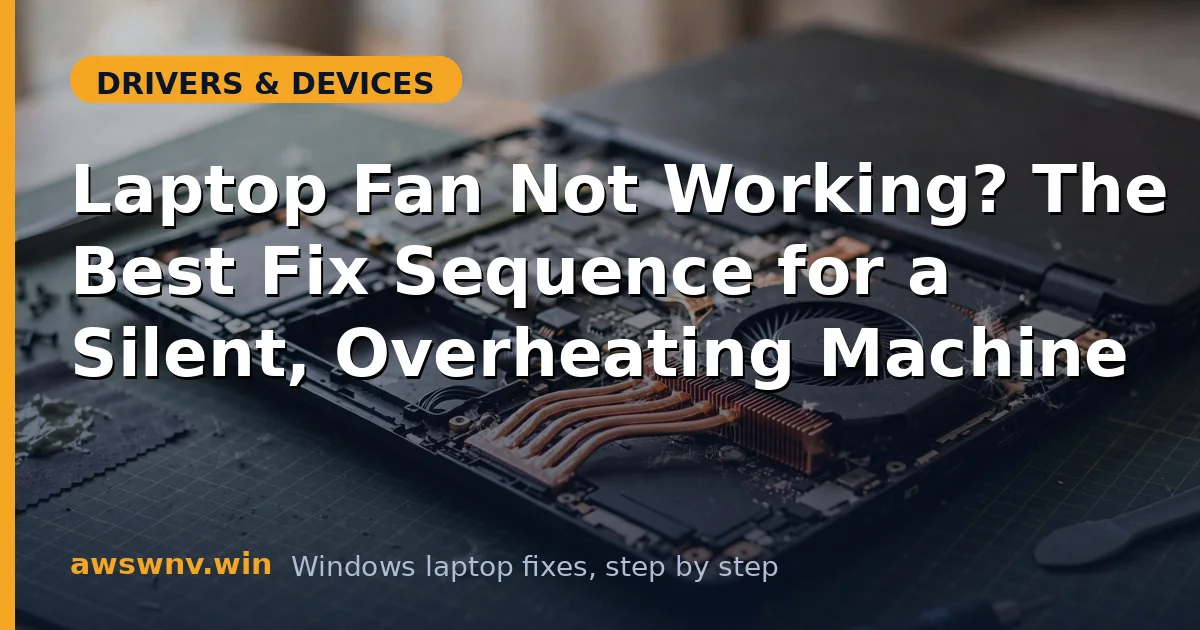
- Dust-clogged heatsink and seized bearing — Dust mats block airflow so thoroughly the fan cannot move air; bearings seize after years.
- Fan cable disconnected or damaged — The tiny fan header cable can work loose, especially after any disassembly.
- BIOS bug or outdated firmware — Some BIOS versions mishandle fan tables; vendors fix this in updates.
- Third-party fan control software conflict — Notebook FanControl or vendor tools fighting the EC can park the fan.
- Dead fan motor — Motors do fail — usually with warning signs like grinding noise beforehand.
How to fix it
Work through these in order — diagnose first, then act.
Fix 1: Verify the fan actually should be spinning
Do not ‘fix’ normal behavior. Confirm a real fault under controlled load first.
- Install HWiNFO64 and note CPU/GPU temperatures at idle.
- Run a stress test (Cinebench, or a heavy game) for 5 minutes while watching temps.
- If the fan spins up as temps pass ~65–70°C, it is healthy — your ‘problem’ was the passive-at-idle design.
- If temps exceed 90°C with zero fan activity, continue — the fault is real.
Fix 2: Check BIOS fan settings
The firmware owns the fan curve. A wrong setting here overrides everything Windows does.
- Restart into BIOS/UEFI (Del/F2/Esc depending on maker).
- Look for Fan, Cooling, Thermal, or Performance settings.
- Set fan/cooling mode to Active or Performance (not Silent/Passive) for testing.
- Save, boot into Windows, and repeat the load test.
Fix 3: Reinstall chipset and EC-related drivers
The embedded controller talks to Windows through the chipset driver. Refreshing it restores fan control after bad updates.
While you are refreshing drivers, it is worth confirming the rest of the driver stack is healthy too — a general driver health check takes a few minutes and rules out companion issues. Chipset, BIOS, and power-management drivers all interact with the embedded controller, so a fully current stack gives the fan control path the best chance of working.
- Download the latest chipset driver for your exact laptop model from the manufacturer’s support site.
- In Device Manager, expand System devices and uninstall the chipset/Intel Management Engine entries (do not delete drivers unless reinstalling).
- Install the downloaded chipset package and restart.
- Also update the BIOS if the maker lists fan/thermal fixes in the changelog — follow their instructions exactly.
Fix 4: Clean the cooling system
A fan buried in dust cannot cool, and the EC may not even bother spinning a blocked fan hard. This is maintenance, not repair.
- Power off, unplug, and remove the bottom panel (check your model’s service manual).
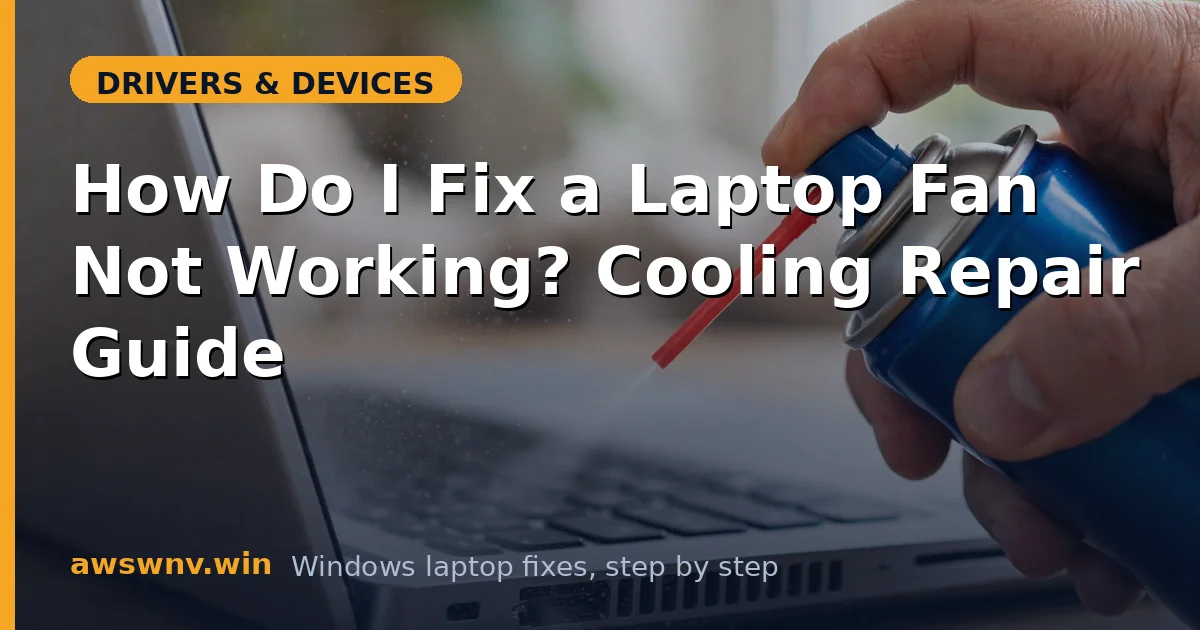
- Hold the fan blades still and blow dust out with short bursts of compressed air — never let the fan spin freely from air pressure.
- Clear the heatsink fins and vents; a solid dust mat peels off in one piece on neglected machines.
- Reassemble, boot, and load-test. If the fan now spins, schedule cleaning every 6–12 months.
Fix 5: Remove third-party fan control software
Two drivers fighting over the EC means nobody wins and the fan parks.
- Uninstall Notebook FanControl, SpeedFan, or similar tools.
- In vendor apps (Armoury Crate, OMEN Hub, Lenovo Vantage), set thermal mode to Balanced/Performance and disable manual fan curves.
- Restart and load-test with only the vendor’s default control active.
- Reintroduce custom curves only after confirming the default works.
Fix 6: Reset the power plan to defaults
Corrupt power-plan settings can pin the cooling policy to passive permanently.
- Open Command Prompt as admin and run
powercfg -restoredefaultschemes. - In Power Options > Change plan settings > Change advanced power settings, expand Processor power management > System cooling policy and set it to Active for both battery and plugged-in.
- Restart and load-test. Microsoft’s Windows power support documents these policies.
Fix 7: Inspect the fan hardware
When software is exhausted, look with your eyes. Only proceed if you are comfortable opening the machine.
- Open the bottom panel and locate the fan’s thin cable to the motherboard header — reseat it firmly.
- Try spinning the blades by hand: gritty resistance or wobble means a seized bearing.
- Check for a replacement fan by part number (usually printed on the fan) — laptop fans are model-specific but inexpensive.
- If the cable and fan look fine yet nothing spins under 95°C load, the motherboard fan header or EC may have failed — professional repair territory.
Closing
A silent laptop fan is normal at idle and an emergency under load — the load test in Fix 1 is what separates the two. From there, BIOS cooling mode, chipset drivers, and dust cover the vast majority of genuine faults; only the last fix involves hardware, and by then you will know with confidence whether the fan itself is dead. If your problem is the mirror image — the fan screaming non-stop even at idle — the fan always running on Windows 10 guide diagnoses that side of the coin.