A laptop that stays silent while getting hotter and hotter is a warning sign you should not ignore. Fans are the only active cooling a laptop has, and when they stop spinning under load, temperatures climb until the CPU throttles — or worse, until sustained heat shortens the life of the battery, SSD, and motherboard. Windows 11 24H2 added a new wrinkle by breaking fan control drivers on some models.
Before panicking, remember that modern laptops intentionally keep fans off during light use. The diagnostic question is specific: do the fans spin up when the machine gets hot? If the answer is no, work through the steps below — from verifying normal behavior to driver repair to hardware checks — before heat does real damage.
Why this happens
- Normal zero-RPM fan curves: Fans intentionally stay off during light workloads; this is not a fault.
- Broken chipset/EC driver after 24H2: The update replaces the driver that talks to the fan controller.
- Manufacturer control app missing or broken: Fan curves live in apps like Armoury Crate; without them, control fails.
- Fan control stuck in silent mode: A mode setting persists that keeps fans at minimum regardless of heat.
- Dust-clogged fans or vents: Physical blockage prevents spinning or makes it ineffective.
- Failed fan motor or bearing: Mechanical failure, often preceded by grinding or rattling noises.
- BIOS fan settings reset: Firmware updates can alter thermal and fan behavior.
How to fix it
Work through these in order — diagnose first, then act.
Fix 1: Verify whether the fans actually should be spinning
Install HWiNFO64 and monitor CPU/GPU temperatures during a stress test (Cinebench or a demanding game). If temperatures stay reasonable and fans spin up under load, everything is fine — your laptop just runs quietly. If temperatures climb past 90°C sustained with no fan noise and no exhaust airflow, you have a genuine fault. Hold a tissue near the vents to feel for airflow. This measurement-first approach prevents “fixing” normal silent operation.
Fix 2: Check the manufacturer’s fan control app and mode
Open your laptop’s control utility — Armoury Crate (ASUS), Legion Zone (Lenovo), OMEN Hub (HP), Alienware Command Center (Dell) — and check the thermal mode. If it is stuck on Silent or Quiet, switch to Balanced or Performance and listen for fan response. Reinstall the app if it crashes or shows no fan controls; these apps are the actual interface to the embedded fan controller, and 24H2 updates frequently break them. Set a manual or performance curve temporarily to confirm the fans can spin at all.
Fix 3: Reinstall chipset and embedded-controller drivers
Download the chipset driver package for your exact model from Dell , HP , or Lenovo and install it — this restores the bus drivers the fan controller depends on. Also check for an “ATK,” “System Interface,” or embedded-controller driver on the support page. Reboot and retest under load. When 24H2’s generic drivers replaced these OEM components, fan control is often the first casualty and this reinstall is the fix.
Fix 4: Update BIOS and reset thermal settings
Check the support page for a BIOS update mentioning thermal, fan, or 24H2 compatibility, and install it on AC power. After updating, enter BIOS setup and look for fan or thermal options — reset them to defaults if they look wrong. BIOS updates fix firmware-level fan bugs, but they can also reset custom curves, so verify your control app’s settings afterward. Never interrupt a BIOS flash.
Fix 5: Clean dust from vents and fans
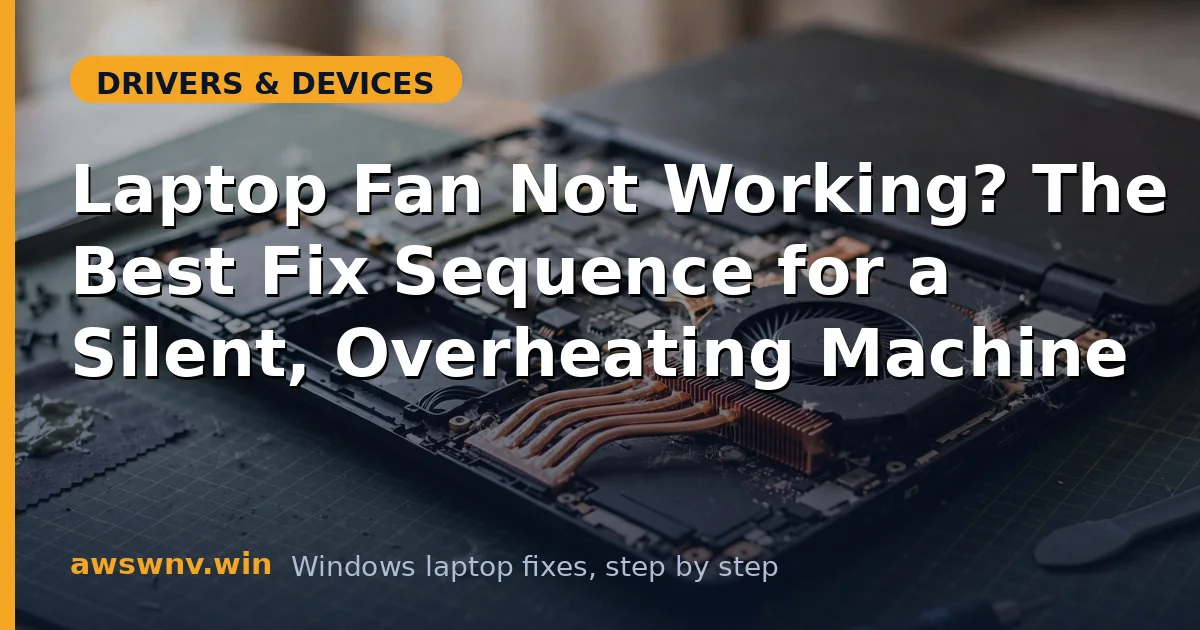
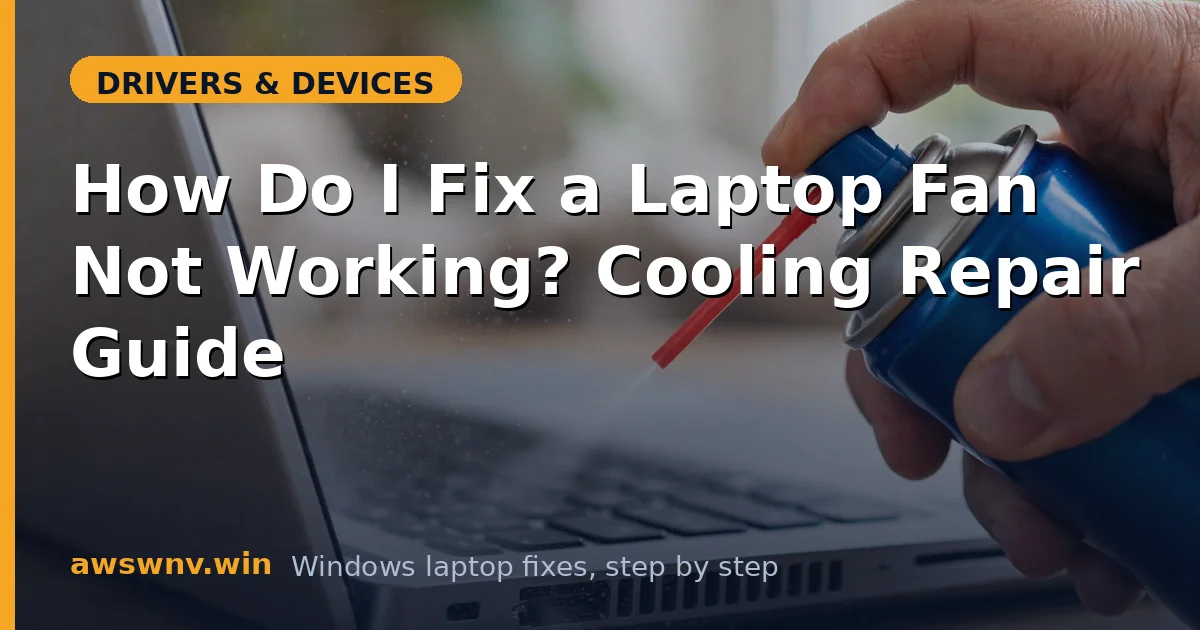
Power off, unplug, and blow compressed air through the intake and exhaust vents in short bursts, holding fan blades still with a toothpick if accessible to prevent overspinning. For thorough cleaning, remove the bottom panel (if your warranty allows) and clear dust bunnies from the fan housings and heatsink fins. Dust is the most common physical cause of fans that spin weakly or not at all, and cleaning drops temperatures immediately. If you hear grinding, the bearing is failing — cleaning won’t save it.
Fix 6: Rule out software holding the fans down
Boot into BIOS and listen: many laptops run fans at a fixed speed in firmware setup. If fans spin in BIOS but not in Windows under load, the problem is software — focus on drivers and control apps. Also check Task Manager for stuck control-app processes and kill duplicates. As a diagnostic, our guide on disabling automatic driver updates explains how to stop Windows from re-breaking the chipset driver after you fix it.
Fix 7: Test the fan hardware and get professional repair
If fans never spin — not in BIOS, not under manual control, not after driver and BIOS work — the fan motor, its cable, or the motherboard’s fan header has failed. Laptop fan replacement is model-specific and often requires full disassembly; get a quote from the manufacturer or a reputable shop. Until repaired, limit the laptop to light tasks, use a cooling pad, and monitor temperatures — running hot with no active cooling risks permanent damage. Intel’s chipset guidance at Intel support can confirm driver versions for your platform.
Closing
A silent laptop is either cleverly engineered or dangerously broken, and temperature monitoring tells you which. When fans genuinely fail to respond to heat, the path is clear: verify with measurements, restore the OEM control stack that 24H2 disrupted, clean the physical path, and treat persistent silence as a hardware fault needing professional repair — before heat makes the decision for you. Healthy cooling is maintained, not assumed: blow out the vents every few months, because dust accumulation is silent and gradual until temperatures suddenly cross the throttling line. After each Windows feature update, open your manufacturer’s control app and confirm the thermal modes and fan curves are intact — 24H2-era updates have a habit of breaking exactly this software. Learn your laptop’s normal temperature ranges with HWiNFO64 so you recognize abnormal heat before it becomes damage; a machine that idles 15 degrees hotter than it used to is telling you something. Never run sustained heavy loads on soft surfaces like beds, which smother the intakes the fans depend on. If temperatures ever climb while fans stay silent again, you now know the diagnostic order — and note that persistent overheating also destabilizes the GPU, so our guide on fixing NVIDIA driver crashes step by step is worth reading alongside any cooling work.