A laptop fan that never stops is telling you something: heat is being generated faster than passive cooling can shed it, all the time. At idle, a healthy laptop produces so little heat that the fan should be off or whispering. When it roars through web browsing, document editing, or literally doing nothing, there is a specific cause — a runaway process, clogged cooling, degraded thermals, or a settings problem — and each has a specific fix.
This guide works from the easiest checks to the physical maintenance, so you only open the chassis if the software fixes do not solve it.
Why this happens
- A background process consuming CPU: Updaters, indexers, antivirus scans, and stuck app processes generate continuous heat that the fan must fight.
- Dust-clogged heatsinks and fans: Accumulated dust insulates the cooling fins, so even normal idle heat cannot escape and the fan runs harder to compensate.
- Dried-out thermal paste: After 2–4 years, the thermal interface between CPU/GPU and heatsink degrades, transferring heat poorly and forcing constant high fan speeds.
- High-performance power plan stuck on: A power plan that never lets the CPU idle keeps clocks — and heat — elevated permanently.
- Blocked vents: Using the laptop on a bed, couch, or lap covers the intake vents, trapping heat that the fan then battles endlessly.
- GPU activity at idle: A discrete GPU stuck awake (driver bug, external monitor, hardware-accelerated app) generates heat even with no visible workload.
- Ambient heat and poor placement: Hot rooms and enclosed spaces raise the baseline the cooling system must work against.
- Failing fan bearings: A worn fan runs louder at the same speed and may run constantly because its airflow efficiency has dropped.
How to fix it
Work through these in order — diagnose first, then act.
Fix 1: Find the heat source in Task Manager
- Open Task Manager (Ctrl + Shift + Esc), go to Details, and sort by CPU.
- Watch for two minutes — look for any process consistently above 5–10 percent at idle. Common offenders: updaters, search indexer, antivirus scans, and stuck browser processes.
- Check the Performance → GPU tab too — GPU activity at idle is a major hidden heat source.
- End the suspicious task as a test: if the fan winds down within minutes, you found it. Then fix that process permanently (disable its autostart or update it) rather than killing it daily. For indexer-related heat, see search indexing high CPU .
Fix 2: Check temperatures to calibrate the problem
- Install a hardware monitor (HWiNFO64 is free and thorough) and note idle CPU/GPU temperatures.
- Healthy idle: 40–55°C. Concerning idle: 65°C+ with the fan screaming and no load.
- If temperatures are normal but the fan still roars, the issue may be fan control (Fix 6) or a failing fan bearing (Fix 8).
- If temperatures are high at idle, the problem is heat generation or heat removal — continue with the fixes below.
Fix 3: Fix the power plan
- Open Settings → System → Power & battery → Power mode and set it to Balanced or Best power efficiency for daily use.
- Open Control Panel → Power Options and check which plan is active — some manufacturer utilities silently switch to High Performance and leave it there.
- In advanced power settings, verify Processor power management → Maximum processor state is 100 percent on plugged in but the Minimum is low (5 percent), allowing idle downclocking.
- Retest at idle. A stuck performance plan is one of the most common causes of never-ending fan noise. See our power plan guide for the full details.
Fix 4: Stop the background heat generators
- In Task Manager → Startup apps, disable updaters, sync tools, and launchers you do not need running constantly.
- Pause Windows Update during the diagnosis (Settings → Windows Update → Pause) to rule out background update activity.
- In Windows Security, check whether a full scan is running — schedule scans for times you are not using the laptop.
- Disable Windows Search indexing temporarily as a test if SearchIndexer.exe appears in the CPU list — indexing is a notorious idle-heat source.
Fix 5: Clean the cooling system
- Power off the laptop, unplug it, and blow compressed air through the exhaust vents in short bursts (hold the can upright).
- Blow into the intake vents on the bottom as well, dislodging the dust mat that forms on the heatsink fins.
- Do this outdoors or in a ventilated area — the dust cloud is impressive on machines cleaned for the first time.
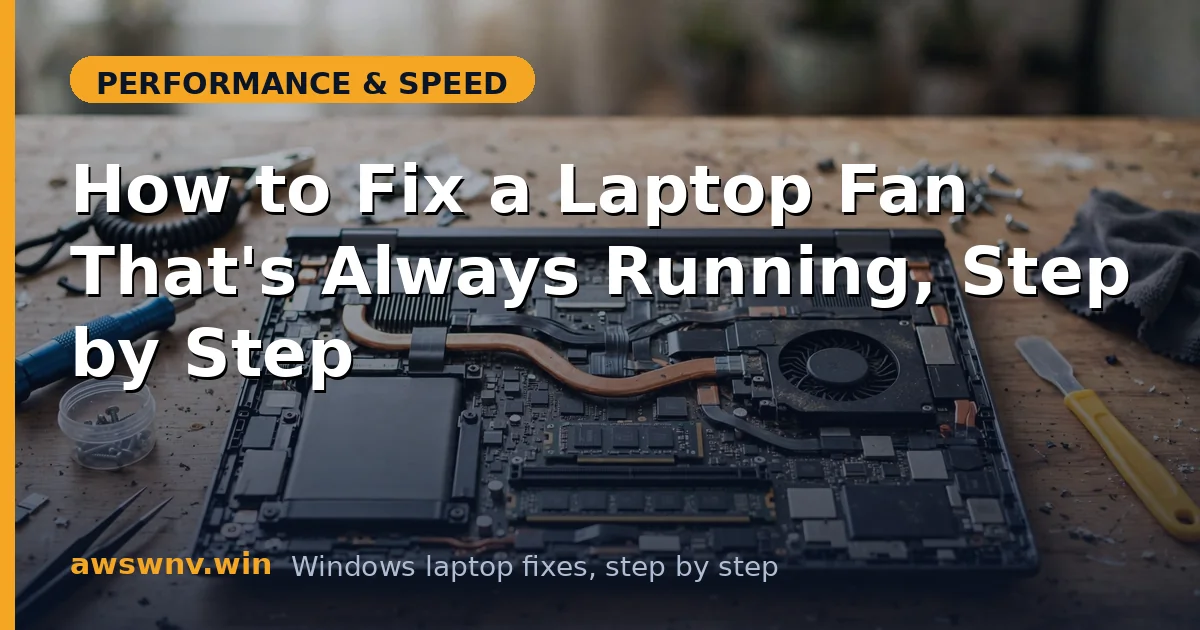
- If comfortable opening the chassis (check your warranty terms first), remove the bottom panel and clean the fans and fins directly with compressed air and a soft brush. This alone can drop idle temperatures 10–15°C on dusty machines.
Fix 6: Update BIOS and fan-control software
- Check your manufacturer’s support site for BIOS updates — fan curve fixes are a common BIOS changelog entry.
- Update the manufacturer’s control software (Dell Power Manager, Lenovo Vantage, HP Command Center, ASUS Armoury Crate) — these control fan curves and power behavior.
- Look for a Quiet or Silent thermal mode in that software and enable it for light work.
- If the fan ignores all software control and runs at full speed from boot, that points to a sensor or hardware issue — continue to Fix 8. Driver-level help is available from Intel for chipset and management engine components.
Fix 7: Replace thermal paste (for older laptops)
- If the laptop is 3+ years old, idle temperatures stay high after cleaning, and you are comfortable with disassembly, dried thermal paste is the likely culprit.
- Follow a teardown guide specific to your exact model (video guides for your model number are invaluable), remove the heatsink, clean off old paste with isopropyl alcohol, and apply a pea-sized dot of quality paste (or a thermal pad alternative).
- Reassemble carefully, ensuring even heatsink pressure and reconnecting the fan cable.
- Expect idle temperature drops of 10–20°C. If disassembly is beyond your comfort zone, a repair shop does this affordably — it is routine work. Our fan running after update guide covers software-side causes to rule out first.
Fix 8: Diagnose a failing fan
- Listen closely: a grinding, clicking, or rattling fan has failing bearings — no software fix will quiet it.
- If one side of the laptop blows hot air weakly while the other works, that fan may be dead or obstructed.
- Run the manufacturer’s built-in hardware diagnostics (usually accessible from the boot menu) — they include fan tests.
- Replacement fans are model-specific and inexpensive; replace rather than tolerate. Until then, keep the laptop on a hard surface with vents clear and avoid heavy workloads that the compromised cooling cannot handle. Microsoft’s Windows support hub covers power and thermal troubleshooting basics.
Closing
A constantly running fan is a symptom with a discoverable cause, and the discovery order matters: find the heat in Task Manager, verify with temperature readings, fix the power plan, clean the dust, update the firmware, and only then consider thermal paste or fan replacement. Most never-ending fan noise surrenders at step one or two — a runaway process or a clogged vent — and the silence afterward is the sound of a laptop finally able to breathe.