A laptop fan that never stops is trying to tell you something: the machine is hot, and it is hot for a reason. Since the Windows 11 24H2 update, that reason is very often software — a background process that the update left churning, keeping the CPU warm enough that the fan never gets to rest. The fan is not broken. It is responding correctly to a problem upstream.
The technician’s rule is simple: never fight the fan, find the heat. A process pinning the CPU, a stuck indexer, or an update component in a loop will keep temperatures elevated no matter how clean your vents are. Only after the software side is quiet does it make sense to look at dust, paste, and cooling profiles.
Follow this order — software first, cooling second — and most constant-fan cases resolve without opening the machine.
Why this happens
Stuck post-24H2 background tasks: Indexing, Defender rescans, and update components can run for days after the feature update.
A process pinning the CPU: One runaway process — check Task Manager — generates constant heat the fan must fight.
Dust-clogged vents and fans: Restricted airflow forces the fan to spin faster to move the same heat.
Dried-out thermal paste: After a few years, paste between CPU and heatsink degrades and heat transfer worsens.
Aggressive performance power plan: High-performance modes hold clocks high, generating heat even at moderate load.
Blocked intake vents: Using the laptop on a bed or couch smothers the intakes underneath.
BIOS fan curve changes: Some 24H2-era BIOS updates altered fan curves to be more aggressive. Similar background-load issues are covered in laptop fan always running after the Windows 11 update .
How to fix it
Work through these in order — diagnose first, then act.
Fix 1: Find the process keeping the CPU warm
The fan follows temperature, and temperature follows CPU load. Find the load and you find the real problem.
- Open Task Manager with Ctrl plus Shift plus Esc and sort by CPU.
- Let it sit for two minutes and note any process consistently above 10 percent at idle.
- Check the Startup apps tab for anything suspicious launching at boot.
- If a Windows service is the hog, address it specifically — search indexer, Defender, and update components are the usual suspects.
- End the task temporarily to confirm the fan calms down, then fix the underlying cause.
Fix 2: Let post-24H2 background work finish
Right after the feature update, heavy background work is legitimate. The trick is distinguishing ‘still settling’ from ‘stuck’.
- Check Settings, Windows Update — if updates are still installing, let them finish.
- Check Settings, Privacy and security, Searching Windows for active indexing.
- Give a fresh 24H2 install 48 hours of plugged-in idle time to settle.
- If background tasks are still hammering the CPU after 48 hours, they are stuck — treat them as broken, not busy.
- Rebuild the search index or clear the Defender scan history as appropriate.
Fix 3: Switch to a balanced power plan
High-performance plans hold the CPU at high clocks even when idle, generating constant heat. Balanced lets it idle properly.
- Open Settings, System, Power and battery.
- Set Power mode to Balanced or Best power efficiency.
- Open Control Panel, Power Options, Change plan settings, Change advanced power settings.
- Under Processor power management, set Maximum processor state to 95 percent on battery — this disables turbo boost heat spikes.
- Apply and monitor fan behavior over the next hour.
Fix 4: Clean the vents without opening the laptop
Dust in the exhaust fins is the most common physical cause, and you can clear a surprising amount without disassembly.
- Power off the laptop and unplug it.
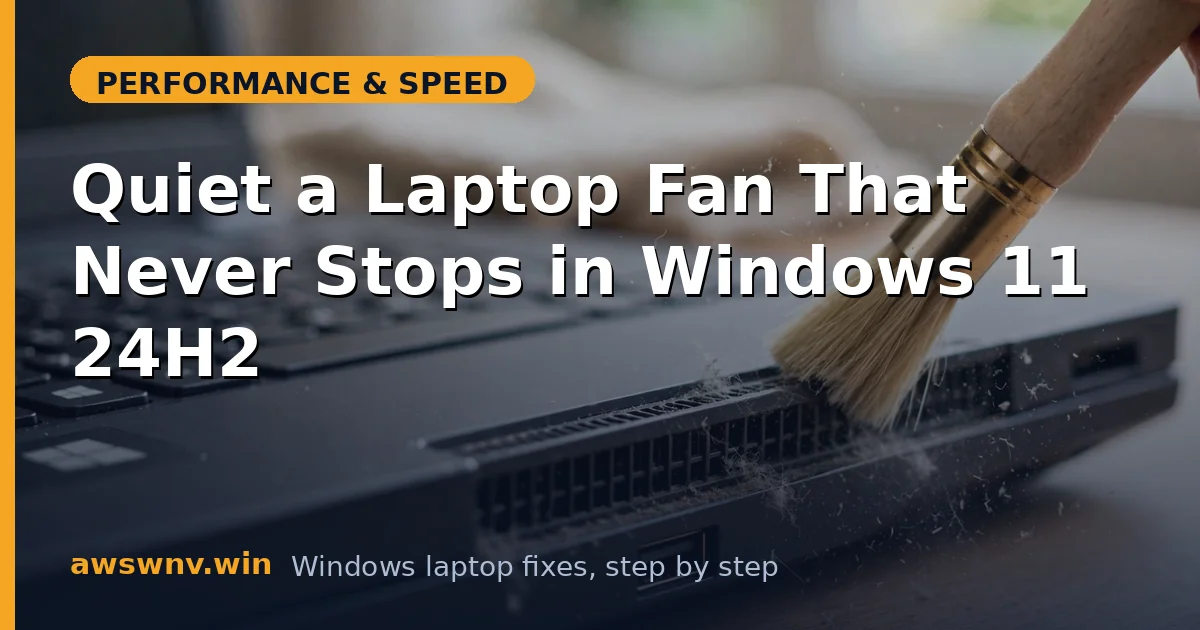
- Use short bursts of compressed air into the exhaust vents — hold the can upright.
- Blow into the intake vents on the bottom to dislodge dust from the other side.
- Never use a vacuum directly on the vents — static discharge can damage components.
- Place the laptop on a hard, flat surface so intakes stay clear during use.
- Retest: if the fan is quieter under the same workload, dust was a factor.
Fix 5: Update BIOS and chipset drivers
Manufacturers tune fan curves and thermal management in BIOS updates. An old BIOS on a new Windows build can mismanage cooling. Microsoft’s Windows support hub has additional guidance on managing overheating in Windows 11.
- Check your laptop maker’s support site for a BIOS update mentioning thermal or fan behavior.
- Install it with the charger connected and do not interrupt the process.
- Update the chipset driver from the same support site.
- Check for a fan-control or thermal utility from the maker and set it to a balanced profile.
- Monitor temperatures with HWMonitor or the maker’s utility after updating.
- For Intel-based machines, Intel’s driver detection tool keeps chipset drivers current.
Fix 6: Reposition and improve airflow
Physics matters: a laptop smothered on bedding cannot cool itself no matter how good the software and paste are.
- Always use the laptop on a hard, flat surface — or at least a lap desk.
- Prop the rear up slightly with a stand or even a book to open the intake gap.
- Keep the room reasonably cool; ambient temperature directly affects fan speed.
- Consider a cooling pad as a supplement, not a solution.
- If the fan still screams at low CPU with clean vents, suspect dried thermal paste — a repaste is a shop job for most users.
Closing
A fan that never stops is a messenger, not the problem. In the 24H2 era the message is usually a stuck background task keeping the CPU warm — find it, fix it, and the fan goes quiet on its own. Clean the vents while you are at it, and your laptop gets the cool, silent idle it was designed for. Background utilities like the Widgets board can also drive idle CPU — check it if the usual suspects come up clean.