A laptop fan that never stops is more than an annoyance — it is a distress signal. After a Windows 11 update, that signal fires for thousands of users at once: the update’s background aftermath keeps the CPU warm, replacement drivers run the thermal policy differently, and reset power plans let the processor boost when it should be sipping power. The result is a machine that sounds like it is rendering video while showing an empty desktop.
Silencing it means following the heat. This guide works from the most common update-related causes outward: the background processes generating the warmth, the power and thermal settings controlling the response, the drivers mediating both, and finally the physical cooling when software is innocent. If the heat comes with general slowness, see fixing high CPU usage in Windows 11 24H2 ; for machines that also throttle when plugged in, read laptop slow when plugged in on Windows 11 .
Why this happens
- Post-update background workloads: Indexing, Defender re-scans, and update finalization keep the CPU warm for 24–48 hours after major updates.
- Power plan reset to aggressive boosting: Updates revert balanced power plans, letting the CPU boost to max clocks for trivial tasks and generating constant heat.
- Thermal/power drivers replaced: New chipset or ACPI drivers interpret temperatures differently, running fans harder for the same thermal load.
- Manufacturer control app broken or reset: Fan-curve apps from Dell, HP, Lenovo, or ASUS can break or revert to aggressive defaults after updates.
- A stuck process generating real heat: Runaway background processes (updaters, sync clients, Widgets) create genuine thermal load the fan must answer.
- Dust-choked heatsinks revealed by higher load: The update’s extra workload exposes cooling that was already marginal — dust the old thermal load never revealed.
- Degraded thermal paste on older machines: Dried paste raises idle temperatures; the update’s added heat pushes a borderline machine over the fan threshold.
How to fix it
Work through these in order — diagnose first, then act.
Fix 1: Find what’s generating the heat
Fans respond to temperature; temperature comes from workload. Find the workload first.
- Open Task Manager > Processes, sort by CPU, and watch for 5 idle minutes — anything persistently above a few percent at true idle is suspect.
- Check Task Manager > Performance > CPU for the actual temperature if shown, or install HWiNFO/Core Temp for accurate readings.
- Note idle temps: 40–55°C at idle is normal for thin laptops; 70°C+ at idle means a real heat source exists.
- Check the Startup apps tab for new or re-enabled entries the update may have added — updaters and sync tools are classic culprits.
- Correlate: if killing the suspect process drops temps within minutes, you have found your heat source — fix or remove that software.
Fix 2: Restore a sane power plan
An update-reverted power plan is the most common reason a cool machine suddenly runs hot.
- Open Settings > System > Power & battery > Power mode and set it to Balanced or Best power efficiency — not Best performance for daily use.
- In Control Panel > Power Options > Change plan settings > Change advanced power settings, check Processor power management > Maximum processor state: 100% is fine, but the minimum should be low (5%).
- Set System cooling policy to Passive on battery — this slows the CPU before spinning the fan, prioritizing silence.
- Disable USB selective suspend exceptions and Link State Power Management only if you previously tuned them; otherwise leave defaults.
- Give the machine 15 minutes on the restored plan — thermal behavior lags behind setting changes.
Fix 3: Calm the post-update background storm
Give the update’s aftermath a clean window to finish instead of fighting it for a week.
- Leave the laptop plugged in and idle for one full evening — indexing and Defender re-scans complete fastest uncontested.
- In Settings > Windows Update, pause updates for 7 days if the system is still downloading follow-up payloads.
- Disable the Widgets board’s background churn (taskbar settings > Widgets off) and Xbox Game Bar background recording.
- Check Settings > Privacy & security > Background apps and revoke background permission for apps you never use.
- After 48 hours of normal use, idle temps should have settled — if not, the cause is not update aftermath.
Fix 4: Repair the thermal driver and control-app stack
When the fan curve itself changed, the thermal software layer is the suspect.
- Update the chipset driver from your laptop maker’s support site — it owns the ACPI thermal zone reporting Windows relies on.
- Reinstall your manufacturer’s control app (Dell Power Manager, HP Command Center, Lenovo Vantage, MyASUS) — updates break these frequently.
- In the control app, re-select your preferred thermal profile (Quiet/Silent for daily use) — updates often reset it to Performance.
- Check the app for a stuck fan-cleaning or dust-removal cycle running the fans at full speed indefinitely.
- If the control app will not behave, uninstall it temporarily — Windows’ default thermal policy is conservative and quiet.
Fix 5: Clean the cooling system physically
When software is innocent and temps stay high at low CPU, the heatsink is choked or the paste is done.
- Power off, unplug, and blow compressed air through the exhaust vents in short bursts — do this outdoors; the dust cloud is impressive.
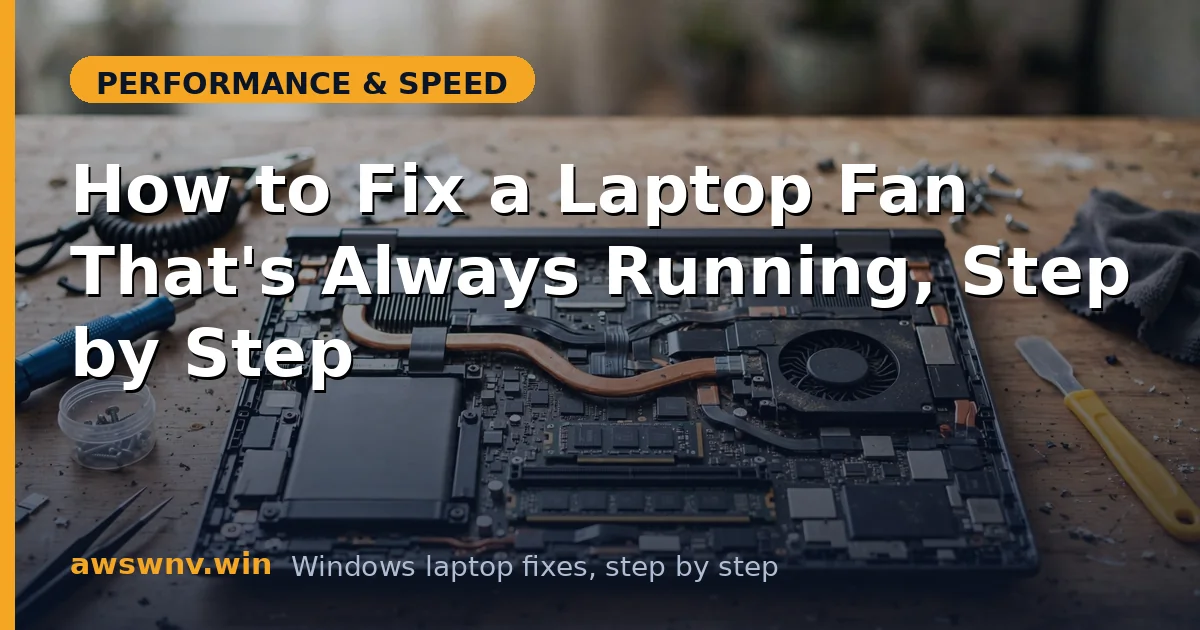
- For a deeper clean, remove the bottom panel (check your model’s service manual) and clear the fan blades and heatsink fins directly.
- Hold fans still while blowing air — letting them spin freely from air blasts can damage bearings.
- While open, inspect thermal paste condition on machines 3+ years old; crumbly, dry paste needs replacement with quality compound.
- Reassemble, then compare idle temps before and after — a 10–15°C drop from cleaning alone is common on neglected machines.
Fix 6: Rule out malware and runaway updaters
Some heat sources are not legitimate Windows activity at all.
- Run a Microsoft Defender Offline scan (Windows Security > Scan options) to rule out cryptominers — the classic cause of mysterious constant heat.
- Check Task Manager > Startup and Services for updaters you do not recognize; research unknown entries before disabling.
- Open Resource Monitor > CPU and sort by average CPU to catch processes that hide from the simple Task Manager view.
- Check browser extensions and tabs — a single rogue tab with a runaway script can pin a CPU core and cook a laptop silently.
- If a cryptominer is found, change passwords from a clean device after removal — miners rarely arrive alone.
Fix 7: Adjust the fan response as a final tune
Only after the heat source is addressed should you tune how aggressively the fan answers remaining warmth.
- In your manufacturer’s control app, choose the Quiet thermal profile for daily work and reserve Performance for gaming/rendering.
- In advanced power settings, System cooling policy > Passive lets the CPU throttle slightly before the fan ramps — quieter at the cost of tiny performance dips.
- Do not set fans to fixed low speeds or disable them — silent overheating kills components far faster than fan noise annoys you.
- Consider a cooling pad for desk use; elevating the rear improves intake airflow measurably on most designs.
- Accept the physics: thin laptops under real load will always make some noise — the goal is silence at idle, not silence under load. If driver-level heat persists, your maker’s support site documents known thermal issues per model.
Closing
A fan that never stops after an update is almost always answering heat that should not be there — background update churn, a reverted power plan, or a runaway process. Follow the heat to its source, fix the source, and the fan goes back to being something you notice only when it is gone. Silence at idle is the normal state of a healthy laptop; anything else is a symptom worth chasing.