“Plugged in” — but Windows insists no charger is connected. Or worse, the laptop doesn’t react at all when you plug in. This is a detection problem: somewhere between the wall outlet and the motherboard, the adapter’s presence signal is getting lost. The fix depends on where it’s lost, so this guide helps you isolate the break step by step.
We’ll start with the physical chain (outlet, brick, cable, port) because that’s where most detection failures live, then move to drivers and firmware.
Why this happens
- Failing charger brick: The adapter’s output stage or its identification chip dies while the LED still lights — the classic misleading failure.
- Damaged DC jack or USB-C port: Loose, bent, or debris-filled ports break the detection pins even when power pins still make contact.
- Wrong-wattage adapter: Many laptops query the adapter’s wattage and reject chargers that don’t match, showing “not detected” or “unknown adapter.”
- Broken cable near the strain relief: Internal wire fractures cause intermittent detection that comes and goes when you wiggle the cable.
- Driver or EC glitch: The embedded controller or ACPI driver can stop reporting adapter status after updates or power events.
How to fix it
Work through these in order — each step isolates a different link in the chain.
Fix 1: Verify the outlet and the charger LED
Start at the wall and work inward.
- Plug the charger into a different wall outlet — not a power strip, directly into the wall.
- Check the brick’s LED. No light means no wall power or a dead brick.
- If the LED lights, wiggle the cable gently near both ends while watching the LED. Flickering indicates a fractured cable.
- Smell the brick — a burnt-plastic odor means it’s done, unplug it.
A flickering LED with cable movement is a definitive cable failure. Stop using that charger; intermittent shorts can damage the laptop’s charging circuit. For slow-charging USB-C variants of this problem, see what to do if your USB-C PD charger charges slowly .
Fix 2: Inspect and clean the charging port
Detection pins are small and easily fouled.
- Power off the laptop and unplug everything.
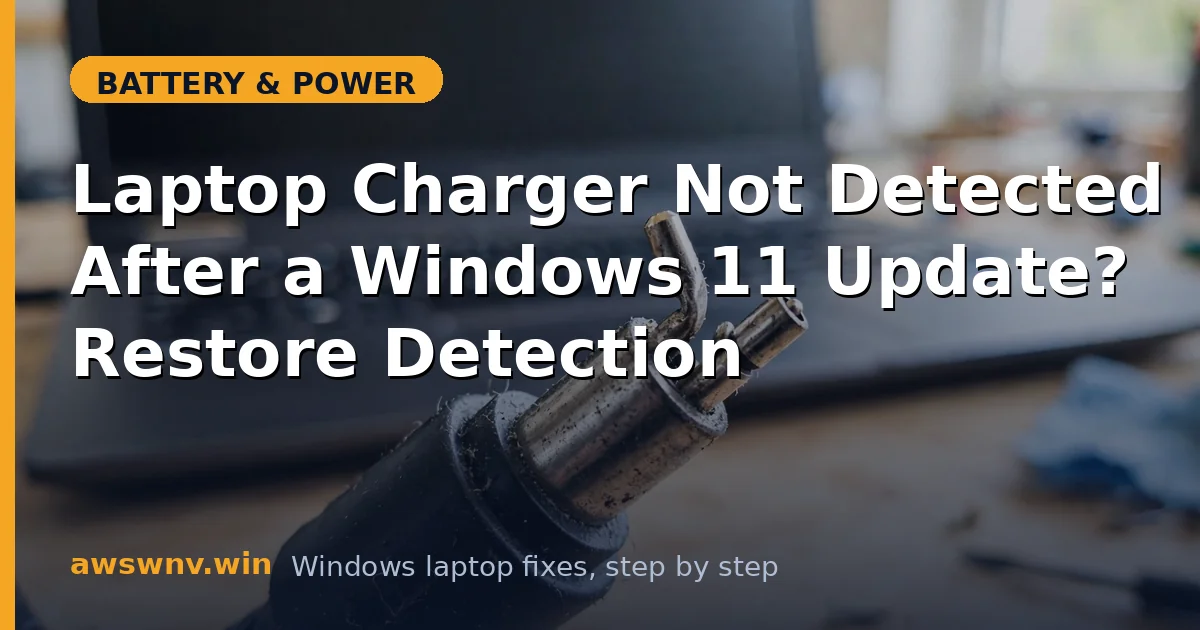
- Shine a flashlight into the charging port. Look for lint, bent pins (barrel jacks), or debris (USB-C).
- Clean gently with compressed air or a dry wooden toothpick — never metal tools, and never while powered.
- For barrel jacks, check that the center pin isn’t bent or pushed in.
- Plug in firmly and check detection.
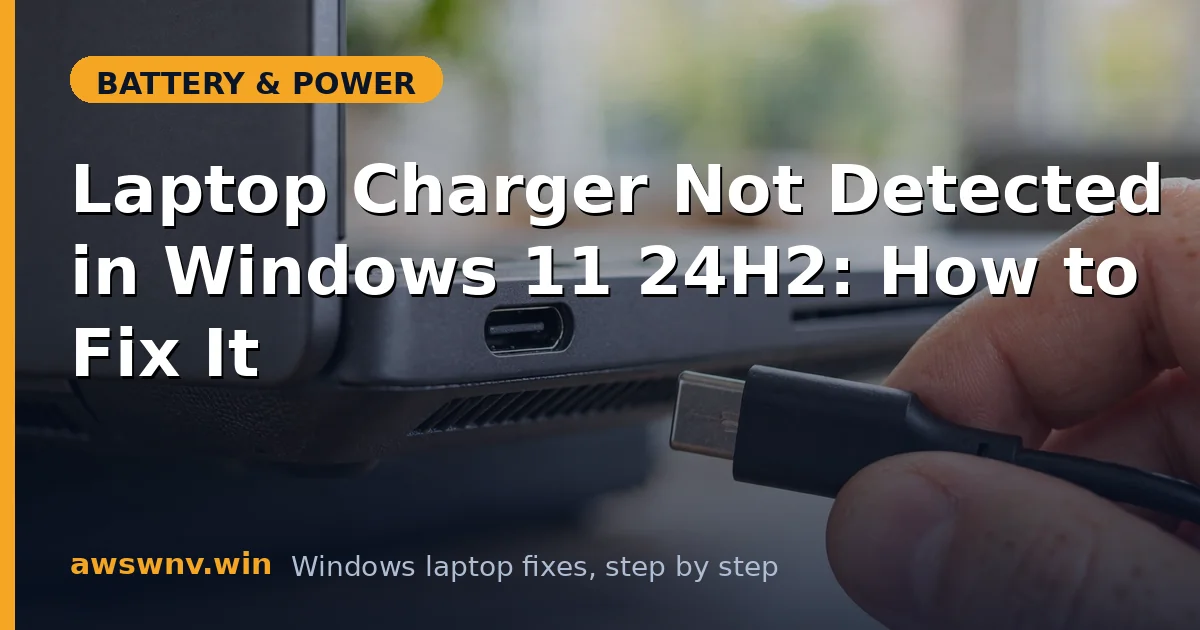
On USB-C laptops, try a different USB-C port if the machine has more than one — only some ports support charging on certain models, and the manual will tell you which.
Fix 3: Confirm the adapter wattage matches
An underpowered adapter is “detected” as inadequate on many laptops.
- Read the output wattage printed on your charger brick (e.g., 65W, 90W, 130W).
- Check your laptop’s required wattage in its manual or on the manufacturer’s support page.
- If you’re using a third-party or borrowed charger with lower wattage, that’s likely the rejection cause.
- Dell laptops famously show “unknown adapter” warnings in BIOS with non-Dell chargers — enter BIOS to see the adapter status directly. For Dell-specific charging quirks beyond detection, see what to do if your Dell laptop battery is not charging .
Match the original wattage. Bigger is generally fine (the laptop draws what it needs); smaller is where detection problems start. Genuine adapters from your laptop manufacturer’s support site avoid the ID-chip issues cheap knockoffs cause.
Fix 4: Test with a known-good charger
This single test splits the problem in half.
- Borrow a charger with matching wattage and connector from the same brand.
- If the laptop detects the borrowed charger, your adapter is dead — replace it.
- If it still shows not detected, the fault is in the laptop: port, EC, or drivers. Continue below.
Don’t skip this. Everything after this point assumes the charger is good, and guessing wrong wastes hours.
Fix 5: Reset the ACPI drivers and EC
Clear any software-side detection failure.
- Press Win + X, open Device Manager, and expand Batteries.
- Uninstall Microsoft ACPI-Compliant Control Method Battery and Microsoft AC Adapter (right-click > Uninstall device).
- Shut down fully, unplug the charger, and hold the power button for 30 seconds.
- Plug in and power on; Windows rebuilds both drivers at boot.
- Check Settings > System > Power & battery for the charging status.
The 30-second hold with no power drains the EC’s capacitors and forces a cold reset of the charging logic. Microsoft covers adapter troubleshooting basics on their Windows support site .
Fix 6: Update the BIOS
The EC firmware handles adapter detection at the hardware level.
- Check your BIOS version with
msinfo32. - Download the latest BIOS from your manufacturer’s support page and flash it with a known-good charger connected.
- After rebooting, check whether the original charger is now detected.
BIOS updates often include EC fixes for adapter detection, especially for “unknown adapter” warnings. If you can’t keep the laptop powered during the flash because no charger is detected, use a borrowed charger for the update process.
Fix 7: Evaluate the DC jack for repair
If a good charger, clean port, fresh drivers, and new BIOS still show nothing, the jack itself is likely broken.
- With the charger plugged in, gently wiggle the connector — if detection flickers, the jack’s solder joints are cracked.
- Check whether the jack feels loose compared to when the laptop was new.
- DC jack replacement is a board-level repair: on some models it’s a cheap cable, on others it’s soldered to the motherboard.
Get a quote from a reputable shop before deciding. On an older laptop, the repair cost may exceed the machine’s value — in which case a USB-C PD charger (if the model supports it) can be a workaround that avoids the broken barrel jack entirely.
Closing
“Charger not detected” is a chain-of-custody problem: wall, brick, cable, port, firmware. Test each link in order and the break reveals itself — usually a dead brick or a dirty port, occasionally a driver or EC glitch, rarely a broken jack. The known-good charger test is the hinge everything turns on, so borrow one early and save yourself the guesswork.