You plug in the charger and… nothing. No charging icon, no LED on the laptop, no “plugged in” message. Windows 10 acts like the charger doesn’t exist. Before you assume the laptop is broken, work through the checks below — this is one of those problems where the boring physical causes are the most common.
The trick is to figure out which link in the chain failed: the wall outlet, the brick, the cable, the port, or Windows itself. Let’s narrow it down.
Why this happens
- Dead power brick or frayed cable — the most common cause, especially near the strain-relief ends.
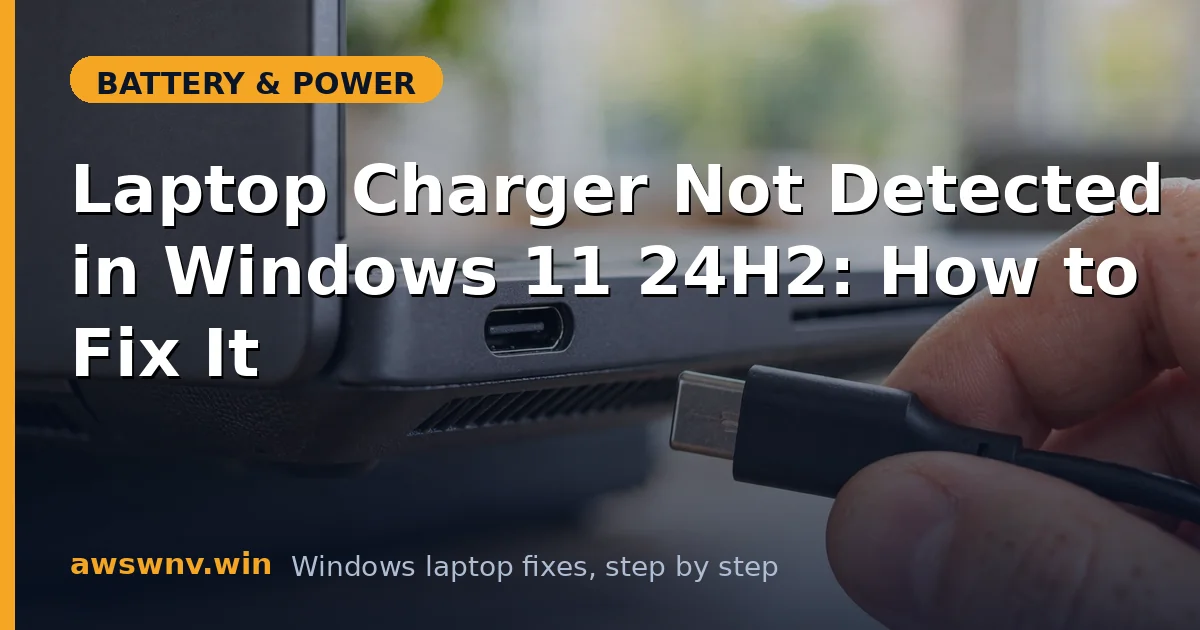
- Loose or debris-filled charging port — lint and dust pack into USB-C and barrel ports.
- Faulty wall outlet or power strip — the outlet itself may have no power.
- Underpowered third-party charger — the laptop rejects chargers below its required wattage.
- Corrupted battery/AC adapter drivers — Windows ignores a working charger after a bad driver state.
- BIOS power settings or a needed EC reset — the embedded controller that manages charging gets stuck.
- Damaged charging port — a wobbly port means broken solder joints or bent pins.
How to fix it
Work through these in order — start with the physical checks.
Fix 1: Verify the outlet and power strip
Plug the charger into a different wall outlet directly — skip the power strip, extension cord, or UPS for this test. Then plug a phone charger or lamp into the original outlet to confirm it has power. It sounds too simple, but tripped power strips and dead outlets account for a real share of “charger not detected” panic. If the brick has an LED, check whether it lights up at all.
Fix 2: Inspect the cable and brick closely
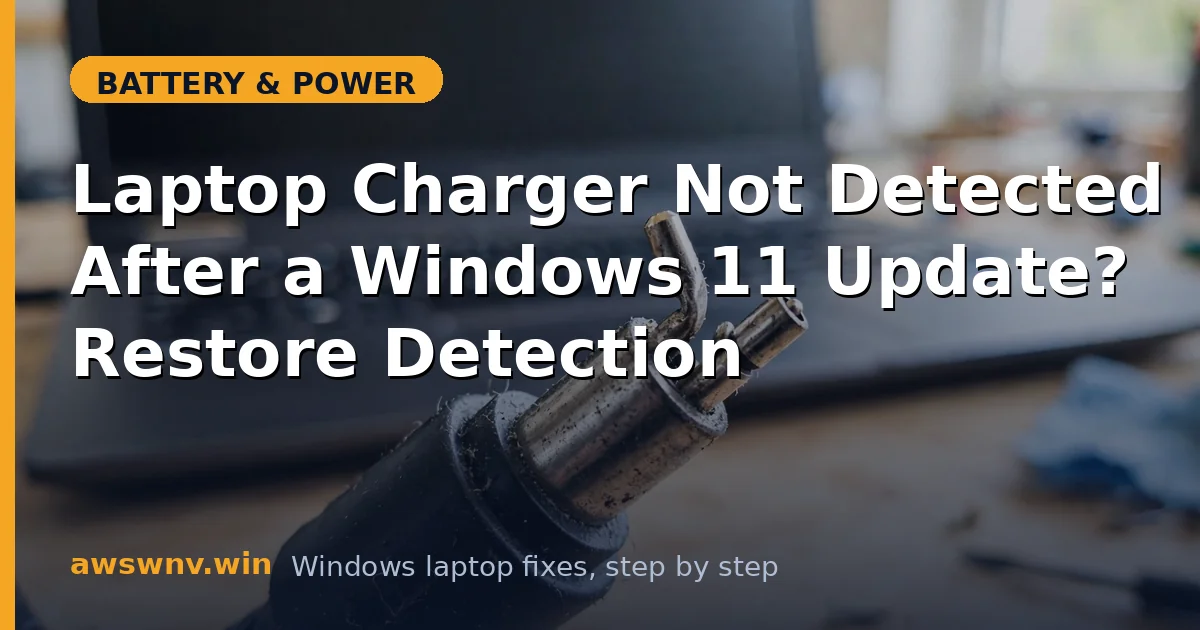
Run your fingers along the entire cable feeling for kinks, soft spots, or exposed wire — pay special attention to the first few inches from each end, where cables fail most. Sniff the brick for a burnt smell and check whether it’s unusually hot or completely cold when plugged in. If the cable only works when you hold it at an angle, it’s damaged internally: stop using it and replace it. Always match the original charger’s voltage and meet or exceed its wattage; a 45W brick on a laptop that needs 65W may be ignored entirely.
Fix 3: Clean the charging port
Shine a flashlight into the charging port. If you see lint, dust, or debris:
- Power the laptop off completely and unplug everything.
- Use a wooden or plastic toothpick to gently tease out lint — never use metal.
- For USB-C ports, a short burst of compressed air helps; hold the can upright.
If the plug wobbles loosely in the port even after cleaning, the port itself may be physically damaged, which is a repair-shop job.
Fix 4: Perform a full power reset (EC reset)
The embedded controller manages charging, and it can get stuck:
- Shut down the laptop completely (not sleep, not hibernate).
- Unplug the charger and all USB devices.
- If the battery is removable, take it out. If not, press and hold the power button for 30–60 seconds.
- Reconnect the battery (if removed), plug in the charger, and power on.
This drains residual charge and resets the charging circuitry. It’s harmless and fixes detection issues more often than you’d expect.
Fix 5: Reinstall the battery and AC adapter drivers
If the hardware is fine but Windows 10 won’t acknowledge it:
- Press Win + X and open Device Manager.
- Expand Batteries, right-click Microsoft ACPI-Compliant Control Method Battery, and choose Uninstall device.
- Expand the Batteries section again if needed, then find Microsoft AC Adapter and uninstall it too.
- Restart the laptop with the charger plugged in — Windows reinstalls both drivers during boot.
After restarting, give Windows a minute to settle, then check the battery icon. If Windows reports the battery itself as missing rather than just the charger, see our guide for a battery not detected in Windows.
Fix 6: Try a known-good charger with the right wattage
Borrow or buy a charger that matches your laptop’s original specs. For USB-C laptops, make sure it’s a proper USB-C PD charger rated at or above your laptop’s requirement (check the original brick’s label). If a known-good charger works, your old one is dead — replace it. If no charger works, the problem is in the laptop: port, charging circuit, or battery.
When shopping for a replacement, match three things: the connector type (barrel size or USB-C), the voltage (must match exactly — a 19.5V laptop needs a 19.5V charger), and the wattage (equal to or higher than the original). Using a lower-wattage charger is one of the most common reasons a laptop refuses to acknowledge a charger at all, because the firmware rejects it as insufficient before Windows ever gets involved.
Fix 7: Update the BIOS and chipset drivers
Some laptops stop recognizing chargers after firmware-level power management glitches:
- Find your exact model on the manufacturer’s support site — Dell , HP , or Lenovo .
- Install the latest chipset driver and check for a BIOS update that mentions power or charging fixes.
- Keep the charger connected during the BIOS update and don’t interrupt it.
Fix 8: Check the battery’s condition
A completely dead battery can sometimes confuse the charging circuit. Run powercfg /batteryreport in Command Prompt and look at the capacity numbers. If the full charge capacity is near zero, the battery may need replacing before the laptop will charge normally again. Our walkthrough on checking battery health
explains how to read the numbers.
Closing
A charger that Windows 10 doesn’t detect is usually a physical problem — outlet, cable, brick, or port — so rule those out before touching software. If the hardware all checks out, the driver reinstall and EC reset clear the remaining causes. When no charger works on a clean port, though, that’s the sign to take it to a repair shop rather than keep troubleshooting at home.
Keep a spare charger that matches your laptop’s specs if you travel — charger failures love to happen on the road, and having a known-good spare turns a crisis into a two-minute swap. And if your charger ever gets hot enough to be uncomfortable to hold, or the cable jacket starts splitting, replace it immediately rather than waiting for it to fail completely.