You plug in the charger and… nothing. No charging LED, no plug icon on the battery, no “plugged in” message. Windows 11 24H2 behaves as if the charger doesn’t exist, and the battery just keeps draining. If this started right after the 24H2 update, you’re probably dealing with a driver or firmware handshake problem rather than dead hardware — but you have to rule out the hardware first, because the symptoms look identical.
This guide is ordered the way a repair tech would work: quick physical checks, then the Windows-side fixes that address 24H2 specifically, then firmware, then the deeper repairs.
Why this happens
- Corrupted AC adapter driver — the 24H2 update can break the Microsoft AC Adapter driver entry in Device Manager.
- Damaged adapter or cable — a severed wire inside the cable or a failed brick means no power reaches the laptop at all.
- Worn charging port — a loose DC jack or dirty USB-C port breaks the physical connection.
- Firmware mismatch — the embedded controller’s charging handshake can break after a major Windows update until the BIOS is updated.
- Third-party charger rejection — some laptops refuse unrecognized adapters more aggressively after firmware updates.
- Power state corruption — a stuck power state in the controller can make the system blind to the adapter until reset.
How to fix it
Work through these in order.
Fix 1: Verify the charger hardware is alive
Before blaming Windows, confirm the charger itself works. This takes two minutes and prevents hours of wasted software troubleshooting.
- Check the adapter brick for an LED — if it has one, it should light when plugged into the wall. No light means no power, so try a different outlet first.
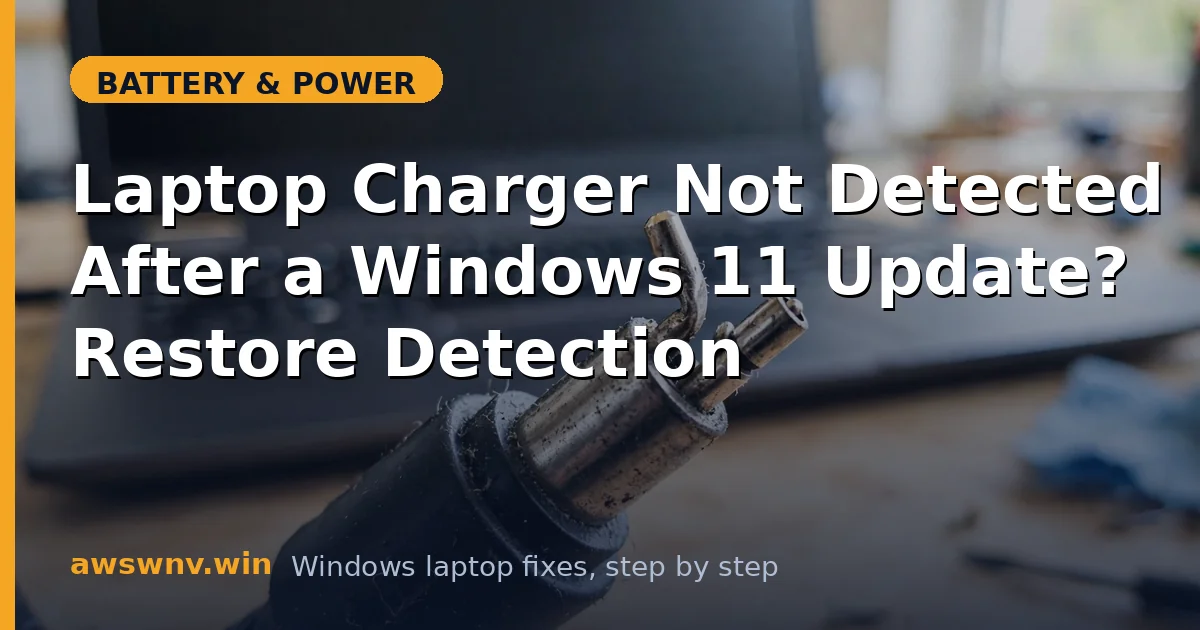
- Inspect the full cable length for damage, and check the laptop’s charging port for debris or bent pins.
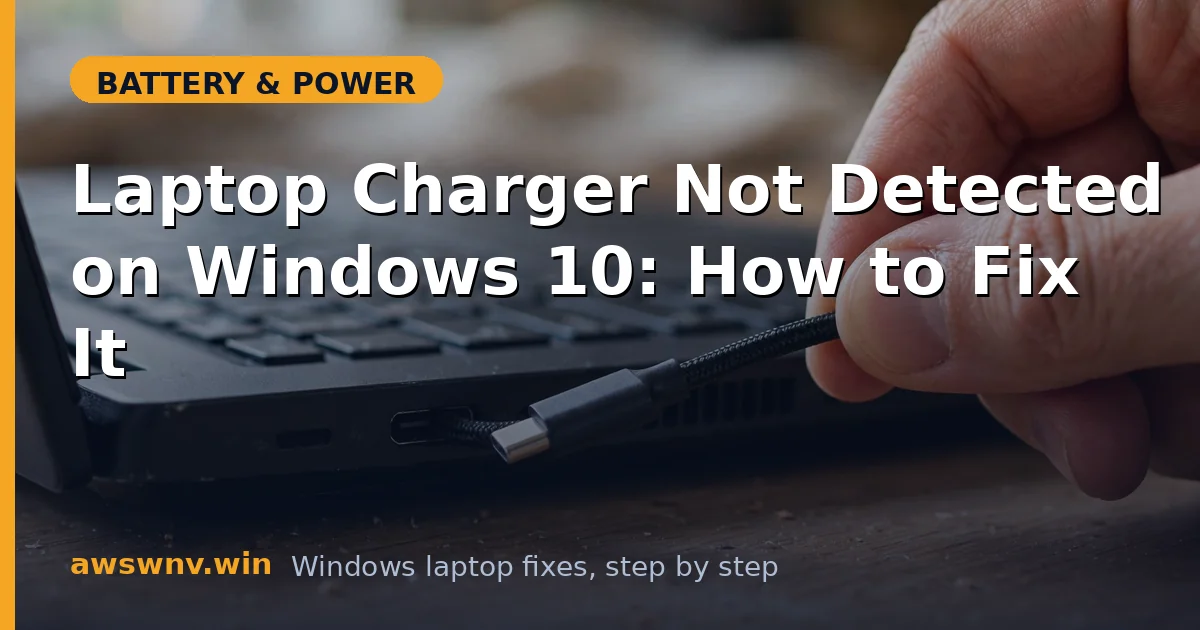
- For USB-C charging, try a different USB-C cable — cables fail far more often than bricks, and many only support data, not full-wattage charging.
- If possible, test your charger on another compatible laptop. If it’s dead there too, replace it and you’re done.
Fix 2: Reset the embedded controller
A stuck power state can make the laptop ignore a perfectly good charger. This reset is harmless and surprisingly effective.
- Shut the laptop down completely and unplug the charger.
- Remove the battery if it’s removable. Otherwise, press the pinhole reset button on the bottom cover with a paperclip for 10 seconds if your model has one.
- Hold the power button for 30 seconds.
- Plug the charger back in before powering on, and watch for the charging LED. If it lights now, the controller was stuck.
Fix 3: Reinstall the AC adapter and battery drivers
This is the core 24H2 fix. The update is known to corrupt the driver entries that tell Windows an adapter is connected.
- Right-click Start and open Device Manager.
- Expand Batteries. Right-click Microsoft AC Adapter and choose Uninstall device.
- Right-click Microsoft ACPI-Compliant Control Method Battery and uninstall it too.
- Click Action > Scan for hardware changes. Windows reinstalls both drivers fresh.
- Restart with the charger connected. In most 24H2 cases, detection returns immediately after this reset.
Fix 4: Check for a 24H2-specific chipset or BIOS update
When a major Windows version breaks hardware detection, manufacturers respond with firmware updates. Yours may already be waiting.
- Open
msinfo32and note your BIOS Version/Date. - Visit your manufacturer’s support page — Dell , HP , Lenovo , or Microsoft’s Windows support for Surface devices — and search your exact model.
- Install any BIOS, chipset, or power management updates marked as 24H2-compatible, with the AC adapter connected.
- Restart and test charger detection from a cold boot, not just a restart.
Fix 5: Run the hardware troubleshooter and system file checks
If the driver reset didn’t stick, underlying system corruption may be breaking redetection.
- Open Command Prompt as administrator and run
sfc /scannow. - If it reports unfixable damage, run
DISM /Online /Cleanup-Image /RestoreHealth, thensfc /scannowagain. - Go to Settings > System > Troubleshoot > Other troubleshooters and run the Power troubleshooter.
- Restart and check whether Windows now sees the adapter. Related detection problems, like a battery not detected at all , follow a similar repair path — and if the battery vanished after an update specifically, see no battery detected after a Windows update .
Fix 6: Test charging outside of Windows
This step tells you definitively whether Windows is the problem.
- Power the laptop off completely and plug in the charger. Watch the charging LED for 5 minutes.
- If the LED lights and the battery charges while off, the hardware is fine — the fault is in Windows. Revisit Fixes 3–5, and consider updating or reinstalling the chipset driver from the manufacturer.
- Enter the BIOS setup (usually F2 or Del) and leave the laptop there on AC power. Many BIOS screens show adapter wattage — check that it reads correctly.
- If there’s no charging in BIOS or while powered off either, the adapter, port, or motherboard charging circuit is at fault — that’s hardware service, not software.
Fix 7: Refresh Windows as a last resort
If the charger works on other machines, charges while powered off, but Windows 11 still won’t detect it after every fix above, the OS installation itself is damaged.
- Back up your files to an external drive or cloud storage.
- Go to Settings > System > Recovery and choose Reset this PC, keeping your files.
- After the reset, install the manufacturer’s chipset and power drivers before anything else, then test the charger.
- A clean driver stack resolves the stubborn cases where corruption survived SFC and DISM. It’s a big step, but it’s definitive.
Closing
A charger that Windows 11 24H2 can’t see is usually a driver casualty of the update, not a hardware failure — but always verify the hardware first so you don’t chase a software ghost. Reset the drivers, update the firmware, and test outside Windows; that sequence will tell you exactly where the break is.