“Camera not detected” sits in an awkward middle ground: it is not quite a black-screen problem (the camera app opens but shows nothing) and not quite a permission problem (apps say no camera exists at all). The distinction matters because the fixes differ. When Windows genuinely cannot see the camera — missing from Device Manager, absent from app device lists — the cause lives in one of four places: a physical shutter or kill switch, the OS privacy master switch, a dead driver, or a BIOS-level disable. This guide checks them in that order, because the number of “dead” cameras revived by sliding a shutter or flipping a privacy toggle is genuinely embarrassing.
Start by defining your symptom precisely: open the built-in Camera app. If it says “we can’t find your camera,” you’re in the right place. If it opens but shows black, you have a different problem (shutter or app conflict) — the fixes still overlap, but start at Fix 1.
Why this happens
- Physical privacy shutter closed. A sliding cover over the lens — increasingly common on business laptops.
- Camera kill switch or function key. Some laptops have a dedicated key or side switch cutting camera power.
- Windows privacy master switch off. Settings-level block that hides the camera from every app.
- Camera disabled in BIOS/UEFI. Firmware-level disable that removes it from the OS entirely.
- Corrupted or missing camera driver. Windows Update replacing the vendor driver with a broken one.
- Camera disabled in Device Manager. Accidentally disabled, or disabled by a “privacy” utility.
- Failed camera module or ribbon cable. Hardware death — rare, but real after drops.
How to fix it
Work through these in order — diagnose first, then act.
Fix 1: Check the physical shutter and kill switch
The most common “not detected” cause on modern laptops.
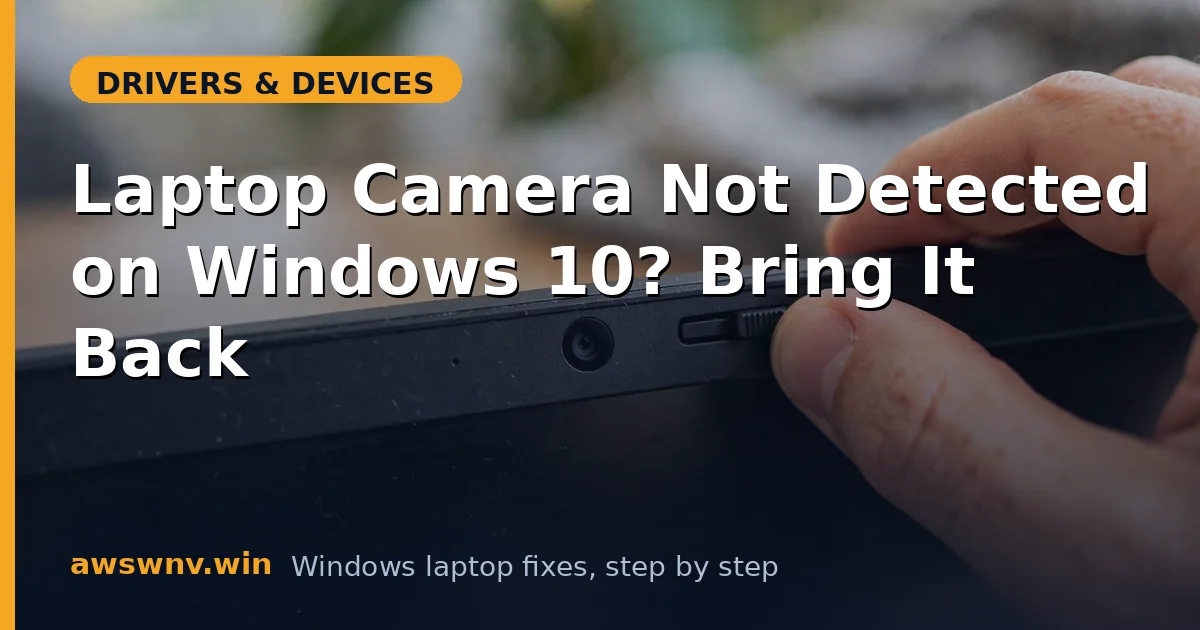
- Look closely at the top bezel — find the privacy shutter slider (often a tiny tab above the lens) and slide it open.
- Check for a camera kill switch: a physical switch on the laptop’s side edge, or a function key (often F8/F10 with a camera icon) — press Fn + the key.
- Some Lenovo and HP models show an on-screen indicator when the shutter closes; watch for it while sliding.
- After opening the shutter, wait 10 seconds and reopen the Camera app — detection can lag behind the physical change.
- If your laptop has a shutter, make a habit of checking it first every time; it gets bumped closed in bags constantly.
Fix 2: Enable camera access in Windows privacy settings
The OS-level master switch that overrides everything.
- Go to Settings > Privacy & security > Camera.
- Turn Camera access ON at the top — this is the master switch.
- Below it, turn on Let apps access your camera, then enable access for the specific apps you need (Zoom, Teams, Camera).
- Also check Let desktop apps access your camera at the bottom — classic desktop apps (many conferencing tools) are gated here separately.
- If the toggles are grayed out, your device may be managed by an organization — check with your IT admin.
- Restart the Camera app after changing these; permission changes don’t always apply to already-running apps.
Microsoft documents these controls in detail on Microsoft Support for Windows .
Fix 3: Find the camera in Device Manager
Now we check whether Windows sees the hardware at all.
- Open Device Manager → View → Show hidden devices.
- Expand Cameras (or Imaging devices on older builds). A grayed-out camera means it’s disabled or its driver failed — right-click → Enable device.
- If the camera appears with a yellow warning, note the error code — Code 45 (disconnected) and Code 10 (failed to start) point at driver versus hardware.
- No Cameras category at all? Expand Universal Serial Bus controllers and look for unknown USB devices — laptop cameras are USB devices internally.
- For the hidden-device technique in full, see how to enable hidden devices in Device Manager .
Fix 4: Reinstall the camera driver
The core fix for driver-level detection failures.
- In Device Manager, right-click the camera → Uninstall device (check “delete the driver software” if offered).
- Restart the laptop — Windows reinstalls its built-in USB Video Device driver on boot.
- Test in the Camera app. If it works, you’re done; if Windows installed the wrong driver, continue.
- Download the camera driver from your laptop maker’s support page (Dell, HP, Lenovo) and install it over the generic one.
- If the camera broke right after a Windows update, use Roll back driver on the camera’s Driver tab, or block the bad driver per how to disable automatic driver updates .
- Run Windows Update afterward — camera driver fixes ship in both optional driver updates and cumulative updates.
Fix 5: Check the BIOS camera toggle
Firmware can hide the camera from the OS completely.
- Restart and enter BIOS/UEFI (usually F2, Del, or F12 during boot).
- Look under Security, Advanced, or Devices for a Camera toggle — on some business laptops it’s under “I/O Port Access.”
- Ensure it’s Enabled, save, and exit.
- Boot into Windows and recheck Device Manager — a BIOS-disabled camera simply doesn’t exist to the OS, so this explains total absence.
- While in BIOS, check whether the BIOS itself lists the camera in its hardware inventory — absent there too suggests a hardware fault (Fix 7).
Fix 6: Rule out app conflicts and corruption
When the hardware is visible but apps claim otherwise.
- Close all conferencing apps fully (check the system tray — Zoom and Teams linger) — only one app can hold the camera at a time.
- Test in the built-in Camera app. Works there but not in Zoom? It’s a Zoom permission/config issue, not detection.
- Run Terminal (Admin):
DISM /Online /Cleanup-Image /RestoreHealththensfc /scannow, and restart — system file corruption can break the camera stack. - Create a fresh Windows user profile and test the camera there — corrupted per-user permissions can block detection.
- Uninstall third-party “privacy” or “webcam guard” utilities that may be blocking camera access at the driver level.
Fix 7: Verify the hardware
The final verdict on the module itself.
- Boot a Linux live USB and check for the camera there — detected in Linux but not Windows means a Windows-side problem you haven’t found yet; absent in both means hardware.
- If the laptop was recently dropped or serviced, the camera’s ribbon cable may be dislodged — a repair shop can reseat it cheaply.
- On business laptops, check whether your organization disabled the camera via policy before assuming hardware failure.
- Replacement camera modules are inexpensive but model-specific; on most laptops the replacement requires removing the display bezel — a job for a technician unless you’re experienced.
- As a workaround, a USB webcam bypasses the internal module entirely for a few dollars while you decide.
Closing
Camera detection failures follow a pattern: physical shutter, privacy master switch, driver, BIOS — in that order of likelihood. The Device Manager hidden-devices check is the diagnostic hinge: a grayed-out camera means software, a total absence after the shutter and BIOS checks means hardware. Work the sequence patiently and resist the urge to start with driver surgery; the number of cameras “fixed” by sliding a two-millimeter plastic shutter would fill a repair shop’s wall of shame.