A laptop camera that Windows 10 cannot detect usually announces itself in one of two ways: the Camera app says ‘we can’t find your camera’ with error 0xA00F4244, or the camera simply doesn’t appear in Device Manager at all. Both look alarming. Both are fixable in the large majority of cases without opening the laptop.
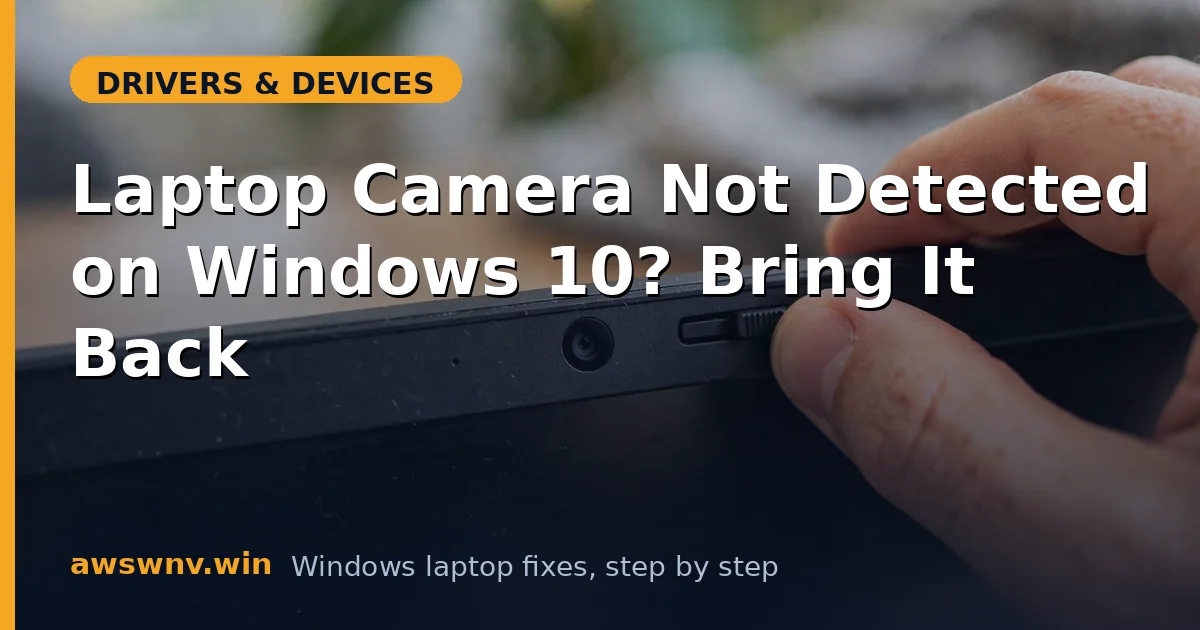
On Windows 10 the prime suspects are privacy settings (which can block the camera system-wide), a driver that a feature update broke, or the physical privacy shutter/slider that many laptops now include. Yes — check the shutter first. Technicians have a running joke about how often that is the entire problem.
The fixes below go from the 10-second checks to the full driver rebuild, in the order a repair shop would work them.
Why this happens
- Privacy settings blocking camera access: Windows 10 can disable camera access globally or per-app; a major update sometimes flips these off silently.
- Physical privacy shutter closed: Many laptops now have a sliding shutter or Fn-key camera kill switch that physically blocks the sensor.
- Camera driver corrupted by feature update: Windows 10 feature updates frequently break the imaging device driver binding, leaving Code 10/45 errors.
- Camera disabled in Device Manager or BIOS: The device can be disabled in software — or toggled off in BIOS on business laptops — and then it simply doesn’t exist to Windows.
- Antivirus or security software blocking the camera: Some security suites include webcam protection that blocks all camera access by default.
- Conflicting camera apps holding the device: A background app (Zoom, Teams) holding the camera exclusively can make it appear missing to other apps.
- USB/internal bus enumeration failure: The internal USB-connected camera module can fail to enumerate after sleep or a bad shutdown.
- Hardware failure of the camera module: The ribbon cable through the hinge flexes thousands of times; eventually it can fail, especially on older laptops.
How to fix it
Work through these in order — diagnose first, then act.
Fix 1: Check the privacy shutter and kill switch
Do this before anything else. It takes five seconds and resolves a real percentage of cases.
- Look at the top bezel of your screen for a small sliding shutter — slide it open (usually a red or white indicator shows blocked vs open).
- Check for a camera Fn-key toggle (often Fn + F8 or similar, with a camera icon) and press it.
- Some Lenovo and HP models have a physical camera kill switch on the side — verify its position.
- Open the Camera app and test again.
Fix 2: Enable camera access in Windows 10 privacy settings
Windows 10’s privacy controls can disable the camera for the entire system with no other symptom.
- Go to Settings → Privacy → Camera.
- Ensure Allow apps to access your camera is On, and Allow desktop apps to access your camera is On.
- Scroll down and confirm the specific app you need (Camera, Zoom, Teams) is allowed.
- Restart the app and test. Check Microsoft’s guidance at Windows camera support if settings look correct but access still fails.
Fix 3: Verify the camera in Device Manager
Find out whether Windows sees the hardware at all.
- Open Device Manager and expand Cameras or Imaging devices.
- If the camera appears with a warning icon, note the error code. If it is missing, click View → Show hidden devices.
- If you see it grayed out, right-click → Enable device.
- If it is absent even as hidden, expand Universal Serial Bus controllers and look for Unknown USB Device — the camera module may be failing to enumerate.
Fix 4: Reinstall the camera driver
The standard repair for Code 10/45 and post-update breakage.
- In Device Manager, right-click the camera → Uninstall device, checking Delete the driver software if offered.
- Click Action → Scan for hardware changes and let Windows reinstall it.
- If Windows installs a generic driver that still fails, download the Camera driver from your laptop manufacturer’s support site (Dell, HP, and Lenovo all publish camera drivers per model).
- Reboot and test with the built-in Camera app before testing third-party apps.
Fix 5: Check BIOS and antivirus blocks
Two deeper layers that silently disable cameras.
- Reboot into BIOS/UEFI and look for a Camera or Integrated Camera toggle under Security or Advanced — ensure it is Enabled.
- Open your antivirus suite and look for webcam protection or camera guard features — temporarily disable them as a test.
- Check Settings → Privacy → Camera once more after disabling the antivirus feature, in case it was overriding Windows.
- Corporate laptops: your IT policy may disable the camera by Group Policy — check with IT before going further.
Fix 6: Reset the camera app and re-register the device stack
When the driver is fine but the Camera app still errors, the app package itself is corrupt.
- Go to Settings → Apps → Camera → Advanced options → Reset.
- In an elevated PowerShell, re-register the app: Get-AppxPackage windowscamera | Foreach {Add-AppxPackage -DisableDevelopmentMode -Register “$($_.InstallLocation)\AppXManifest.xml”}.
- Close all video apps (Zoom, Teams, Skype) completely — including from the system tray — then test the Camera app alone.
- If third-party apps see the camera but the Camera app doesn’t (or vice versa), the issue is app-level, not driver-level.
Fix 7: Test hardware failure definitively
When software is exhausted, prove whether the module itself is dead.
- Boot a Linux live USB and check whether the camera appears there — visible in Linux but not Windows means a Windows driver problem you haven’t found yet; invisible in both means hardware.
- Gently flex the screen hinge while watching Device Manager — a camera that appears/disappears with hinge movement has a failing ribbon cable.
- External USB webcams are a $20 workaround that sidesteps the whole problem if the internal module is dead.
- For internal module replacement, check the service manual — on many models it is a small board behind the bezel, on others it requires full display disassembly.
Closing
A missing laptop camera on Windows 10 is a layers problem: shutter, privacy settings, driver, BIOS, security software. Work outward from the physical shutter through each software layer and you will find the one that broke — and it is almost never the camera module itself. The Device Manager check in Fix 3 is the hinge of the whole diagnosis: it tells you whether Windows sees hardware at all. If your camera is detected but shows a black screen instead, see our webcam black screen guide . On Windows 11 24H2 the same symptom has update-specific causes — see camera not detected in 24H2 .