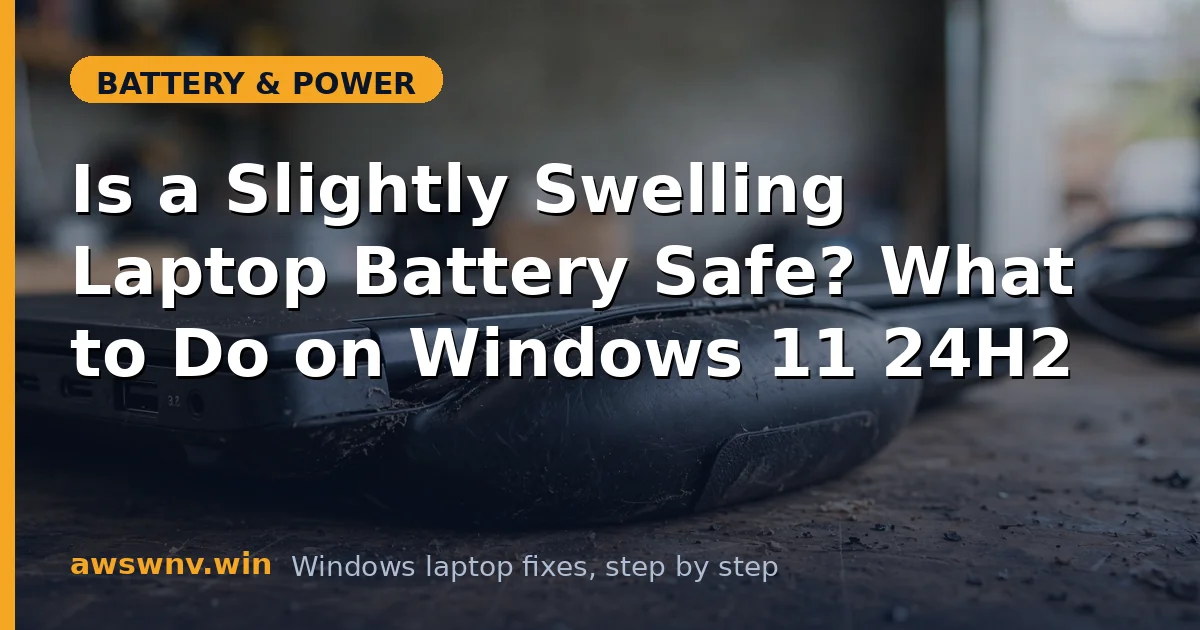
Let me be direct: there is no home fix for a swollen battery. No YouTube trick, no freezer method, no calibration will un-swell a lithium pack. Swelling means gas is building up inside sealed cells, and the only correct response is safe handling and replacement.
That said, “what to do” matters enormously here, because the wrong move with a swollen battery — puncturing it, bending it, trying to squeeze it flat, or just ignoring it for months — can start a fire. Lithium pouch cells vent flammable gas when damaged, which is why this guide prioritizes safety over everything else. Here is exactly what to do right now, in order.
Why this happens
- Electrolyte decomposition: Heat, overcharging, or age breaks down the electrolyte, releasing gas that inflates the sealed pouch cells.
- Chronic heat exposure: Laptops that run hot for years — blocked vents, heavy workloads, warm climates — swell far more often.
- Overcharging habits: Keeping a lithium battery pinned at 100 percent on a dock for months accelerates the chemistry that produces gas.
- Deep discharge damage: Batteries left at zero for long periods can suffer internal damage that later shows up as swelling.
- Physical damage: Drops and pressure can damage internal layers, triggering slow gas buildup weeks later.
- Manufacturing defects: Occasionally a batch of cells is simply defective, which is why swelling sometimes hits relatively young batteries.
How to fix it
Work through these in order, from quickest to most involved. Stop at the step that solves it.
Fix 1: Confirm it is actually swelling
Make sure you are not mistaking a warped panel for a swollen battery.
- Place the laptop on a flat table and check for rocking — a flat laptop should sit still.
- Look at the trackpad: swelling underneath often makes it click oddly, feel raised, or stop clicking.
- Check whether the bottom panel gaps are even all around, and whether the screen closes flat.
- If the keyboard deck feels pillowy or the seams are separating, that is swelling until proven otherwise.
Fix 2: Back up your data immediately
Do this before anything else. A failing battery can take the laptop with it.
- Plug in the charger and copy critical files to an external drive or cloud storage right now.
- Do not run a lengthy backup that keeps the machine hot for hours — prioritize documents, photos, and work files.
- If the laptop is already struggling, boot into a lightweight state and grab the essentials first.
- Once backed up, you can make decisions calmly instead of under pressure.
- If the laptop will not stay on reliably, prioritize ruthlessly: work documents, photos, passwords, and anything not synced to the cloud. You can reinstall apps later; you cannot recreate lost files.
Fix 3: Stop risky charging behavior today
Reduce the stress on the damaged pack while you arrange replacement.
- Do not leave the laptop charging overnight or unattended.
- If your manufacturer app offers a charge limit, set it to 60-80 percent to reduce stress — see how to limit battery charge to 80 .
- Avoid heavy workloads that heat the machine; heat plus swelling is the worst combination.
- Unplug the charger when the laptop is off and you are not using it.
Fix 4: Decide whether to keep using it short-term
Honest risk assessment for the days before replacement.
- Mild swelling with no heat, no smell, and no rapid change: usable with caution for essential tasks while you arrange service.
- Stop using it immediately if you notice: a sweet or chemical smell, the swelling visibly growing, excessive heat from the battery area, or any hissing.
- Never press on the swollen area, never try to “flatten” it, and never open the battery pack itself.
- Read the full swollen battery safety guide for the detailed safety picture.
Fix 5: Arrange professional removal
This is the actual fix — there is no DIY version worth the risk.
- Contact the manufacturer’s support (Dell , HP , Lenovo ) — swelling is sometimes covered under battery warranty or safety programs even outside standard warranty.
- If out of warranty, take it to a reputable repair shop and tell them upfront the battery is swollen so they handle it appropriately.
- Do not attempt to remove a swollen internal battery yourself unless you have real experience — puncturing a swollen cell is how fires start.
- Ask the shop to inspect for collateral damage; swelling can warp trackpads and stress internal connectors.
- Get a written note of what was found — if the swelling damaged other components, that documentation matters for any warranty or insurance claim.
Fix 6: Get the right replacement battery
Do this once, do it right.
- Order a genuine or manufacturer-approved battery for your exact model number.
- Avoid the cheapest third-party packs — poor quality control is itself a swelling risk factor.
- After installation, verify the laptop sits flat and the trackpad clicks normally.
- Run one full calibration cycle on the new pack.
Fix 7: Dispose of the swollen battery safely
The old pack is hazardous waste — treat it that way.
- Tape over the battery terminals with electrical tape to prevent short circuits.
- Place it in a non-flammable container (a metal tin or ceramic pot) away from heat sources.
- Take it to an electronics recycler, municipal hazardous waste collection, or the manufacturer’s take-back program.
- Never put lithium batteries in household trash, regular recycling bins, or the mail.
- If you must store the removed pack before drop-off, keep it in that non-flammable container in a cool place away from anything flammable, and do not stack heavy objects on it.
Closing
A swollen battery is the one battery problem you do not troubleshoot — you manage it safely and replace it. Back up, reduce stress on the pack, get it removed professionally, and dispose of it properly. Everything else on this site can wait; this one cannot.