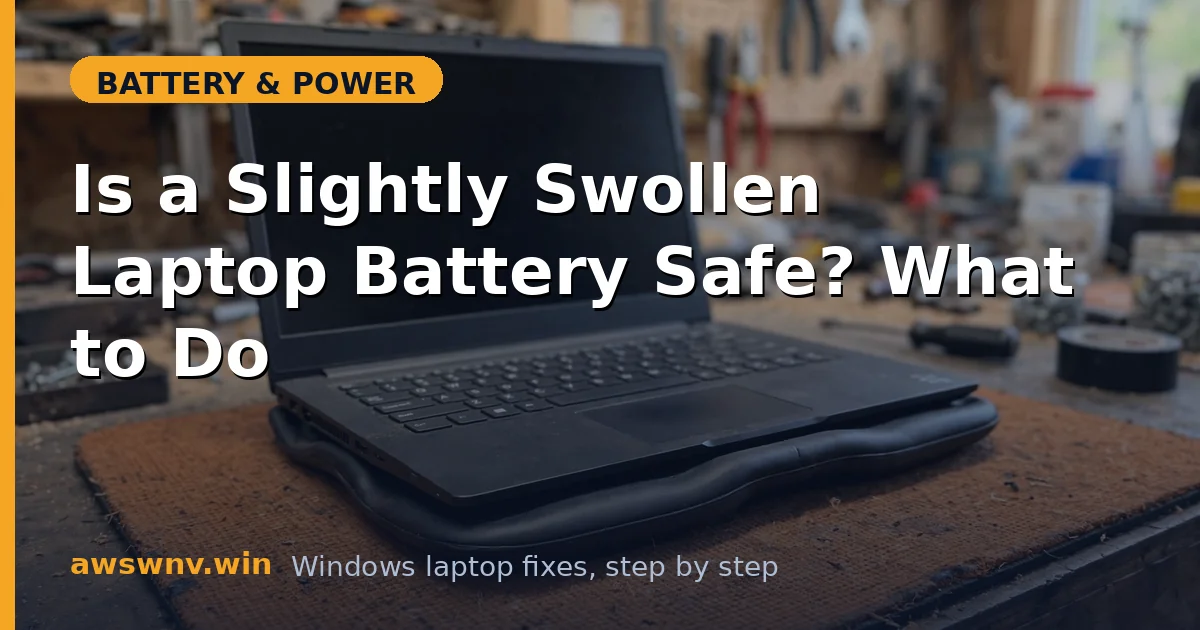
A trackpad that pops up, a keyboard that bulges, a bottom panel that no longer sits flat. These are the classic signs of a swollen laptop battery, and this is the one battery problem where the fix is not software. A swollen battery is a safety issue, full stop.
Do not try to “fix” the swelling itself. There is no calibration, driver, or setting that deflates a battery. What follows is the safe process: confirm it, make the machine safe, and get the battery replaced or recycled.
Why this happens
- Gas buildup in the cells: Lithium batteries generate gas as their internal chemistry degrades, and the pouch or casing inflates.
- Chronic overcharging: Keeping the battery pinned at 100 percent for months accelerates the chemical breakdown that produces gas.
- Heat exposure: Running hot, charging in hot rooms, or blocking vents speeds up cell degradation.
- Deep discharges: Repeatedly draining the battery to zero stresses the cells and shortens their safe life.
- Old age: Even a well-treated battery wears out after 3 to 5 years, and swelling is one of the end-of-life symptoms.
- Physical damage or defects: A drop, a dent, or a manufacturing flaw can damage the cell separators and start the process.
How to fix it
Work through these in order. Safety first at every step.
Fix 1: Stop using and unplug the laptop immediately
- Save your work and shut the laptop down normally if you can do so safely.
- Unplug the AC adapter and disconnect all peripherals.
- Do not charge it again. Charging a swollen battery adds heat and pressure to already-stressed cells.
- Move the laptop to a cool, ventilated spot away from anything flammable.
Fix 2: Confirm the swelling is the battery
- Look at the bottom panel, keyboard deck, and trackpad for bulging or separation.
- Place the laptop on a flat table and check whether it rocks or wobbles.
- If the trackpad is raised or clicks feel wrong, the battery underneath is the likely cause.
- Do not press on the bulge or try to push it flat. If you are unsure whether it is the battery or the chassis, treat it as the battery anyway.
Fix 3: Back up your data before service
- If the laptop still powers on safely, copy your important files to an external drive or cloud storage now.
- Do not run long backup sessions that heat the machine. Work quickly and in short bursts.
- If the swelling is severe, skip this and go straight to professional service. Your data is not worth a fire.
- After backing up, shut the machine down and leave it off.
Fix 4: Remove the battery only if it is user-removable
- If your laptop has an external battery with release latches, slide them and lift the battery out gently.
- Place the removed battery on a non-flammable surface, away from metal objects.
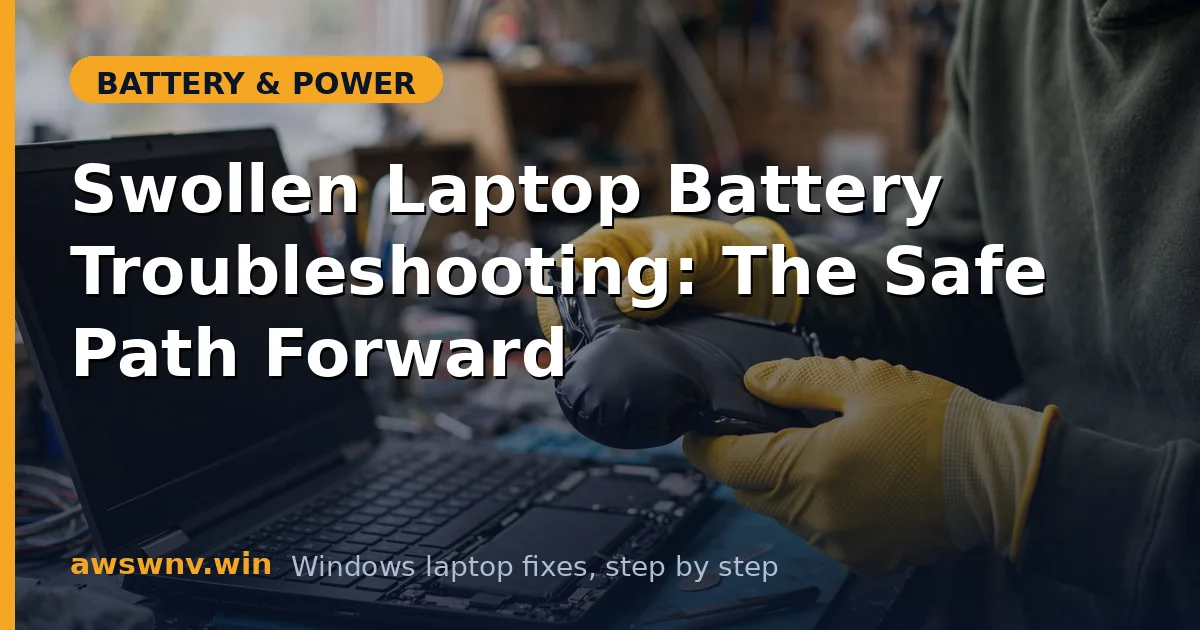
- If the battery is internal (screws under the bottom cover), do not open the laptop yourself. Swollen cells can be punctured by a slipping screwdriver.
- For sealed designs, take the whole laptop to a repair shop or the manufacturer’s service center.
Fix 5: Store the swollen battery safely
- Keep it in a cool, dry place away from sunlight and heat sources.
- Do not stack heavy objects on it or store it in a sealed airtight container.
- Keep it away from children and pets.
- Do not put it in household trash or regular recycling. It must go to a battery or e-waste collection point.
Fix 6: Get a genuine replacement battery
- Buy the replacement from the manufacturer or an authorized parts seller. Counterfeit batteries are a real fire risk.
- Match the exact model number, voltage, and watt-hour rating printed on the old battery.
- For Dell, HP, and Lenovo machines, use the official Dell support , HP support , or Lenovo support pages to find the correct part.
- Have a technician install it if the battery is internal.
Fix 7: Prevent it happening again
- Do not leave the laptop plugged in at 100 percent for weeks on end. Use your manufacturer’s charge-limit feature if one exists.
- Keep the machine cool: clean the vents and avoid charging on soft surfaces like beds.
- Avoid running the battery to zero regularly. Partial charges between 20 and 80 percent are kindest to the cells.
- Replace aging batteries proactively. If you notice capacity dropping well below design , plan a replacement before swelling starts.
If you are unsure how serious the swelling is, read our guide on slightly swollen batteries and safety for help judging the situation.
Fix 8: Dispose of the swollen battery through the right channel
A swollen battery is hazardous waste, and getting rid of it correctly matters as much as removing it safely.
- Never put a swollen battery in household trash, curbside recycling, or a regular bin. Punctures in garbage trucks cause real fires.
- Search for a battery drop-off point: electronics retailers, municipal e-waste collection sites, and many manufacturer take-back programs accept them.
- Call ahead and tell them the battery is swollen. Some sites have special handling procedures for damaged packs.
- Transport it in a non-flammable container, terminals taped over with electrical tape, kept cool and away from metal objects.
- If the manufacturer has a mail-back recycling program, use their packaging and labels rather than improvising your own box.
- Keep any receipt or tracking number until you confirm it arrived. This protects you if the pack is ever traced back.
- While you wait for disposal, store the battery somewhere you would notice a problem early, like a garage shelf, not a closet full of clothes.
Closing
A swollen battery cannot be repaired, only replaced. Power the laptop down, unplug it, back up quickly if it is safe, and get the battery out of the machine through the right channel. Treat it as the safety issue it is, and the rest is straightforward.