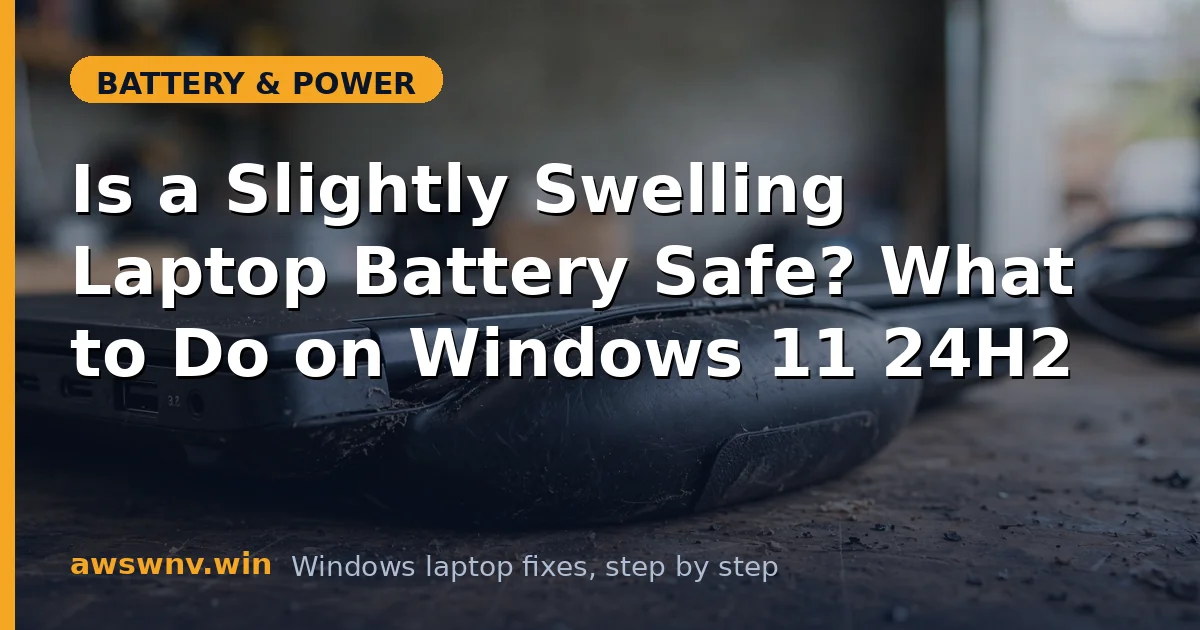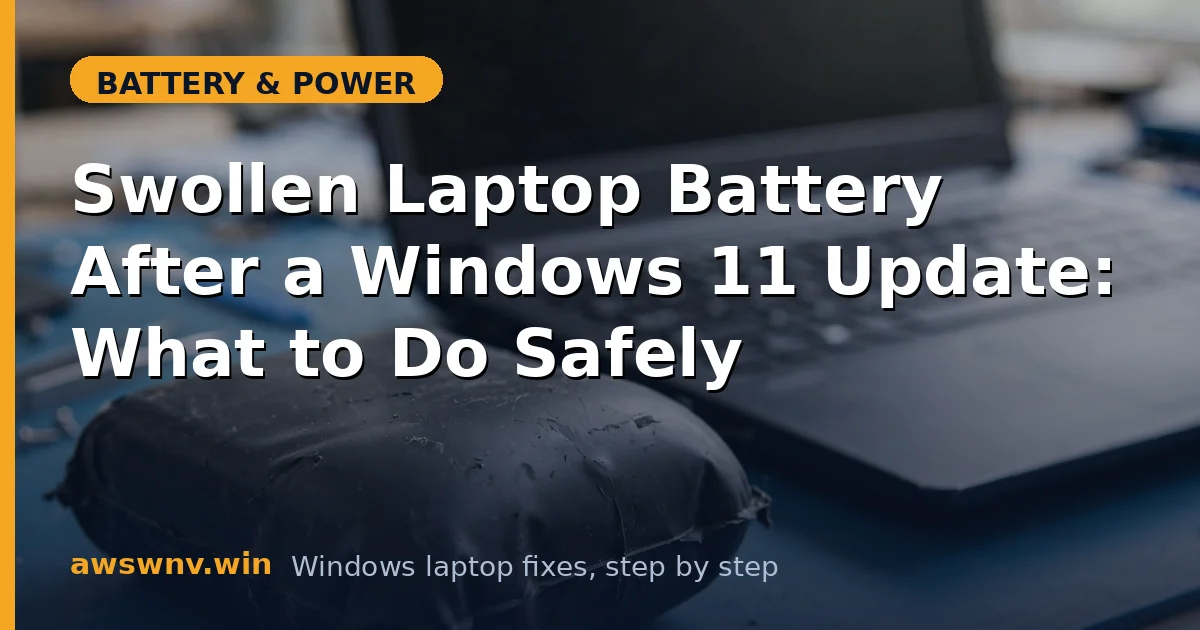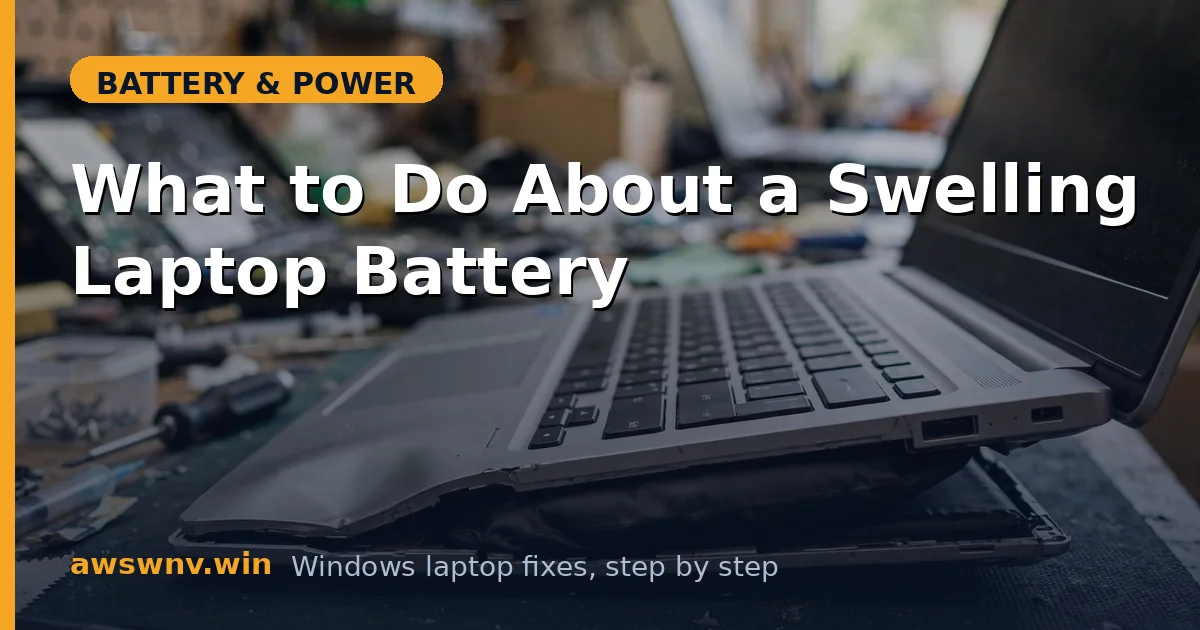
Let’s be direct: if your laptop battery is swelling, this isn’t a troubleshooting situation — it’s a safety situation. A puffed-up lithium battery can vent, catch fire, or rupture. The trackpad lifting, the bottom case separating, the keyboard bulging — those are your warning signs, and they mean act now, not next week.
This guide covers how to confirm swelling, how to handle the laptop safely until replacement, and how to dispose of the old battery properly. There is no “fix” for a swollen battery other than replacing it.
Why this happens
- Gas buildup from electrolyte breakdown. Heat, overcharging, and age decompose the electrolyte inside the cells, releasing gases that puff up the sealed pouch.
- Chronic heat exposure. Laptops that run hot for years — blocked vents, gaming on beds, hot climates — swell batteries far sooner.
- Keeping it pinned at 100%. Years of full-charge storage accelerates the chemical degradation that leads to swelling.
- Physical damage. Drops and punctures can damage cells internally, with swelling appearing days or weeks later.
- Manufacturing defects. Occasionally a bad batch swells prematurely — this is why makers issue battery recalls.
- Simple old age. Even well-treated batteries can swell after 4–6 years as the chemistry degrades.
How to fix it
Work through these in order — safety first, always.
Fix 1: Confirm the swelling
Make sure you’re seeing what you think you’re seeing.
- Place the laptop on a flat table — does it wobble or rock? A flat laptop that now rocks has a swollen battery pushing the case out.
- Look for a lifting trackpad, separating bottom panel, bulging keyboard, or gaps in the case seams.
- If the battery is removable, take it out and place it on a flat surface — any rocking or visible puffiness confirms it.
- Don’t press, squeeze, or try to “flatten” anything — pressure on a swollen cell is dangerous.
Fix 2: Stop charging immediately
Remove the energy source from the equation.
- Unplug the charger right now — charging a swollen battery is the riskiest thing you can do with it.
- If the laptop is on, shut it down normally (don’t yank the battery mid-operation unless you must).
- Back up your data to an external drive or cloud storage while on AC power if needed — then power off.
- Do not attempt to discharge the swollen battery “to make it safe” — just leave it alone.
Fix 3: Store it safely until replacement
A swollen battery waiting for replacement still needs respect.
- Place the laptop (or removed battery) on a non-flammable surface — ceramic tile, concrete, or a metal tray — away from flammable materials.
- Keep it in a cool, dry place at room temperature; never in a hot car or near heaters.
- Don’t stack anything on top of it, and keep it away from children and pets.
- If you notice hissing, extreme heat, smoke, or a sweet chemical smell, move it away from flammables, ventilate the area, and call emergency services if it ignites — use a Class D extinguisher or sand, never water on a lithium fire.
Fix 4: Check for a recall
You might be entitled to a free replacement.
- Visit your maker’s support site (Dell , HP , Lenovo ) and search for battery recall plus your model.
- Enter your serial number in the recall checker if one is provided.
- If a recall covers your battery, follow the maker’s replacement process — they’ll typically ship a new battery with return packaging for the old one.
Fix 5: Get a proper replacement
Only a new battery fixes a swollen one.
- Buy a genuine battery for your exact model from the manufacturer or an authorized seller — this is the one component where going cheap is genuinely dangerous.
- If you’re comfortable with the procedure, follow the model’s service manual for replacement; otherwise have a repair shop do it — labor is usually modest.
- Never buy a visibly damaged, dented, or suspiciously cheap battery from marketplace sellers.
Fix 6: Dispose of the old battery correctly
A swollen battery in the trash is a fire waiting to happen — potentially in a garbage truck.
- Take it to a battery recycling drop-off: electronics retailers, municipal hazardous-waste facilities, or dedicated battery recyclers.
- Transport it in a fireproof bag or metal container, terminals taped over with electrical tape.
- Never put it in household trash, curbside recycling, or general e-waste bins without checking they accept damaged lithium batteries — call ahead.
Fix 7: Prevent the next one
Swelling is often the bill coming due for years of heat and full charges.
- Keep the laptop cool: hard flat surfaces, clean vents, no marathon heat sessions on soft furnishings.
- Use a charge cap (80% for mixed use, 60% for desk duty) via your maker’s utility — see our guide on limiting charge to 80% .
- Don’t store the laptop for months at 100% — leave it around 50% for long storage.
- If your battery is merely aging rather than swollen, our capacity-loss guide helps you track its decline safely.
Closing
A swollen battery is the one battery problem where “do nothing” is never the answer and DIY fixes are never safe. Stop charging it, store it safely, check for a recall, replace it with a genuine part, and recycle the old one properly. Most swelling is preventable with cooler running and sensible charge limits — habits worth adopting the day the new battery goes in. If you’re unsure about anything in the process, your manufacturer’s support team can advise on next steps for your specific model — and if the battery shows any sign of heat, hissing, or odor while you wait for the replacement, treat it as an emergency: move it away from anything flammable, ventilate the room, and don’t try to handle it beyond that.
Finally, a word on timing: don’t let a swollen battery sit for weeks while you research the perfect replacement. Order the genuine part promptly, and if there’s any delay, power the laptop down and leave it alone — a swollen battery that’s neither charging nor discharging, stored cool and undisturbed, is in its safest possible state. The risk comes from energy moving in or out of damaged cells, so stillness is safety until the new battery arrives.