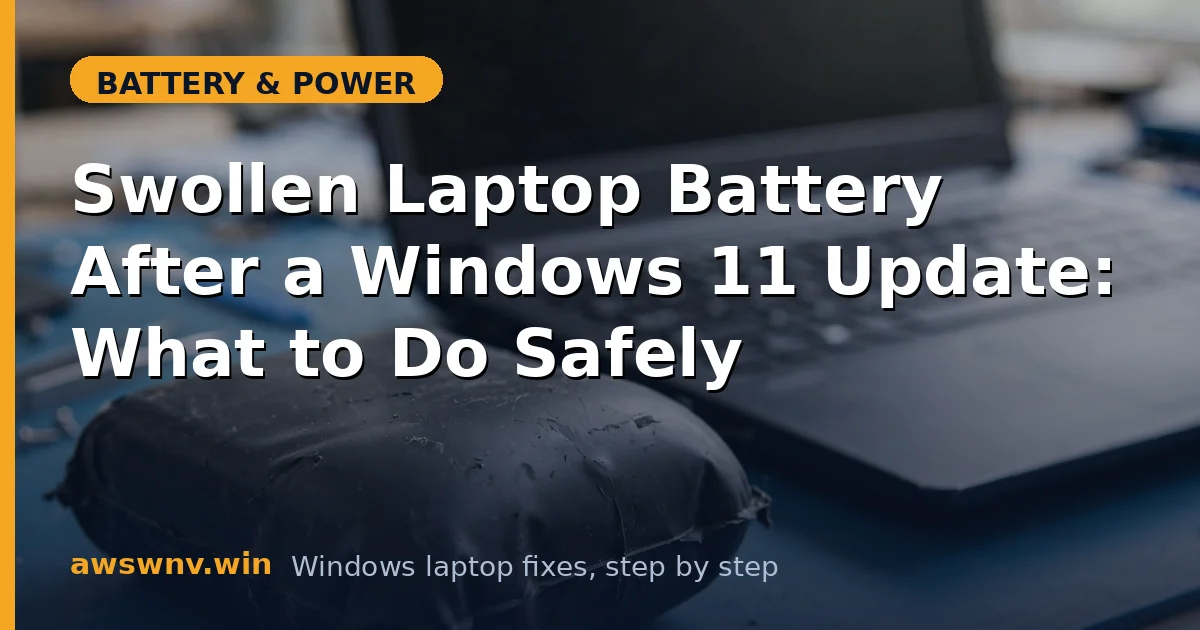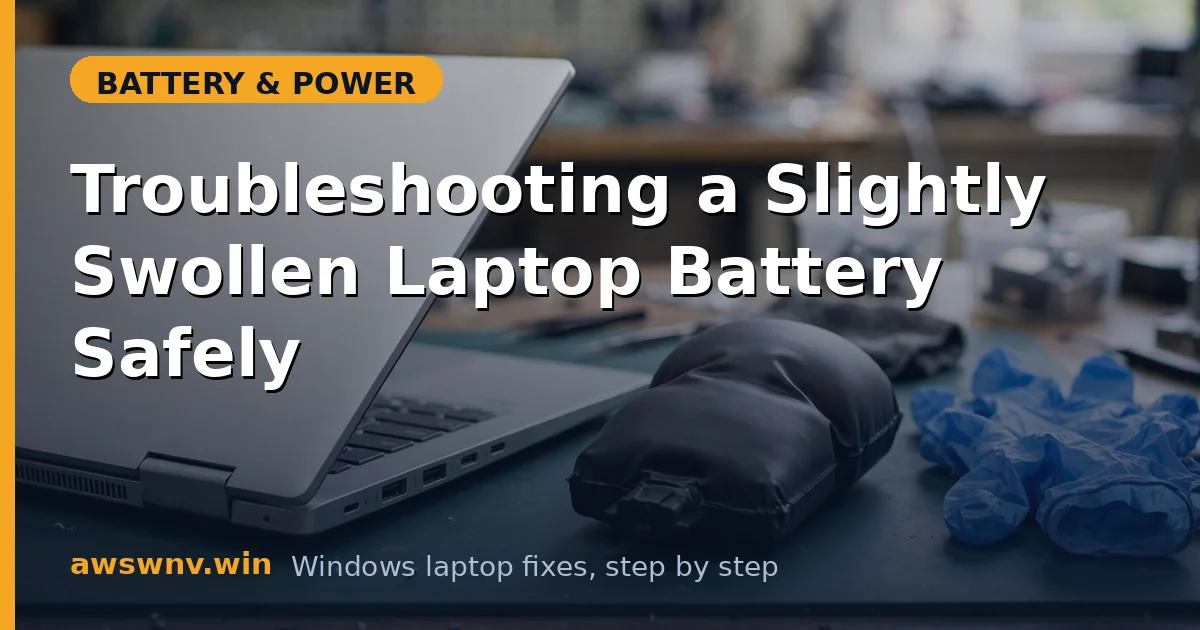
Let’s be direct: a swollen laptop battery is not a Windows 10 problem, and there is no software fix for it. The puffiness means gas is building up inside the lithium cells from chemical breakdown. It will not deflate, it will not get better with a driver update, and continuing to charge it is genuinely dangerous. People sometimes ask whether letting it drain fully or putting it in the freezer helps — it doesn’t, and both ideas risk making things worse.
What you need is a safety procedure, not a troubleshooting guide. Here’s exactly what to do, in order, to protect yourself, your laptop, and your home.
Why this happens
- Electrolyte breakdown: Over time and heat cycles, the electrolyte inside lithium cells decomposes and releases gas. This is the direct cause of swelling.
- Overcharging and heat: Years of sitting at 100% charge in a hot laptop accelerate the chemical reactions that produce gas.
- Deep discharge damage: Batteries left at 0% for months can develop internal faults that lead to swelling when recharged.
- Manufacturing defects: Rare but real — a small percentage of cells develop internal shorts that cause localized heating and gas buildup.
- Physical damage: Drops or crushing can damage the cell separators, triggering the reactions that cause swelling.
- Age: Even a well-treated battery can swell after 4–5 years as the chemistry simply wears out.
How to fix it
Work through these in order — safety first, laptop second.
Fix 1: Stop charging and power down immediately
Unplug the AC adapter right now. Save your work quickly and shut the laptop down fully — Start → Power → Shut down, not sleep. Do not plug it back in to “finish something.” Every additional charge cycle on a swollen battery increases the risk. If the trackpad or keyboard is bulging upward, avoid pressing on those areas; pressure on a swollen cell is what you most want to avoid.
Fix 2: Move it to a safe location
Once shut down, move the laptop to a cool, non-flammable surface — a tile floor, a metal table, or concrete — away from paper, curtains, and other flammables. Don’t put it in a bag or drawer. If you smell anything sweet, chemical, or like nail polish remover, increase ventilation by opening windows; that odor can indicate venting electrolyte. This sounds dramatic, but these precautions cost nothing and the downside of skipping them is a house fire.
Fix 3: Remove the battery if you safely can
If your laptop has an externally removable battery, slide the latch and take it out — this is easy and safe. If the battery is internal, only open the laptop if you’re comfortable doing so: remove the bottom panel screws, gently lift the panel (it may resist if the battery is pressing against it — don’t force it), disconnect the battery cable from the motherboard first, then unscrew and lift out the pack. If the swelling is severe, the panel is warped, or you feel any resistance that worries you, stop and take it to a repair shop instead. Never puncture, bend, or squeeze the swollen pack. For general replacement guidance once the old pack is out, see our article on replacing a laptop battery .
Fix 4: Inspect for collateral damage
With the battery out, look at the trackpad, keyboard, and bottom panel. Swollen batteries commonly push the trackpad upward (clicks feel wrong or the cursor jumps) and bow the keyboard. Check the motherboard area for any scorch marks or melted plastic — if you see those, the laptop needs professional inspection before you power it on again. Minor trackpad misalignment often resolves once the pressure is gone.
Fix 5: Run the laptop on AC power only (temporarily)
With the swollen battery removed, you can usually keep using the laptop plugged into the wall — most laptops run fine on AC alone. This is a reasonable stopgap while you wait for a replacement battery. Keep it on that non-flammable surface and don’t leave it charging unattended for long stretches, just as general good practice. This also confirms the rest of the laptop survived: if it boots and runs normally on AC, the damage was limited to the battery.
Fix 6: Get the correct replacement battery
Order a genuine replacement battery matching your exact model and battery part number — not just the laptop series. While waiting, check whether your laptop is still under warranty or subject to a battery recall; manufacturers occasionally cover swollen batteries even outside standard warranty because of the safety angle. Check the manufacturer’s support site (Dell , HP , or Lenovo ) with your serial number for recall notices before spending your own money.
Fix 7: Recycle the swollen battery properly
Put electrical tape over the battery’s terminals, place it in a non-flammable container (a metal tin or a LiPo-safe bag if you have one), and take it to a battery recycling point — electronics retailers, municipal e-waste collection, or dedicated battery drop-offs. Never put it in household trash or a regular recycling bin; swollen lithium batteries start fires in garbage trucks and recycling facilities every year. Transport it in your car’s trunk or truck bed rather than the cabin if possible.
Closing
A swollen battery feels scary, but the procedure is simple: stop charging it, get it out of the laptop, and recycle it. There is no software fix, no home remedy, and no reason to keep using it — the only “fix” is replacement. Once the new battery is in, protect it better than the last one: avoid constant 100% charges if your laptop offers a charge limit, keep the vents clear so heat doesn’t cook the cells, and don’t leave the laptop baking in a hot car. If you want to understand what healthy battery numbers look like going forward, our guide to checking battery health shows you what to watch.