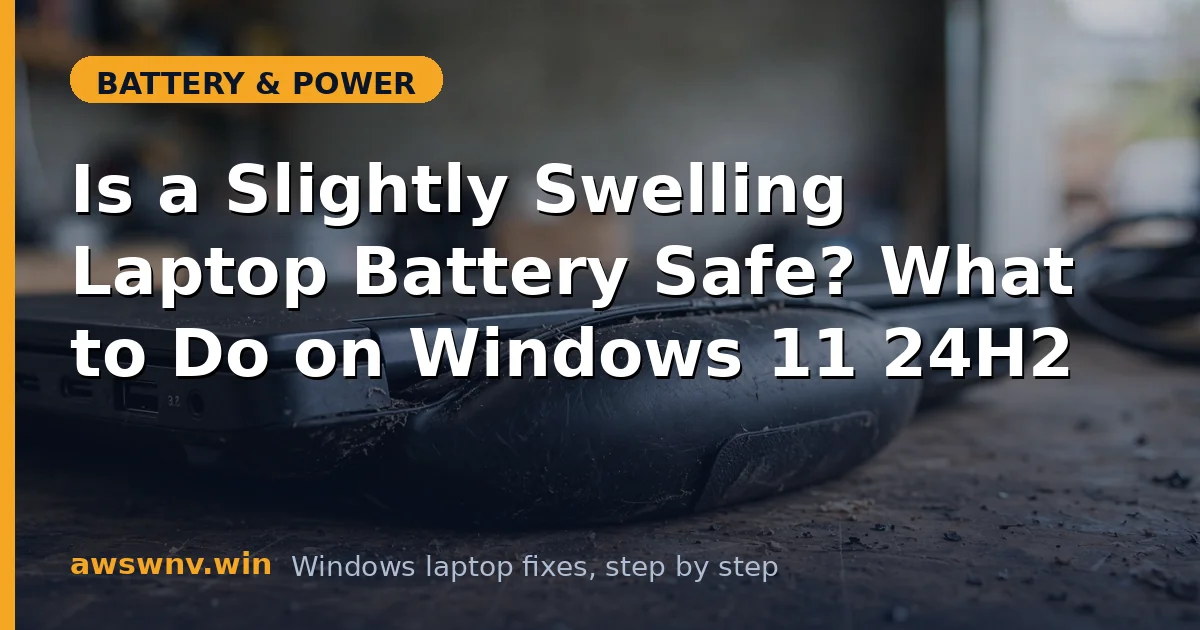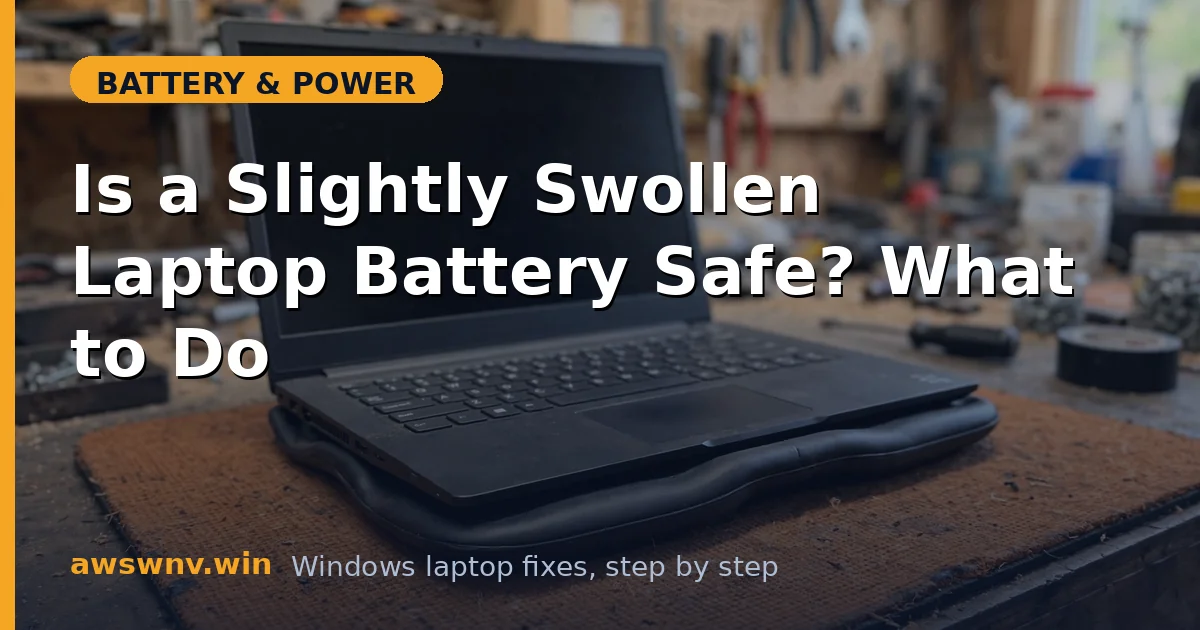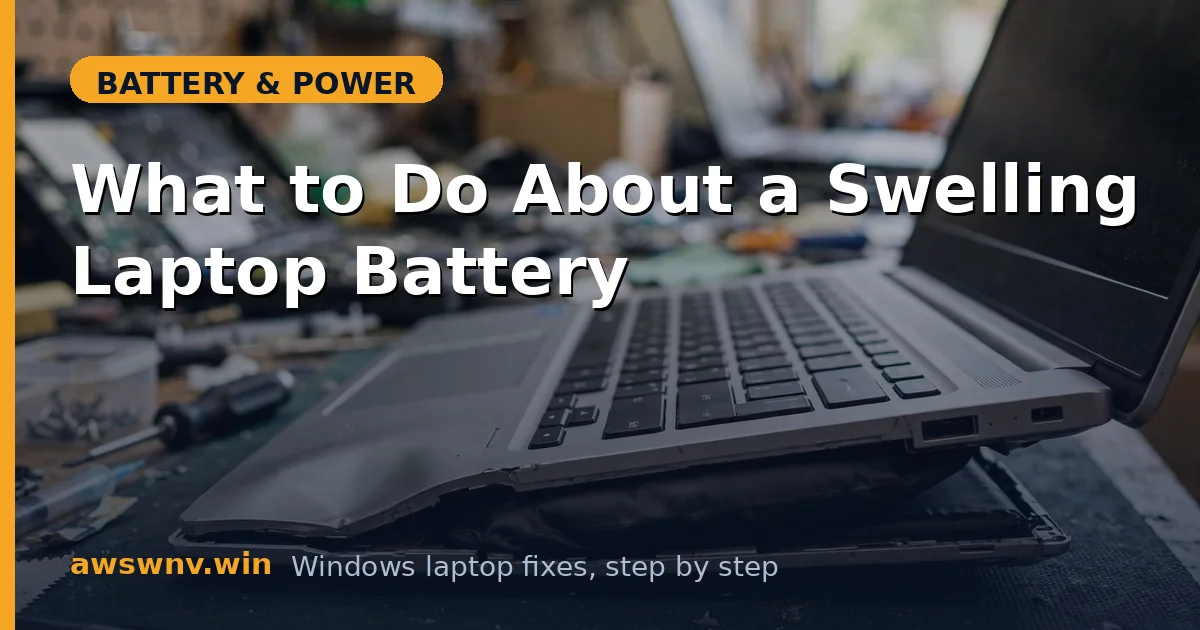
If your trackpad is lifting, the keyboard feels raised, or the bottom case no longer sits flat, you’re probably looking at a swelling battery. This isn’t a settings problem or a calibration issue — it’s a physical safety issue, and it jumps the queue ahead of every other fix on this site.
The good news: handled correctly, a swollen battery is manageable. The rules are simple — don’t charge it, don’t puncture it, don’t try to fix it yourself — and this guide walks through exactly what to do, in the order that matters most for your safety.
Why this happens
- Gas buildup in cells: degradation reactions produce gas inside sealed lithium cells, inflating the pack.
- Overcharging: faulty charge controllers or constant 100% float charging stress cells.
- Excessive heat: prolonged high temperatures accelerate the gas-producing reactions.
- Manufacturing defects: occasional bad batches swell even with perfect care.
- Physical damage: drops and punctures can trigger swelling later.
- Age: very old batteries swell as their chemistry breaks down.
- Deep discharge damage: a battery left at 0% for months can swell when finally recharged.
How to fix it
There is no software fix for swelling. These steps are about safety and replacement.
Fix 1: Confirm it’s actually swelling
Make sure before you act.
- Power down and unplug the laptop. Place it on a flat table and check for rocking or gaps.
- Look at the trackpad and keyboard — swelling often pushes them up first.
- Check for seam separation along the bottom case.
- Sniff for unusual sweet or chemical smells near the vents.
- If you see bulging plus heat, smell, or hissing, treat it as urgent: move the laptop to a non-flammable surface away from people and call for professional help.
- Mild swelling with no other symptoms still means replacement — just without the panic. See is a slightly swollen battery safe for the nuance.
Fix 2: Stop charging immediately
Charging a swollen battery is the main thing that turns a manageable problem into a dangerous one.
- Unplug the charger right now and don’t plug it back in.
- If the laptop is on, shut it down normally — don’t yank anything, just power off.
- Don’t try to drain the battery “to make it safer” by running the laptop; use causes heat, which is worse.
- Store the laptop in a cool, dry place on a non-flammable surface, away from direct sun.
- Keep it away from anything flammable and don’t stack things on top of it.
Fix 3: Back up your data (carefully)
Do this once, briefly, then shut down for good.
- If the laptop still powers on safely, boot it on battery power only — do not plug in the charger.
- Copy essential files to an external drive or cloud storage.
- Work quickly and watch for increasing heat, new smells, or worsening bulge — abort immediately if any appear.
- Shut down when done. Don’t run lengthy operations or leave it unattended while on.
- If the machine won’t boot or shows alarming symptoms, skip the backup — your safety matters more than files.
- Use a USB drive rather than cloud upload if the battery seems unstable; local copies are faster and let you shut down sooner.
Fix 4: Don’t attempt a DIY repair
This one is non-negotiable.
- Never puncture, squeeze, or try to “deflate” a swollen battery.
- Don’t remove a swollen battery yourself unless you’re trained — swollen packs can tear during removal.
- Don’t put it in the trash or regular recycling; lithium batteries need hazardous-waste handling.
- Don’t ship it by air — carriers restrict damaged lithium batteries.
- If the battery is removable and slides out easily without force, you may remove it for separate storage, but stop at the slightest resistance.
Fix 5: Get a professional replacement
This is the actual fix.
- Contact the manufacturer’s support (Dell or HP ) or an authorized service center.
- Describe the swelling clearly; many manufacturers prioritize these cases.
- Check warranty status — swelling from defects is often covered even outside the standard battery warranty.
- Insist on a genuine replacement battery; this is not the place to save money on a third-party pack.
- Ask the technician to inspect for collateral damage — swelling can warp trackpads and stress connectors.
Fix 6: Dispose of the old battery properly
The swollen pack needs safe handling after removal.
- Let the service center handle disposal — they have hazardous-waste channels.
- If you must store it temporarily, place it in a fireproof container (a metal box with a lid) in a cool place.
- Take it to a battery recycling drop-off or hazardous-waste facility — never household trash.
- Tape over the terminals with electrical tape before transport to prevent short circuits.
- Check Microsoft’s Windows support and your local regulations for e-waste options in your area.
Fix 7: Prevent it happening again
Once the new battery is in, protect it.
- Enable the manufacturer’s charge limiter (80% cap) from day one.
- Keep the laptop cool — clean vents regularly and avoid hot environments.
- Don’t leave the laptop plugged in at 100% for months; let it cycle occasionally.
- Replace batteries that are past their prime instead of nursing them for years.
- If the old battery wasn’t detected properly before swelling, read laptop battery not detected in Windows 11 so you recognize warning signs earlier next time.
Closing
A swollen battery can’t be fixed with settings — only replaced, safely. Stop charging it, back up quickly if it’s safe, and get it to a professional. Handle those three things and you’ve managed the risk correctly, protecting both yourself and the laptop from further harm or unexpected failure down the line. When in doubt, err on the side of caution and professional help.