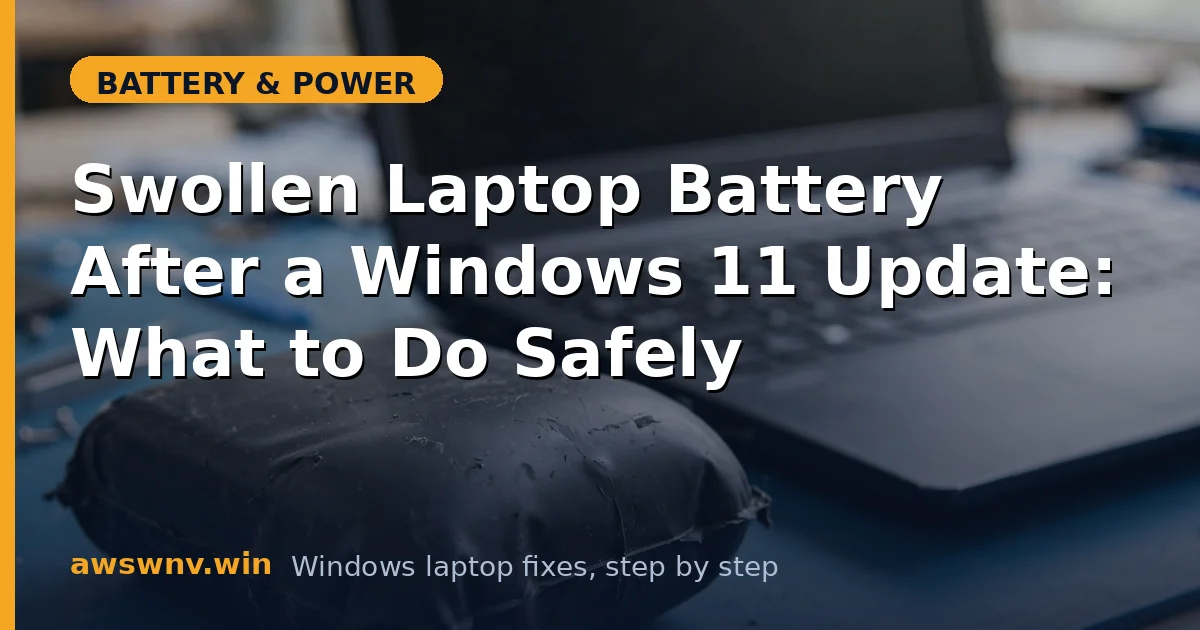
A trackpad that clicks on its own, a keyboard that feels raised, or a bottom panel that no longer sits flat — these are the classic signs of a swollen laptop battery. If you noticed them right after installing a Windows 11 update, it’s natural to blame the update.
The truth is simpler and more urgent: a Windows update cannot swell a battery. Swelling is a physical failure inside the lithium-ion cells, and it is a safety issue that needs to be handled before anything else. Software troubleshooting comes second — and only if the battery is confirmed safe.
Why this happens
- Gas buildup inside aging cells: As lithium-ion batteries age, internal chemical reactions produce gas. Over hundreds of charge cycles, this pressure can bulge the pouch or cell casing outward.
- Heat damage: Laptops that run hot for long periods — blocked vents, heavy gaming, charging on soft surfaces — accelerate cell degradation and swelling.
- A defective cell from the factory: Occasionally a cell ships with a manufacturing flaw. It can swell months or even years later, sometimes seeming to coincide with an unrelated software update.
- Overcharging or faulty charge circuitry: If the charging circuit or a third-party charger delivers incorrect voltage, cells can overheat and swell. This is a hardware problem, not something a Windows update controls.
- Physical damage: A drop or impact can damage internal cell separators, leading to slow gas buildup and swelling weeks later.
- Why the update timing is a coincidence: Updates reboot the system, change power management drivers, and sometimes recalibrate battery reporting. None of these affect the chemistry inside a sealed battery cell.
How to fix it
Work through these in order. Safety steps come first — do not skip ahead to software fixes while the battery is swollen.
Fix 1: Stop using and unplug the laptop immediately
A swollen battery can rupture, leak, or catch fire. Treat this as the priority.
- Save your work and shut the laptop down through Start > Power > Shut down — do not just close the lid and put it to sleep.
- Unplug the charger from the wall and the laptop.
- Move the laptop to a hard, non-flammable surface away from paper, curtains, and other electronics.
- Do not plug it back in or try to “drain” the battery — charging a swollen battery increases the risk.
Fix 2: Do not try to fix the swelling yourself
Swelling cannot be reversed by software, calibration, or any settings change.
- Never press, squeeze, or puncture the swollen area to “let the gas out” — this can cause a fire or chemical burn.
- Do not remove a swollen internal battery yourself unless the manufacturer specifically documents it as user-replaceable and the battery is only mildly deformed. Most modern laptop batteries are glued in.
- If the battery is removable (older models with a latch), you may slide it out while the laptop is off and unplugged, then store it safely — but only if it comes out without force.
Fix 3: Check whether your model has a battery recall or advisory
Manufacturers occasionally issue recalls for batteries prone to swelling.
- Find your exact model and serial number on the sticker underneath the laptop or in Settings > System > About.
- Visit the manufacturer’s support page — for example, Dell support — and search for your model plus “battery recall.”
- Also check your email for any recall notices you may have missed.
- If a recall applies, follow the manufacturer’s replacement process — it is usually free, including shipping.
Fix 4: Confirm the diagnosis with a battery report
This doesn’t fix swelling, but it gives the service center useful history and confirms the battery was degrading.
- Open Terminal (Admin) or Command Prompt (Admin) and run
powercfg /batteryreport. - Open the generated report from
C:\Windows\System32\battery-report.htmlin your browser. - Look at the Battery capacity history section — a steep drop in full charge capacity around the time swelling appeared confirms cell failure.
- Screenshot or save the report to show the technician. For help reading it, see our guide on how to check battery health .
Fix 5: Arrange a professional battery replacement
This is the actual fix. A swollen battery must be replaced, not repaired.
- Contact the laptop manufacturer’s authorized service center or a reputable local repair shop. Describe the swelling clearly.
- Ask for a genuine replacement battery — cheap third-party cells are a common cause of repeat swelling.
- Back up your files before handing the laptop over, since the technician may need to open the chassis.
- If the laptop is under warranty, the replacement is usually covered — check your warranty status on the manufacturer’s site first.
Fix 6: Rule out charger and firmware issues for the new battery
Once the swollen battery is replaced, make sure the conditions that stressed it don’t continue.
- Use only the original charger or a manufacturer-approved replacement with the correct wattage.
- Update your BIOS/UEFI firmware from the manufacturer’s support site, since firmware controls charging behavior.
- In Windows 11, go to Settings > System > Power & battery and avoid leaving the laptop plugged in at 100% for weeks — use any built-in battery charge limiter your manufacturer provides.
- Keep vents clear and avoid charging the laptop on beds or couches.
Fix 7: Verify the update didn’t just change battery reporting
In rare cases, what looks like a battery problem after an update is actually miscalibrated reporting on an already-weak battery.
- After the battery is replaced and the laptop is confirmed safe, run
powercfg /batteryreportagain to verify the new battery’s design capacity matches its full charge capacity. - If Windows shows odd percentages on the new battery, update the battery driver in Device Manager > Batteries — right-click Microsoft ACPI-Compliant Control Method Battery and choose Update driver.
- If charging behaves strangely after the 24H2 update specifically, see our walkthrough for a laptop battery not charging after the Windows 11 24H2 update .
Closing
A swollen battery after a Windows 11 update is frightening, but the update is a bystander — the battery itself has failed and needs professional replacement. Power down, unplug, don’t puncture it, and get it to a service center. Once a genuine new battery is in, a quick driver and firmware check makes sure the next one lives a long, flat life.