A warm laptop is normal. A laptop that’s hot enough to be uncomfortable on your lap — especially hot right where the battery sits — is a problem, and not just for your comfort. Heat is the silent killer of lithium batteries: it accelerates capacity loss, increases the risk of swelling, and in extreme cases creates safety hazards. On Windows 10, where power management is a little less refined than on 11, heat issues are especially common and especially fixable.
Here’s how to cool things down, from the five-minute software fixes to the physical maintenance that actually matters.
Why this happens
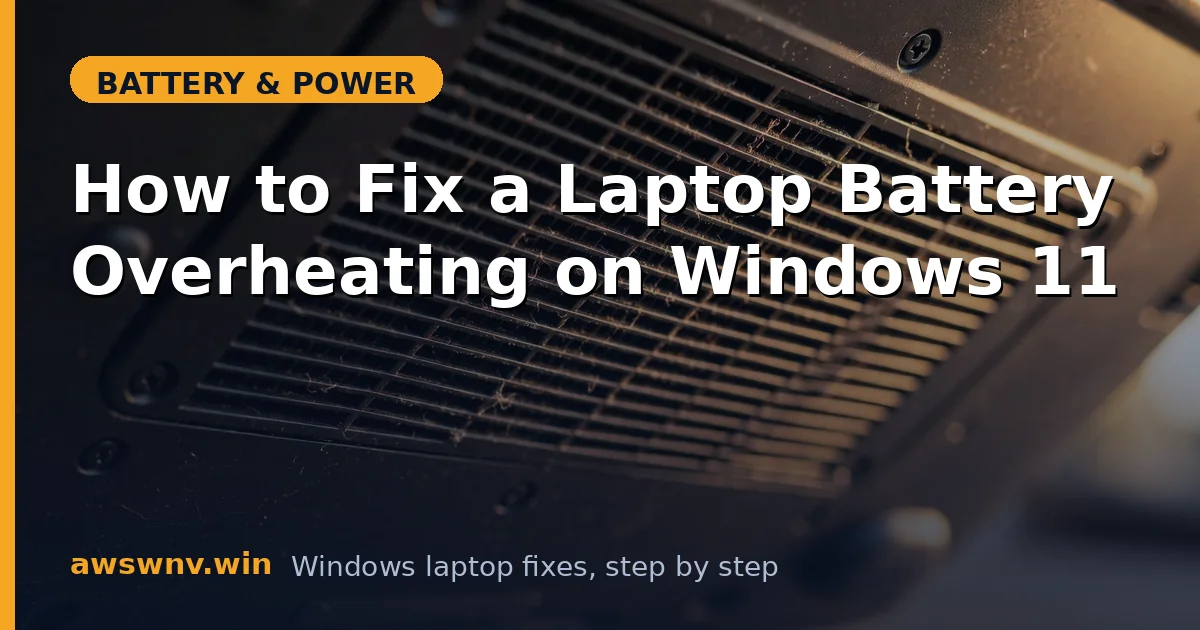
- Blocked vents and dust buildup. The most common physical cause. Dust mats over intake vents and heat sinks, and the cooling system slowly suffocates over a year or two.
- A stuck process is maxing the CPU. One runaway updater, indexer, or browser tab can pin the CPU at 100%, generating heat continuously. Task Manager reveals this in seconds.
- High-performance power plan. Windows 10’s High performance plan keeps clocks high and fans lazy about ramping — a recipe for heat on battery or light loads.
- Charging generates heat too. Fast-charging a battery while simultaneously running heavy tasks stacks two heat sources. The battery area gets the worst of both.
- Old thermal paste or failing fans. On machines several years old, dried thermal paste and worn fans can’t move heat like they used to.
- Soft surfaces. Using the laptop on a bed, couch, or your actual lap blocks the intake vents on the bottom — the cooling system can’t work with no airflow.
How to fix it
Work from software to physical: the quick wins first, then the maintenance.
Fix 1: Find and kill the heat source
Don’t cool blindly — find what’s generating the heat.
- Press Ctrl + Shift + Esc to open Task Manager, go to the Processes tab, and sort by CPU.
- Anything holding high CPU while you’re doing nothing is suspect: stuck updaters, runaway browser tabs, indexing loops.
- Right-click the offender and choose End task. If it’s a system process like Windows Update or Search Indexer, let it finish but investigate why it’s stuck.
- Check the Startup tab and disable unnecessary high-impact entries — fewer background programs means less idle heat.
- Monitor for 10 minutes. If temperatures drop, you’ve found it. If the machine is still hot at true idle, continue.
Fix 2: Switch to the Balanced power plan
Windows 10’s power plan choice matters enormously for heat.
- Open Control Panel > Hardware and Sound > Power Options.
- Select the Balanced plan. If you’re on High performance, switch away from it for daily use — reserve it for plugged-in heavy work.
- Click Change plan settings > Change advanced power settings.
- Under Processor power management, set Maximum processor state on battery to 90–95% instead of 100%. This tiny cap disproportionately reduces heat with barely noticeable performance loss.
- Set System cooling policy to Active on both battery and plugged-in so fans ramp before throttling.
Fix 3: Fix your surface and airflow
The environment is half the cooling system.
- Always use the laptop on a hard, flat surface. A desk, a table, even a large book — anything that leaves the bottom vents open.
- Never use it on beds, couches, blankets, or your lap for extended sessions. If you must, use a lap desk or cooling pad.
- Make sure the rear exhaust vents (usually at the back or sides) aren’t pushed against a wall or monitor stand.
- Elevate the rear of the laptop slightly — even bottle caps under the back feet improve airflow measurably.
- Consider a cooling pad for sustained heavy use. It’s not magic, but consistent airflow under the chassis helps.
Fix 4: Clean the vents and fans
Dust is the slow-motion cause of most overheating.
- Power off and unplug. Inspect the intake vents (usually on the bottom) and exhaust vents for visible dust mats.
- Blow them out with short bursts of compressed air, holding the can upright. Blow into the exhaust briefly and out of the intake — you want to dislodge, not pack deeper.
- Hold fan blades still with a toothpick while blowing so they don’t overspin.
- If you’re comfortable opening the bottom cover (check your warranty first), clean the fan blades and heat sink fins directly — the difference can be dramatic on a 2+ year old machine.
- While you’re in there, check the battery for any swelling. A hot, swollen battery is a safety issue — stop and replace it.
Fix 5: Reduce charging heat
Charging and heavy use together cook the battery.
- Avoid gaming or rendering while fast-charging. If you must do heavy work, do it on AC with the battery already full (so no charging heat is added).
- In your manufacturer’s battery utility, check for charge-rate options and choose standard over fast charging if available.
- If the laptop supports a charge cap (60–80%), use it when docked — a battery held at lower charge generates less heat and degrades slower.
- Unplug and let the machine cool for 10 minutes if the battery area is very hot, rather than pushing through.
- Check battery health — heat-damaged batteries show accelerated capacity loss in the report.
Fix 6: Update drivers and Windows 10
Power management fixes ship in updates.
- Go to Settings > Update & Security > Windows Update and install everything pending. Cumulative updates regularly include thermal and power management fixes.
- Update chipset and graphics drivers from your manufacturer’s support site — the GPU driver especially affects heat during video and light gaming.
- Update the BIOS if release notes mention thermal, fan, or power behavior. Keep the charger connected during the flash.
- After updating, recheck your power plan settings — major updates sometimes reset them to High performance.
- For persistent heat with no obvious cause, run your manufacturer’s hardware diagnostics to check fan function.
Fix 7: Recognize when it’s hardware
Software can’t fix worn-out cooling hardware.
- If fans never spin up, spin constantly at full speed, or make grinding/clicking noises, the fan assembly needs service.
- If the laptop is 3+ years old and still overheats after cleaning with fresh thermal conditions, the thermal paste has likely dried out — a repaste by a technician restores cooling dramatically.
- If the battery itself is the hot spot (rather than the CPU/GPU area) and capacity is low, the pack’s internal resistance has risen with age — see full charge capacity issues .
- Any swelling, sudden shutdowns from heat, or burning smells: stop using the laptop and get professional help. Heat plus a compromised battery is the combination to take seriously.
- Get a repair quote before committing on older machines — weigh it against the laptop’s remaining useful life.
Microsoft’s Windows support has additional power and thermal troubleshooting guidance for Windows 10.
Closing
Overheating batteries are almost always a cooling problem, not a battery problem: dust, bad surfaces, stuck processes, and aggressive power plans. Work the stack — kill the heat source, pick the Balanced plan, open the airflow, clean the vents — and measure the difference with your hand on the chassis. A laptop that runs cool keeps its battery for years; one that runs hot eats it in months. The ten minutes you spend on vents today is battery life you get back for the next two years.