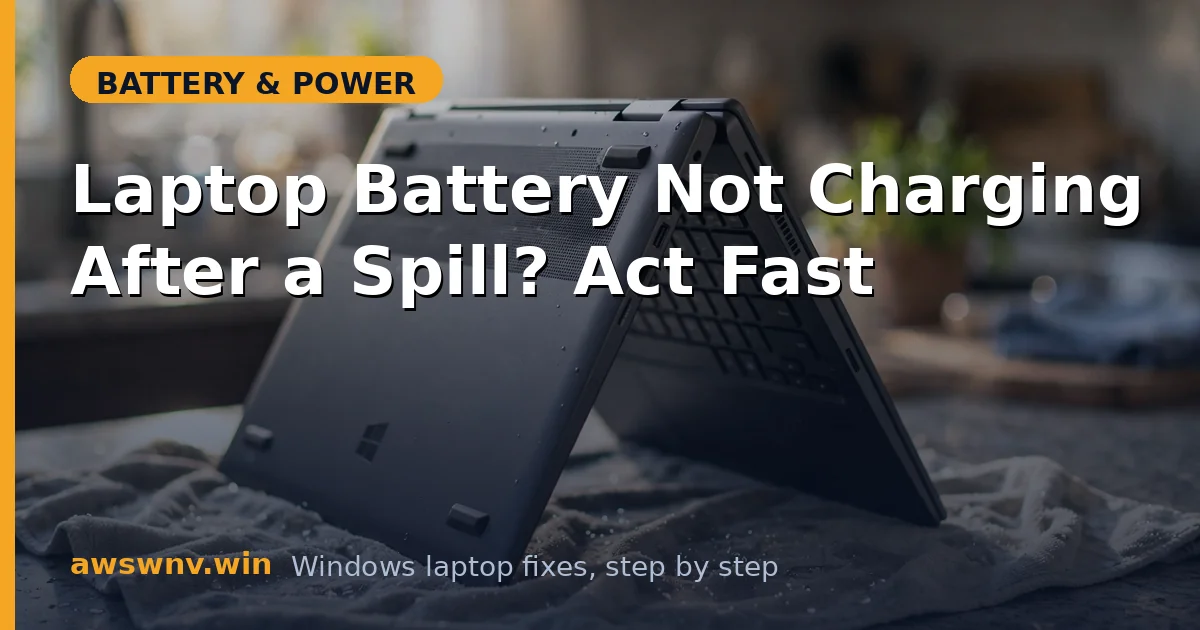
A spill is the one laptop emergency where the first 60 seconds matter more than everything after. Liquid on a powered laptop causes short circuits instantly — and the battery charging circuit is often the victim, which is why “won’t charge” is the classic post-spill symptom. What you do right now determines whether this is a scare or a dead laptop.
This guide is in strict priority order: emergency response first, drying second, diagnosis third. Don’t skip ahead.
Why this happens
- Short circuits while wet — Powered electronics + liquid = instant shorts; the charging IC and battery connector traces are common casualties.
- Corrosion — Even after drying, minerals and sugars leave conductive residue that keeps shorting or adds resistance to charging paths.
- Battery connector contamination — Residue on the battery’s connector pins breaks the data/power handshake needed for charging.
- Charging IC damage — The power-management chip that negotiates charging can be fried by a short, killing charging while the laptop otherwise works.
- Keyboard/touchpad shorts confusing the EC — Liquid under the keyboard can make the embedded controller misbehave, including refusing charge.
- Battery cell damage — In severe cases liquid reaches the battery pack itself, damaging cells or the pack’s protection circuit.
How to fix it
Do these in order. Do not power on the laptop until Fix 3 is complete.
Fix 1: Emergency shutdown and drain (first 60 seconds)
Speed matters more than technique here.
- Hold the power button until it shuts off — don’t wait for a graceful shutdown.
- Unplug the charger and every connected device immediately.
- If the battery is removable, remove it now.
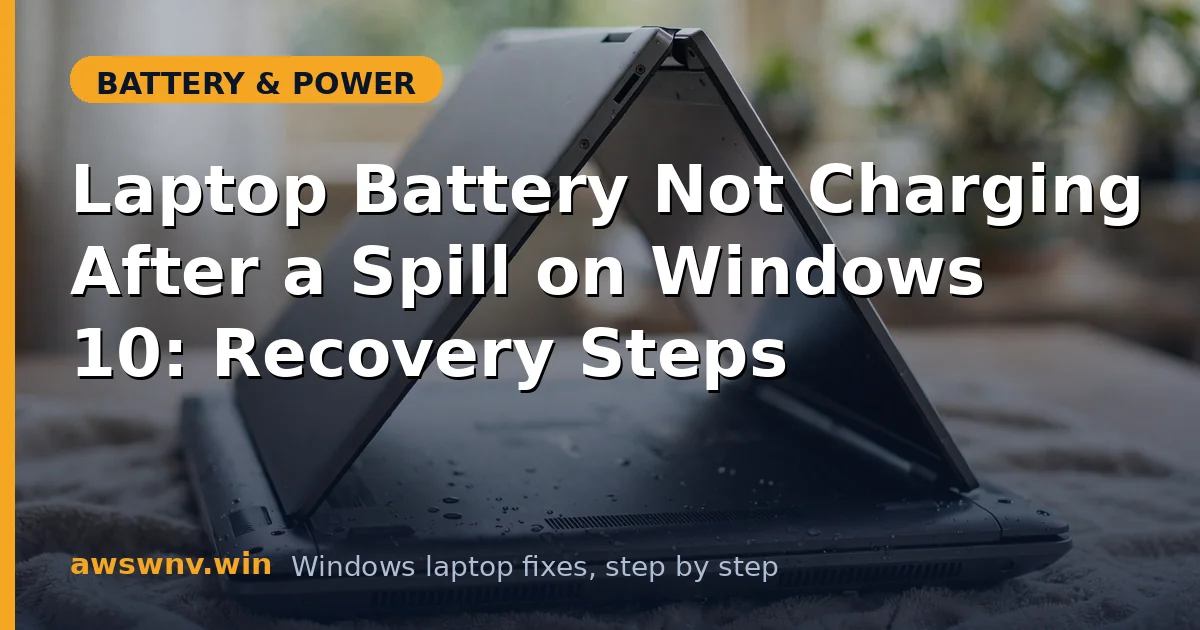
- Flip the laptop upside down in a tent/inverted-V position so liquid drains out through the keyboard, not deeper inside.
- Blot (don’t wipe) visible liquid with a lint-free cloth.
Do NOT use a hair dryer on hot — heat can push liquid deeper and damage components.
Fix 2: Dry it properly (48–72 hours minimum)
This is where most people fail — they rush it.
- Keep the laptop inverted in a dry, room-temperature, ventilated spot.
- If it was just water, 48 hours minimum. Sugary drinks (coffee, soda, juice): 72+ hours — sugar residue is the real enemy.
- Silica gel packets around (not inside) the laptop help; uncooked rice is a myth — skip it.
- Do not open the chassis unless you’re experienced; but if you are, disconnecting the internal battery connector is the single best thing you can do. With the battery disconnected, no current can flow through wet circuits even if you bump the power button accidentally — it removes the entire risk of short-circuit damage during the drying wait.
- After the wait, sniff the keyboard and vents — any sour/sweet smell means residue remains.
Fix 3: Inspect before first power-on
Look before you power.
- If you can safely open the bottom panel, look for white/green crusty residue (corrosion), especially near the battery connector and charging port.
- Clean visible corrosion gently with 90%+ isopropyl alcohol and a soft brush — it’s the correct cleaner for electronics.
- Check the battery connector pins for discoloration.
- If there’s heavy corrosion on the motherboard or the battery looks swollen, stop — this needs a professional. See handling a swollen battery safely .
Fix 4: First power-on test — on AC only, no battery
Test carefully, in stages.
- If the battery is removable, leave it out. If internal and you disconnected it, leave it disconnected.
- Plug in the charger and try to power on.
- If it boots: the core system survived. Shut down and continue.
- If it doesn’t boot, or you smell burning: unplug immediately and take it to a shop — the motherboard has damage beyond DIY.
Fix 5: Reconnect the battery and test charging
Only now do you test the actual symptom.
- Reconnect/reinsert the battery.
- Plug in and check whether Windows shows charging.
- If it charges: run it through a full charge cycle and watch for flakiness over the next few days.
- If it shows “plugged in, not charging”: continue — the charging path has residue or damage.
Fix 6: Clean the battery and charging connectors
Residue on connectors is the most fixable cause of post-spill charging failure.
- Power off, unplug, and remove/disconnect the battery again.
- Clean the battery’s connector pins and the motherboard-side connector with 90%+ isopropyl alcohol and a soft brush.
- Clean the charging port (barrel jack or USB-C) the same way — see USB-C charging troubleshooting for port-specific detail.
- Let everything dry 30 minutes, reconnect, and test.
Fix 7: Reset the power system
Clear any EC confusion from the spill event.
- With everything disconnected, hold the power button for 40 seconds.
- Reconnect the battery, then the charger, and power on.
- In Device Manager → Batteries, uninstall and rescan the ACPI battery drivers.
- Check charging status again.
Fix 8: Professional diagnosis for charging IC damage
If cleaning and resets don’t restore charging, the charging IC or motherboard traces are likely damaged.
- Note the exact symptom for the technician: charges on AC but battery not detected? No charging LED? Intermittent?
- Run
powercfg /batteryreport— if the battery isn’t detected at all, include that detail. - Get a quote before authorizing board-level repair — on older laptops, replacement may be more economical.
- For the official repair path, check your warranty status with the manufacturer: Dell , HP , Lenovo . Note: liquid damage usually voids warranty, but ask anyway.
Closing
Post-spill charging failure is a race between your response speed and corrosion. Kill power instantly, dry patiently, clean the connectors with isopropyl alcohol, and test in stages. Many “dead” charging circuits come back after proper cleaning — but if the charging IC took the hit, a professional repair is the honest next step, not more DIY.