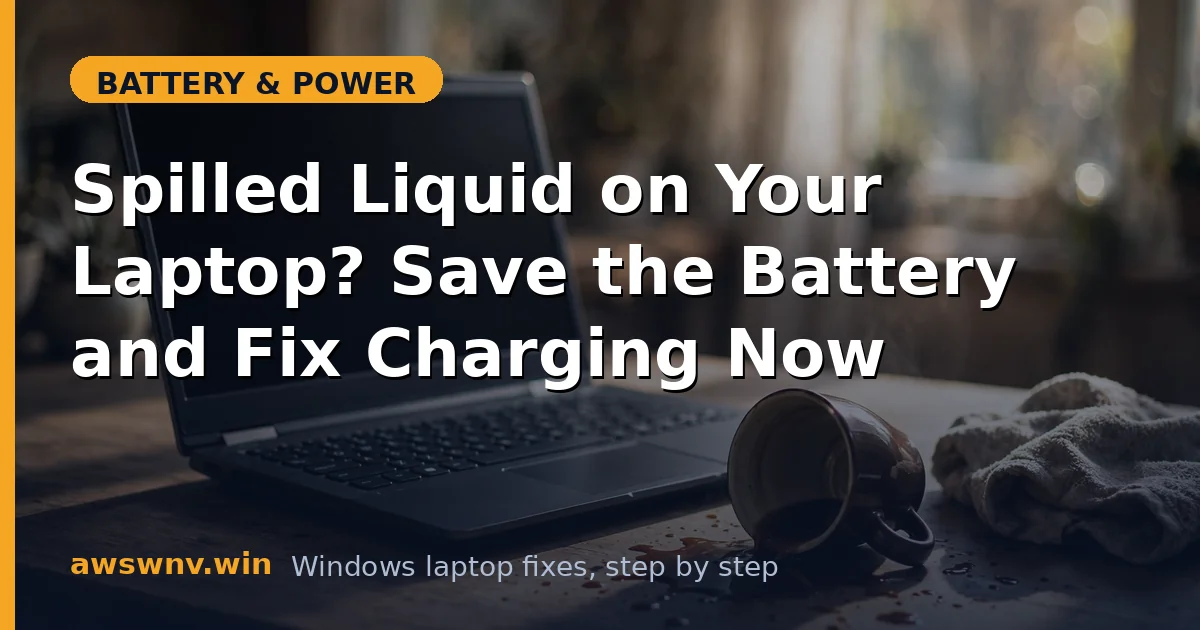
A spill is the one battery problem where the first sixty seconds matter more than any setting. Liquid and lithium batteries are a genuinely dangerous combination, and the charging circuit is usually the first casualty — which is why “won’t charge after a spill” is such a common aftermath. What you do right now determines whether this is a cleaning bill or a dead laptop.
Read the emergency steps first, do them, then come back for the recovery sequence. Do not plug the charger in “just to check.”
Why this happens
- The battery protection circuit tripped. Battery packs have protection boards that cut off charging when they detect abnormal current — a spill can trip them instantly.
- Corrosion on the battery connector. Even a few drops on the battery or motherboard connector create resistance that blocks charging.
- Short across charging MOSFETs. Liquid bridging components in the charging circuit can blow the charge controller.
- Residue keeps conducting. Sugary drinks leave sticky, conductive films that cause slow corrosion for weeks after the spill.
- The EC detects a fault and locks out charging. The embedded controller may refuse to charge as a safety measure after detecting abnormal readings.
- Keyboard and trackpad shorts confuse power management. Liquid under the keyboard can send phantom signals that disrupt sleep and charging behavior.
- Swelling from chemical exposure. In rare cases, liquid ingress damages cells directly, and the pack swells as it fails.
How to fix it
Work through these in order. Do not skip the drying wait.
Fix 1: The first-minute emergency sequence
Do this immediately, in this order:
- Unplug the charger now. Don’t shut down gracefully first — every second of powered wet circuitry risks more damage.
- Hold the power button until the laptop powers off (about 5–10 seconds).
- Flip the laptop upside down in a tent/V shape so liquid drains away from the internals, keyboard facing down.
- Remove the battery if it’s externally removable. If it’s internal, don’t open the laptop yet — just leave it draining.
- Blot, don’t wipe. Dab visible liquid with a lint-free cloth or paper towel. Wiping pushes liquid deeper.
Do not use a hair dryer on hot — heat can warp plastics and drive moisture deeper. Cool or room-temperature airflow is fine.
Fix 2: Dry it properly for 48–72 hours
Patience is the fix here.
- Keep the laptop tented upside-down in a warm, dry, ventilated room — near (not on) a radiator or in an air-conditioned room both work.
- Place silica gel packets around it if you have them. Skip the rice.
- For plain water spills, 48 hours is the minimum. For coffee, tea, soda, juice, or alcohol, wait 72 hours minimum — sugars and acids need longer and likely need professional cleaning regardless.
- Do not attempt to power on or charge during this window, no matter how dry the outside looks. Internal layers trap moisture far longer than surfaces.
Mark the time. The number of laptops killed by an impatient “it looks dry” power-on at hour 12 is enormous.
Fix 3: Inspect for visible damage before powering on
After the drying period, look before you boot.
- Shine a flashlight into vents, ports, and under keys. Look for white or green crusty residue (corrosion), sticky films, or discoloration.
- Sniff the vents — a sweet, burnt, or chemical smell means residue or damage inside.
- Check the charging port for corrosion or bent pins.
- If you see residue or smell anything wrong, do not power on. Go to Fix 7 (professional cleaning).
If everything looks and smells clean, proceed — but stay alert for odd behavior.
Fix 4: The first power-on test (on AC, battery out if possible)
- If the battery is removable, leave it out for this test.
- Connect only the original charger — no dock, no peripherals.
- Press power and watch: normal boot with no smoke, smell, or strange noises is a good sign.
- If it boots, open Device Manager (Win + X) and check for warning icons under Batteries and System devices.
If the laptop won’t power on at all, or shuts off immediately, stop — that’s board-level damage needing professional repair.
Fix 5: Reintroduce the battery and test charging
Only after the laptop runs stably on AC:
- Power off, unplug, and reinsert the battery (or reconnect it).
- Plug in the charger and watch the battery LED and the Windows battery icon.
- If it charges, run a battery health check
via
powercfg /batteryreportand compare Full Charge Capacity to Design Capacity — spills can permanently reduce capacity. - Run the laptop through one full charge-discharge cycle to verify stable behavior.
If Windows shows “plugged in, not charging,” the protection circuit may have tripped — leave it plugged in for an hour; some packs reset themselves. If it never resets, the pack likely needs replacement.
Fix 6: Clean minor corrosion yourself (only if you’re comfortable)
For light, visible corrosion on an accessible battery connector:
- Power off, unplug, and remove the battery.
- Dip a cotton swab in 90%+ isopropyl alcohol and gently clean the contacts — never use water.
- Let the alcohol evaporate fully (a few minutes), then reseat the battery.
Do not attempt this on motherboard components unless you have electronics repair experience. Isopropyl alcohol is flammable — work away from heat, and let everything dry. For anything beyond surface contacts, see Fix 7.
Fix 7: Get professional ultrasonic cleaning for sugary or heavy spills
Water dries. Everything else — coffee, soda, juice, wine — leaves residue that keeps corroding the board for months. A repair shop with an ultrasonic cleaner can wash the motherboard properly, which is the only reliable fix for sticky spills. This typically costs far less than a motherboard replacement. Tell the technician exactly what spilled and when. If the battery itself got wet, ask them to test it — a compromised pack should be replaced, not revived. And if charging problems linger after the machine is fully dry and clean, work through the standard plugged-in-not-charging diagnostic — post-spill residue can mimic ordinary charging faults. Microsoft’s support site also notes that liquid damage isn’t covered under standard warranties, so an independent shop is often the economical choice.
Closing
After a spill, speed of response beats every other factor: unplug, power off, drain, and dry — in that order, within the first minute. Then give it the full 48 to 72 hours before you even think about charging. Laptops that get this treatment often survive with nothing worse than a scare; laptops that get plugged in “just to check” often don’t survive at all.