Coffee, water, tea — it doesn’t take much. One knocked-over cup and your laptop’s battery suddenly refuses to charge, or Windows 11 shows “plugged in, not charging” forever. Liquid and electronics are a brutal combination, and the charging circuit is often the first casualty because battery connectors and charge controllers sit right where liquid pools.
Time matters enormously here. What you do in the first ten minutes decides whether this is a scare or a dead machine. This guide covers immediate triage, safe drying, and then the Windows 11-specific steps to get charging working again once the hardware is dry.
Why this happens
- Liquid bridged the battery connector pins, causing a short that tripped the battery’s protection circuit — it now refuses to charge as a safety measure.
- Corrosion formed on the charging circuit. Even after drying, mineral and sugar residue keeps eating at contacts and traces.
- The charge controller IC on the motherboard shorted. This chip manages all charging; if it’s damaged, no battery will ever charge in this machine.
- Liquid got inside the battery pack itself, damaging cells or the pack’s internal management board.
- Windows 11’s battery driver stack glitched from the forced shutdowns during the spill — a software problem layered on top of the hardware scare.
- The AC adapter or charging port corroded, so the laptop can’t draw power properly even though the battery is fine.
How to fix it
Work through these in order. Do NOT skip the drying steps — powering a wet laptop is how spills become funerals.
Fix 1: Emergency triage in the first minutes
Do this immediately, before reading further.
- Unplug the AC adapter right now. Don’t shut down gracefully — hold the power button until it’s off if you must. Every second of power increases short-circuit risk.
- If the battery is removable, remove it. If it’s internal, leave it — don’t disassemble a wet laptop unless you know what you’re doing.
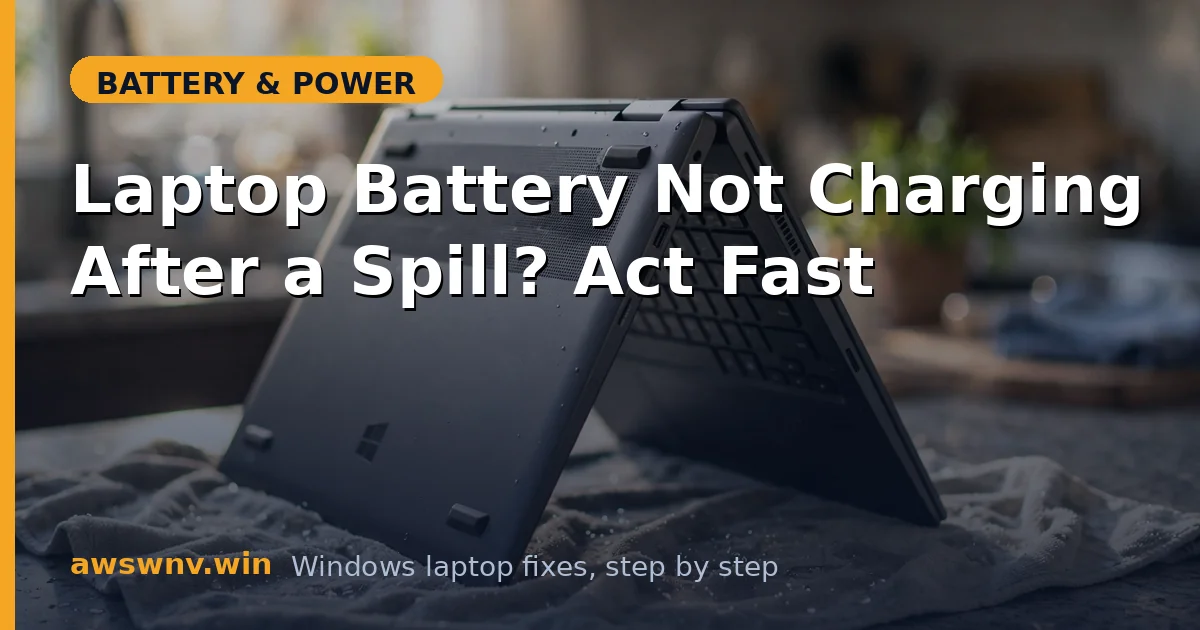
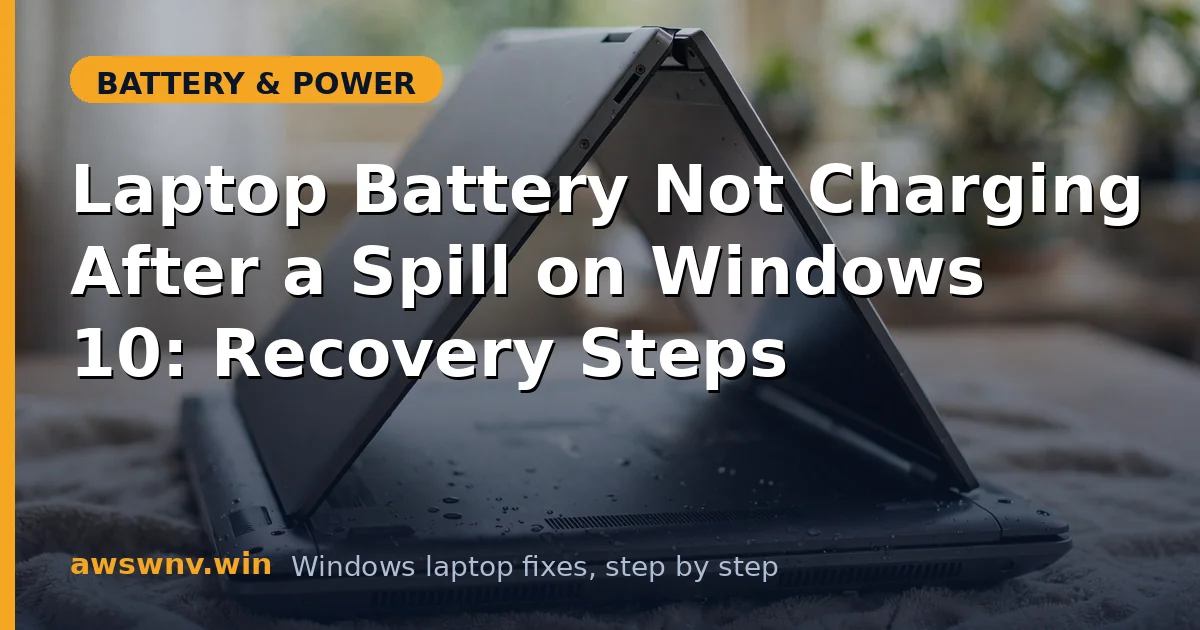
- Flip the laptop upside down in a tent/V shape (keyboard facing down) so liquid drains out instead of deeper in. Put a towel underneath.
- Blot, don’t wipe — dab visible liquid with a lint-free cloth or paper towel. Wiping pushes liquid into crevices.
- Remove any USB devices, SD cards, and docks. If liquid went in the charging port, leave the charger unplugged.
Fix 2: Dry it properly for 48-72 hours
Patience is the entire fix at this stage.
- Keep the laptop tented upside-down in a warm, dry, well-ventilated room. A gentle fan blowing nearby helps enormously.
- Do NOT use a hair dryer on hot — heat warps plastic and drives moisture deeper. Cool or warm air only, held at distance.
- Forget the rice. If you have silica gel packets, put the laptop in a box with them.
- Wait a minimum of 48 hours for water, 72 hours for anything sugary or milky. The inside dries far slower than the outside looks.
- After waiting, sniff the vents — a sweet or sour smell means residue is still inside, and you should extend drying or get professional cleaning.
Fix 3: Inspect and clean the charging path
Once fully dry, look for the damage before applying power.
- Check the charging port with a flashlight. Green/white crusty residue means corrosion — gently clean with a dry soft toothbrush, then a cotton swab barely damp with 90%+ isopropyl alcohol. Let it evaporate fully.
- If you can safely remove the bottom panel (check your manual), look at the battery connector on the motherboard for the same residue and clean it the same way.
- Look for liquid contact indicators — small stickers inside that turn red/pink on contact. If they’re triggered, assume liquid reached the board.
- Reassemble, then plug in the AC adapter without the battery (if removable) and try to power on. If it boots on AC alone, the motherboard survived.
Fix 4: Reset the battery drivers in Windows 11
Spill shutdowns often corrupt the battery driver state. Once the machine boots:
- Open Device Manager (Win + X).
- Expand Batteries, right-click Microsoft ACPI-Compliant Control Method Battery → Uninstall device.
- Do the same for Microsoft AC Adapter.
- Click Action → Scan for hardware changes and restart.
- Plug in the charger and watch the battery icon for 10 minutes. If it now says “charging,” the hardware survived and Windows just needed its drivers reset. Our plugged-in-not-charging guide has more software-side fixes if it’s still stuck.
Fix 5: Run a battery report to assess the damage
Numbers don’t lie about what the spill did to the battery.
- Open Terminal (Admin) and run
powercfg /batteryreport. - Open
C:\Windows\System32\battery-report.htmland compare Design Capacity vs Full Charge Capacity. - Check the recent usage history — a sharp capacity drop dated to the spill day confirms the battery took damage.
- If capacity looks normal but charging still fails, the problem is the charging circuit or connector, not the cells. See our guide on full charge capacity problems for interpreting the report.
Fix 6: Test with a known-good charger and battery
Isolate which part died.
- Borrow an identical-spec charger (same voltage, equal or higher wattage) and test. Chargers die in spills too.
- If the laptop charges with a different adapter, replace yours — don’t keep using a suspect charger.
- If a removable battery is available to test (same model from a friend, or a shop’s test bench), try it. If the machine charges a different battery, yours is dead.
- If NO battery charges and NO charger works, the motherboard’s charging circuit is damaged — that’s board-level repair or replacement.
Fix 7: Know when to call a professional
Some spill damage is beyond DIY.
- If you see corrosion on the motherboard itself (not just connectors), take it to a repair shop for ultrasonic cleaning — it’s the only reliable way to stop ongoing corrosion.
- Check your warranty: standard coverage excludes spills, but accidental damage plans cover them. Don’t open the machine further if you have ADP coverage — let the manufacturer handle it.
- If the battery is swollen, hissing, or smells sweet/chemical — stop. Put it in a fire-safe spot away from flammables and take it to a professional or e-waste facility. Our guide on battery swelling covers the safety steps.
Closing
After a spill, the order of operations is everything: kill power immediately, dry thoroughly for days, clean corrosion, then troubleshoot software. Most “battery not charging after spill” cases resolve once the machine is truly dry and Windows’ battery drivers are reset — but if the charging circuit itself corroded, honest diagnosis now saves you from chasing software fixes for a hardware problem.