You knocked over a drink, the laptop is now dry on the outside, it powers on — but the battery icon says “plugged in, not charging” and the percentage never moves. Before you assume the worst, know this: post-spill charging failures are very often fixable, because the damage is frequently limited to corroded contacts or a confused driver rather than a dead battery.
The critical mistake people make is rushing. They dry the keyboard, power on after a few hours, and either short something that survived the initial spill or misdiagnose a driver problem as hardware failure. Slow down, follow the sequence below, and give each stage its due.
Why this happens
- Corrosion on the battery connector pins interrupts the data lines the charge controller uses — power can’t flow if the controller can’t “see” the battery properly.
- Residue on the motherboard’s charging circuit creates leakage paths that confuse the charge controller into refusing to charge.
- The battery’s internal protection board tripped during the short and latched into a no-charge safety state.
- Mineral deposits from tap water or sugary drinks keep corroding contacts for weeks after the visible liquid is gone.
- Windows 10’s battery driver stack got scrambled by the abrupt power loss, so even healthy hardware reports “not charging.”
- The charger plug or DC jack corroded, dropping the incoming voltage below what the charging circuit needs.
How to fix it
Work through these in order. The first half is hardware triage; the second half is Windows 10 recovery.
Fix 1: Make it safe — power off and drain
If you haven’t done this yet, do it now, even if the spill was yesterday.
- Unplug the AC adapter immediately. If the laptop is on, hold the power button until it shuts off — a graceful shutdown isn’t worth the extra seconds of current through wet circuits.
- Remove the battery if it’s externally removable. On sealed models, don’t force it.
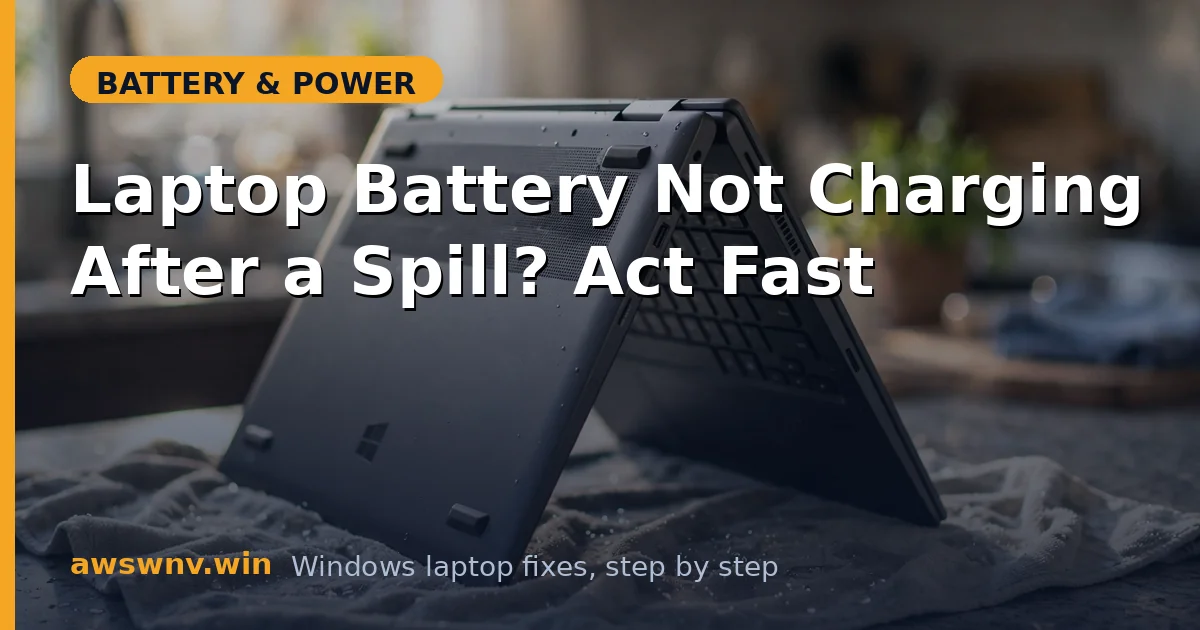
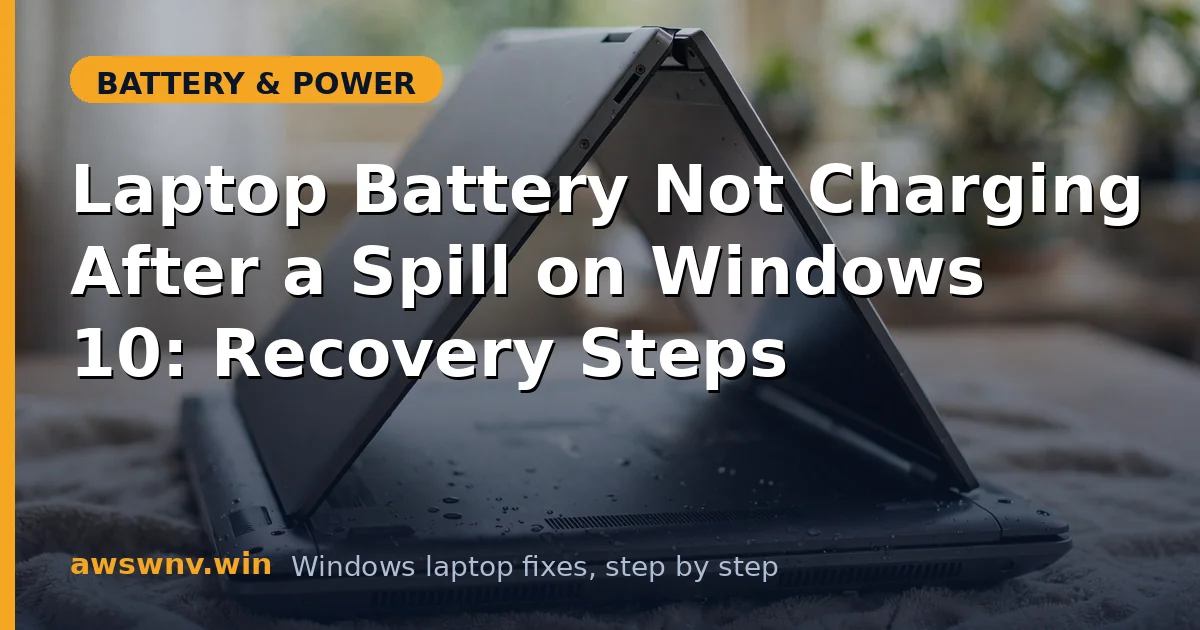
- Turn the machine upside down like an open tent, keyboard facing the towel, so gravity pulls liquid out.
- Disconnect everything: USB drives, mouse receivers, chargers, docks, SD cards.
- Blot visible liquid with paper towels. Don’t use a hair dryer on hot heat.
Fix 2: Give it a real drying period
This is the step everyone wants to skip. Don’t.
- Leave the laptop tented in a dry room with good airflow for 48 hours minimum (water) or 72 hours (anything else).
- A small fan pointed nearby (not directly into vents on high) speeds evaporation dramatically.
- Silica gel packs in an enclosed box with the laptop beat rice every time — rice dust gets into ports and does nothing for trapped moisture.
- After the wait, check the charging port and vents with a flashlight for white/green crust — that’s dried residue, and it needs cleaning before power goes anywhere near it.
Fix 3: Clean corrosion from the charging path
Dried residue is conductive and corrosive. It has to go.
- Dip a cotton swab in 90% or higher isopropyl alcohol — barely damp, not dripping.
- Gently clean the inside of the DC charging jack and the charger’s plug. Let the alcohol evaporate completely (a few minutes).
- If your model allows easy bottom-panel removal, inspect the battery connector on the motherboard. Clean any discoloration the same way.
- A soft dry toothbrush dislodges crusty buildup in port crevices before the alcohol swab finishes the job.
- Reassemble and wait 15 minutes after cleaning before connecting power.
Fix 4: Test on AC power with the battery removed
Isolate the motherboard from the battery question.
- With the battery removed (if possible), plug in the AC adapter and press power.
- If Windows 10 boots normally on AC alone, the motherboard and charging input survived. The problem is the battery, its connector, or drivers.
- If it won’t boot on AC either, or only boots intermittently, the board took damage — skip to Fix 7 and stop troubleshooting software.
- Shut down, reinstall the battery, and boot again to continue.
Fix 5: Reset Windows 10’s battery drivers
The spill’s forced shutdowns commonly leave the ACPI driver in a bad state. On Windows 10:
- Press Win + X → Device Manager.
- Expand Batteries. Right-click Microsoft ACPI-Compliant Control Method Battery → Uninstall. Don’t tick the driver-deletion box.
- Right-click Microsoft AC Adapter → Uninstall as well.
- Click Action → Scan for hardware changes from the menu bar.
- Open an admin Command Prompt (Win + X → Command Prompt (Admin) or Windows PowerShell (Admin)) and run
shutdown /s /t 0for a full shutdown that bypasses Fast Startup. - Power on, plug in, and give it 10 minutes. If it now charges, the hardware is fine — Windows just needed a clean driver slate. If it still won’t charge, our plugged in not charging guide has additional software fixes.
Fix 6: Measure the battery’s actual condition
Stop guessing about the battery’s health — read the report.
- Open an admin Command Prompt and run
powercfg /batteryreport. - Open
C:\Windows\System32\battery-report.htmlin a browser. - Compare Design Capacity with Full Charge Capacity, and look at the capacity history around the spill date.
- A battery that was healthy last month and shows a massive drop now took physical damage. One with unchanged capacity but “not charging” status points at the connector or charge controller instead.
- Our full charge capacity guide explains how to interpret every section of this report.
Fix 7: Get professional help for board-level damage
Know the line between DIY and the repair bench.
- Ultrasonic cleaning at a repair shop is the proper treatment for motherboard corrosion — it removes residue from under chips where swabs can’t reach. Worth it for any sugary spill, even if the laptop currently works.
- If the battery is swollen, warm when idle, or smells odd, stop using it immediately. Take it to an e-waste or battery facility — punctured lithium cells are a fire risk.
- Check accidental-damage coverage before paying out of pocket. Manufacturer ADP plans cover spills; standard warranties don’t.
- If the machine is old and the repair quote exceeds half its value, put the money toward a replacement instead.
Closing
A spill doesn’t have to mean a dead battery. Dry it patiently, clean the corrosion you can reach, reset Windows 10’s battery drivers, and let the battery report tell you what’s actually damaged. The laptops that die from spills are usually the ones that got powered on wet or never had their residue cleaned — don’t let yours be one of them.