HDMI is supposed to be plug-and-play: cable in, picture on the big screen. When it is not — the TV or monitor stubbornly reports ’no signal’ — the fault can sit in the cable, the display’s input, the laptop’s port, or the graphics driver. The trick is testing in an order that isolates the layer fast instead of reinstalling drivers for a broken cable.
The single most informative test is the BIOS screen: reboot with the HDMI connected and watch the external display during boot. If you see the laptop maker’s logo on the big screen, the entire physical chain works and Windows’ graphics driver is the problem. If you see nothing even during boot, suspect the cable, the display input, or the port.
Why this happens
- Faulty or low-quality HDMI cable, especially at 4K bandwidths.
- Display set to the wrong input or stuck on another source.
- Corrupted graphics driver failing to probe the HDMI port.
- Windows not extending/duplicating to the external display automatically.
- Resolution or refresh rate the display cannot negotiate.
- HDMI port wired to the discrete GPU whose driver is missing or broken.
- HDCP handshake failure with the display or an adapter in the chain.
- Damaged HDMI port from cable strain or repeated plugging.
How to fix it
Work through these in order — diagnose first, then act.
Fix 1: Rule out the cable and the display input
Swap in a different HDMI cable — short and certified if possible — and set the display to the correct HDMI input explicitly rather than relying on auto-detect. Try another HDMI port on the display if it has one. Power-cycle the display fully (unplug for 30 seconds) to clear a stuck input state. These physical checks take minutes and eliminate the most common causes before any software work. If the spare cable fixes it, stop here and replace the cable.
- Try a different, known-good HDMI cable.
- Set the display’s input to the correct HDMI port manually.
- Power-cycle the display by unplugging it for 30 seconds.
- Test another HDMI port on the display if available.
Fix 2: Force detection with Win+P and Display settings
With the cable connected, press Win+P and select Duplicate or Extend — this forces Windows to drive the port. Then open Settings > System > Display and click Detect under the display diagram. If the external display appears but stays dark, the negotiation is failing: drop the resolution to 1080p and the refresh rate to 60Hz in Advanced display settings, get a stable picture, then raise them one step at a time to find the display’s real limit.
- Press Win+P and choose Duplicate or Extend.
- Open Settings > System > Display and click Detect.
- Drop to 1080p at 60Hz in Advanced display settings.
- Raise resolution and refresh rate step by step.
Fix 3: Clean-reinstall the graphics driver
If HDMI works during boot but not in Windows, the graphics driver is the fault. Download the driver from the laptop maker’s support page (or NVIDIA/AMD directly) for your exact GPU. Use Display Driver Uninstaller (DDU) in Safe Mode for a truly clean removal, then install the fresh driver and reboot. On laptops with both integrated and discrete graphics, make sure both drivers are installed — the HDMI port is often wired to the discrete GPU, and a missing dGPU driver kills the port. NVIDIA’s official drivers are at the NVIDIA download page and AMD’s at the AMD driver page .
- Download the correct GPU driver for your exact model.
- Remove the old driver cleanly with DDU in Safe Mode.
- Install the fresh driver and reboot.
- Reconnect HDMI and test detection.
Fix 4: Check which GPU drives the HDMI port
On gaming laptops the HDMI port is frequently hardwired to the discrete GPU, bypassing the integrated graphics entirely. If the discrete GPU is disabled (in Device Manager, in the BIOS, or by a power-saving utility), the HDMI port goes dead with it. Open Device Manager > Display adapters and confirm both GPUs are present and enabled. Also check the maker’s GPU utility (NVIDIA Control Panel or AMD Software) for a display output configuration that might have the port disabled.
- Open Device Manager > Display adapters.
- Confirm both integrated and discrete GPUs are enabled.
- Check NVIDIA Control Panel / AMD Software for output settings.
- Re-enable the discrete GPU if anything disabled it.
Fix 5: Fix HDCP and adapter-chain issues
If you are adapting (USB-C to HDMI, HDMI splitters, capture cards), the HDCP copy-protection handshake can fail and produce a black screen even though Windows detects the display. Connect the laptop directly to the display with a plain HDMI cable to test — if direct works, the adapter or splitter is the problem. For protected content (streaming apps), HDCP failures are expected through non-compliant adapters; use a direct connection for those apps. The external monitor detection guide covers adapter chains in more depth.
- Bypass all adapters: connect laptop directly to the display.
- If direct works, replace the adapter or splitter.
- Use a direct connection for copy-protected streaming apps.
- Try a different adapter brand if you must adapt.
Fix 6: Update the BIOS and chipset drivers
The HDMI port’s hot-plug detection runs through the chipset and the system firmware. An outdated BIOS or chipset driver can break port detection even with a healthy GPU driver — particularly on newer laptops where the port hangs off the platform controller. Update the chipset driver from the laptop maker first (lower risk), then the BIOS following the maker’s instructions exactly. Microsoft’s display troubleshooting baseline is in the Windows support hub .
- Install the latest chipset driver from the laptop maker.
- Update the BIOS following the maker’s instructions.
- Reboot and test HDMI hot-plug detection.
- Reinstall the GPU driver after a BIOS update if detection breaks.
Fix 7: Inspect the port for physical damage
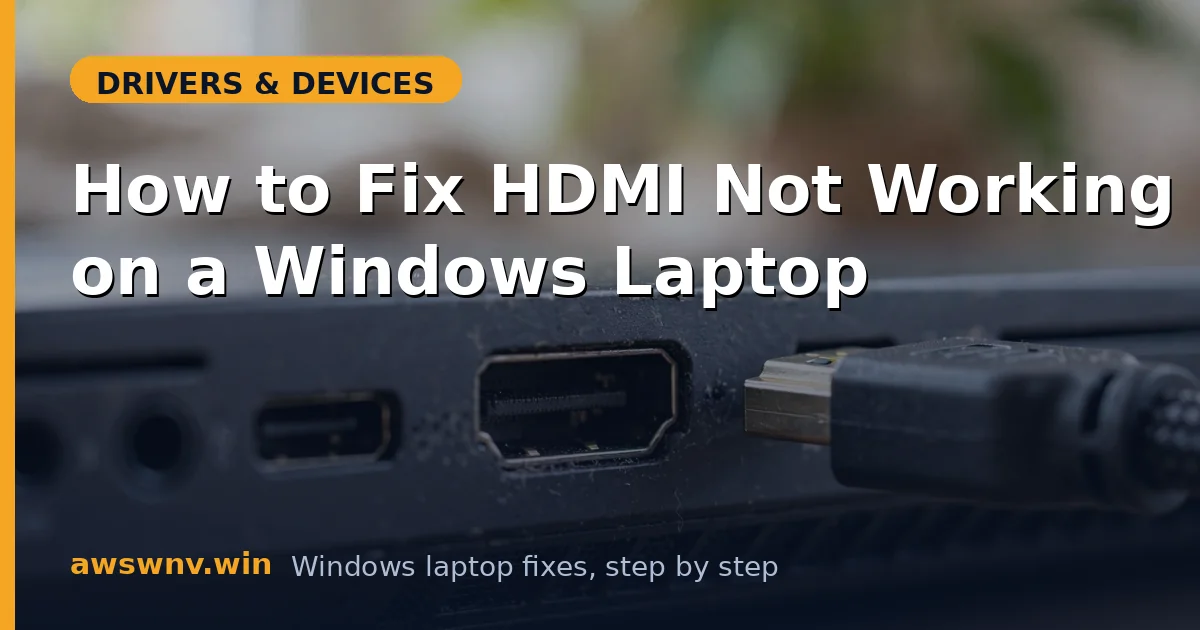
If nothing on the software side helps and the BIOS screen never appears on the external display, examine the laptop’s HDMI port with a light: bent pins, a loose housing, or debris inside are all common after cable strain. A port that only works when you hold the cable at an angle has a cracked solder joint. HDMI ports are soldered to the board, so this is a board-level repair — but confirming it saves you from endless driver reinstalls. Second-monitor detection failures share much of this checklist in the second-monitor guide .
- Inspect the HDMI port for bent pins or debris.
- Test whether wiggling the cable changes anything.
- Try the port with a display you know works.
- Get a board-level repair quote for a damaged port.
Closing
HDMI no-signal faults reward the disciplined tester. The BIOS-screen test splits the problem in half instantly: picture during boot means the graphics driver, no picture during boot means the physical chain. From there, each layer has its own fix — cables and inputs, Win+P forcing, the clean GPU driver reinstall, the discrete-GPU wiring quirk, and finally the port itself. Most cases end at the cable or the driver, which is why the order matters: the thirty-second physical checks come before the thirty-minute driver surgery. Keep a known-good HDMI cable in your bag and you will diagnose the next no-signal call in under a minute.