HDMI is supposed to be the simple way to get your laptop on a bigger screen, so a no-signal message feels like a betrayal. On Windows 10 laptops the failure usually looks like one of three things: the second display never appears in settings, it appears but stays black, or it worked yesterday and stopped for no obvious reason. All three share the same short list of causes.
The HDMI chain has four links: the cable, the ports on both ends, the TV or monitor input selection, and the graphics driver doing the negotiation. When any link is weak you get the classic symptoms. The encouraging part is that genuine HDMI port hardware failure is rare; cables, inputs, and drivers cover the overwhelming majority of cases.
Start with the physical checks, which take two minutes, then move into Windows settings and drivers. If you also run into detection trouble on newer Windows, the Windows 11 HDMI guide covers the same fixes for the newer OS, and the second-monitor detection guide goes deeper on multi-display setups.
Why this happens
- Faulty or loose HDMI cable: cables fail internally from bending and cheap cables may not meet the spec for the resolution you want.
- Monitor or TV on the wrong input: the display is listening on HDMI 2 while the laptop feeds HDMI 1, producing a no-signal message.
- Windows projection mode: the display mode can be set to PC screen only, which keeps the external display dark.
- Outdated graphics driver: the GPU driver handles HDMI handshakes; old drivers fail detection or negotiate wrong resolutions.
- Resolution or refresh-rate mismatch: a mode the display cannot handle produces a detected-but-black screen.
- HDCP handshake failure: content protection negotiation between laptop and TV can fail, especially through adapters or splitters.
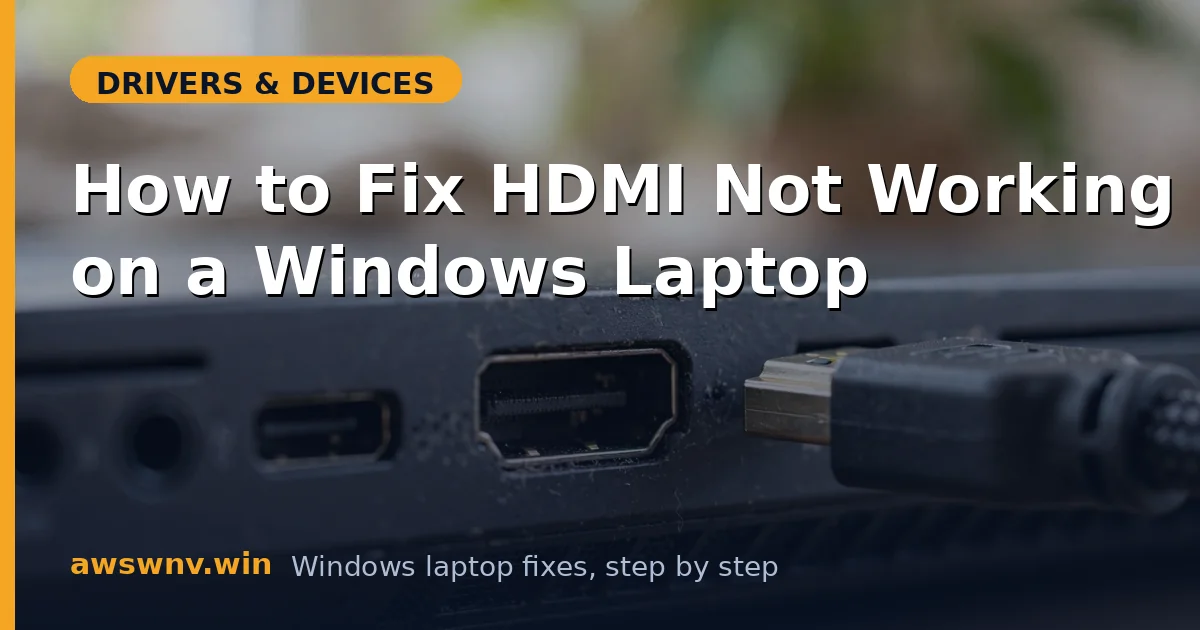
- Dirty or damaged port: dust, bent pins, or a loose port prevent a solid connection on either end.
- Windows Update driver swap: an update may have replaced the manufacturer’s graphics driver with a basic one.
How to fix it
Work through these in order — diagnose first, then act.
Fix 1: Check the cable and both ports physically
Never skip the physical layer. A huge share of HDMI failures are a cable that died quietly or a connector that worked loose. Two minutes here saves an hour of driver fiddling.
- Unplug the HDMI cable at both ends and plug it back in firmly until it seats fully.
- Try a different HDMI cable, ideally a short certified high-speed one.
- Try a different HDMI port on the TV or monitor.
- Inspect both ports for dust or bent pins and blow out any debris.
- Power the TV or monitor off and on with the cable connected.
Fix 2: Set the correct input on the display
Modern TVs have three or four HDMI inputs and auto-switching is unreliable. Manually selecting the input your laptop is plugged into is a basic step that gets overlooked constantly.
- Note which HDMI port number the cable is plugged into on the TV or monitor.
- Use the display remote or buttons to open the input or source menu.
- Select the matching HDMI input explicitly instead of relying on auto.
- Watch for a signal as you switch; some displays take several seconds to lock.
- If the TV has an enhanced HDMI mode, try toggling it for that port.
Fix 3: Cycle projection modes with Windows + P
Windows 10 controls multi-display behavior through the Project panel. If it is stuck on PC screen only, the external display stays dark no matter how good the connection is.
- With the cable connected, press Windows + P.
- Choose Duplicate to mirror your screen as a first test.
- If Duplicate works, try Extend for a proper two-screen setup.
- Avoid Second screen only until you confirm the external display works.
- Press Windows + P again after any cable reconnection to re-trigger detection.
Fix 4: Force detection in display settings
Windows sometimes needs a manual nudge to see a newly connected display, especially after sleep or a driver change. The Detect button forces the graphics driver to rescan the HDMI port.
- Right-click the desktop and open Display settings.
- Scroll to Multiple displays and click the Detect button.
- If a second display appears, select it and choose Extend these displays.
- Set the resolution to the display’s native resolution from the dropdown.
- Click Keep changes when the image looks correct.
Fix 5: Update or reinstall the graphics driver
The graphics driver owns the HDMI handshake. On Windows 10, a driver that predates your current build can fail detection silently. A clean install of the manufacturer’s driver is the reliable fix.
- Press Windows + X and open Device Manager.
- Expand Display adapters and note your GPU model.
- Download the latest driver from your laptop maker or the GPU vendor.
- Run the installer, choosing a clean installation if the option exists.
- Restart with the HDMI cable connected and test detection.
Fix 6: Lower resolution and refresh rate as a test
If the display is detected but black, the laptop may be sending a mode the screen cannot display. Dropping to a safe 1080p at 60Hz proves the link works, and then you can step back up.
- In Display settings, select the external display.
- Open Advanced display settings for that display.
- Set the resolution to 1920 x 1080.
- Set the refresh rate to 60Hz in the display adapter properties.
- Increase the resolution stepwise once the image is stable.
Fix 7: Remove adapters and check official guidance
HDMI adapters, splitters, and docking stations are common HDCP and handshake failure points. Testing direct, then consulting official documentation, closes out the diagnosis.
- Remove any HDMI adapters, switches, or splitters and connect directly.
- Test the laptop on a different TV or monitor to isolate the display.
- Test the TV with a different source to confirm its HDMI ports work.
- Review current display troubleshooting at the Microsoft Windows support hub .
- If direct connection to a second display also fails, suspect the laptop HDMI port hardware.
Closing
HDMI troubleshooting rewards a methodical order: cable and ports, display input, Windows projection mode, then the graphics driver. Almost every Windows 10 HDMI failure yields to one of those four. Once the picture is stable at 1080p, step the resolution back up and enjoy the big screen.