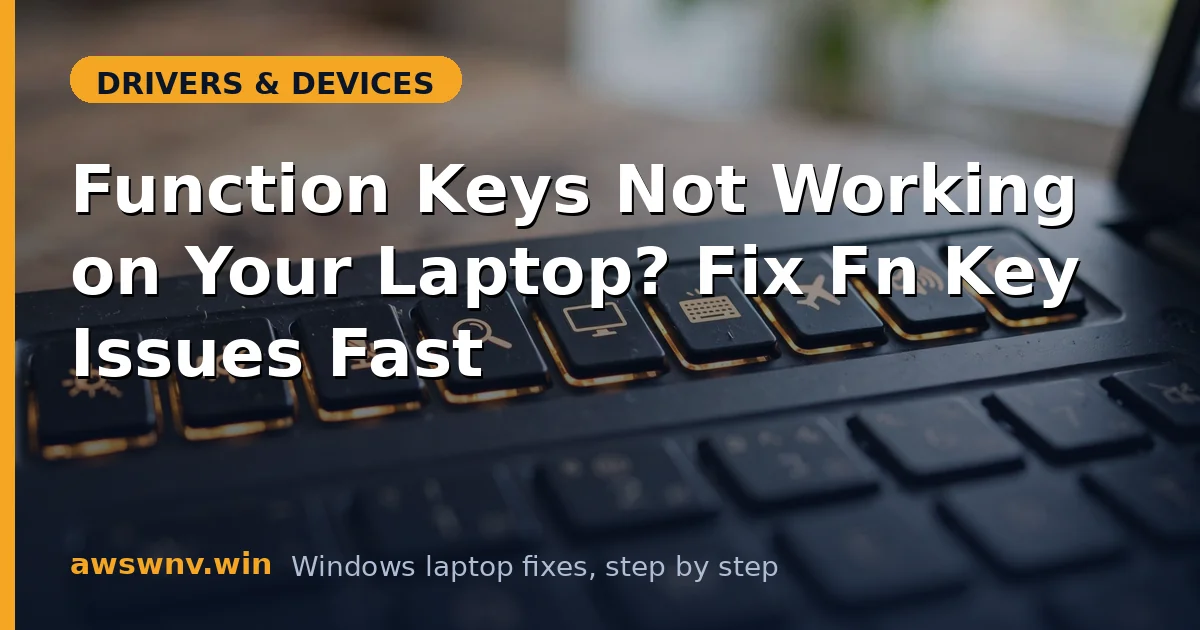
The top row of your laptop keyboard lives a double life: F1 through F12 for applications, and brightness, volume, and airplane-mode shortcuts via the Fn key. When function keys stop working — or start doing the opposite of what you expect — the cause is almost always a mode or driver state, not a broken keyboard. The keys are fine; the machine has just forgotten what they mean.
Diagnosis starts with a simple question: do the keys do nothing, or do they do the wrong thing? Wrong action means Fn lock or the BIOS action-keys setting flipped. Nothing at all means the hotkey driver stack is missing. Either way the fix is software, and it runs from the thirty-second Fn-lock toggle up through the BIOS and driver reinstall.
Why this happens
- Fn lock toggled (often Fn+Esc), swapping F-keys and media-key behavior.
- BIOS ‘Action Keys’ setting flipped by a BIOS update or reset.
- Maker’s hotkey utility uninstalled or broken by a Windows update.
- Keyboard driver corrupted, so scancodes never reach Windows.
- Fn key disabled in the BIOS or the maker’s keyboard app.
- Sticky Keys or filter keys intercepting key combinations.
- Third-party keyboard remapping software overriding the top row.
- Hardware failure of the Fn key or keyboard matrix, rare but real.
How to fix it
Work through these in order — diagnose first, then act.
Fix 1: Toggle Fn lock
Press Fn+Esc once — on most laptops this toggles Fn lock, and an on-screen message or LED confirms the change. Test the top row immediately. If F1-F12 now work (or the media keys now work, depending on which behavior you want), the whole problem was the lock state. Some brands use Fn+Caps Lock or a dedicated lock key, so check the key legends if Fn+Esc does nothing. This single keystroke resolves the majority of ‘wrong action’ complaints.
- Press Fn+Esc and watch for an on-screen Fn-lock indicator.
- Test F1-F12 and the Fn combinations.
- Press Fn+Esc again if you prefer the other default behavior.
- Check for a brand-specific lock key if Fn+Esc does nothing.
Fix 2: Check the BIOS action-keys setting
Reboot into the BIOS and find the Action Keys / Function Key Behavior option, usually under Advanced or System Configuration. Set it to match your preference: ‘Function key’ makes the top row act as F1-F12 by default, ‘Multimedia key’ makes them media shortcuts by default. Save and boot. If a recent BIOS update preceded the problem, this setting was likely reset — the in-depth function-key guide documents the exact menu paths per brand.
- Enter the BIOS setup on boot.
- Find Action Keys / Function Key Behavior.
- Set your preferred default (Function key vs Multimedia key).
- Save, exit, and test the top row in Windows.
Fix 3: Reinstall the maker’s hotkey utility
If the Fn combinations (brightness, volume, airplane mode) are dead while plain F1-F12 work, the hotkey driver is missing. Download the hotkey/ATK package from the laptop maker’s support page for your exact model — ASUS calls it ATK, Lenovo uses Hotkey Features Integration, HP uses Hotkey Support, Dell uses QuickSet-adjacent utilities. Install it and reboot. Without this package the Fn key generates no usable event, so no software can respond to it. Microsoft’s keyboard troubleshooting baseline is in the Windows support hub .
- Download the hotkey utility from the laptop maker’s support page.
- Uninstall any existing hotkey package first.
- Install the fresh package and reboot.
- Test Fn+brightness, Fn+volume, and Fn+airplane mode.
Fix 4: Reinstall the keyboard driver
When the top row does nothing at all — no F-keys, no Fn combos — reinstall the keyboard driver. In Device Manager, uninstall the keyboard device (Standard PS/2 Keyboard or HID Keyboard Device), ticking ‘Delete the driver software’ if offered, then reboot and let Windows rediscover it. Also check Human Interface Devices for any flagged entries and reinstall those. The step-by-step variant of this repair is covered in the function-key walkthrough .
- Uninstall the keyboard device in Device Manager.
- Reboot and let Windows reinstall the driver.
- Check Human Interface Devices for flagged entries.
- Test the top row after the reinstall.
Fix 5: Turn off Sticky Keys and Filter Keys
Accessibility features can swallow key combinations. Open Settings > Accessibility > Keyboard and make sure Sticky Keys and Filter Keys are both off. Filter Keys in particular can make the top row feel dead by ignoring brief or repeated presses. Also check any third-party remapping tools (AutoHotkey scripts, PowerToys Keyboard Manager) that might be intercepting the function row, and disable them temporarily for testing.
- Open Settings > Accessibility > Keyboard.
- Turn off Sticky Keys and Filter Keys.
- Disable keyboard remapping tools temporarily.
- Retest the function keys.
Fix 6: Check the maker’s keyboard app and Windows Update
Many makers ship a keyboard app (Lenovo Vantage, HP Omen Hub, Dell’s utilities, ASUS Armoury Crate) with a function-key behavior toggle that overrides the BIOS setting. Open the app and check its keyboard/device section. Then run Windows Update — the hotkey driver sometimes arrives as an optional driver update, and installing pending updates can restore a stack that a partial update broke. Reboot after updates and retest before moving on.
- Open the maker’s app and check its function-key toggle.
- Run Windows Update and install pending optional driver updates.
- Reboot and retest the top row.
- Note which toggle actually controls the behavior for next time.
Fix 7: Test for hardware failure
If the Fn key itself produces nothing in every layer — no BIOS response, no on-screen indicator, nothing in a Linux live USB — the key’s switch or the keyboard matrix row may have failed. Test with an external USB keyboard: if its function keys work fine, Windows is healthy and the laptop’s keyboard hardware is the problem. Laptop keyboards are model-specific but usually replaceable; liquid damage and drops are the typical causes.
- Test the Fn key in the BIOS and a Linux live USB.
- Plug in a USB keyboard and test its function keys.
- If USB works but the laptop keyboard does not, suspect hardware.
- Replace the keyboard or get a repair quote.
Closing
Function-key failures are mode problems, not keyboard problems, in the large majority of cases. The Fn-lock toggle and the BIOS action-keys setting control what the top row means, and the maker’s hotkey package is what makes the Fn combinations exist at all — lose any one of those three and the keys feel broken while the hardware sits perfectly healthy underneath. Remember the diagnostic split: wrong action means a mode flipped, dead keys mean the driver stack is missing. Fix the right layer and the top row comes back instantly. And once it works, note which toggle your brand uses — the next time a BIOS update resets it, you will fix the ‘broken’ keys in ten seconds instead of an afternoon.