File Explorer should be instant. It is the most basic interaction on a Windows PC: open a folder, see your files. When it instead hangs for five seconds on every click, shows green progress bars crawling across the address bar, or freezes when you right-click, the whole computer feels broken even if everything else runs fine.
On Windows 10, slow Explorer has a well-known set of causes, and they are almost all about baggage: a Quick Access history full of dead network paths, a corrupted thumbnail cache, or third-party shell extensions from installed software injecting delays into every window. The fixes are correspondingly straightforward once you know where to look.
This guide starts with the two-minute Quick Access cleanup that resolves most cases, then moves through thumbnail cache, folder view resets, and the shell-extension hunt for stubborn freezes.
Why this happens
- Bloated Quick Access history: Hundreds of frequent-folder entries, including dead network paths, slow every new window.
- Unreachable network locations pinned: Explorer waits on timeouts for mapped drives and pinned folders that no longer exist.
- Corrupted thumbnail cache: Damaged thumbnails force Explorer to regenerate previews repeatedly, stalling folder loads.
- Buggy third-party shell extensions: Context menu handlers from installed apps inject into Explorer and can hang it.
- Overloaded icon overlays: Cloud apps registering too many overlay icons slow every file listing; Windows supports only 15.
- Slow or failing drive: Explorer waits on the disk; a dying drive makes every folder operation crawl.
- Search indexing the viewed folder: Opening a folder that the indexer is actively churning through adds contention.
How to fix it
Work through these in order — diagnose first, then act.
Fix 1: Clear Quick Access history
The fastest fix with the highest success rate. Clearing the history removes dead entries that stall launches.
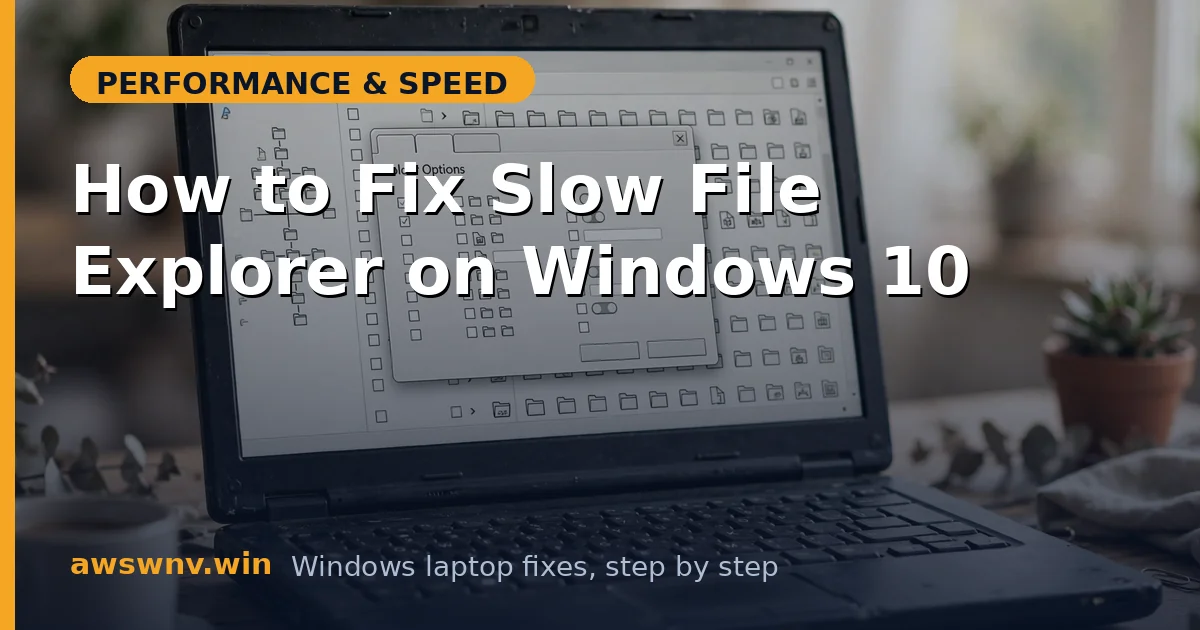
- Open File Explorer and click the three dots, then Options.
- In the General tab, under Privacy, click Clear next to Clear File Explorer history.
- Uncheck Show recently used files in Quick access.
- Uncheck Show frequently used folders in Quick access.
- Click Apply and OK, then open a new Explorer window to test.
Fix 2: Change the default open location
If Quick Access itself is the problem, stop opening to it. This PC is a lighter default.
- Open Folder Options as above.
- Change Open File Explorer to from Quick access to This PC.
- Click Apply and OK.
- New windows now open to the drive list instead of the history database.
- This also helps if the Quick Access database is corrupted.
Fix 3: Remove dead network pins and mappings
Explorer waits on network timeouts for paths that no longer respond. Removing them eliminates the stalls.
- In Quick Access, right-click any pinned network folder that no longer exists and choose Unpin.
- Open This PC and check for mapped drives with red X icons.
- Right-click dead mappings and choose Disconnect.
- If a needed share is slow, access it by UNC path only when required.
- Test folder navigation speed afterward.
Fix 4: Rebuild the thumbnail cache
Corrupted thumbnails cause the infamous slow folder with the crawling green bar. Rebuilding fixes it.
- Press Win+R, type cleanmgr, and press Enter.
- Select the C drive and check Thumbnails in the list.
- Click OK to delete the cached thumbnails.
- Open a picture-heavy folder and let thumbnails regenerate once.
- Subsequent visits to that folder should load quickly.
Fix 5: Hunt down bad shell extensions
If right-clicks freeze Explorer, a third-party context menu handler is the likely culprit.
- Download ShellExView from NirSoft and run it.
- Sort by Type and look at Context Menu extensions from non-Microsoft vendors.
- Disable them in batches, starting with the most recently installed software.
- Restart Explorer from Task Manager after each batch via right-click, Restart.
- When freezes stop, re-enable one by one to identify the offender.
Fix 6: Reset folder views to defaults
Corrupted saved views for specific folders can cause targeted slowness. Resetting clears them all.
- Open Folder Options and go to the View tab.
- Click Reset Folders and confirm.
- This restores default views for all folder types.
- Re-customize only the folders where you need special views.
- Check whether the previously slow folders now open normally.
Fix 7: Reduce search integration overhead
Explorer’s search box queries the index on every keystroke. On systems where indexing is broken, this makes even browsing feel slow.
- Press Win+R, type control srchadmin.dll, and press Enter.
- Click Modify and trim indexed locations to essentials.
- Consider switching to Classic search in Settings, Privacy and security, Searching Windows.
- Test whether folder browsing feels faster with a leaner index.
- Our guide to disabling search indexing on Windows 11 covers the full teardown.
Fix 8: Repair system files with SFC
Corrupted Explorer components cause unpredictable slowness. The System File Checker restores them from the component store.
- Open Command Prompt as administrator.
- Type sfc /scannow and press Enter.
- Wait for the scan to complete without interrupting it.
- If it reports repaired files, restart the laptop.
- Test Explorer across several different folders.
Fix 9: Reduce search integration overhead
Explorer’s search box queries the index on every keystroke. On systems where indexing is broken, this makes even browsing feel slow.
- Press Win+R, type control srchadmin.dll, and press Enter.
- Click Modify and trim indexed locations to essentials.
- Consider switching to Classic search in Settings, Privacy and security, Searching Windows.
- Test whether folder browsing feels faster with a leaner index.
- Our guide to disabling search indexing on Windows 11 covers the full teardown.
Fix 10: Repair system files with SFC
Corrupted Explorer components cause unpredictable slowness. The System File Checker restores them from the component store.
- Open Command Prompt as administrator.
- Type sfc /scannow and press Enter.
- Wait for the scan to complete without interrupting it.
- If it reports repaired files, restart the laptop.
- Test Explorer across several different folders.
Closing
Slow File Explorer on Windows 10 is a baggage problem, and the Quick Access cleanup resolves it for most people in two minutes. When that is not enough, the shell-extension hunt with ShellExView finds the deeper culprits without reinstalling anything. If Explorer is slow and the whole system is too, look at the bigger picture with our guide to 100 percent disk active time . System file corruption is rare but worth ruling out when Explorer misbehaves across all folders. For the full diagnostic tree, see this Explorer troubleshooting guide , and Microsoft documents File Explorer in its Windows support hub . System file corruption is rare but worth ruling out when Explorer misbehaves across all folders. For the full diagnostic tree, see this Explorer troubleshooting guide , and Microsoft documents File Explorer in its Windows support hub .