When Windows throws the FAULTY_HARDWARE_CORRUPTED_PAGE blue screen, the name tells you the story: the operating system detected that a page of memory it was actively using had been corrupted, and the pattern looks like a hardware problem. In practice this stop code comes down to failing RAM more often than anything else — but a misbehaving driver can corrupt memory pages the exact same way, and Windows can’t always tell the difference.
The tricky part is separating those two causes without spending money on the wrong one. This guide walks you through that in the sensible order: quick software checks first, then a definitive memory test, then what to actually do if your RAM turns out to be the problem.
Why this happens
- Failing or degrading RAM: The most common cause. Individual memory cells go bad over time and flip bits in the pages Windows is using. Windows checksums critical pages, spots the mismatch, and crashes rather than continue with corrupted data.
- A buggy driver writing out of bounds: A driver bug can scribble over memory pages that belong to the OS or another driver. The corruption pattern looks exactly like hardware failure, so Windows reports it the same way.
- Overclocked or unstable memory: Aggressive XMP/EXPO profiles or manual memory overclocks that were “stable enough” produce intermittent corruption under load — exactly the signature of this stop code.
- Heat-induced bit errors: RAM running hot for long stretches (gaming, rendering, poorly ventilated lap use) starts producing errors. Dust-clogged vents make a marginal memory module fail much sooner.
- Corrupted page file on failing storage: If Windows’ page file sits on bad SSD sectors, pages swapped out to disk come back corrupted. The symptom is a “hardware corrupted page” crash even though the RAM itself is fine.
- A recent update changed the timing: A Windows or driver update can alter memory management just enough that a borderline module — one that was quietly producing rare, unnoticed errors — starts tripping the checksum often enough to crash.
How to fix it
Work through these in order — each step rules out a cause before you spend money on anything.
Fix 1: Check whether a recent update or driver is the trigger
If the crashes started right after something changed, that something is suspect number one.
- Open Settings > Windows Update > Update history and look at what’s installed in the last two weeks. Note any driver updates.
- Press Win + X and open Device Manager. Expand Display adapters, Memory technology devices, and IDE ATA/ATAPI controllers — look for yellow warning icons.
- If a driver was updated within a day or two of the first crash, right-click the device > Properties > Driver tab > Roll Back Driver.
- If a Windows update is the suspect, Settings > Windows Update > Update history > Uninstall updates lets you remove the most recent one as a test.
Fix 2: Run Windows Memory Diagnostic
The quick built-in test. It won’t catch everything, but it catches obvious failures fast.
- Press Win + R, type
mdsched.exe, and press Enter. - Choose Restart now and check for problems. The laptop reboots into the memory test automatically.
- Let both passes complete — don’t interrupt it. This takes 10–30 minutes.
- When Windows boots back, check the result: Event Viewer > Windows Logs > System, filter for source
MemoryDiagnostics-Results. Any reported error, even one, means the RAM has bad cells.
Fix 3: Run MemTest86 overnight for a definitive answer
Windows’ built-in test is decent; MemTest86 is conclusive. Run this before buying anything.
- Download MemTest86 (free edition) on a working computer and create a bootable USB with its included tool.
- Boot your laptop from the USB (usually F12 or Esc at power-on for the boot menu).
- Let it run at least 4 full passes — typically 4 to 8 hours overnight.
- Zero errors after 4+ passes means your RAM is almost certainly fine; focus on drivers instead. Any error means the RAM is bad, full stop.
If your crashes happen at startup rather than mid-session, the general blue screen of death guide for Windows 11 covers boot-time triage in more detail.
Fix 4: Reseat the RAM and test sticks one at a time
Loose or oxidized contacts cause exactly this kind of intermittent corruption, and testing sticks individually identifies which one is bad.
- Shut down, unplug everything, and remove the bottom panel (check your model’s manual for the correct screw order).
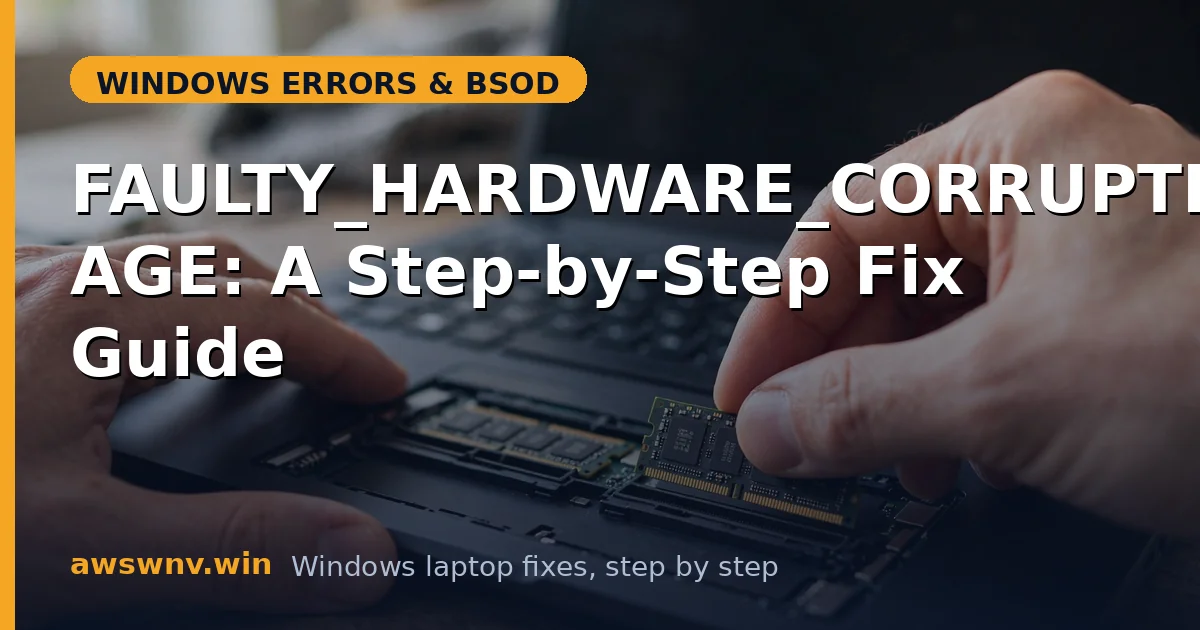
- Release the RAM retention clips, remove each stick, and blow out the slots with compressed air.
- Reseat one stick firmly until both clips click. Boot and use the laptop normally for a day.
- If it still crashes, swap in the other stick alone. The one that crashes is the bad one.
- If your laptop has soldered RAM (many ultrabooks do), you can’t do this step — skip to Fix 6 and plan for professional service.
Fix 5: Reset memory to stock speeds in BIOS
An unstable XMP profile is a classic cause of intermittent page corruption.
- Restart and enter BIOS/UEFI (usually F2 or Del on the manufacturer’s splash screen).
- Find the memory settings — often under Advanced > Memory or Ai Tweaker/Overclocking.
- Disable XMP/EXPO/DOCP or set memory to Auto/stock speed.
- Save and exit (F10). Use the laptop for a few days at stock speeds; if the crashes stop, the XMP profile was too aggressive for your modules.
Fix 6: Update chipset and storage drivers from the manufacturer
Outdated chipset or storage-controller drivers can mishandle memory pages, and the generic Windows ones are often the culprits.
- Identify your platform: Intel users can run the Intel Driver & Support Assistant to detect and update chipset, graphics, and Wi-Fi drivers automatically.
- For AMD laptops, grab the chipset and storage drivers from AMD’s driver download page .
- Also update your SSD firmware — check your laptop maker’s support site for a storage firmware utility. A drive with a known firmware bug can corrupt the page file exactly the way this stop code describes.
- Restart and monitor for a few days of normal use.
Fix 7: Repair Windows’ own memory-management files
Corrupted kernel components can misdetect or mishandle memory pages, producing false “hardware” crashes.
- Open an elevated Command Prompt: Win + X > Terminal (Admin).
- Run
sfc /scannowand let it finish — it repairs protected system files. - Then run
DISM /Online /Cleanup-Image /RestoreHealthto repair the component storesfcdraws from. - Restart. If crashes persist after clean memory tests and updated drivers, the pattern strongly suggests genuine hardware failure.
A closely related memory crash with a driver flavor is DRIVER_IRQL_NOT_LESS_OR_EQUAL — worth reading if your crashes involve driver names on the blue screen. There’s also a 24H2-specific walkthrough for this exact stop code if you recently updated to that build.
Closing
FAULTY_HARDWARE_CORRUPTED_PAGE sounds alarming, but the diagnostic path is straightforward: rule out software triggers, test the memory definitively, and only then spend money. Most people who work through these steps find the answer by Fix 3 or Fix 6 — either a bad stick they can replace for the cost of a RAM module, or a driver update that ends the crashes entirely. If MemTest86 comes back clean and drivers are current, the next stop is a warranty claim, because at that point the fault is real hardware somewhere on the board.