FAULTY_HARDWARE_CORRUPTED_PAGE (stop code 0x00000012B) has the scariest name of any blue screen, and it’s misleading. Yes, it can mean failing RAM — but right after a Windows 11 update, it’s just as likely to be a driver corrupting memory in a way that looks like a hardware fault. The update changed the memory landscape; something in your system didn’t adapt.
Don’t order replacement parts yet. Work through this diagnostic sequence and you’ll know whether it’s the RAM, a driver, or something else entirely — and you’ll have the evidence to prove it either way.
Why this happens
- Failing or marginal RAM. A memory stick with bad cells corrupts pages — the literal meaning of the stop code, and the cause to rule out first.
- A driver corrupting memory. Buggy graphics, storage, or network drivers can damage memory pages in patterns indistinguishable from hardware faults.
- The update exposed a latent driver bug. New memory management in the updated build catches corruption the old build missed.
- Corrupted system files. Damage from a troubled update can corrupt the memory manager’s own bookkeeping.
- Overclocked or mismatched RAM. XMP profiles, mixed sticks, or manual tuning cause intermittent corruption that looks exactly like failing hardware.
- Failing storage. A drive returning bad data corrupts the memory pages Windows caches from it.
How to fix it
Work through these in order, from the quickest and safest fixes to the deeper ones. Stop once the crashes stop.
Fix 1: Test your RAM first — it’s the namesake cause
This stop code demands a memory test before anything else. Don’t skip it even if you’re convinced it’s a driver — the test is quick and the result directs everything that follows.
- Press Win + R, type
mdsched.exe, and press Enter. - Choose Restart now and check for problems and let the Windows Memory Diagnostic complete.
- If it reports hardware problems, you’ve found it — skip to Fix 4 for the reseat/replace procedure.
- If it passes, don’t stop: run MemTest86 from a bootable USB for at least two full passes. The built-in test misses intermittent faults that MemTest86 catches — and intermittent faults are exactly what produce this stop code sporadically. Our memory management troubleshooting guide explains how to interpret extended test results.
Fix 2: Update your drivers
A corrupting driver is the most common non-RAM cause after an update.
- Press Win + X and open Device Manager.
- Update drivers under Display adapters, Network adapters, Storage controllers, and System devices (right-click each > Update driver > Search automatically for drivers).
- Then install the latest chipset and graphics drivers from your laptop maker’s support site — Dell , HP, Lenovo — for your exact model.
- If crashes started with the update, roll back the most recently updated drivers instead: Properties > Driver tab > Roll Back Driver.
- Restart and test under normal use for a day.
Fix 3: Repair system files and check the disk
Eliminate software corruption in the memory and storage path.
- Open an elevated Command Prompt (Win + S, type
cmd, right-click, Run as administrator). - Run
sfc /scannowand let it finish. - Then run
DISM /Online /Cleanup-Image /RestoreHealth. - Check the drive with
chkdsk C: /f— type Y to schedule it and restart. - Verify drive health in PowerShell (Admin):
Get-PhysicalDisk | Select FriendlyName, HealthStatus, OperationalStatus. These same repairs address related post-update corruption like page faults in nonpaged area .
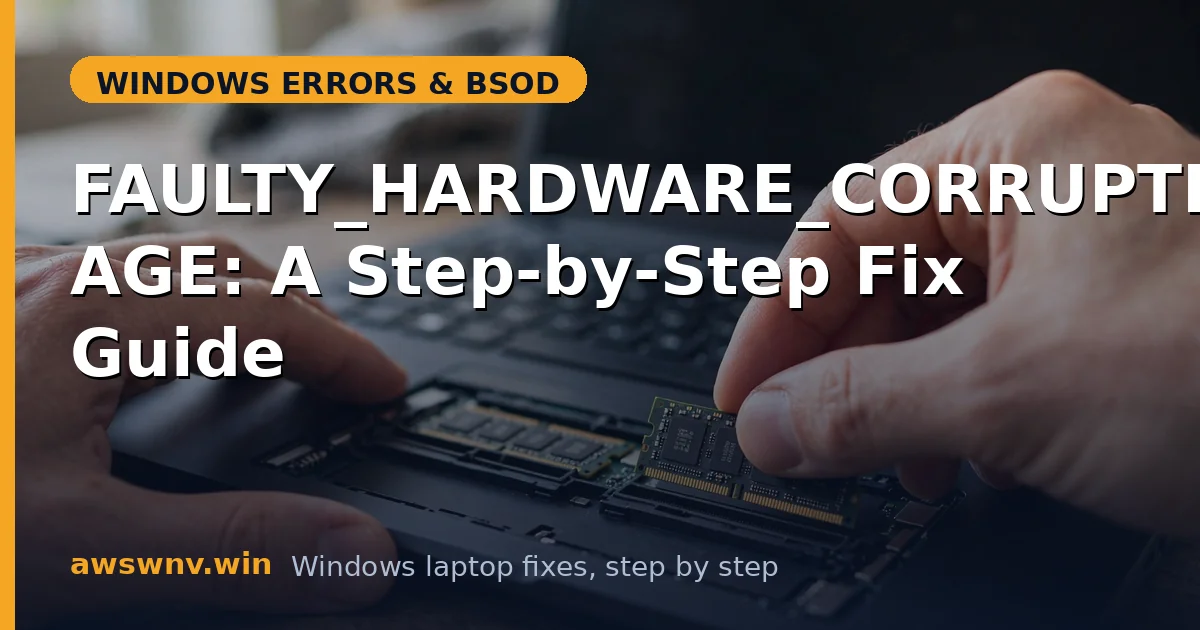
Fix 4: Reseat or replace the faulty RAM
Act on failed memory tests.
- Power off completely and unplug the charger.
- Open the RAM compartment (check your model’s manual; some ultrabooks have soldered RAM).
- Remove each stick, clean the slots with compressed air, and reseat firmly until the clips click.
- With two sticks, test one at a time to isolate the bad one. Replace it with matching specs (DDR type, speed, voltage).
- Never mix sticks with different timings — mismatched RAM is a classic source of this exact stop code.
Fix 5: Reset BIOS memory settings to stock
Undo any tuning that destabilizes memory.
- Restart and enter the BIOS (usually F2 or Del at the logo screen).
- Disable XMP / EXPO / DOCP memory profiles — run the RAM at stock JEDEC speeds.
- Load Optimized Defaults if you’re unsure what else was changed.
- Save and exit, then test. If the crashes stop, your memory tuning was the entire problem — the RAM itself is fine.
Fix 6: Uninstall the update as a diagnostic step
Confirm the update’s role in exposing the fault.
- Go to Settings > Windows Update > Update history > Uninstall updates.
- Remove the most recent update and restart.
- If crashes stop, the update exposed either a marginal RAM stick or a driver bug. Update drivers from the manufacturer, then reinstall the Windows update — don’t leave it uninstalled permanently.
Fix 7: Clean-install Windows to isolate hardware
The definitive software-vs-hardware test.
- Back up everything.
- Go to Settings > System > Recovery > Reset PC, choose Remove everything with Cloud download.
- After setup, install only manufacturer drivers and test before restoring files.
- If the crashes continue on a clean install with RAM that passes MemTest86, you’re looking at a motherboard or CPU memory-controller fault — professional diagnosis time. Microsoft’s Windows support hub covers repair options.
Closing
Don’t let the name panic you: FAULTY_HARDWARE_CORRUPTED_PAGE after an update is a diagnostic starting point, not a hardware death sentence. Test the RAM properly (MemTest86, not just the quick built-in test), update your drivers from the manufacturer, reset any memory overclocks, and repair system files. That sequence reliably separates real hardware faults from driver problems every time — and driver problems are what you’ll find most of the time, especially when the crashes began right after an update. Take the diagnostics in order, trust what they tell you, and you’ll land on the right fix without replacing parts blindly.