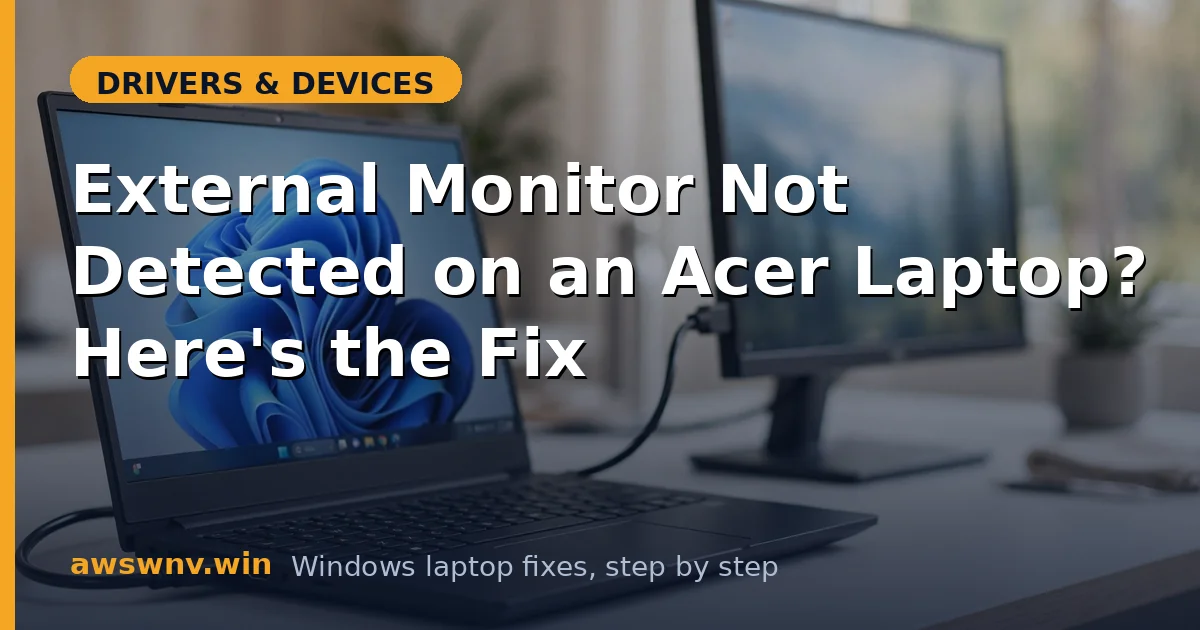
The monitor is on, the cable is plugged in, and the Acer shows nothing — no second display in Settings, no flicker of recognition, just the laptop screen alone. The same monitor works on a colleague’s machine. The cable is the one that came in the box. Everything should work, and nothing does.
External monitor detection is a handshake: the monitor announces itself over the cable, the GPU’s driver enumerates the output, and Windows builds the display topology. The handshake fails at the cable, the monitor’s input, Windows detection, or the graphics driver — in roughly that order of likelihood. Work the list physically first, then in software. (ASUS owners with the same symptom should see our ASUS external monitor guide for brand-specific notes.)
Why this happens
- Monitor input set to the wrong source. The monitor is listening on HDMI 2 while the cable is on HDMI 1.
- Faulty cable or adapter. A damaged cable or cheap adapter breaks the handshake while looking fine.
- Windows display detection stuck. The display topology cache never re-enumerates the new monitor.
- Graphics driver cannot enumerate the output. The driver is corrupted or outdated, especially the discrete GPU driver.
- Wrong projection mode. Windows is set to “PC screen only” and ignores the external display.
- Port wired to the discrete GPU. On Acer gaming models the HDMI port needs the NVIDIA/AMD driver healthy.
- BIOS display settings. Firmware options for display output or graphics switching interfere.
- Monitor needs a power reset. The monitor’s input logic is wedged and needs a full power cycle.
How to fix it
Work through these in order — diagnose first, then act.
Fix 1: Check the monitor input and power-cycle it
Use the monitor’s buttons or joystick to open the input menu and select the exact input the cable uses — HDMI 1, HDMI 2, DisplayPort — explicitly. Do not trust auto-detect. Then unplug the monitor’s power cable for 30 seconds and plug it back in; this resets the monitor’s input logic, which wedges more often than people expect. If the Acer’s screen flickers or Windows plays the device-connection sound during this, detection is actually working and the monitor was simply on the wrong input.
Fix 2: Simplify the cable chain
Disconnect every adapter, dock, and splitter — plug the monitor directly into the Acer with a single known-good cable. If you must use USB-C, confirm the port supports video (DisplayPort Alt Mode) and use a video-rated cable. Test with a different cable if one is available; cables fail internally while looking pristine. A direct connection that works proves the adapters or dock were the problem. Only reintroduce the dock or adapter after the direct connection is stable.
Fix 3: Force detection and set the projection mode
Press Windows + P and select Extend — if Windows is stuck on “PC screen only,” the monitor is ignored by policy, not by failure. Then go to Settings > System > Display and click Detect (possibly twice). If a greyed-out second display appears, select it and choose Extend desktop to this display from the multiple-displays dropdown. Forced detection clears the stale topology cache that commonly follows Windows updates, and the projection-mode check takes five seconds. If the monitor is detected but the picture is unstable, our second monitor flickering guide picks up from there.
Fix 4: Update both graphics drivers
Acer laptops often have two GPUs: Intel or AMD integrated plus NVIDIA or AMD discrete — and the external port may be wired to either. Update both. Get the integrated driver from Intel (Driver & Support Assistant ) or AMD (driver support page ), and the discrete driver from the NVIDIA driver download page or AMD. Alternatively, get Acer’s validated graphics package from Acer’s official support site for your exact model. Restart after installing and retest detection. Discrete-GPU-wired HDMI ports are dead until that GPU’s driver is healthy.
Fix 5: Reinstall the monitor driver entry
In Device Manager, expand Monitors — you may see the external monitor listed with a warning, as Generic PnP Monitor, or not at all. Right-click any external monitor entry and choose Uninstall device, then click Action > Scan for hardware changes with the monitor connected and powered on. This forces Windows to re-read the monitor’s EDID handshake data. If the monitor appears healthy here but Windows still will not extend to it, the problem is in the display topology rather than the device binding — repeat Fix 3 after this reset.
Fix 6: Check Acer BIOS display settings
Restart and press F2 during boot to enter the Acer BIOS. Look under Main or Advanced for graphics or display-output options — some Acer models have a Graphics Mode or mux switch (integrated vs. discrete vs. hybrid). If it is set to integrated-only and your HDMI port is wired to the discrete GPU, the port is dark by firmware policy; set it to discrete or hybrid. Save and exit. Also check for a BIOS update on Acer’s official support site — display output fixes ship in firmware.
Fix 7: Test the port hardware
Try the monitor on the Acer’s other video outputs (USB-C, mini-DisplayPort) with appropriate cables. Try a different monitor or TV on the same Acer port. If no display is ever detected on any port with any cable, but the laptop screen is fine, the external output circuitry may have failed — the port’s data lanes can die while the rest of the GPU works. Also test with a Linux live USB: detection there proves Windows or its drivers are at fault; failure there too points at hardware. Port repairs are board-level work for a service center.
Closing
Monitor detection failures are handshake failures, and the handshake has four participants: monitor input, cable, Windows detection, graphics driver. Verify each in order and the second screen appears — most cases end at the input selection or the cable. Once it works, leave the monitor’s input locked to the right source so auto-detect cannot wander off again.