Ethernet failures give you better diagnostics than almost any other laptop problem — link LEDs, exact status messages, and a cable you can swap in seconds. This guide turns those diagnostics into a strict step-by-step sequence: physical layer first, then adapter state, then drivers, then the network stack, then hardware verdict. Follow it in order and do not skip; each step’s result determines the next.
Keep a known-good Cat5e or Cat6 cable and, if possible, a USB Ethernet dongle on hand before you start. They are your reference instruments — every ambiguous result gets retested against them. This guide is the checklist edition of Ethernet repair: every step in order, no skipping, each result telling you what to do next. It pairs with the explanatory Windows 10 Ethernet guide — use that one to understand why each step works, and this one when you want to move fast. Keep a known-good cable and, if possible, a USB Ethernet dongle within reach before step one.
Why this happens
- Cable failure: Broken internal pairs kill the link with no software symptom beyond “unplugged.”
- Dead router or switch port: The far end fails as often as the laptop end.
- Disabled adapter: The Ethernet adapter is turned off in Network Connections.
- Corrupted or mismatched driver: Bad driver updates produce Code 10 or phantom unplugged states.
- Power management: The NIC sleeps and never re-establishes link after wake.
- Speed/duplex mismatch: Forced settings disagreeing with the switch cause no-link or crippled speed.
- TCP/IP stack corruption: Link is fine but no traffic passes — “connected, no internet.”
- Dead onboard controller: Usually after power surges; the final diagnosis when all software fails.
How to fix it
Work through these in order — diagnose first, then act.
Fix 1: Read the LEDs and status message
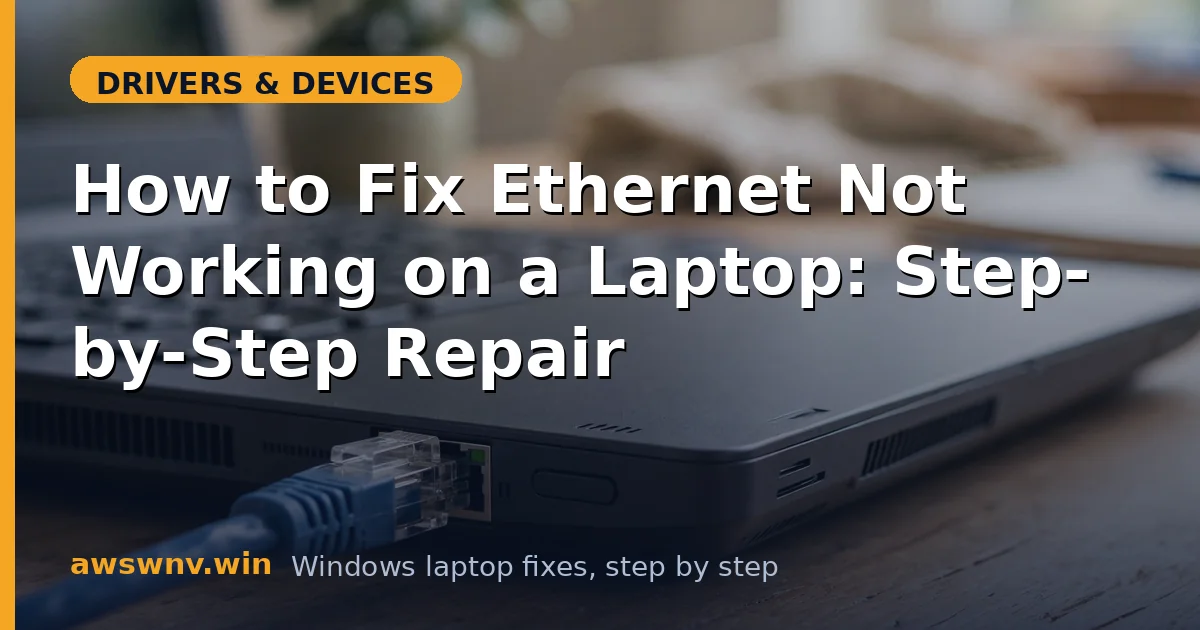
- With the cable plugged in, check the port LEDs: lit means electrical link, dark means no link.
- Open
ncpa.cpl(Win + R) and read the Ethernet status: Disabled, Network cable unplugged, Unidentified network, or connected with a warning. - Dark LEDs plus “unplugged” means a physical-layer problem — go to Fix 2. Lit LEDs with no traffic means software — skip to Fix 4.
- Write down exactly what you see; vague memory of error messages causes wrong turns later.
Fix 2: Swap cable and port
- Replace the cable with a known-good Cat5e/Cat6 cable — internal breaks are invisible, so “looks fine” means nothing.
- Move to a different port on the router or switch, and power-cycle the router.
- If LEDs light up, the old cable or port was dead — done.
- If LEDs stay dark across cables and ports, the laptop’s port or controller is suspect — continue.
- Try the cable in a different device (another laptop, a game console, a smart TV) to confirm the cable itself is good — a cable that fails everywhere is obviously dead, but a cable that works elsewhere while your laptop stays dark points at the laptop’s port or controller specifically.
Fix 3: Enable the adapter and check its state
- In
ncpa.cpl, right-click the Ethernet adapter → Enable if disabled. - In Device Manager, check Network adapters for the Ethernet controller’s status — note any Code 10 or Code 43.
- Try Disable, wait ten seconds, Enable on the adapter to reset its state machine.
- If Device Manager shows the adapter healthy but Windows still reports unplugged with a good cable, suspect the driver (Fix 4).
Fix 4: Clean-reinstall the Ethernet driver
- Download the LAN driver for your exact model from the maker’s support site using WiFi or another machine.
- In Device Manager, uninstall the Ethernet controller with driver deletion ticked, then restart.
- Install the manufacturer’s package before Windows Update can substitute a generic driver.
- Verify no warning icon remains. The same rebuild resolves Windows 10-specific Ethernet failures with deeper OS detail.
- The companion Ethernet troubleshooting reference covers adapter-level quirks — Killer and Realtek controllers have model-specific behaviors worth knowing if the generic steps stall.
Fix 5: Disable power management and check duplex
- In the adapter’s Properties → Power Management, uncheck Allow the computer to turn off this device to save power.
- On the Advanced tab, set Speed & Duplex to Auto Negotiation and disable Energy Efficient Ethernet.
- Check the connection Status — it should show 1.0 Gbps on a gigabit network; 100 Mbps with a good cable means a cable or port limitation.
- Restart and test sleep-wake behavior to confirm the link re-establishes reliably.
- If the link negotiates at 100 Mbps instead of 1 Gbps with a Cat5e or better cable, inspect the cable for damage near the connectors — gigabit needs all four wire pairs, and a single broken pair silently downgrades you to 100 Mbps while everything “works.”
Fix 6: Reset the TCP/IP stack
- Open Command Prompt as administrator.
- Run
netsh winsock reset,netsh int ip reset,ipconfig /release,ipconfig /renew,ipconfig /flushdns— Enter after each. - Restart the laptop and test. This fixes the “linked but no traffic” class of failure.
- If the stack reset fails, use Settings → Network & Internet → Advanced network settings → Network reset — remembering it wipes WiFi passwords and VPN profiles.
- For the full command reference behind these resets, Microsoft’s network repair documentation documents each netsh context and what it clears.
Fix 7: Deliver the hardware verdict with a USB dongle
- Connect a USB 3.0 Ethernet dongle and test — full function through the dongle while the onboard port stays dead confirms a dead onboard controller.
- If the dongle fails identically, the fault is in Windows networking itself — consider an in-place Windows repair install.
- A working dongle is a perfectly good permanent fix; onboard NIC repair means a motherboard-level service.
- For surge-prone environments, add an Ethernet surge protector — the most common killer of onboard NICs is a surge through the cable.
- If you rely on the dongle long-term, buy a reputable USB 3.0 gigabit adapter rather than the cheapest option — bargain dongles overheat and drop connections, trading one Ethernet problem for a flakier one.
Closing
The step-by-step discipline matters for Ethernet because the symptoms are so readable: LEDs and status messages tell you which layer failed, and each fix targets exactly one layer. Most repairs end at the cable swap or the clean driver install. When they don’t, the USB dongle test gives you a definitive hardware verdict in minutes instead of hours of driver roulette.