The cable clicks in, the lights blink — and Windows says “no internet” or “unidentified network.” Or worse: nothing at all, as if the cable were not plugged in. Wi-Fi works fine, the router works fine, but the wired connection that should be the most reliable thing on the desk refuses to cooperate.
Ethernet failures split cleanly into two families: physical (cable, port, link) and logical (driver, IP configuration, Windows stack). Diagnose the physical layer first because it takes thirty seconds, then work through the logical layer. Many modern laptops lack a built-in Ethernet jack and rely on USB-C dongles — those add a driver layer of their own. If wireless is your actual problem instead, our Wi-Fi Code 10 repair guide covers the wireless adapter side.
Why this happens
- Faulty or damaged cable. A single broken wire pair kills the link while the cable looks perfect.
- Broken Ethernet driver. The adapter driver is corrupted, outdated, or replaced by a bad Windows Update version.
- DHCP handshake failing. The router never assigns an IP address, leaving an unidentified network.
- Power management disabling the adapter. Windows puts the Ethernet controller to sleep and it never wakes.
- Corrupted TCP/IP or Winsock stack. The network stack itself is damaged and cannot use a working adapter.
- Wrong speed/duplex negotiation. Forced settings mismatch the router and prevent link establishment.
- USB Ethernet dongle driver missing. Dongle-based Ethernet needs its own driver that Windows may not install automatically.
- Router port or laptop jack damaged. Bent pins or a dead switch port break the physical link.
How to fix it
Work through these in order — diagnose first, then act.
Fix 1: Check link lights, cable, and port
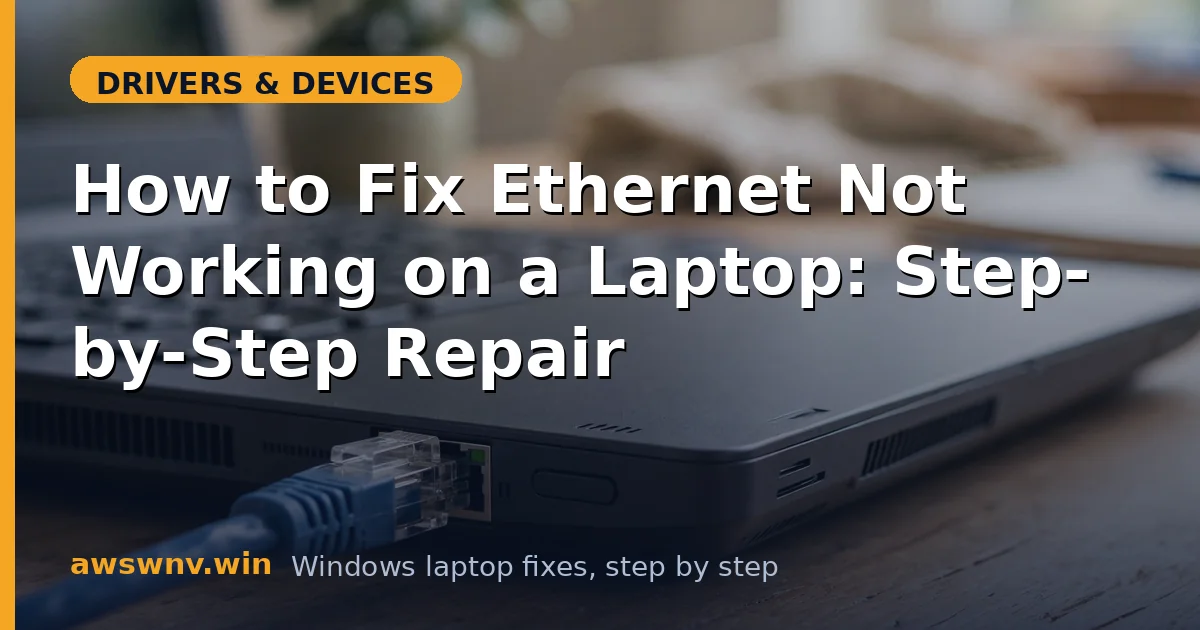
Look at the Ethernet jack where the cable plugs in — you want link lights (usually green for link, amber for activity). No lights means no physical link. Try a different cable first; cables fail internally while looking fine. Try a different port on the router or switch. If you use a USB-C or USB Ethernet dongle, try a different USB port on the laptop — some ports deliver cleaner power than others. If the lights come on with a new cable, you have found the problem; if they stay dark everywhere, continue to the driver checks.
Fix 2: Verify the adapter appears in Device Manager
Open Device Manager and expand Network adapters. Look for your Ethernet controller (Realtek PCIe GbE, Intel Ethernet, or the USB dongle’s adapter). If it shows a yellow warning, the driver is broken — skip to Fix 4. If it has a down arrow, right-click and Enable device. If it is missing entirely, click Action > Scan for hardware changes. For USB dongles, also check under Universal Serial Bus controllers for unknown devices — a dongle Windows cannot identify needs its driver installed manually from the dongle maker’s site.
Fix 3: Release, renew, and reset the IP configuration
If the adapter is present but shows “unidentified network,” the IP configuration is the suspect. Open an elevated Command Prompt (Windows + X > Terminal (Admin)) and run these in order: ipconfig /release, ipconfig /renew, ipconfig /flushdns. Then run netsh winsock reset and netsh int ip reset, and restart. This sequence clears stale DHCP leases, corrupted DNS cache, and damaged stack state in one pass. After the restart, check Settings > Network & internet > Ethernet — you want an IP address in your router’s range, not a 169.254.x.x self-assigned address.
Fix 4: Reinstall the Ethernet driver
In Device Manager, right-click the Ethernet adapter and choose Uninstall device, checking Attempt to remove the driver for this device if offered. Restart — Windows reinstalls a driver on boot. Test the connection. If it works, you are done. If Windows reinstalls the same broken driver, download the Ethernet driver for your exact model from Lenovo support , Dell support , or HP support and install it manually. Restart after installing.
Fix 5: Disable power management on the adapter
Open the Ethernet adapter’s Properties > Power Management tab in Device Manager and uncheck Allow the computer to turn off this device to save power. Then open Properties > Advanced and look for Energy Efficient Ethernet or Green Ethernet — set it to Disabled if present. Aggressive power saving can prevent the adapter from establishing or maintaining link, producing the maddening symptom of Ethernet that works for a minute after boot and then dies. This fix is especially relevant for Realtek PCIe controllers, which are sensitive to these settings.
Fix 6: Check speed, duplex, and driver advanced settings
In the adapter’s Properties > Advanced tab, find Speed & Duplex and set it to Auto Negotiation — a manually forced speed that mismatches the router prevents link entirely. While here, verify Wake on LAN settings are not interfering, and check that Jumbo Frame is disabled unless your network specifically uses it. Click OK and unplug/replug the cable to force renegotiation. If the adapter previously showed “network cable unplugged” with a known-good cable, a speed/duplex mismatch is a classic cause.
Fix 7: Use the network reset and test the hardware
Go to Settings > Network & internet > Advanced network settings > Network reset and reset. This reinstalls all network adapters and returns every network setting to defaults — it is the nuclear option for the software side, so save any VPN or static-IP configurations first. Restart and retest. If Ethernet still fails after a network reset with a known-good cable, known-good router port, and the vendor driver, test with a Linux live USB: if Ethernet works there, Windows is still the problem (consider an in-place repair install); if it fails there too, the jack or controller hardware needs service. If your wireless is also acting up, our MediaTek Wi-Fi repair guide covers the wireless side.
Closing
Ethernet problems reward methodical diagnosis: link lights and cables first, then Device Manager, then IP configuration, then drivers. Most cases end at the cable or the driver reinstall. Once the wired connection is back, leave the adapter’s power management off and keep the vendor Ethernet driver handy — wired networking should be the thing you never have to think about.