Ethernet that stops working on a Windows 10 laptop presents differently from WiFi trouble: there is usually a cable, port LEDs, and a very specific error message to work with. “Network cable unplugged” when the cable is plainly plugged in, a yellow triangle on the adapter, or a connection that identifies the network but gives no internet — each points at a different layer, and reading the symptom correctly cuts the fix time dramatically.
Work from the physical layer up. Ethernet is beautifully diagnosable: link lights tell you about the cable and port before you ever open Device Manager, and the adapter’s reported link speed tells you about driver and duplex problems. Software fixes come after the hardware baseline is confirmed. Windows 10’s networking stack is mature, which cuts both ways: it’s stable, but years of VPN clients, security suites, and feature updates can leave it in a tangled state where the adapter links fine and no traffic flows. The other Windows 10 wrinkle is driver age — the OS happily runs Ethernet drivers from 2016 that predate your router’s firmware by a decade. The steps below handle both the cruft and the age.
Why this happens
- Damaged or wrong-category cable: A broken pair inside the cable kills the link entirely; an old Cat5 cable may link but cap speed at 100 Mbps.
- Dead router/switch port: The far end of the connection fails as often as the laptop end, and it is the easiest thing to test.
- Corrupted Ethernet driver: Driver corruption or a bad Windows Update replacement produces Code 10 errors or phantom “unplugged” states.
- Power management disabling the adapter: Windows turning off the NIC to save power leaves it unable to re-establish link after sleep.
- Speed/duplex mismatch: A manually forced speed setting that disagrees with the switch causes no-link or severe slowness.
- TCP/IP stack corruption: Malware, VPN clients, or failed updates can corrupt the stack so the adapter links fine but passes no traffic.
- Disabled adapter: The Ethernet adapter is simply disabled in Network Connections — common after troubleshooting WiFi issues.
- Failing Ethernet controller: Rare, but onboard NICs do die, usually after power surges through the cable.
How to fix it
Work through these in order — diagnose first, then act.
Fix 1: Check link lights, cable, and port
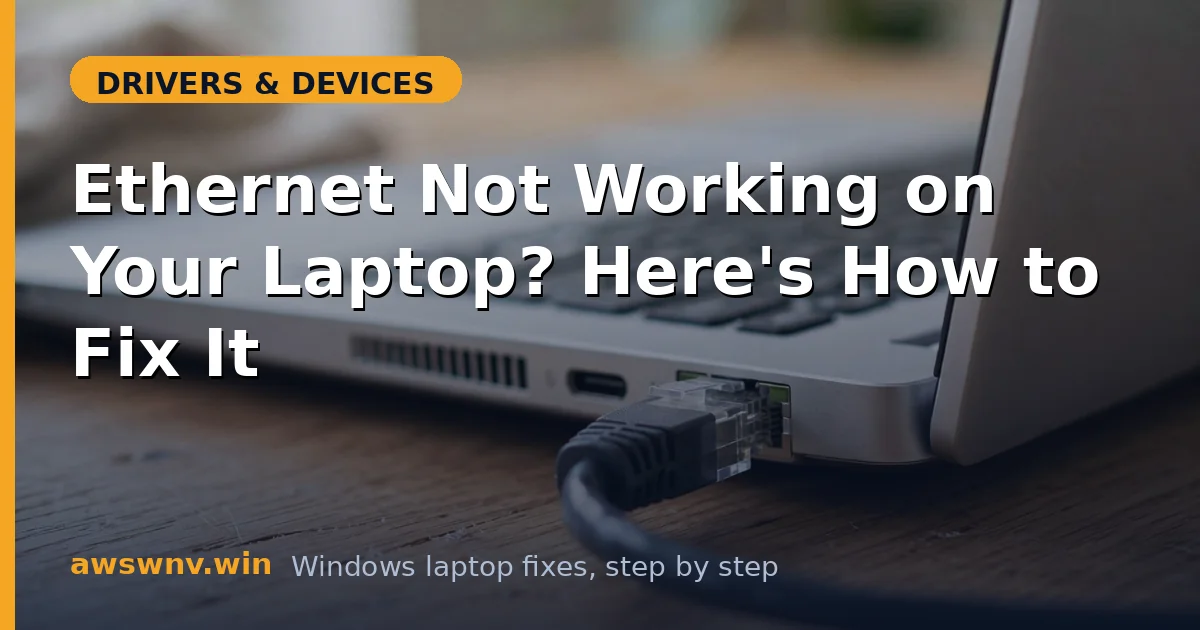
- Look at the Ethernet port LEDs with the cable plugged in — solid or blinking lights mean electrical link; dark LEDs mean no link at all.
- Swap the cable for a known-good Cat5e or Cat6 cable, even if the current one “looks fine” — internal breaks are invisible.
- Plug into a different port on the router or switch, and power-cycle the router.
- If link lights come alive on a different port, the router port was dead; if they stay dark everywhere, the laptop side is the suspect.
- While testing, look at the LED colors and blink patterns — many adapters use green for gigabit link and amber for 100 Mbps, so an amber light with a good cable immediately tells you the negotiation is degraded, pointing at the cable or switch port rather than the laptop.
Fix 2: Confirm the adapter is enabled
- Press Win + R, type
ncpa.cpl, and open Network Connections. - If the Ethernet adapter shows Disabled, right-click → Enable.
- If it shows Network cable unplugged despite a good cable and port, continue to driver fixes.
- Note the adapter name (Realtek, Intel, Killer) — you will need it to fetch the right driver.
Fix 3: Reinstall the Ethernet driver cleanly
- Download the LAN driver for your model from the laptop maker’s support site using WiFi or another computer.
- In Device Manager → Network adapters, right-click the Ethernet controller → Uninstall device, ticking driver removal if offered.
- Restart and install the manufacturer’s driver package — avoid letting Windows Update pick a generic one first.
- Verify in Device Manager that the adapter shows no warning icon. The same clean-reinstall discipline fixes vanishing wireless adapters .
- For the deeper step-by-step variant of this repair, our ordered Ethernet checklist covers the same ground as a strict sequence you can follow without skipping steps.
Fix 4: Disable power management for the NIC
- In Device Manager, right-click the Ethernet adapter → Properties → Power Management.
- Uncheck Allow the computer to turn off this device to save power.
- On the Advanced tab, disable Energy Efficient Ethernet and Green Ethernet if present — these power-saving modes cause link flaps on some switches.
- Restart and test sleep-wake cycles to confirm the link re-establishes.
Fix 5: Set speed and duplex correctly
- In the adapter’s Properties → Advanced tab, find Speed & Duplex.
- Set it to Auto Negotiation first — manual settings cause more problems than they solve on modern networks.
- Check Status on the connection: it should read 1.0 Gbps on a gigabit network. If it reads 100 Mbps with a good cable, the cable or a switch port is limiting you.
- Only force 1.0 Gbps Full Duplex manually if auto-negotiation demonstrably fails with specific enterprise switches.
- Document the working combination — adapter driver version, speed setting, and cable category — in a note. Ethernet issues recur across Windows updates, and knowing the exact working setup turns the next repair into a five-minute restore instead of a fresh investigation.
Fix 6: Reset the TCP/IP stack
- Open Command Prompt as administrator.
- Run
netsh winsock resetand thennetsh int ip reset, pressing Enter after each. - Run
ipconfig /releasefollowed byipconfig /renewandipconfig /flushdns. - Restart the laptop. This clears corrupted stack state that lets the adapter link while passing zero traffic — the classic “connected, no internet” on wired.
- If problems persist after the reset, check Microsoft’s Windows networking guidance for any known-issue patches affecting wired adapters on your Windows 10 build.
Fix 7: Test with a USB Ethernet adapter
- Borrow or buy a USB 3.0 Ethernet dongle and connect through it.
- If the dongle works perfectly, the onboard NIC is faulty or its driver is unfixable — the dongle is a fine permanent replacement.
- If the dongle fails identically, the problem is in Windows networking itself — consider a network reset (Settings → Network & Internet → Advanced network settings → Network reset).
- After a network reset, reinstall VPN clients and re-enter WiFi passwords, since the reset clears all network profiles.
Closing
Ethernet failures on Windows 10 laptops reward methodical layer-by-layer diagnosis: link lights and cables first, then the adapter state, then drivers, then the TCP/IP stack. Most cases end at Fix 3 or Fix 4 — a clean manufacturer driver with power management disabled. Keep a spare known-good cable in your bag; it is the fastest diagnostic tool in wired networking.