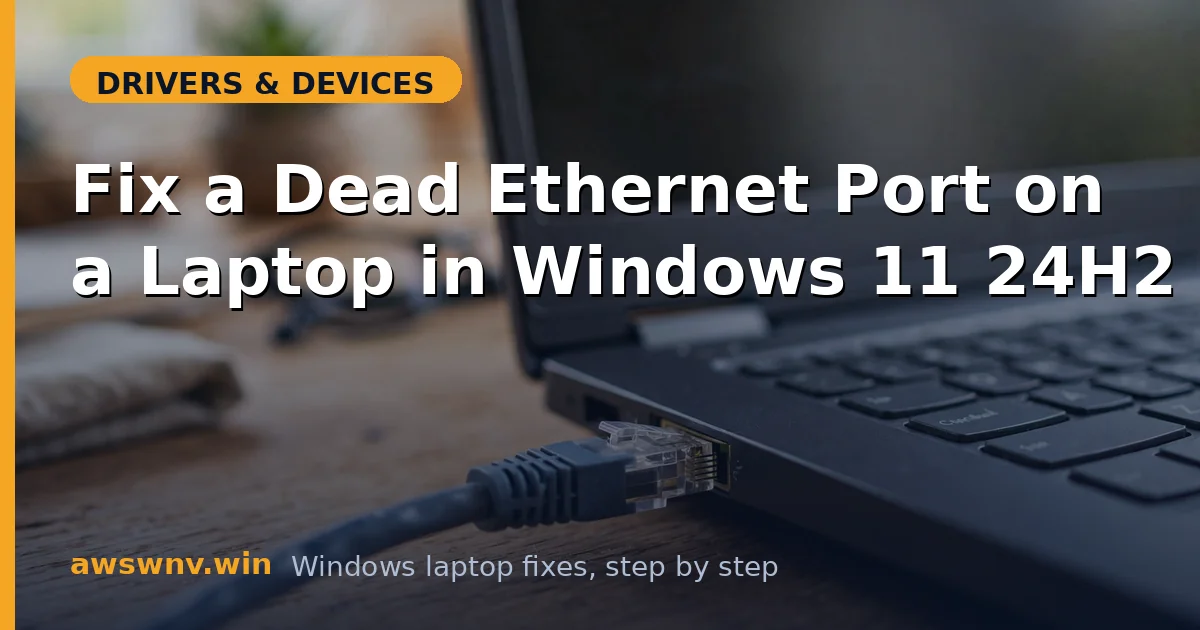
Ethernet dying after the Windows 11 24H2 update is frustrating precisely because wired connections are supposed to be the reliable fallback. The symptom varies: the adapter vanishes from Network Connections, the status shows “network cable unplugged” with a cable firmly seated, or the link connects but passes no traffic. Before assuming the port is dead, run the physical checks — then accept that 24H2’s network driver migration is the likely culprit.
The diagnostic logic is simple: physical layer first (cable, port, LEDs), then driver layer, then Windows network stack. Most cases resolve at the driver layer. Keep this order and you will not waste an hour resetting TCP/IP for a broken cable.
Why this happens
- Ethernet driver replaced with incompatible version: 24H2 installs a generic or wrong-version driver for the Realtek/Intel NIC that cannot initialize the hardware.
- Adapter disabled during migration: The update can leave the Ethernet adapter disabled in Network Connections or Device Manager.
- Power management killing the NIC: “Allow the computer to turn off this device” lets Windows sleep the adapter and fail to wake it on cable insert.
- Corrupted network stack: Winsock and TCP/IP catalog corruption from the update breaks connectivity even with a working driver and link.
- Speed/duplex forced to wrong value: A hardcoded speed setting that worked with the old driver fails to negotiate with the new one.
- USB-C/Thunderbolt dock driver issues: Many modern laptops get Ethernet through a dock; the dock’s Ethernet driver (often a separate USB network driver) breaks in 24H2.
- Bad cable or switch port (physical): Updates get blamed for coincidental hardware failures — always verify the physical path.
- BIOS network stack setting changes: Some firmware updates reset the onboard LAN or deep-sleep settings.
How to fix it
Work through these in order — diagnose first, then act.
Fix 1: Verify the physical layer
- Check the Ethernet port LEDs with the cable plugged in — link/activity lights mean the NIC sees the switch.
- Try a different cable and a different router/switch port.
- Test the same cable and port with another device (or your phone via USB tethering to confirm the router side works).
- If no LEDs light on any cable/port combination, the port or NIC may be dead — but continue with driver checks first, since a driver that cannot initialize the NIC also produces dark LEDs.
Fix 2: Confirm the adapter is enabled
- Go to Settings → Network & internet → Advanced network settings → More network adapter options.
- If the Ethernet adapter is grayed, right-click → Enable.
- In Device Manager → Network adapters, confirm the Ethernet controller has no warning icon and is not disabled.
- If the adapter is missing entirely from Device Manager, enable View → Show hidden devices — a grayed entry points to an enumeration problem, and the hidden-device cleanup guide covers the next steps.
Fix 3: Reinstall the vendor Ethernet driver
- Identify your NIC in Device Manager (e.g., Realtek PCIe GbE, Intel Ethernet Controller).
- Download the LAN driver for your exact model from Dell , HP , or Lenovo support.
- In Device Manager, right-click the adapter → Uninstall device, checking Attempt to remove the driver.
- Reboot and install the downloaded vendor driver. If you connect through a dock, also update the dock’s Ethernet/USB network driver from the dock vendor.
Fix 4: Disable power management on the adapter
- In Device Manager, right-click the Ethernet adapter → Properties → Power Management.
- Uncheck Allow the computer to turn off this device to save power.
- On the Advanced tab, disable Energy Efficient Ethernet and Green Ethernet if present — these power-saving modes cause link negotiation failures on some switches.
- Set Speed & Duplex to Auto Negotiation unless your network admin requires a fixed value.
Fix 5: Reset the Windows network stack
- Open an elevated Command Prompt.
- Run, in order:
netsh winsock reset,netsh int ip reset,ipconfig /release,ipconfig /renew,ipconfig /flushdns. - Reboot.
- Alternatively use Settings → Network & internet → Advanced network settings → Network reset — it reinstalls all adapters and resets everything to defaults. Reinstall the vendor driver afterward if the reset pulls a generic one.
Fix 6: Check for IP and DHCP problems
- Run
ipconfig /alland check whether the Ethernet adapter has a valid IPv4 address or a 169.254.x.x APIPA address. - APIPA means DHCP failed — try
ipconfig /releasethenipconfig /renew, and reboot the router. - Test with a static IP in your LAN’s range to isolate DHCP vs. driver issues.
- If Wi-Fi gets DHCP fine but Ethernet does not, the problem is specific to the Ethernet path — driver or hardware, not the router. Related wireless-side checks live in the Wi-Fi troubleshooting guides .
Fix 7: Check BIOS settings and rule out hardware failure
- Enter BIOS and confirm Onboard LAN / LAN Controller is Enabled.
- Disable Deep Sleep power options for the NIC if present — they can prevent link establishment.
- Boot a Linux live USB and test Ethernet there. Working Ethernet in Linux proves the port hardware is fine and the fault is Windows drivers.
- If Linux also shows no link with known-good cables, the NIC or port is physically faulty — USB Ethernet adapters are an inexpensive workaround.
Closing
Ethernet failures after 24H2 follow a predictable pattern: the physical port is fine, but the driver migration broke the software path. Verify the cable and LEDs, confirm the adapter is enabled, reinstall the vendor’s driver, disable NIC power management, and reset the network stack — in that order. A Linux live-USB test gives you the definitive hardware verdict if everything else fails. Wired networking is simple at its core; the update just tangled the driver, and untangling it is mechanical.