“Battery wear level” sounds alarming, and battery-monitoring apps love to display it in angry red. But wear is just a number describing how much original capacity the chemistry has lost — and the number alone doesn’t tell you what to do. A battery at 25% wear that still covers your day is fine; one at 35% that dies mid-meeting is not.
This guide shows you how to measure wear accurately (not all apps agree), how to slow it down from here, and how to decide when the honest answer is a new battery.
Why this happens
- Charge cycles consume lifespan. Every full 0–100% cycle — or equivalent partial cycles — permanently reduces capacity a little. Heavy daily cycling adds up fast.
- Heat accelerates aging. Batteries kept hot (gaming, blocked vents, warm rooms) degrade significantly faster than cool ones — heat is the number-one avoidable accelerator.
- Sitting at 100% stresses cells. A laptop plugged in at full charge for months ages faster than one capped at 80%, because high cell voltage drives parasitic reactions.
- Deep discharges hurt. Regularly running to 0% stresses cells more than shallow 40–80% cycling.
- Time passes regardless. Even a lightly used battery loses capacity with calendar age — chemistry degrades sitting on a shelf, just slower.
- Cheap replacement batteries wear faster. Low-quality cells often show high wear within months; genuine or quality third-party packs hold up far better.
How to fix it
Work through these in order — measure first, then slow the decline, then decide on replacement.
Fix 1: Measure wear accurately with a battery report
Don’t trust a single app’s number — get it from Windows itself.
- Open an elevated terminal (Win + X > Terminal (Admin)).
- Run
powercfg /batteryreport /output "C:\battery-report.html"and open it in your browser. - Note Design Capacity and Full Charge Capacity (both in mWh).
- Calculate:
(Design − Full Charge) ÷ Design × 100= wear percentage. - Sanity-check against Battery capacity history — a smooth decline is normal aging; sudden drops suggest app misreporting or a failed cell.
- If a third-party app disagrees wildly with the report, trust the report — some apps misread design capacity. Our battery health guide walks through the whole report, and Microsoft’s Windows support hub documents the underlying powercfg tools.
Fix 2: Calibrate to make sure the number is real
- Sometimes “wear” is partly gauge error. Run a full calibration: charge to 100% plus two hours plugged in.
- Discharge through normal use until the laptop shuts off on its own.
- Rest powered off for 4–5 hours, then recharge uninterrupted to 100%.
- Generate a fresh battery report and recalculate — if wear dropped several points, the old number was partly fiction.
- Genuine wear won’t budge with calibration; that’s how you tell the difference.
- Details in our calibration guide .
Fix 3: Cap the charge at 80% going forward
- This is the highest-impact habit change. Find your maker’s limiter: Lenovo Vantage (Conservation Mode / charge threshold), MyASUS (Battery Health Charging), Dell Power Manager (Adaptive/Custom), HP BIOS (Battery Health Manager), Acer Care Center.
- Set the cap to 80% for balanced use, or 60% if the laptop rarely leaves the desk.
- The lower average cell voltage dramatically slows further wear — this is the closest thing to freezing the wear number where it is.
- Toggle it off the night before travel when you need full runtime.
- Full brand-by-brand instructions in our charge-limit guide .
Fix 4: Cool it down and cycle shallower
- Keep the laptop on hard surfaces with clear vents — heat plus high wear is a fast track to worse wear.
- Avoid deep discharges: plug in around 20–30% rather than running to empty.
- Avoid leaving it at 100% in hot environments for days.
- Set Power mode to Balanced instead of Best performance for routine work — less heat, less stress.
- If the battery runs hot while charging specifically, read our overheating guide — heat is wear’s best friend.
Fix 5: Reduce unnecessary cycling
- If the laptop lives on a desk, leave it plugged in with the charge limiter on — modern charging circuits won’t overcharge, and the limiter prevents the 100% stress.
- Don’t obsessively unplug/replug to “exercise” the battery — that myth just adds cycles.
- For storage of weeks or more, leave the battery at ~50% in a cool place.
- Disable battery-draining background nonsense (see our fast-drain guide ) so each charge lasts longer and you cycle less often.
- Use Battery saver at a generous threshold (40%) to stretch each cycle.
Fix 6: Decide on replacement with real criteria
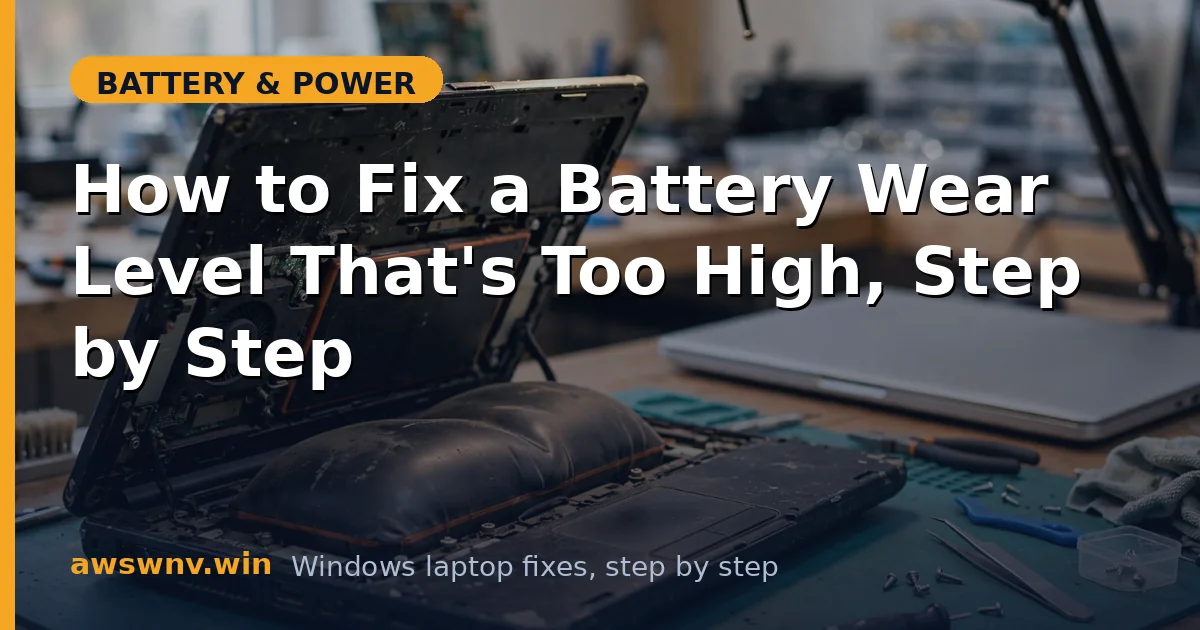
- Replace when: wear exceeds ~40% and runtime no longer meets your needs, or the battery shows swelling/heat/shutdown symptoms at any wear level.
- Don’t replace on the number alone — a 35%-wear battery that still lasts your workday is fine.
- Find the exact part number on the battery label; order from the maker or a reputable parts seller.
- For internal batteries, follow the service manual or use a shop — and never puncture a lithium pack.
- After installing, run one full calibration cycle so the gauge learns the new cells from day one.
Fix 7: Verify the new baseline and monitor
- After any changes (or a new battery), generate a fresh battery report and record the new full-charge capacity.
- Re-run the report monthly for a few months to confirm wear is stabilizing rather than climbing.
- Keep the charge limiter on and habits cool — the goal is a flat wear curve from here.
- If wear climbs fast on a new battery (10%+ in a few months), suspect a counterfeit pack or an overheating problem, not normal aging.
- Document the numbers somewhere — future-you will appreciate the baseline.
Closing
Battery wear is a one-way street, but it’s a slow one when you treat the battery well — and “too high” is a practical question, not a moral one. Measure it properly, cap the charge, keep it cool, and replace the battery when runtime — not anxiety — says it’s time. The number on the screen is information, not a verdict.