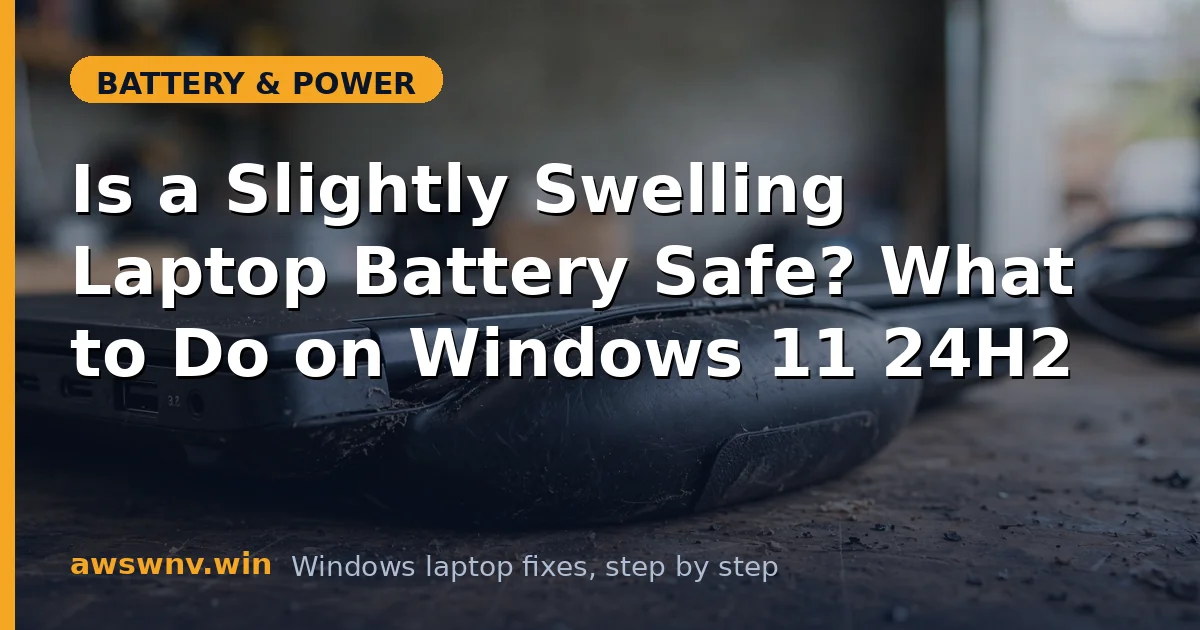
Let’s be direct: a swollen battery is the one battery problem you should take seriously even when it looks minor. “Slightly” swollen still means gas is building up inside the cells, and while laptops rarely burst into flames over a mild bulge, the correct response is prompt, calm action — not panic, and not ignoring it.
This guide covers how to confirm the swelling, how to use the laptop safely in the meantime, and how to get the battery replaced properly on a Windows 11 machine. Read the safety steps first even if you’re sure you’ll replace the battery tomorrow — the few precautions in Fix 3 are what keep a mild problem from becoming a serious one overnight.
Why this happens
- Gas buildup from electrolyte breakdown. Heat, age, and overcharging decompose the electrolyte, releasing gas that puffs the pouch cells.
- Chronic 100% charge in heat. A laptop that lives on a charger in a warm room ages its battery fastest — the exact recipe for swelling.
- Deep discharges. Repeatedly running to 0% stresses cells and contributes to gas generation over time.
- Manufacturing defects. A small percentage of cells develop internal faults that cause swelling even with good habits.
- Physical damage. Drops or pressure on the battery area can damage cells and trigger swelling later.
- Old age. After 3–5 years, some swelling risk exists even in well-treated batteries.
- Faulty charging circuit. Rare, but a circuit that overcharges cells will swell a battery quickly.
How to fix it
There is no software fix for a swollen battery. These steps are about safety, confirmation, and replacement.
Fix 1: Confirm the swelling safely
- Power the laptop off and unplug everything.
- Place it on a flat table and check whether it rocks or sits unevenly — a flat laptop that now wobbles is a strong sign.
- Look at the seams around the bottom panel and keyboard deck for separation or bulging.
- Note trackpad behavior: a trackpad that feels raised, stiff, or clicks differently is often being pushed up from below by the battery.
- Do not pry the case open to look — internal inspection comes later, by a technician. If you can already see the battery itself through a separated seam, treat the swelling as more than slight and jump straight to Fix 3’s stop-use guidance.
Fix 2: Back up your data immediately
A battery replacement means the laptop will be opened or sent away. Don’t risk your files.
- Connect an external drive or open your cloud backup.
- Copy documents, photos, and anything irreplaceable first — do a full system image if you have time (
Control Panel > System and Security > Backup and Restore (Windows 7) > Create a system imagestill works in Windows 11). - Verify the backup by opening a few files from it. A backup you haven’t checked is a hope, not a backup.
Fix 3: Reduce risk while you arrange replacement
- Stop charging the laptop unattended or overnight — charge only while you’re present and awake.
- If you must keep using it, run it on AC power with the battery at a moderate level rather than cycling it hard; avoid gaming or heavy rendering, which heats the pack.
- Keep it on a hard, ventilated surface — never on a bed or couch where heat builds up.
- If swelling is more than slight — case separating, strong chemical smell, extreme heat — stop using it entirely, unplug it, and place it on a non-flammable surface away from anything combustible.
Fix 4: Check warranty and recall status
- Find your serial number (
msinfo32or the sticker on the bottom). - Check the manufacturer’s warranty page: Dell , HP , Lenovo .
- Search the manufacturer’s site for battery recalls for your model — swollen-battery recalls are common, and a recall means a free replacement.
- If under warranty or recalled, follow the manufacturer’s process exactly and don’t open the machine yourself.
Fix 5: Get a proper replacement battery
- Get the exact battery part number for your model from the manufacturer’s support page.
- Order a genuine battery — this is the one component where knockoffs are genuinely risky, since poor-quality cells swell faster.
- Decide: manufacturer service center, reputable local repair shop, or DIY if your model has a user-replaceable battery and you’re comfortable. For glued-in batteries, professional replacement is strongly recommended.
Fix 6: Dispose of the old battery correctly
- Never put a swollen battery in household trash or regular recycling — it’s a fire hazard in garbage trucks and facilities.
- Tape over the battery terminals with electrical tape to prevent short circuits.
- Take it to a dedicated battery recycling drop-off (electronics stores, municipal hazardous waste collection).
- Until drop-off, store it in a cool, dry place in a fire-resistant container, away from metal objects.
Fix 7: Prevent recurrence on the new battery
Once the new battery is in, break the habits that caused the swelling.
- If your laptop offers a charge limit (Lenovo Vantage conservation mode, Dell Power Manager, MyASUS battery health), set it to 80% if you mostly work plugged in — see how to limit battery charge to 80% for the general approach across brands.
- Keep the laptop ventilated and avoid sustained high temperatures — heat is the biggest accelerator.
- Don’t leave it at 0% for weeks; don’t pin it at 100% for months. Middle charges are kindest.
- Run
powercfg /batteryreportevery few months to watch for abnormal wear — our guide to checking battery health shows how.
Closing
A slightly swollen battery is your laptop asking for help politely before it has to ask rudely. Back up, stop risky charging habits, check warranty and recalls, and replace the pack through proper channels. Treat it promptly and it’s a routine repair, not an emergency — but “promptly” means days, not months. When in doubt about the severity, err on the side of stopping use — a replacement battery costs far less than a damaged laptop.